Repository navigation
Tutorial 01 A new world
Part of the tutorial: page 1 of 12
▶ Watch this page: part 1 of the tutorial video (about 2 min), with narration and subtitles.
Create the map the whole tutorial builds on: a Guided map with the seed P0JBVA, 2,000 by 1,600 pixels, from 60° north to 60° south, with one large continent, three islands and an inland sea.
Start from: Nothing: this page makes the map. If the studio already has a map open that you want to keep, save it first.
Over these twelve pages you build one complete map, using nearly every tool in the studio. Each page ends with the map saved, and the next page starts from it, so you can follow the whole tutorial on one map. If you skip a page, or your map has drifted from the pictures, each page links the map as it should be at its start.
The tutorial's map uses the Guided engine: you draw where the land goes and the engine makes the terrain inside your shapes. Your shapes will not match the pictures exactly, and that is fine. To have exactly the tutorial's map, import the file in Start from at the top of the next page.
-
Open the map builder. On the web, go to fwmb.filroden.com. In Foundry, open the Scenes sidebar and click Map builder at its top. The studio opens on New map, the first tool on the rail, with a random map to start from.

The studio as it opens: the rail on the left, the New map panel beside it, and the map.
-
In the Generation section, type
P0JBVAin Map seed (the second character is a zero). The seed decides every random choice the engine makes, so the same seed, engine and settings always give the same map. -
Set Size to
2000×1600pixels. A larger map takes longer to generate each time the whole map is worked out again; this size is quick enough to experiment with and big enough for a detailed world. -
Set Latitude to
60to-60: the map's top edge is 60° north and its bottom edge 60° south. The latitudes shape the climate, so this world runs from cold northern lands through the tropics to cold southern ones. Leave Area factor at 15 and Map unit at km: the line under them says what one pixel measures.
The Generation section with the tutorial map's seed, size and latitudes.
-
Choose Guided v2 in Generation engine. Choosing an engine creates a new map with it at once, so the studio asks what to do with the map that is open. It has never been saved, so there is nothing to keep.

Choosing an engine asks about the open map's unsaved changes.
-
Click Discard. The new map is all ocean: on a Guided map nothing is land until you draw it. The bar above the map now shows Land chosen and the state reads Drawing, ready for your first land mask.
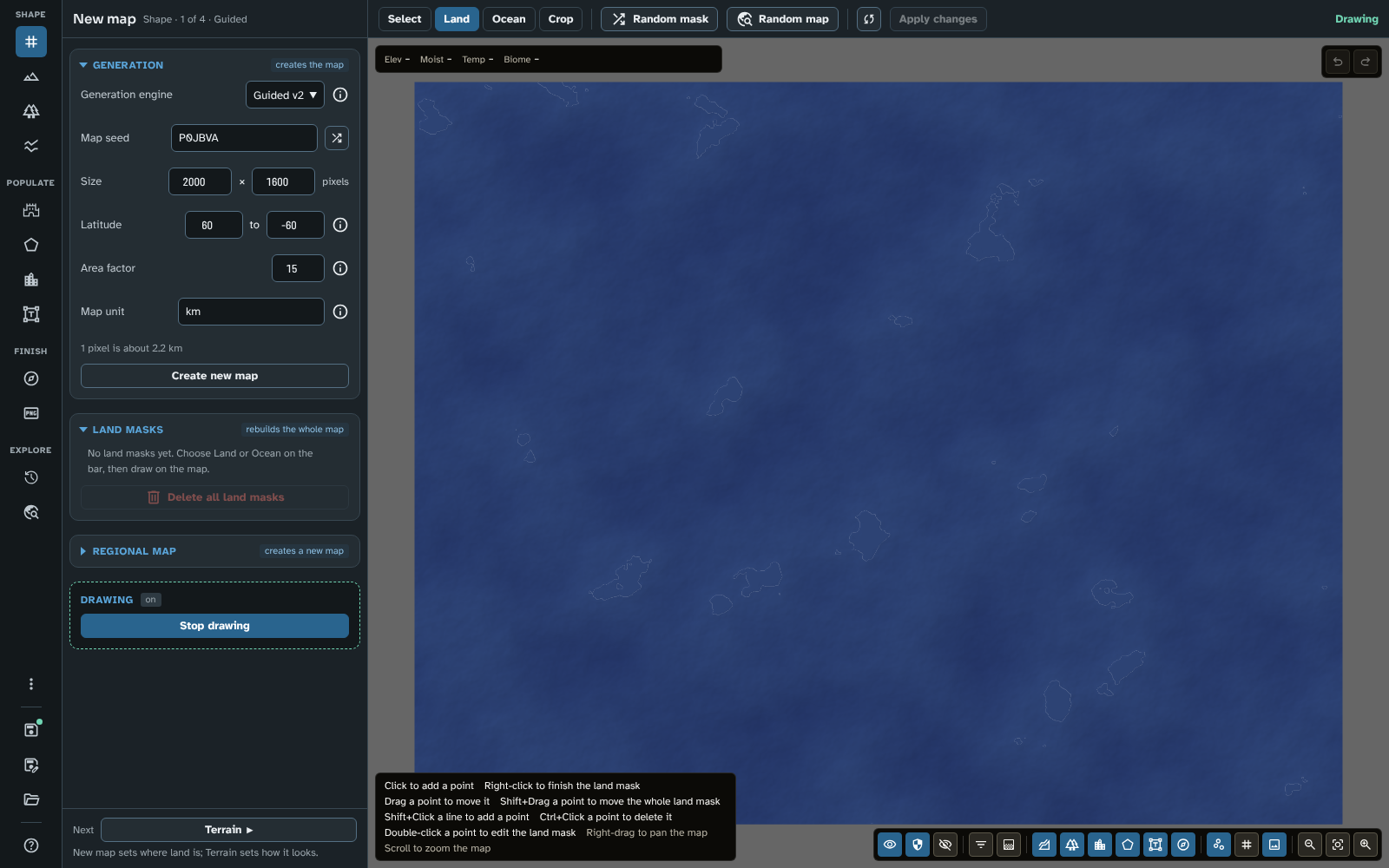
A new Guided map before any land is drawn, with Land chosen on the bar.
-
Draw the continent. With Land chosen on the bar, click on the map to place the points of its outline, going round the shape in the picture below. You can click a little outside the map's edge: the land then runs off the map. The new land mask opens in the inspector on the right as you place its first point; click Reset view in the map controls (bottom right) to see the whole map beside it. Right-click to finish the shape. The engine then makes the terrain inside it.

The continent's land mask, with the terrain the engine made inside it.
Your outline does not need to match. Drag a point to move it, Shift+Click the outline to add a point, and Ctrl+Click a point to delete it; Undo takes back the last point.
-
Draw the three islands to the east the same way: click round each one and right-click to finish it, before starting the next. Each land mask is listed in the panel's Land masks section.

The continent and the three islands, listed under Land masks.
Tip: each point you place makes the engine build the whole map again, which takes a few seconds at this size. To place several points without waiting, click Pause regeneration on the bar (the toggle beside Random map) before you draw; your changes are collected, and applied when you click Apply changes, turn the toggle back on, or stop drawing.
-
Choose Ocean on the bar and draw the inland sea in the middle of the continent. An ocean mask cuts water out of the land beneath it.

The ocean mask cuts an inland sea out of the continent.
-
Click Stop drawing in the panel, close the inspector with its Close button (top right), and click Reset view in the map controls to see the whole map. The bar goes back to Select: while New map is open the masks stay faintly outlined, and clicking one opens it in the inspector again.
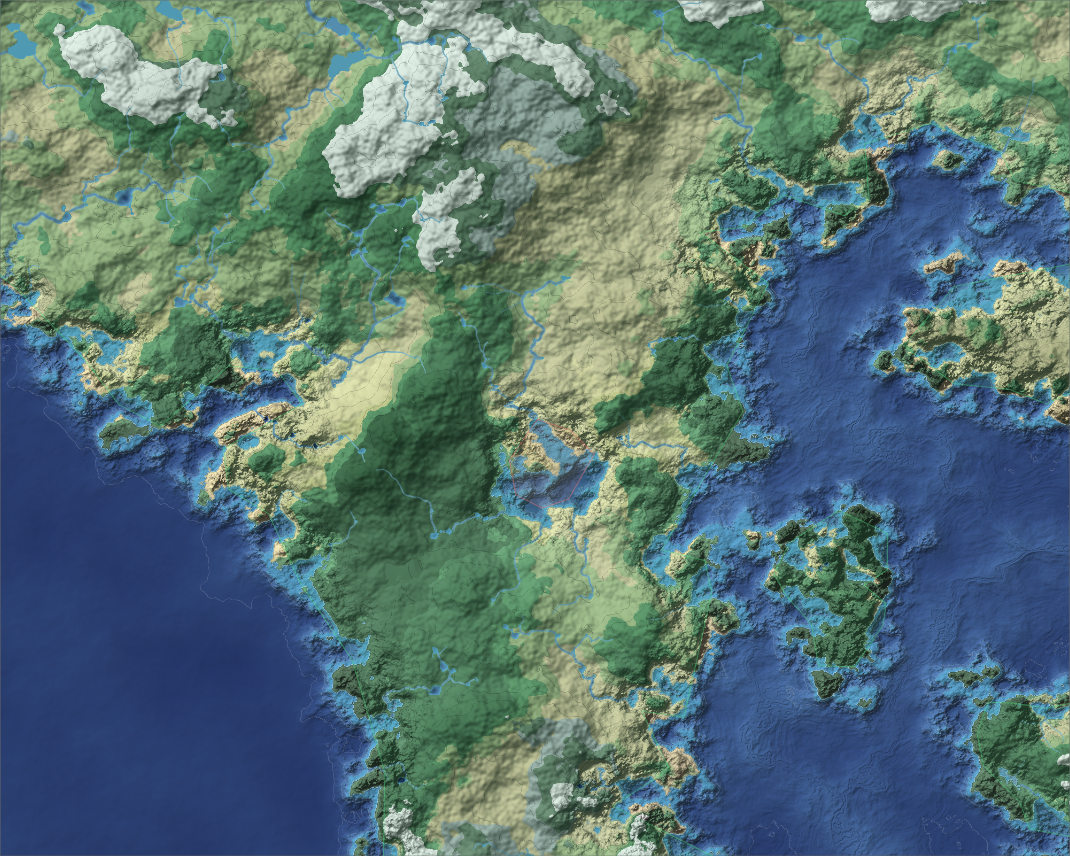
The tutorial's map at the end of this page.
-
Click Save map on the rail (the disk icon near its foot). The map has never been saved, so the studio asks for its name: type
Tutorial worldand click Confirm. On the web the map is saved in your browser; in Foundry, in the world. The saved map is listed in Maps.
A map of one large continent running from the north-west corner down to the south, three islands to the east and an inland sea, all with hills, mountains and coasts the engine made. The map is saved as Tutorial world. The colours come from the biomes the module has worked out from the terrain and climate; later pages change both.
To compare your map with the tutorial's, or to start the next page from exactly this map, download 01-new-world.json and import it in Maps with Import JSON.
Everything on this page is the same in Foundry, apart from opening the studio (from the Scenes sidebar) and where the map is saved (in the world, where every GM can open it).
Choose the engine that fits what you have in mind (see New map for the four engines): Guided when you know the shape of your world, Standard or Advanced (tectonics) to browse random worlds by changing the seed. Set the latitudes before you go further, since they decide the climate. Leave the size modest while you experiment: you can make a larger regional map of any part later (page 11).
Next: Tutorial 02 Shaping the land
Related: New map, Getting Started, Maps