Repository navigation
Tutorial 12 Further tips
Part of the tutorial: page 12 of 12
▶ Watch this page: part 12 of the tutorial video (about 2 min), with narration and subtitles.
Find and change many items at once, control what your players see, and trace a map of your own from an existing image.
Start from: 11-a-regional-map.json, the map as it is at the end of Tutorial 11 A regional map. Download it, then open Maps on the rail and click Import JSON; the map is listed under its name, and Load opens it. Or carry on with your own map from Tutorial 11 A regional map.
This last page answers the questions asked most often. Its first part carries on with the regional map from page 11: finding items in the long lists, changing many at once, and deciding what your players see. Its second part starts a new map, traced over an image of an existing map with the Reference image tool.
-
With The Red Hills open, click Routes and pins on the rail. The Pins list holds every place on the map, nearly eight hundred after the fill-in. Type
fordin its Search by name field: the list keeps the pins whose names contain it, and says how many match.
The Pins list searched for "ford".
-
Clear the search. Set Made by to Generated and Kind of pin to Ruined town: the list keeps the ruined towns the run left behind. Every long list has filters like these: routes by transport, labels by kind (including those with no room, as on page 8), regions by layer.
-
Click Select items for mass edit in the Pins section's title (the pencil). A tick box appears on each row: click Select all, which ticks every pin the list shows, then Mass edit (13). The dialogue shows the pins' fields, each with the value they share or Mixed. Set Visibility to GM only: the ruins are secret until your players find them.

Mass edit for the thirteen ruined towns, with Visibility changed to GM only.
Only the fields you change are written; the rest stay as each pin has them. Delete beside Mass edit deletes the ticked items instead, after asking.
-
Click Confirm. The thirteen ruined towns are GM only, in one step of undo.
-
Everything on the map (pins, routes, regions, labels and decorations) is visible to Everyone, GM only, or Hidden. The first three buttons of the map controls, Player view, GM view and Hidden, choose which of them the map shows; at first the first two are on. Zoom in on the west of the Red Hills, where Redwatch stands with two of the ruins, Draxted and Pereter, marked in red.

Player view and GM view on: Redwatch, and the ruined towns Draxted and Pereter.
-
Click GM view in the map controls to turn it off: the ruins vanish, and the map shows what your players will see.

Player view alone: the ruined towns are left out.
An export shows the map as these buttons do. With GM view off, a PNG is a player's map; with it on, a GM's. In Foundry, Export to scene makes both at once: the scene's image holds what is visible to Everyone, and a hidden tile over it, seen only by the GM, holds the GM-only items.
-
Turn GM view back on. Now hide Redwatch, a castle the story hasn't reached yet: type
Redwatchin the Pins list's search, click its row, and set Visibility to Hidden in the inspector. It disappears even from the GM's view. Click Hidden in the map controls to show hidden items while you work; a hidden item is never exported, whatever these buttons show.
Redwatch hidden, shown while the Hidden view is on.
The eye on each list row cycles the item's visibility: Everyone, GM only, Hidden. A region's or route's label has a visibility of its own, so you can hide a name and keep what it names.
-
Click Hidden in the map controls again to turn it off, close the inspector, and save the map.
-
Now bring in an existing map. Download the sketch ashgrove-sketch.png, an island drawn by hand, 1,200 × 900 pixels. Click New map on the rail, set Size to
1200×900, the same as the image, so the image lies over the map pixel for pixel, and click Create new map. A new map keeps the land masks of the map that was open (you'll see why below), so to start from a clean view, click Delete all land masks in the Land masks section and Yes: the map is all ocean.The engine matters: Guided, used here, makes terrain inside the outlines you draw. Flat makes a flat land a little above the sea, to sculpt by hand with the terrain brushes. See New map.
-
Open Reference image (in More at the foot of the rail). Click Choose a file beside Image source and choose the sketch. It is shown over the map at half Opacity, at its own size, in the middle of the map. Please make sure you have permission to use any map you trace.
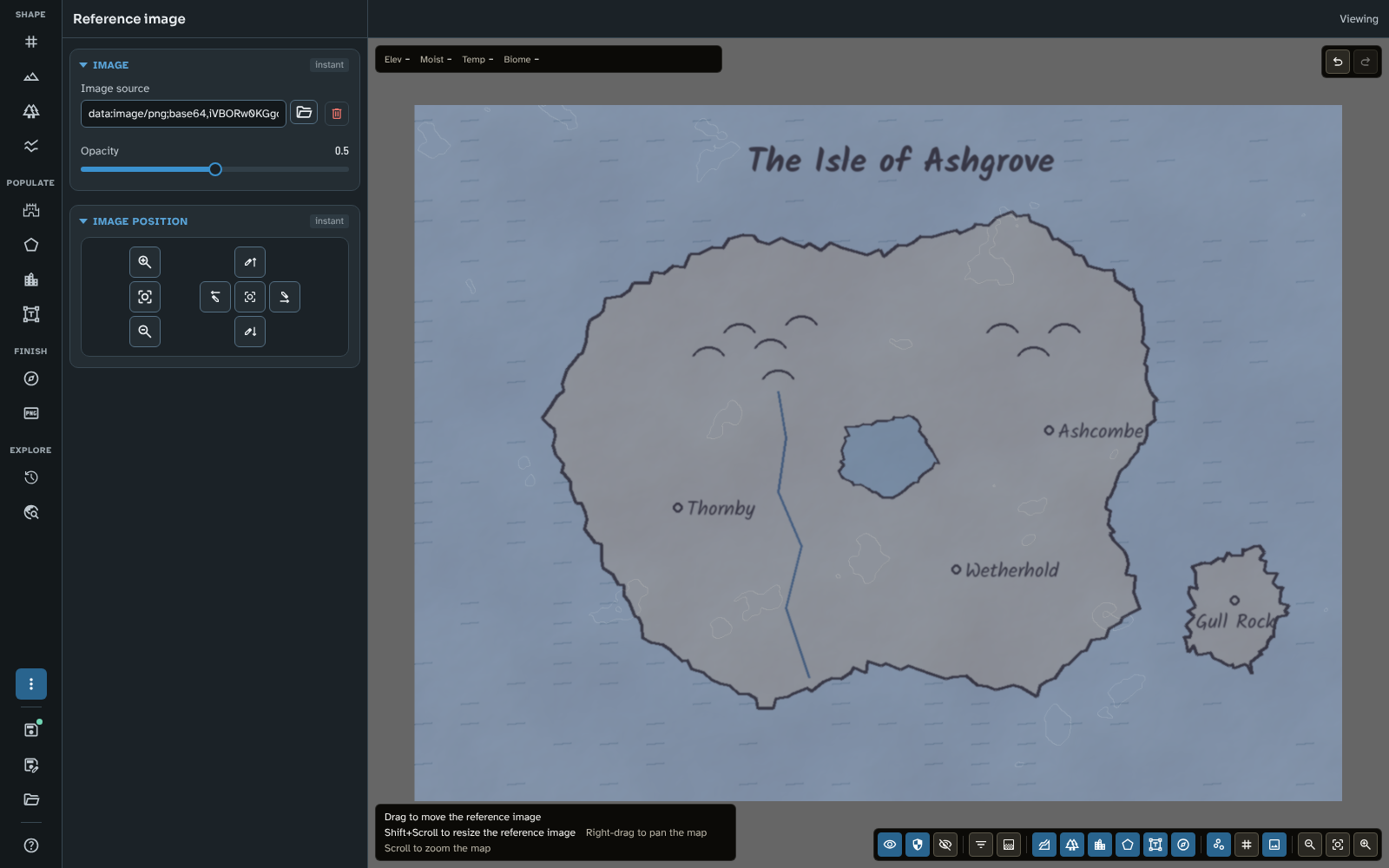
The sketch as the reference image over the new map.
Drag the image to move it, and Shift+Scroll to resize it; the Image position buttons nudge it a pixel at a time. The image is saved with the map, and never exported.
-
Click New map on the rail. With Land chosen on the bar, click round the island's coast and right-click to finish; do the same for the small isle to the east. Choose Ocean and draw round the lake. The engine makes hills, rivers and coasts inside your outlines.

The island, the isle and the lake traced as land masks.
Pause regeneration on the bar (as on page 1) lets you place many points without waiting for the map after each.
-
Click Stop drawing and close the inspector. The outlines are right, but the hills and valleys inside them are the seed's choice. In the Generation section, change Map seed to
51745Dand click Create new map. The studio asks about the map you haven't saved: click Discard. The new map keeps your land masks, so the island's outline stays and only the terrain inside it changes; with this seed the hills sit nearer where the sketch draws them. Try a few seeds until one suits you.This is why a new map keeps the open map's land masks: trying seeds, or a new size, on the same outlines is one click. To start from open sea, click Delete all land masks, as above.
-
Click Terrain on the rail and lower Coastal fracture to
0.1: the coast breaks up less into islets and inlets, nearer the sketch's simple outline. Then turn off Reference image in the map controls and click Reset view to see the island on its own.
The island with the new seed and a smoother coast.
-
Click Routes and pins on the rail, choose Place on the bar and set Pin style to Town. Place the sketch's four towns, each beside a river or on the coast near where the sketch has it, naming each in the inspector as you go: Thornby in the west, Ashcombe in the east, Wetherhold in the south and Gull Rock on the isle.
The sketch's river runs straight from the hills to the south coast; the engine's rivers follow the land instead. To have the sketch's river exactly, draw it as a custom river in Rivers and faults (page 4), though a river that ignores the lie of the land can look out of place.
-
On a map this size the Town style's pins and names are small. Make all four larger at once: set the Pins list's Made by filter to Hand-made, click Select items for mass edit, Select all, then Mass edit (4). Set Scale to
2.2, and in Label, set Style to Place and Size to2.2. Click Confirm. -
Save the map, naming it
The Isle of Ashgrove. A sketch has become a map with real terrain, climate and rivers; from here everything in this tutorial applies to it, from generating its people (page 5) to exporting it (page 10).
The Isle of Ashgrove, made from the sketch.

Two saved maps besides Tutorial world: The Red Hills, with its ruined towns GM only and Redwatch hidden, and The Isle of Ashgrove, traced from the sketch, with the seed 51745D, a smoother coast and its four towns.
To compare your map with the tutorial's, or to start the next page from exactly this map, download 12-further-tips.json and import it in Maps with Import JSON.
Everything on this page is the same in Foundry, apart from where the sketch comes from: in Foundry, Image source opens Foundry's file picker, so upload the image to your world's data first.
Use the filters and Select all whenever you want to change a kind of thing everywhere, and think about styles too: a change to a pin, route or label style reaches every item that follows it. Decide early what your players should not see, and set it GM only as you go; check with GM view off before you export. To recreate a map you already have, make the new map the same shape as the image, trace the coasts as land masks, and lower the image's Opacity to check the terrain against it. See Map Making Tools (mass edit), Map Canvas (view filters), Export and Reference image.
Related: Map Making Tools, Map Canvas, Export, Reference image