Repository navigation
Reference image
Part of Map Making Tools
Reference image is one of the occasional tools on the rail, below the stages. Use it to show an image under your map as a guide to trace from, for example a sketch of your world or an existing campaign map you want to recreate. Please make sure you have permission to use any map you use as a reference.
The reference image is only a guide: it is never exported (see Export). It is saved with the map, with its place, size and opacity, so it is there again when you open the map, and it travels with the map's JSON file and backups.
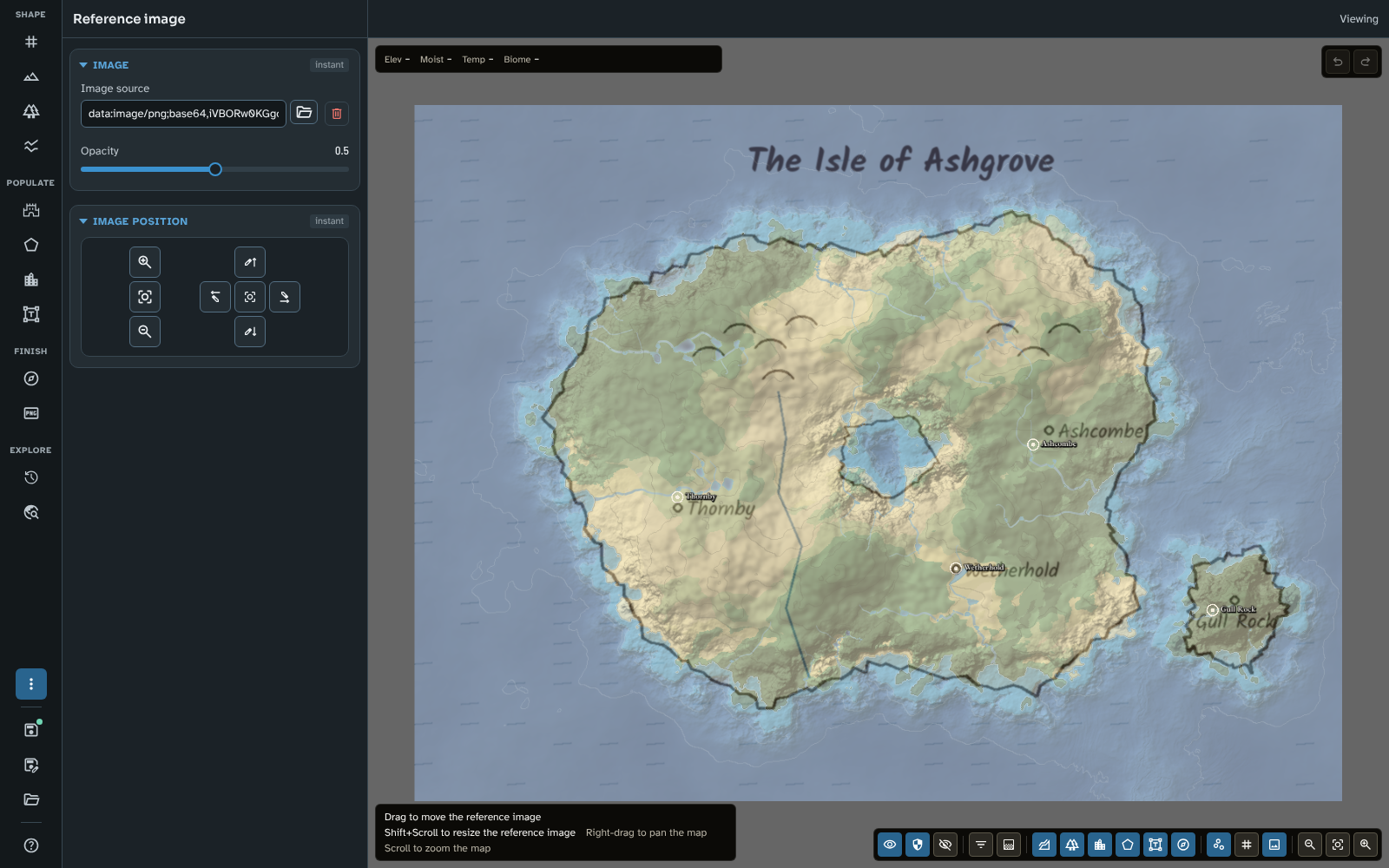
Reference image, with the tutorial's sketch of Ashgrove at half opacity over its map.
The badge says instant: changes show on the map straight away.
- Image source: the image to show. In Foundry, the file picker browses your Foundry data; on the web you can type an image's address or choose an image from your computer. An image chosen from your computer must be a PNG, JPEG, WebP or SVG file of up to 32 MB and 8,192 pixels on each side; it is checked by what it contains rather than its name, and an SVG has any script or link to another file taken out.
- Remove image (the bin button beside it): takes the image away.
- Opacity: how strongly the image shows, from 0 to 1. Double-click the slider to put back the default of 0.5.
The badge says instant. These buttons place and size the image exactly:
- Zoom in, Reset scale and Zoom out make the image larger or smaller, or put it back to its own size.
- Nudge north, Nudge west, Nudge east and Nudge south move the image one pixel at a time, and Centre the image (in the middle) puts it back in the middle of the map.
While the Reference image tool is open, the pointer works on the image rather than on the map:
- Drag to move the reference image.
- Hold Shift and scroll to resize it.
Right-drag still pans the map and scrolling still zooms it, as the canvas hint at the bottom of the map reminds you. Once you choose another tool, the image stays where you put it and the pointer goes back to that tool.
To show or hide the image while you work in other tools, use the Reference image toggle in the map controls (see Map Canvas).
- Lower the Opacity so that the map's terrain and biomes show through, or raise it while you line up a coastline.
- To trace an existing map, set up the reference image first, then use a Guided map's land masks in New map to draw the land where the image shows it.
- See the FAQ for more tips on using a reference image to recreate an existing map.
Related: New map, Map Canvas, Export, FAQ