Repository navigation
Maps
Part of Map Making Tools
Maps lists your saved maps, and is where you load, rename, copy, export, import and delete them, and back them all up. It sits at the foot of the rail with Save map and Save map as…, above Help.
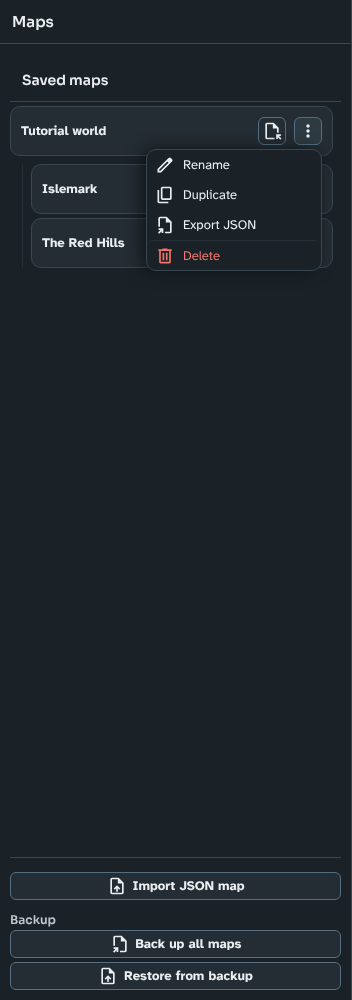
Maps, with two regional maps listed under the world they were cut from, and a map's actions menu open.
- In Foundry: each map is saved as a journal entry in the world's compendium called Filroden's World Map Builder. The map's data is stored inside the journal, and the journal's Cartographic data page shows the map's generation and display settings, a count of each kind of feature on the map, and each biome's colour and placement. The page is rewritten every time you save. You can also see (and delete) the journals in the compendium with Foundry's own tools.
- On the web: maps are saved in your browser's own storage, on that computer and in that browser only. A browser can clear its storage (for example when you clear your browsing data, or in a private window), and your maps go with it, so back up your maps now and then (see Backup). If the browser refuses to store anything at all, a warning says so when the page opens, and saved maps last only until the page is closed.

In Foundry, a saved map is a journal: its first page lists the settings it was made with.
Every saved map has a card, listed by name. A regional map is listed under the map it was cut from, so you can see which maps belong together; if that map has been deleted, the regional map is listed on its own. The list is empty until you save a map.
Each card has a Load button and a Map actions menu (see below).
Load opens the map. If the open map has unsaved changes, you are asked first whether to Save them, Discard them, or Cancel and stay where you are.
Note: if the map was made with an earlier version of the module and the latest terrain engines would change it, a dialogue opens once the map has loaded, explaining what would change and offering to update it. Nothing changes unless you choose to update, and an update is kept only if you then save the map. See New map.
Note: a map saved by a version before 4.0.0 is converted the first time it is opened (its regions become cells and its routes are traced along their old lines), with a progress overlay and then a notice asking you to save. The conversion is kept when you next save the map.
The Map actions menu on each card has:
-
Rename: gives the map a new name.
-
Duplicate: saves a copy of the map called " (copy)". Useful for versions of the same map, such as winter and summer.
-
Clone as new (regional maps only): saves a copy of a regional map as a map of its own, called " (standalone)", which is no longer listed under the map it was cut from. You are asked to confirm first.
-
Export JSON: downloads the map as a JSON file (for example
fwmb_my_world.json). Use it to share a map with another GM, or move it between Foundry and the web. The file holds everything the map needs: its decorations, its reference image and the custom pin icons its pins use, so it opens complete in another world or in the other version.If any name, description or label text in the map is longer than a map file can hold (names 200 characters, descriptions 20,000, label text 500), the export stops and lists each one, so you can shorten it and export again. The text fields stop at these limits as you type, so only a map from an earlier version can have text this long.
-
Delete: deletes the saved map after asking you to confirm. Deleting the open map doesn't close it: it stays open, and Save map then asks for a name, as for a new map.
Import JSON map, below the list, opens a file picker. Choose a map's JSON file and it is added to your saved maps under the name it was saved with. If you already have a map of that name, a number is added ("My world (2)"). Load it from the list to open it.
The file is checked before anything is saved:
- A file that isn't a map from the World Map Builder, or whose map is damaged, or that holds text longer than a map can hold, is refused, and a message says why (for text that is too long, it names where).
- Images in the file are checked by what they contain, not by their name. An image that can't be used is left out, and a notice says how many were. In Foundry, the map's images are added to your world's data, in a folder called
fwmb-assets. - The custom pin icons the file carries are added to Styles and icons, unless you already have the same icon, in which case the map uses yours.
- A file from an earlier version may name custom pin icons without carrying them. A warning then says how many pins are affected, and those pins show the default icon until you add the icons in Styles and icons.
Names, descriptions and labels are always plain text. Text that looks like HTML is kept exactly as written and shown as text, never as formatting.
The Backup section, below Import JSON map, keeps every saved map in one file.
-
Back up all maps saves all your maps in one zip file (for example
fwmb-maps-2026-10-21.zip), with the images and custom pin icons they use. The studio shows its progress as it packs each map. If the backup would be larger than 200 MB, you can choose Back up everything or Maps only (the maps without their images: in Foundry their images stay where they are in your world's data, so a Maps-only backup restores fully only in the same world). As with Export JSON, a map with text longer than a map file can hold stops the backup and is listed. - Restore from backup opens a file picker. Choose a backup file and a dialogue lists its maps, regional maps under the map they were cut from, all ticked. Untick any you don't want (unticking a map unticks the maps under it). A map marked Already saved is one you still have here: it is restored as a copy. Click Restore and each map is added as a new saved map, with the same checks as Import JSON map. Regional maps are placed under the restored copy of their parent.
Restoring never changes or deletes a map you already have. When it finishes, a summary says how many maps were restored, names each copy of a map that was already saved (for example "My world, now also saved as My world (2)") so you can review it and delete what you don't need, and lists any map that couldn't be restored, with the reason.

Restore from backup, listing the backup's maps; those already saved here are marked.
The rail's file actions sit below the occasional tools: Save map, Save map as… and Maps.
- Save map saves the open map. A map that has never been saved asks for a name first; after that, Save map saves over the same saved map. Its tooltip names the map ("Save map (My world)") and adds "(unsaved changes)" when there are changes to save, and the button shows a dot.
- Save map as… saves the map as a new saved map. It asks for a name, suggesting the map's name followed by "(copy)". The map you loaded is left exactly as it was last saved, and the new map becomes the open map, so any later Save map goes to the new map.
Save often! On a short window, Save map, Save map as… and Maps fold into the rail's More tools menu (under Map files), which then shows the unsaved dot itself.
The same map builder runs in a browser at fwmb.filroden.com, with the same tools, panels and dialogues as in Foundry. Export to scene is the only part that needs Foundry.
To move a map between the web and Foundry, in either direction:
- In Maps, choose Export JSON from the map's Map actions menu.
- In the other version, open Maps and click Import JSON map, then choose the file.
The file carries the map's images and custom pin icons, so the map arrives complete. To move all your maps at once, use Back up all maps in one version and Restore from backup in the other.
- On the web, use Back up all maps now and then, and keep the file somewhere safe: it is your copy if the browser clears its storage.
- In Foundry, Back up all maps is a quick backup of a world's maps before a big change, and Restore from backup brings them into another world.
- Regional maps are made from the New map tool, and saved straight away under their parent.
Related: New map, Export, Styles and icons, Help, Getting Started