Repository navigation
Households
A household is the shared space everything in LENA lives in. All recipes, meal plans, grocery lists, pantry stock, events, and wine belong to the household — not to individual people — so everyone sees and works with the same data.
Open Household in the sidebar (web) or tap the People tab (mobile) to see:
- Everyone in the active household and their role
- Pending invites you've sent and received
- The user search box for inviting new members
- Your allergy/dietary records (mobile)


One account can be a member of several households — your own home, a shared vacation place, a partner's family. At any moment one of them is your active household: it's the one your pantry, meal plans, grocery lists, events, cellar, and notification feed show.
The Your households card on the web Household page (and the switcher sheet behind the active-household header on mobile) lists every household you belong to with its member count and your role. From there you can:
- Switch — make another household active; the whole app follows it
- Leave — drop that one membership (the owner of a shared household passes ownership to the earliest remaining member; leaving your active household falls back to your earliest other membership, or a fresh household of your own)
- New household — create an additional household (optionally named) that starts empty and becomes active

Notifications follow the active household — switching to the vacation house means the feed shows that household's activity, not your home's. Invites addressed to you always arrive, whichever household is active.
- Ask them to sign in to LENA once and turn on "Let other users find me by name or email" on their Profile page.
- On the Household page, search for them by name or email.
- Send the invite — it shows up on their Household page and in their notifications.
- When they accept, they join your household and it becomes their active one.
Accepting adds a membership — it never takes anything away. If the new member is the sole owner of another household, accept offers a choice:
- Join and merge — their old household's pantry, cellar, meal plans, grocery lists, and events move into yours, and the empty household is deleted
- Just join — they keep both households and can switch between them

Merge is only offered when they alone own the source household — a shared household can never be dissolved out from under its other members. The other members get a notification that someone joined either way.
Members carry roles (shown as chips next to their names), and a role is per household — you can be the owner of one household and a regular member of another. Regular members can plan, cook, shop, and edit shared data. Admin-only surfaces exist for the accounts designated as admins — managing users, reviewing pending items and recipe imports, and curating every shared reference catalog (brands, categories, ingredients, allergens, nutrition and flavor data, recipe taxonomy, and the wine tables). Those pages are web-only, hidden from members' navigation, and return a Forbidden notice on direct access.
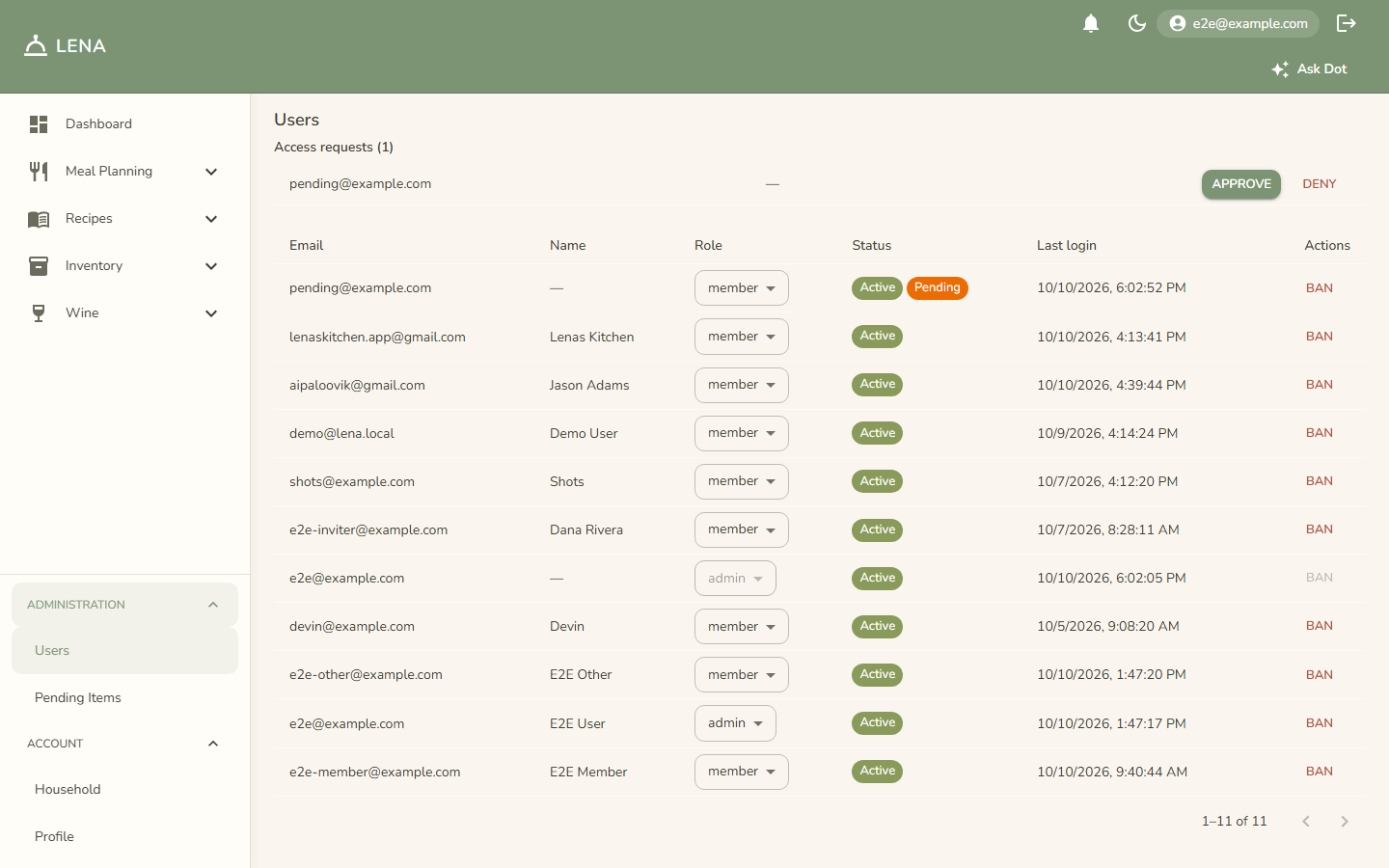
Admins get a Users page under Administration: per-user role assignment (member ↔ admin), account status, last sign-in, and ban controls — an admin's own row can't be banned.
When the access-approval barrier is on, the same page opens with an Access requests queue: every new sign-in waits there as pending (a matching chip shows in the Status column) until an admin approves or denies it. Denied users can be approved later from the main table — a denial is a hold, not a deletion. Each new request also lands in the notification bell for every admin.
Each member records their own allergies and dietary restrictions on the Household page — warnings name the person they protect, so a flag on dinner is never anonymous. Records follow the person: if someone belongs to two households, their allergies warn in both.
When one member changes something shared, the other members of that household get a notification — so if you regenerate the grocery list, your partner sees it instead of being surprised by it at the store.
Households are meant to be long-lived, but people move. Use Leave on the Your households card (or the mobile switcher sheet) to drop a single membership — the rest of your households are untouched. If your household situation consolidates (two homes become one), the invite + merge flow is the tool: invite everyone to the household you want to keep, and those who solely own their old household can merge its contents in.
Deleting your account (Profile → Danger zone, or the Household tab on mobile) applies the same rule at account scale: a household only you belong to is dissolved with all its content, while a shared household keeps everything and simply loses your seat.