Repository navigation
Report A Problem
Something not working, and Troubleshooting did not help? A report with the printer's logs is far more likely to be solvable. The screen does most of it for you.
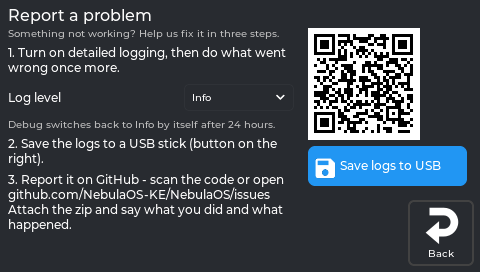
The real screen app, showing data from a printer running NebulaOS 1.0.0.
The page says "Something not working? Help us fix it in three steps.":
-
Log level. Info, Warning or Debug. For a problem you can make happen again, choose Debug, then make it happen. "Debug switches back to Info by itself after 24 hours."
-
Save logs to USB. Put a FAT32 USB stick in the printer and tap the button. It asks first: "All logs, the printer's state and its config files go into one zip file on the USB stick (passwords are left out). Takes up to a minute."

The real screen app, showing data from a printer running NebulaOS 1.0.0.
-
Report it on GitHub - scan the code on the screen, or open github.com/NebulaOS-KE/NebulaOS/issues. Attach the zip and say what you did and what happened.
-
On the screen: Settings → System → Logs lists the log files; tap one to read it. It
includes the Wi-Fi lines of
system.log. - In Mainsail: the log files are in its log list.
-
On the printer:
/opt/printer_data/logs/, for exampleklippy.log,moonraker.log,nebulascreen.log(rotates at 10 MB, keeps 3 old files) andnebulaos-state.txt, which summarises versions and state in one file. Over SFTP this is thelogs/folder (SSH, SFTP and security).
What to put in the report: the NebulaOS version (Settings → System), what you did, what you expected, what happened instead, and the zip.
From src/report_panel.cpp:26-124 at screen fd47cb6 and
usr/share/nebulaos/printer_data-README.txt, firmware dc868e3.
- Troubleshooting
- Recovery - when the printer does not start at all