Repository navigation
Screen System
Version information, Report a problem, storage, the logs, and restarting or shutting down.
An info block with the NebulaScreen version, the NebulaOS build, boot slot, kernel, host name and storage. Buttons:
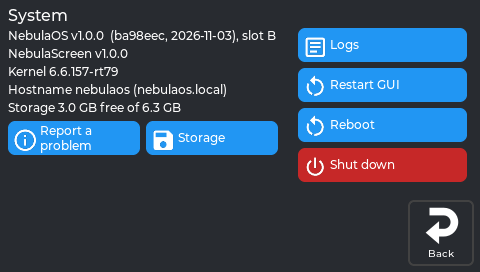
The real screen app, showing data from a printer running NebulaOS 1.0.0.
| Button | What it does |
|---|---|
| Report a problem | Three steps: set the Log level (Info / Warning / Debug; Debug switches back to Info after 24 hours), Save logs to USB, and report on GitHub (QR code and address on screen). |
| Storage | Disk usage, Free up space and Clean up Creality files — see Resetting. Neither removes the figures behind Statistics. |
| Logs | Read log files on the screen, including the Wi-Fi lines of system.log. |
| Restart GUI | Restarts NebulaScreen only. Klipper keeps running. |
| Reboot / Shut down | Ask first. After shutting down, switch the printer off at the power switch. |
Logs lists the printer's log files on the left; tap one to read it on the right:
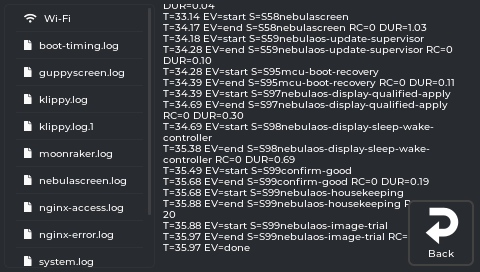
The real screen on a printer running NebulaOS 1.0.1. The open log is boot-timing.log.

The real screen app, showing data from a printer running NebulaOS 1.0.0.
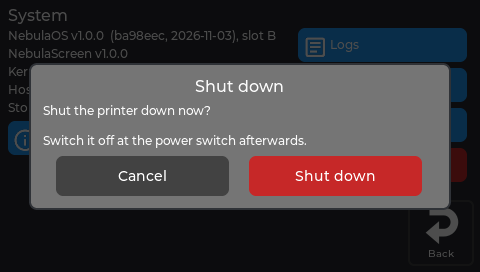
The real screen app, showing data from a printer running NebulaOS 1.0.0.
Save logs to USB (in Report a problem) also asks first:

The real screen app, showing data from a printer running NebulaOS 1.0.0.
Previous: Settings → Printer · Using NebulaScreen · Next: Settings → Updates