Repository navigation
Screen Reset
The last Settings tile: four buttons, from harmless to drastic. Every one asks first and says what it does. The clean reset and the slot swap are refused while a print runs.
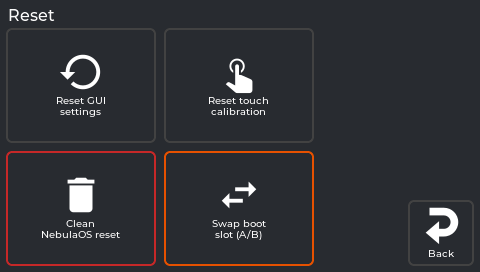
The real screen app, showing data from a printer running NebulaOS 1.0.0.
| Button | What it does | What it erases |
|---|---|---|
| Reset GUI settings | Replaces the screen's settings file with the image's default copy, then restarts the screen. Klipper keeps running. | Theme, sleep timeout, which sensors are shown - screen settings only |
| Reset touch calibration | Clears the saved touch calibration. The screen restarts into the calibration wizard. | The touch calibration |
| Clean NebulaOS reset (red frame) | Restarts as if newly installed | Printer configuration and calibration, Wi-Fi networks, network settings, root password, print history and statistics, screen settings |
| Swap boot slot (A/B) (orange frame) | Restarts into the other system slot | Nothing - but read Going back to stock first: the other slot may not hold what you expect |
What each question says, what survives, and how to undo it: Resetting. The slot swap is explained in Going back to stock and Two system slots.
From src/reset_panel.cpp:27-30 and 157-184 at screen fd47cb6.
Previous: Settings → Updates · Using NebulaScreen