Repository navigation
Screen Macros Console
The second and third tabs.
All your Klipper gcode macros, accessible from the screen. Inline content — no launcher grid.
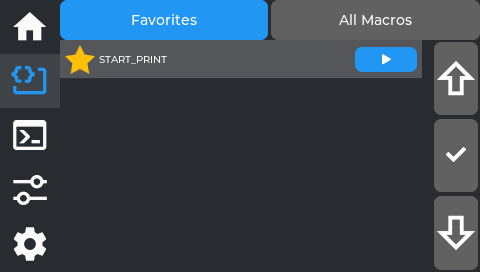
- Favorites / All Macros — a segmented toggle at the top switches between the two views. Favorites (the default) shows only macros you've pinned; if you have none yet, it says "No favorites yet. Open All Macros and tap the star to add." Tapping the Macros tab again while already on it jumps back to Favorites.
- All Macros is a flat, alphabetical list — not grouped by category. Each row has a ☆ star (tap to pin/unpin as a favorite) and a green ▶ button that runs that macro immediately.
- Up / ✓ / Down column on the right — this is a separate navigation aid, not a scrollbar: Up/ Down move a highlight cursor through the list one row at a time, and ✓ expands (or collapses) the currently highlighted macro's parameter inputs, scrolling it into view. You can also just tap a macro's row directly with your finger to expand it — the ✓ column is an alternative for precise selection, not the only way in.
- Parameters — once expanded (by tapping the row or via ✓), fill in the parameter inputs before running, or leave defaults as-is.
Direct gcode access. Inline content — no launcher grid. Opens on the terminal view by default — tapping the Console tab again while already on it resets back to this terminal view too.
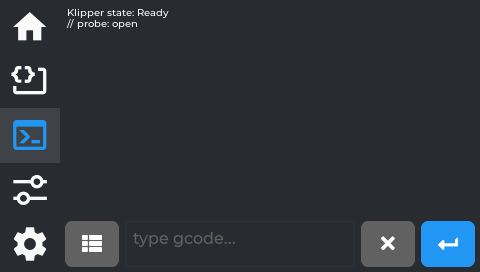
Type any gcode command directly, same as the Mainsail terminal.
-
History — last 100 entries. Temperature-spam lines (
T:210 B:60 …) are filtered so they don't flood the history. Tap a history entry to re-run it. - The small list icon to the left of the text field (not a separate tab) is how you get to the Command Browser described below.
Tapping the text field opens the keyboard:
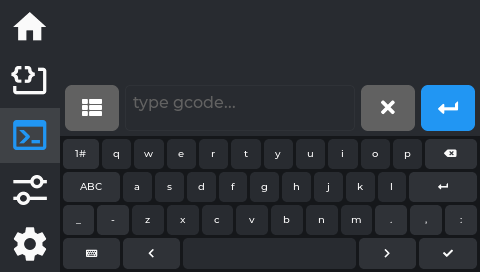
The real screen app.
Reached by tapping the list icon next to the text field on the terminal view — it isn't a separate tab of its own.
No current screenshot of this screen yet - the simulator's capture tour does not reach it. Tracked in the screenshot inventory.
The category list always starts with Favorites and Recent, followed by keyword-based groups (Bed Mesh/Leveling, Probe/Calibration, Motion, Temperature/Fans, Extruder/Filament, and more), each showing a command count. Two things worth knowing about the first two:
- Favorites here are separate from the Macros tab's favorites — this is its own star list, specific to gcode commands in this browser, with its own empty-state message ("No favorites yet. Star commands in any list.").
- Recent is shared history with Fluidd — it's not tracking only what you've run from this screen; it reflects command history from other interfaces too, if you use them.
The same Up / ✓ / Down navigation column from the Macros tab appears here too (see Macros tab for what it does).
Drill-down interface: tap a category → see commands in it. There is no third "detail" level with a description and its own Run button — tapping a command inserts its name straight into the terminal's input field and switches you back to the terminal view, keyboard already open, cursor at the end so you can type any parameters yourself:
No current screenshot of this screen yet - the simulator's capture tour does not reach it. Tracked in the screenshot inventory.
Press the green ↵ button on the terminal to actually run it. This is really a fast way to look up and insert a command name without typing it from memory, not a guided form. If tapping a command doesn't seem to do anything, try again with a firm, clean tap — the resistive touchscreen occasionally misses a light tap.
No current screenshot of this screen yet - the simulator's capture tour does not reach it. Tracked in the screenshot inventory.
Inside a category, a filter box appears at the bottom (only at this level, not on the category list itself) — type to narrow the list live. Each command here also has its own ☆ star, same favoriting behavior as the category list.
Previous: Home and printing · Using NebulaScreen · Next: Tune