Repository navigation
AVD Camera Fields
Back to Advanced Virtual Device · Common field settings
A Camera field presents an image on an AVD. It can obtain a snapshot from a URL accessible to Homey or receive an image token through a Flow. It is not a general-purpose live-video player.
Camera fields have no Show as selector, field Icon selector, or real-field/default-Flowcards checkbox. Their image action is separate from the options described in Real fields and default Flow cards.
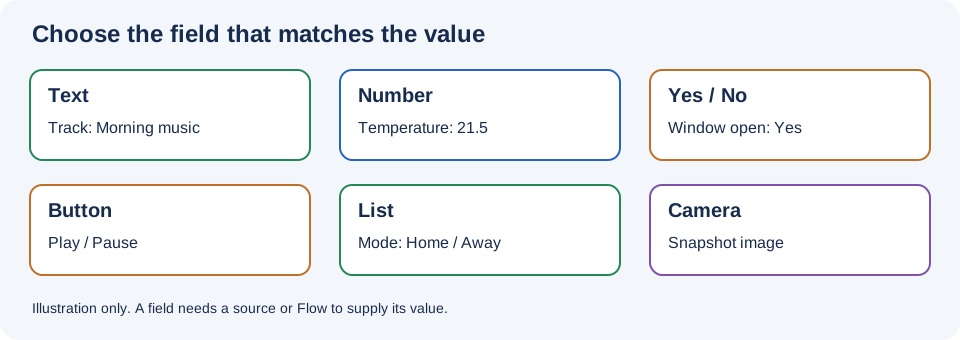
Illustration, not a Homey screenshot.
- In the AVD repair screen select Create Camera and give it a name, such as
Front door. - Enter the image URL. It must be reachable from Homey's network and return a suitable image; a browser login page or a video stream is not the same as an image snapshot.
- Set Interval in Seconds to the desired refresh interval. The screen accepts 0 to 86400 seconds; 0 disables automatic refresh.
- Save and open the AVD to verify the image. Choose a sensible interval for the camera, Homey, and your network rather than refreshing excessively.
Keep snapshot URLs and credentials private. Avoid publicly exposing a camera just to make a URL reachable, and follow the camera vendor's guidance for secure local access.
- Create and name a Camera field, then save the AVD.
- Create a Flow that obtains an image token from a compatible app or device.
- Add Set Camera Image, select the AVD and camera field, and supply that image token.
- Run the Flow and confirm that the displayed image changes.
A configured URL and a Flow-supplied image are different sources. An automatic URL refresh can subsequently replace a Flow-supplied image; choose the interval and update strategy to match the result you want.
Use a compatible doorbell's event as the trigger, obtain its snapshot image token, and set it on an AVD camera field. If the device/app does not supply an image token, consult its own documentation for a supported image source rather than assuming that a text URL is an image token. Set the AVD's interval to 0 if you want to avoid periodic URL refreshes, and test with a real event.
The developer's FTP Client example, also shared in the JSON Handler topic, loops over FTP images and displays them on an AVD camera field.
- An AVD with a named Camera field. Set Interval in Seconds to
0when you want Flow updates to control the displayed image. - FTP Client with a working FTP Connection and a folder of known image files.
- JSON Handler for the named collection loop, and Advanced Flow for its loop-start action.
- In the starting Flow, use FTP Client's Get files (JSON) on the image folder.
- Pass Files (JSON) to JSON Handler's Start Flowcard with Loop,
using a loop name such as
Set camera image. Enable Wait to Finish when the starting action should wait for the triggered work to complete. - In the receiving Flow, use JSON Handler's This Flowcard started (1 text) trigger with the same loop name.
- Pass its Item as text token to FTP Client's Get an Image Token filename/path field, with the image picker left empty. The item already contains the path; do not prepend the selected directory again.
- Connect Set Camera Image after that action. Select the AVD and camera field, then supply the FTP action's Image token.
- Test with a small collection and verify that the displayed image updates.
FTP Client's directory listing can include folders and non-image files. Use suitable image paths only. Each update replaces the image in the selected camera field; this is a sequence of snapshots, not a photo gallery or timed slideshow. Add deliberate timing separately if viewers need time to see each image, and generate FTP image tokens close to their use.
- The repair screen notes that after removing a camera by clearing its name or URL, the Device Capabilities app requires a restart to remove the image from the AVD.
- If an image does not appear, verify reachability from Homey's network, the returned image format, the URL's authorization requirements, and the Flow's image token.
- If the image is old, check the refresh interval and whether the source itself returns a fresh snapshot. A value of
0deliberately turns off automatic refresh. - If the wrong image returns after a Flow, check whether a configured URL refresh is replacing it.