Repository navigation
AVD Real Fields and Flow Cards
Advanced Virtual Device · Common field settings · Show as reference
Create real field and Default Flowcards is a per-field option in the AVD repair screen. It is not the same thing as creating the AVD, giving a field a name, enabling a tag, or connecting a physical device.
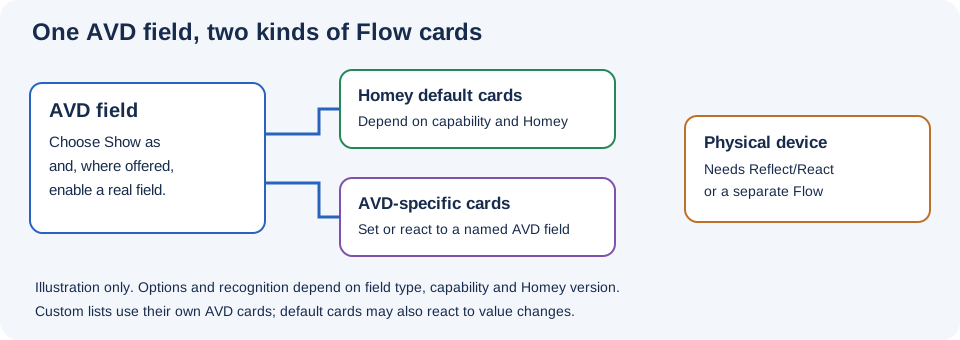
Illustration, not a Homey screenshot.
An AVD is always a virtual device. A real field means presenting the field as a standard Homey capability associated with its Show as choice, rather than only as a separate instance or app-defined capability. For example, a Number field shown as measure_temperature can expose the standard temperature capability. It does not create a real temperature sensor: a source or Flow must still supply the reading.
When the option is enabled and applicable, Homey can recognize that capability in contexts that expect the standard type, and Homey's default capability Flow cards may become available. Exactly which cards, controls, integrations, and Homey features appear depends on the capability, device class, other capabilities, Homey version, and client. Do not assume that a checkbox alone guarantees recognition everywhere.
The app developer's explanation gives a thermostat example: appropriate standard thermostat capabilities can allow Homey to recognize an AVD in Climate and expose relevant default cards. Use the complete set of capabilities required by your Homey setup, then verify the result in that version of Homey.
| Homey default capability cards | Device Capabilities AVD field cards | |
|---|---|---|
| Purpose | Work with a Homey-recognized capability when its default cards are available. | Work with a named AVD Text, Number, Yes/No, Button, or List field. |
| How to find | After saving the field, select the AVD in Homey's Flow editor and inspect its available default cards. The exact titles depend on the capability and Homey version. | Use the app's field-specific When, And, and Then cards and select the AVD and field. |
| Checkbox | Often the reason to enable Create real field and Default Flowcards where offered. Some app-defined modes have special behavior described below. | AVD field cards are separate; they are not simply the Homey default cards and do not generally require this checkbox. |
| Example | A standard temperature capability may offer Homey's temperature-related cards. | Set Number updates a named Number field; Number set can react to it. |
A custom List can be set and used by AVD List Flow cards even though it does not offer a real-field checkbox. See the community custom-list example and screenshots.
For an illustrative standard field, suppose Number 1 uses measure_power:
| Selection | Typical capability ID | Practical implication |
|---|---|---|
| Unchecked | measure_power.number1 |
A separate instance of the selected type; continue to use the AVD field cards. Do not assume it is recognized as the device's primary standard capability. |
| Checked, with no earlier field owning the base ID | measure_power |
The base standard capability can be recognized by Homey and may offer its default cards. |
| Checked on a later field, but an earlier field already owns the base ID | For Number 2, measure_power.number2
|
The checkbox does not make both fields own the same base ID. Check each field and its cards on your Homey. |
These are examples, not IDs to enter in a setting. Temperature/target-temperature pairing and app-defined Button and Number modes have special handling; they are not described completely by this table. Whether Homey exposes a particular card or feature remains capability- and version-dependent.
The Nothing else option in an AVD Set field action avoids explicitly executing the app's AVD-specific When card. Execute flowcards (When) requests that AVD trigger as well. A Homey default capability card is a separate mechanism: the field value still changes, so do not assume Nothing else suppresses every default Homey trigger. Test the actual Flow and Homey version. Separately configured React can also send the value to the selected physical property.
Enable the option, where offered, when you specifically need a standard capability or its Homey default cards. Examples include:
- A temperature or thermostat capability that Homey should recognize as part of a thermostat-like device.
- A standard on/off capability or its default cards, where the selected Button and field position support it.
- A numeric sensor's Create Default Flowcards option when the generic Number field's default cards are useful.
Leave it off when an app-specific field and its AVD cards are sufficient, or when the intended standard capability or its default cards are not needed. Either way, configure reflection, a Flow, or another supported input to populate the field.
The field must be named first. The labels and available choices depend on the selected Show as option:
| Field | Current repair-screen behavior |
|---|---|
| Text | Offered for standard Show as types such as Artist, Album, and Track; not for Sensor (Default). |
| Number | Sensor (Default) uses the separately worded Create Default Flowcards option. Other Number representations show Create real field and Default Flowcards. Generic Sensor and Slider are app-defined types, not a named standard temperature, power, or energy capability. |
| Yes/No | Offered for standard Boolean capabilities, such as motion or contact alarms; not for the generic Sensor, custom Alarm, or legacy on/off mode. For motion/contact, Disable Zone Activity appears when the real-field option is enabled. |
| Button | Offered for applicable representations, including explicitly selected On/Off and Push Button (Default), and standard Button capabilities. It is hidden while Show as is unset, and for indicator-only, separate-indicator, hidden-on/off, and button-tab modes. Button 1 and later Buttons are handled differently for some app-defined modes. |
| List | Offered for standard Homey enum capabilities; not when Picker (Default), Ternary, or Custom list is selected. Those app modes still have AVD List cards. When Show as is unset the screen can show the checkbox, but the app falls back to an app-defined picker; select a representation explicitly. |
| Camera | No Show as or real-field checkbox; use the camera URL or image-token action. |
For generic Number Sensor (Default), the setting selects a different app-provided numeric capability for default cards. It does not turn an arbitrary value into measure_temperature, measure_power, or another standard type. The label for Slider uses the broader wording, but Slider also remains an app-defined numeric capability. For a standard type, select the matching standard Show as capability explicitly.
The interface can show a generic fallback label such as Create Flow Cards if a translation is unavailable. Check your actual screen and app version. See Show as reference for the available standard and app-defined types.
For the complete combination of Show as, checkbox, and Icon availability, including the Button icon trade-off, see When each control is shown.
- Add a Number field and name it
Room temperature. - Select Temperature (sensor, measure_temperature) in English, or the equivalent localized option.
- Enable Create real field and Default Flowcards, then save the AVD.
- Configure a compatible temperature source with Reflect, or create a Flow that uses a sensor's temperature token and Set Number on
Room temperature. - In Homey's Flow editor, select this AVD and check which temperature-related default cards are available. Also check the Device Capabilities Number set and Set Number cards.
- Change the source value and test the cards you intend to use. Check any other required capabilities and device class if you want Homey to recognize the device in a specific feature.
If you only want a numeric label, consider Sensor (Default) instead. For that generic sensor, Create Default Flowcards concerns its app-provided sensor capability, not a standard temperature identity.
- Add compatible standard fields for measured temperature, target temperature, and any thermostat mode or other capability your Homey setup requires. Select the corresponding Show as options and enable the real-field option where offered.
- Give each field an appropriate source or command path. A target-temperature field does not heat a room by itself.
- Verify current temperature and target values; if using React, confirm the selected target property is writable and accepts the intended range.
- Inspect the AVD's default cards and check whether it appears in the desired Homey Climate view. Recognition and required fields vary by Homey version; test rather than assuming it will appear.
- Try a target change from the AVD and one from the real thermostat. Avoid overlapping React and Flow commands.
In the community azimuth example, a Number sensor displays a value supplied by a Sun Events Flow. In the current repair screen:
- Add a Number field
Azimuthwith Sensor (Default), unit°, and suitable decimal places. - Enable Create Default Flowcards only if you want the generic sensor's default cards.
- Trigger a Flow from the source's azimuth change and set the AVD Number field using the source token. Use Nothing else if the AVD-specific When card should not be executed by that action.
- Enable Create Tag or Create Insights if you need the AVD's own tag or history. They are separate options.
- Verify the reading and, if desired, select the field as a tile indicator where Homey offers it.
The forum screenshot uses older wording for the checkbox; the current generic Number label is Create Default Flowcards.
Homey capability IDs matter. For standard Show as types, the app may use the unsuffixed capability when the option is enabled, or an instance-suffixed capability when it is off or that standard capability has already been used by an earlier field. Temperature/target-temperature pairs also receive special handling. Do not assume every repeated field becomes a separate unsuffixed standard capability or exposes identical default cards; verify each one.
For app-defined on/off or push Buttons, the first Button has special handling, and later Buttons do not necessarily become the same unsuffixed standard capability even when the checkbox is shown. This does not mean later Buttons cannot be used with AVD cards.
Changing the checkbox or Show as may replace a capability. Existing default cards, tags, Insights, and integrations can be affected, even if the app attempts to retain the current value. Before changing an established field, note the settings and dependent Flows and export a template if appropriate. After saving, check the device, cards, tags, and history; remap any broken references. Create Hidden Fields has a different purpose: it can help preserve tag/Insights links through some settings changes, at additional resource cost.
- Checkbox missing: Name the field, then check its type and explicit Show as selection in the table above. Custom lists use AVD List cards rather than this option.
- Default card missing: Save the field, verify the standard capability, field position, app/Homey version, and device class, and reopen the Flow editor. Some capabilities do not provide the card you expect.
- The AVD is not visible in Climate or another Homey feature: Check that all required standard capabilities are present and that the device class and Homey version are compatible. The checkbox alone is not a guarantee.
- A Flow unexpectedly runs twice: Check for both default and AVD-specific triggers, duplicate Flows, and React plus Flow control. Nothing else only governs the AVD-specific trigger option.
- A control changes only the AVD: Add a compatible React connection or a command Flow to the physical device.
Continue with Reflection and React, Flow Triggers, and Flow Actions.