Repository navigation
AVD Number Fields
Back to Advanced Virtual Device · Common field settings
Use a Number field for a measurement, counter, calculated value, or numeric control. Choose a sensor representation for a reading and a suitable control representation for a value the user can change.
Illustration, not a Homey screenshot.
- In the AVD repair screen select Create Number Field and enter a name, for example
Living room temperature. - Choose Show as. App options include Sensor (Default) and Slider. Standard choices include
measure_temperature,target_temperature,dim,volume_set,windowcoverings_set,measure_power, andmeter_power; their displayed titles include the Homey component and ID. Choose the value's actual meaning rather than just a convenient icon. - Where applicable, choose the icon, unit, decimals, minimum, maximum, and step. Decimals can be configured from 0 to 10. Check the range used by the source or controlled device; a displayed percentage does not necessarily mean its underlying value ranges from 0 to 100.
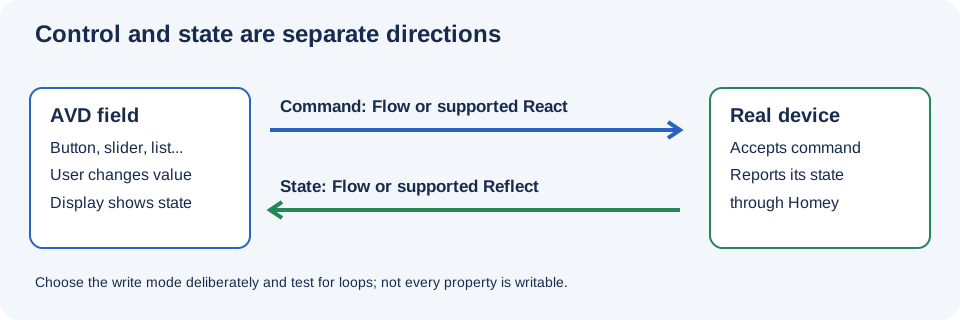
- Optionally choose Reflect and a device/property, or leave it unconnected and update it with Set Number. For a writable property, a suitable field can also offer React.
- Enable Create Tag, Create Insights, or Create Hidden Fields only if needed. Enable default Flow cards where that option is shown and useful.
- Save and test minimum, midpoint, and maximum values as well as a real source update.
Unit and formatting options depend on the representation. A unit is a description, not a conversion: setting kWh does not turn a Wh input into kWh.
For Sensor (Default), the checkbox is called Create Default Flowcards and uses an app-defined numeric capability, not a specific standard sensor. For a standard Show as type the real-field option can affect capability identity and Homey recognition; see Real fields and default Flow cards before changing an existing field.
The field Icon selector is available for Sensor (Default) with the checkbox either on or off. It is not shown for Slider or standard Number capabilities. Switching away from the default sensor clears its field-icon selection; see When each control is shown.
The complete Number Show as reference includes every current standard capability, such as fan speed, air-quality measurements, target humidity, and progress, with minimum Homey versions and writable status.
- Create
Room temperatureusingmeasure_temperature(Temperature (sensor, measure_temperature) in English) and reflect the sensor's temperature property, or use a sensor-triggered Flow with Set Number. - Create
Target temperatureusingtarget_temperature(Target temperature (thermostat, target_temperature) in English). Set a sensible range and step compatible with the real thermostat. - If the thermostat exposes a suitable writable target property, consider Reflect plus React. Otherwise, make a Flow from the AVD's Number set trigger to the thermostat's target action.
- For Flow-based feedback, update the AVD target when the thermostat changes and choose Nothing else in the Set Number action to avoid reissuing a command.
Check that changing the thermostat directly updates the AVD, and that changing the AVD sends only the intended command.
The Living Room tutorial combines volume and individual curtain sliders. Create one Number field per curtain or player, select the appropriate position/volume representation, and connect it to the correct real device. A separate feedback path is important because someone may operate the curtain or player outside the AVD.
Before creating a Flow, check the real capability's actual range and which end means open or closed. Do not assume that every curtain or speaker uses the same convention.
For compatible reflected device properties, the Number field can select multiple devices and calculate sum, mean, median, minimum, or maximum; a BLL calculation is also offered when Better Logic Library is available.
For example, to show an average indoor temperature, select the temperature property of each room sensor and choose mean. Confirm that all sources use compatible units. If using Exclude (seconds), remember that a quiet but working sensor may report infrequently and be excluded.
The OpenDTU/Homey community tutorial illustrates a solar AVD populated by MQTT-triggered Flows:
- Add a Number field for current production and select
measure_power(Power (sensor, measure_power) in English). Use the actual unit of the incoming reading, commonly W. - Add a separate Number field for produced energy and select
meter_power(Energy (sensor, meter_power) in English). Configure the unit to match the supplied cumulative energy, for example Wh or kWh. - For each data source, use an appropriate incoming-value trigger and Set Number for the corresponding field. The tutorial uses Nothing else for these display updates.
- Enable Insights if historical values are wanted, then check actual readings and units.
Power is an instantaneous rate; energy is accumulated consumption or production. Do not sum power readings and label the result as energy, or enable cumulative settings for a non-cumulative value. The repair screen also exposes cumulative imported/exported settings for the Energy representation; use them only when their semantics match the source.
The linked community tutorial includes its own third-party MQTT setup. Review your broker's authentication and transport security rather than copying insecure settings.
- Wrong value or unit: Check source range, conversion, unit, decimals, and representation.
- Slider does not move the real device: Configure an appropriate React connection or a command Flow; displaying a slider alone is not a connection.
- Updates bounce back and forth: Separate command and feedback paths and check the Set Number action mode.
- Aggregate changes unexpectedly: Check missing inputs, stale-value exclusion, and the calculation selected.