Repository navigation
AVD Text Fields
Back to Advanced Virtual Device · Common field settings
Text fields hold words or formatted text: a song title, a message, the name of the current mode, or a summary for a device tile. They are also the recommended way to create a tile status indicator.
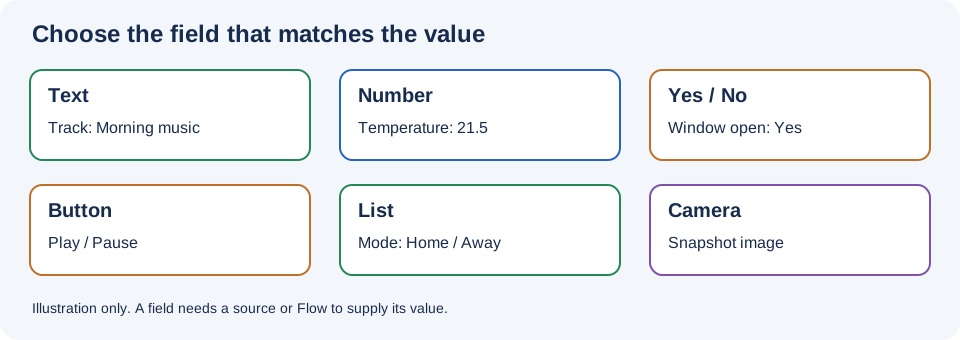
Illustration, not a Homey screenshot.
- Create a Text field
- Example: tile summary
- Example: music dashboard
- Combine or format sources
- Example: alternating plant readings
- Troubleshooting
- Open the AVD's repair screen and choose Create Text Field.
- Enter a Name, such as
Room summaryorTrack. - Under Show as, use Sensor (Default) for general text. The standard media options are Artist (media, speaker_artist), Album (media, speaker_album), and Track (media, speaker_track) in English.
- For the default sensor you can choose a field icon. For applicable other representations, decide whether to create Homey's default Flow cards.
- Optionally select a source with Reflect, or leave it empty to set the value with a Flow. Enable Create Tag if another Flow needs the current text.
- Save, reopen the device, and test with a Set Text action. Select the desired action mode: Nothing else updates without executing AVD When cards; Execute flowcards (When) also executes them.
Some configurations offer Create Hidden Fields when creating a tag. Read the trade-offs in common field settings.
Standard media representations offer Create real field and Default Flowcards; the generic Text sensor does not. The option and its migration risks are explained in Real fields and default Flow cards.
The field Icon selector is shown for the generic Text sensor, not for standard media representations. Switching to a media representation clears the field-icon selection. See When each control is shown.
See the complete Text Show as options, including capability IDs and version information. Labels are localized, and future library releases may add options.
- Create a Text field named
Room summarywith Sensor (Default) and save. - In the Homey mobile app's device settings, select
Room summaryas the tile's status indicator. - Create a Flow triggered by a relevant event, such as a room mode changing.
- Add Set Text for this AVD and field, with a value such as
Movie night. - Set another value for a different event, such as
Lights off, and verify both the tile and the device details.
Use the Text field's tag if another Flow needs the summary. A static text field stays at its last value until a Flow or configured source changes it.
The Living Room AVD tutorial shows Artist, Album, Track, volume, and media controls on one virtual device. For a similar design:
- Add three Text fields called
Artist,Album, andTrack; select the matching Show as representation for each. - If the player exposes compatible text properties, configure each field's Reflect → Devices, selecting the player and corresponding property. Otherwise use the player's change triggers and Set Text actions.
- Add a Number field for volume and Buttons for play and next. Connect controls separately; text fields alone do not control the player.
- Change tracks and check that all fields update. Decide what your Flow should show when playback stops or a source sends an empty value.
With Reflect → Devices, select a compatible device and property. Text accepts text/enum sources directly; other types may need formatting. When selecting multiple properties, the screen offers a BLL calculation, with $values.join(',') as an example. This joins the values with commas and requires Better Logic Library. Check ordering, missing values, and whether the resulting text is actually useful before using it as a tile indicator.
Optional Chronograph and BLL sources may provide additional properties and formatting; follow the source-specific prompts in repair. Without those apps, use ordinary Homey Flow tokens and Set Text instead.
The community plant-sensor example cycles several readings on one tile. Create one Text field, select it for the tile, and use timed Flow actions to set short descriptions such as Plant 1: 45% and Plant 2: 52% from the actual sensor tokens.
Keep the schedule modest, and ensure the cycling Flow cannot start repeated overlapping runs. Separate Number fields may be better if the values also need history or calculation.
- No value: Check that the field is saved and that its Reflect source or Set Text Flow has actually run.
- Tile shows something else: Select the intended Text field as the tile indicator in mobile device settings.
- Unexpected command Flow: Check whether the Set Text action uses Execute flowcards (When) and whether a Text set trigger listens for every set or only changes.
- Missing expression or app source: Check that the optional integration is installed and ready; it is not necessary for a basic text field.