Repository navigation
AVD List Fields
Back to Advanced Virtual Device · Common field settings
A List field represents one choice from a defined set, such as Home/Away or a thermostat mode. Use it when the allowed values matter; use a Text field for unrestricted text.
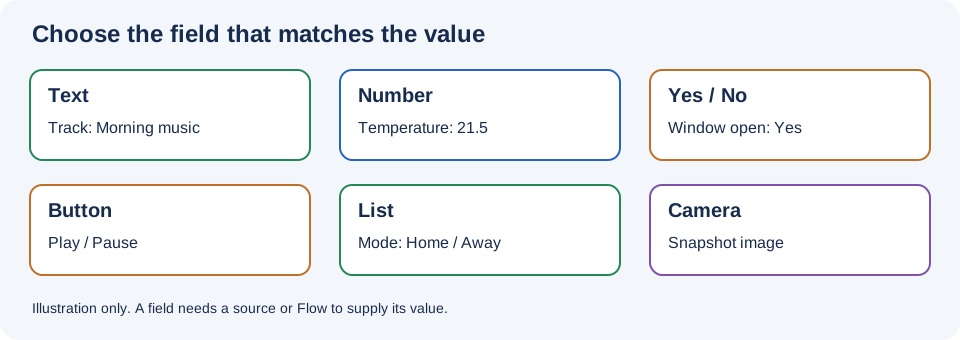
Illustration, not a Homey screenshot.
- In the AVD repair screen choose Create List and enter a field name.
- Choose Show as. App options include Picker (Default), Custom list, and Ternary. Standard Homey choices include
homealarm_state,thermostat_mode,vacuumcleaner_state, andwindowcoverings_state; their displayed titles include the Homey component and ID. - For Picker/Ternary where prompted, select a prefixed list; for a custom list, create it in the app settings first and select it in repair.
- Where available, decide whether to create default Flow cards, a tag, or hidden fields. Only through flows is offered for certain picker/custom-list configurations and prevents the picker from being set manually.
- Save, inspect the available choices in the device, and test setting each choice with the UI or the appropriate Set List Flow action.
See the complete List Show as reference for all currently bundled enum capabilities, minimum Homey versions, and the built-in prefixed lists. The options and their display labels depend on Homey and app versions.
Standard Homey enum representations can offer Create real field and Default Flowcards. Picker, Ternary, and Custom list do not show that checkbox, but still work with the app's AVD List cards. See Real fields and default Flow cards.
List fields do not have a field Icon selector. If Show as is still unset, the screen may show a checkbox even though the app falls back to an app-defined picker. Explicitly select Picker, Ternary, Custom list, or the intended standard capability to see the relevant settings. See When each control is shown.
- Open Device Capabilities App Settings → Custom lists.
- Enter a list name, such as
House mode, and choose Add custom list. - Edit the new list. Use the plus button to add items.
- Give each item a stable ID, for example
home,away, andnight. IDs are case-sensitive. - Add a title for the appropriate language to each item, such as
Home,Away, andNight. Titles are what people read; IDs identify the choices. - Save the list, open the AVD repair screen, and configure a List field to use that custom list.
Changing or deleting a custom list can disrupt AVDs and Flows that depend on it. Keep IDs stable, check affected Flows before editing, and test existing selections afterward. See App Settings.
The community picker topic contains examples of requested built-in pickers, including open/stop/close and appliance states. A ternary representation has exactly three buttons; use a picker or custom list when your choices do not fit that layout. Your locally created custom list does not require waiting for a built-in picker to be added.
- Create the custom
House modelist above, then add a List field calledModeto an AVD and select that list. - Create Flows using List set and select the field and the relevant value. Let
Home,Away, andNightcall the device actions you want for each mode. - If some other automation changes the house mode, add a matching Set List action to update the AVD. Use Nothing else for feedback when the update must not run those command Flows again.
- Test each choice, including changes initiated outside the AVD.
The List is value condition lets another Flow check the selected value. For a text-based Set List action, supply a valid option identifier as expected by the card and list; do not assume arbitrary descriptive text becomes a new choice.
You can select a compatible device's enum/text property as a reflected source where offered. Its values must correspond to the available list choices. Multiple reflected sources require a BLL calculation; optional formatting also depends on Better Logic Library.
If a selected property is writable and React (set properties) is offered, the field can send a selected value to it. Confirm the real property accepts the same identifiers; otherwise use explicit Flow logic to translate between the two sets of choices.
- A choice is missing: Check the selected prefixed/custom list, save the device, and inspect its items.
- A text action fails or selects the wrong item: Check the option ID and its exact capitalization rather than its display title.
- Cannot select a value on the device: Check whether Only through flows is enabled.
- A changed list breaks an automation: Restore or remap the affected IDs and Flow-card selections after reviewing the dependencies.