Repository navigation
AVD Reflection and React
Advanced Virtual Device · Common field settings · Examples
Reflection copies a supported source's reported value into an AVD field. React (set properties) can send a value from the AVD field to selected device properties. These are separate directions: a field that displays a real device is not automatically a controller, and an AVD command is not proof that the real device reached the requested state.
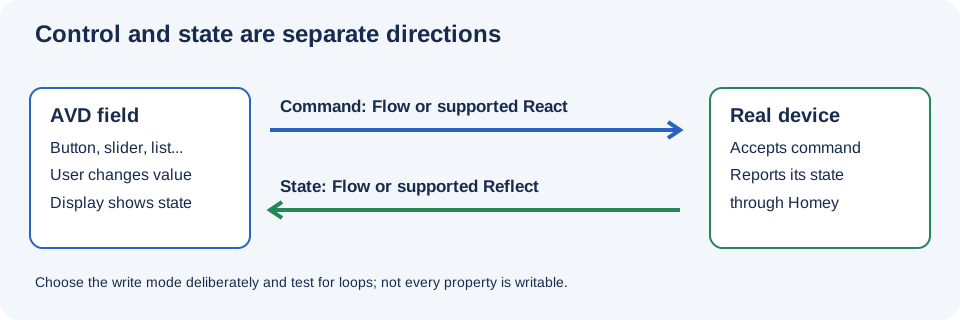
Illustration, not a Homey screenshot.
| Goal | Possible approach | Verify |
|---|---|---|
| Show a sensor reading | Reflect the sensor property, or use a source-triggered Flow with Set Number, Set Text, or the matching field action. | The source actually reports updates; value, type, and units match. |
| Control a real device | Use React with a compatible writable device property, or an AVD field trigger followed by the device's action. | The property/action is writable and accepts the selected values. |
| Control and show actual state | Reflect plus React, or build both command and feedback Flows. | Changes from the AVD and from the original device converge without repeated commands. |
| Summarize several devices | Reflect multiple properties and choose a suitable calculation, or combine their values in Flows. | What the aggregate means, missing values, units, and stale reports. |
Some sources, field types, and property combinations do not support every option. Look at the actual repair screen and property selector for your Homey and app versions.
- Create and name a field of a suitable type, such as a Number field for a temperature or a Button for an on/off state.
- Select Reflect → Devices and add the source device and the property that contains the value.
- Keep React off if you only want a display and do not want the AVD to write to the source.
- Save, change the real device or wait for its next report, and compare the AVD field with the source.
- If you also use field-triggered Flows, test them: reflected updates can execute AVD-specific When cards. A change to a standard capability may also affect Homey default cards.
The developer's curtain example shows a Number field mapped directly to a curtain property. Check that the selected property's range and direction match the AVD control; a Homey device may expose a different scale or convention.
- For the field, select Reflect → Devices and choose the intended device property.
- Choose Yes under React (set properties) to allow sending changes to the property as well as reflecting its reported value. In the current repair screen, a direct update reflected from a device does not cause React to write that device-sourced update back to the selected properties.
- Use Yes, only React if you want to send changes to the selected property without reflecting that selection back into the field.
- Save. Operate the AVD and check the real device. Then change the real device directly and check the AVD if reflection is enabled.
This protection does not necessarily block a separate Flow that writes the AVD field: test the full setup.
React requires a property that can actually be set. A read-only measurement, a push-button event, or a value from another app may need a different design. Only use direct control where the selected property and value are appropriate.
Under Reflect → Devices, add multiple compatible device/property pairs and choose the calculation offered for the field:
- Number: sum, mean, median, minimum, maximum, or a BLL calculation.
-
Yes/No or Button: any/all Boolean variants, or a BLL calculation. Verify whether
truemeans on, open, alarm, or the opposite on each source. - Text or List: a BLL calculation can combine or choose values; the source values must still be suitable for the destination.
For example, the mean of three temperature sensors can summarize a room, but only when their values use compatible units. If a quiet sensor is excluded too early using Exclude (seconds), the result may change even though the device is working. Test missing and stale readings, and do not assume an aggregate indicates each individual device's state.
Formatting expressions and BLL calculations require Better Logic Library. BLL and Chronograph source options also depend on their respective optional integrations. Neither app is required for basic AVDs, plain device reflection, built-in aggregates, or ordinary Flows.
The shared two-light example shows a group switch, dim control, individual switches, screenshots, and a template. It uses older Flow/function techniques; use the following as a design to adapt, not a promise that every light has the same properties:
- Decide what the group state means. The forum example considers the group on when any light is on, not only when both are on.
- Create a group on/off Button. To command both lights, choose either compatible React targets or a Flow that issues the intended actions to both. Do not configure both to send the same commands unintentionally.
- For feedback, use compatible Boolean reflection with an any calculation, or Flows that derive the same state from both lights.
- Add a Number dim field and a path to set both brightness values. For feedback, decide whether to show an average, one selected light's brightness, or something else when the lights differ. Confirm both ranges and units first.
- Optionally add an individual Button for each light, with its own command and feedback paths. Test one light on, both on, both off, and changes made outside the AVD.
The historical template asks for an average function. For a current setup, use a built-in mean calculation where it fits, or use Better Logic Library for a custom calculation. Review and test an imported template's dependencies before replacing any existing Flow logic.
A forum reply about a two-relay device proposes separate AVD Buttons, each reflecting and reacting to a different relay property. It is presented as a suggested approach, not a tested guarantee for every device:
- Inspect the relay integration's exposed properties and verify that the desired relay properties are writable.
- Add a named on/off Button for each relay. Select the corresponding property for each field's Reflect and React settings.
- Save and test each relay independently, including a change made from the relay's original device tile.
- If a property is not exposed or writable, use a supported device Flow action and feedback trigger instead, if available.
The real-field checkbox is not what binds a Button to a relay. Later Buttons may also use a different capability identity from the first Button; see Real fields and default Flow cards.
- Pick one primary command path for each property. If a React connection and an AVD-triggered Flow both issue the same command, a single operation can produce duplicate writes.
- A feedback Set field action with Nothing else suppresses explicit AVD When-card execution, not a separately configured React write or necessarily a Homey default capability trigger.
- Set/changed are different: use changed when repeated identical values should not trigger the same AVD Flow. Review what happens when values are first initialized.
- Consider startup, unavailable sources, external manual changes, and commands rejected by the real device. Keep safety mechanisms on the real device and its integration.
- For imported templates, inspect the device references and resulting Flows. A support reply describes overlapping reflection/React and Flows causing problems; older import behavior can differ from current versions.
If the field stays stale, check the selected source, property, reported value, type, saved settings, and whether Yes, only React was selected. If commands fail, test the real device's own action and verify the property is writable. See Troubleshooting.