Repository navigation
AVD Examples
Back to Advanced Virtual Device · Common field settings
These projects illustrate different ways to combine AVD fields, Flows, reflection, and other apps. They are adapted from community examples, not promises that every device exposes the same capabilities. Follow each source link for the original posts, screenshots, and, where provided, templates.
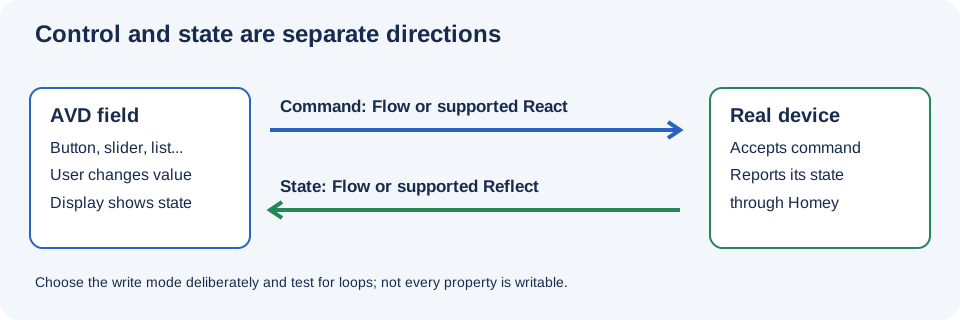
Illustration, not a Homey screenshot.
- Living room: music, curtains, TV, and console
- Three-room light switch
- Plant moisture and air-quality rotation
- Compact mower dashboard
- Solar dashboard from MQTT
- Heat-pump monitoring
- Power station or sprinkler overview
- Mode picker
- Solar azimuth sensor
- Two lights or several relays
- Display images from an FTP folder
- Before using a community project
The original Living Room tutorial demonstrates building a room controller in stages. Its forum post contains device and Flow screenshots.
- Current track, artist, and album: three Text fields using the matching media representations. Feed them from player state.
- Playback: a Button with a suitable playing representation. Connect its AVD command to the player, and reflect the player's reported state back.
- Previous/next: one-off media buttons. A press sends a command to the player.
-
Volume: a Number, using
volume_setwhere suitable. Connect commands and player feedback. -
Curtain positions: one Number field per curtain, using
windowcoverings_setwhere suitable. Connect each curtain's command and position feedback separately. - TV and console: separate on/off-style Buttons, with commands and feedback where supported.
- Room summary: a regular Text field. A source or Flow updates the AVD tile.
- Pair an empty AVD, choose a room-appropriate icon, name it
Living Room, and open repair. - Add the three media Text fields and save. For each one, either reflect the player's matching property or create a Flow that sends its current token with Set Text. Start playback and change tracks to verify the fields.
- Add a playing button and previous/next buttons. Connect each button to the matching player action. For playing state, also provide feedback from the player's actual state. A momentary next-track command does not need to be treated as a persistent on/off state.
- Add a volume field. Verify the player's supported range; connect changes to its set-volume action or a compatible React property. Provide feedback so changing volume elsewhere is also visible.
- Add one curtain-position field, connect its command and feedback, and test open, closed, and an intermediate position. Repeat for the other curtains only after confirming the first works. Device drivers can use different ranges or directions.
- Add TV and console buttons and connect only actions supported by their integrations. Create feedback when those devices report state.
- Add a Text field called
Room summary, select it as the tile's status indicator, and update it from a Flow or suitable source. Reorder the saved fields to suit your Homey client.
For feedback Flows, select Nothing else in the AVD set-field action when the update should not execute its When cards. This does not disable a separately configured React connection; avoid a second write path when one is sufficient.
The forum tutorial also adds a main curtain button whose indicator is light when at least one curtain is open. Keep its two jobs distinct:
- Command: button event → actions that open or close the intended curtains. Check each curtain's correct position values.
- State: collect the reported positions or open/closed states of all curtains, then derive whether any is open. A suitable reflected Boolean any/all calculation can help when compatible Boolean sources exist; numeric positions may require explicit Flow logic.
- Update the button's indicator from that derived state. Test all closed, one open, and several open, including a change made outside the AVD.
Do not treat an average position as automatically equivalent to every possible definition of any open; decide what partly open or unavailable means for your devices.
For a custom calculation, use a built-in reflection aggregate when it fits, or use Better Logic Library where the field supports its expressions. See App Settings for the optional reflection integration.
The shared Light Switch example includes an AVD, associated Flows, screenshots, and a TEF.
- Create on/off Buttons named after the lights or rooms.
- Map each button's on and off events to its real light's actions.
- Map each light's actual state back to the corresponding button. Use the appropriate feedback action mode, and check any React configuration.
- Test switching from both the AVD and the original light tile.
If importing the example, use the mapping screen to replace its devices and other references with yours. Review the created Flows before enabling them. See Templates and The Exchanger File.
The German sharing topic's four-sensor example rotates plant-moisture readings, and later CO2 readings, on one tile. It includes screenshots, animations, and templates.
- Add a regular Text field called
Sensor summaryand choose it as the tile indicator. - Build a Flow that sets the text using the first sensor's name and current value, then the second, and so on. Add suitable delays if using a sequence.
- Arrange the next run so it does not overlap an unfinished sequence. Use a sensible schedule rather than creating a rapid or uncontrolled loop.
- Test what happens when a sensor's token is unavailable or stale. For graphing or numeric comparisons, also create individual Number fields or use the real sensors' own values.
The original post predates the current Text-field approach; follow the current field guide when adapting its idea.
A German Device Capabilities discussion shows a mower tile combining state, battery, temperature, and voltage.
- Add a Text field for a concise summary and select it as the tile indicator.
- Use available mower status and sensor tokens in a Flow's Set Text value, with clear labels and units. Trigger the Flow when relevant values change.
- Optionally add separate Number fields for battery, temperature, and voltage when you need tags or Insights for individual values.
- Confirm each value and unit against the real mower. Decide how the display should indicate that a source is unavailable instead of assuming the last reading is current.
The forum screenshots show an earlier interface; use a Text field for a current tile label.
The OpenDTU tutorial uses a solar-class AVD and MQTT-triggered Flows. It contains screenshots of its field setup and data paths.
- Identify which incoming topic represents current power and which represents cumulative production. Inspect the units supplied by your particular source.
- Create a Number field shown as
measure_powerfor current power and another asmeter_powerfor accumulated energy. Set units to match the values actually sent. - Create an incoming-message trigger for each topic and Set Number on the matching AVD field. Use Nothing else when the action is only displaying data.
- Enable Insights for the series you want to inspect and check the values against the original system.
The integration's broker, client, and device are separate requirements. Review any example script or broker configuration for current security and compatibility. Missing messages should not be mistaken for a fresh zero reading.
The Eplucon/Ecoforest community tutorial uses HomeyScript and a portal API to obtain readings, exposes them as tags, and displays selected values on an AVD. Its author describes the example as read-only.
- Start with a few meaningful measurements, such as indoor temperature, water temperature, and current power. Configure compatible Number fields and units.
- Use a trusted integration to obtain each value and feed it to the matching AVD field with a Flow. Verify field names, value types, units, and update frequency.
- Enable Insights where history is useful; compare recorded values with the source.
- If data is unavailable, report the failure or display a clearly stale/unavailable state instead of writing a plausible zero.
The example's HomeyScript and external portal are separate dependencies and can change. Protect credentials and tokens, review scripts before running them, and do not rely on an AVD as a replacement for the heat pump's own safety controls.
- The Bluetti community example uses an ESP32 Bluetooth-to-JSON bridge, HomeyScript, and an AVD to show selected power and battery readings. It is an example of a read-only bridge, not an inherent Bluetooth feature of Device Capabilities.
- The Orbit B-Hyve community example uses HomeyScript and account data for battery, connected state, type, status, and zone count. It is likewise described as reading information.
For either pattern, first establish a working, trusted source. Create Number, Yes/No, and Text fields matching its data, then map each source token to the corresponding field. Check units, unavailable values, privacy, credentials, and source reliability. A template is a starting point, not proof of current device or API compatibility.
The picker request topic includes examples such as Open / Stop / Close, presence modes, and appliance states.
Create your own list in App Settings → Custom lists, add stable IDs and readable titles, and choose it in a List field. Map each selection to its intended Flow actions. If the underlying device uses different option identifiers, translate explicitly. For three-button ternary representations, check which predefined lists are available. See List fields.
The community azimuth example demonstrates a generic Number sensor populated from a Sun Events Flow, with screenshots of the Flow, tile, and Insights. The current checkbox for Sensor (Default) is called Create Default Flowcards. For a current step-by-step adaptation, see Real fields and default Flow cards.
- The two dimmable lights example groups on/off and dimming while preserving individual controls. Decide explicitly how to calculate a group state and deal with different brightness values.
- A relay discussion proposes separate buttons mapped to individual relay properties. It is a theoretical suggestion; first verify the properties are exposed and writable.
See Reflection and React for detailed adaptations and a warning about combining direct React with duplicate command Flows.
The FTP Client community example uses JSON Handler to loop over file paths, obtains an FTP image token for each item, and updates an AVD camera field. See the camera-field walkthrough for requirements, card connections, and path handling.
- Review dependencies, permissions, source availability, and compatibility with your devices.
- Read TEFs and generated import content, map references to your own Homey, and test before using them on important equipment.
- Do not publish passwords, tokens, private URLs, or personal device information.
- Treat screenshots as historical illustrations: interface labels, features, and Flow cards can change.
- See References for more English, German, and HCS discussions.