Repository navigation
AVD Yes No Fields
Back to Advanced Virtual Device · Common field settings
A Yes/No field represents a Boolean state, such as a contact being open, motion being detected, or a system being active. Decide what true means for your source before assigning labels or creating Flows.
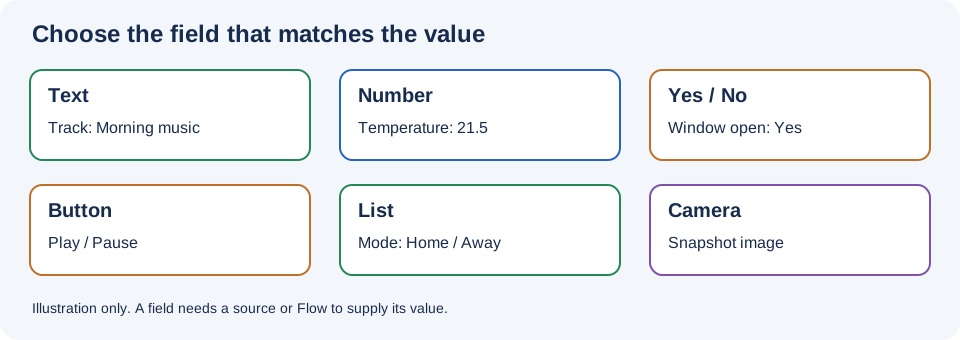
Illustration, not a Homey screenshot.
- In the AVD repair screen choose Create Yes/No Field and name it, for example
Kitchen window. - Select Show as. The app supplies Sensor (Default) and Alarm (Custom), plus compatible non-settable Boolean Homey capabilities such as motion, contact, smoke, and water alarms. For On/Off (Button Tab), create a Button field instead.
- Where the selected representation offers them, set an icon, labels for true/false, default Flow cards, Insights, and other options. For motion/contact types the screen may offer Disable Zone Activity; make an intentional choice based on whether this virtual state should affect Homey's zone activity.
- Configure Reflect → Devices and the source property, or use a Flow with Set Yes/No. For a compatible writable property, React may also be offered.
- Add a tag if another Flow needs the state, save, then test both true and false.
A display label changes what a person reads; it does not change the underlying Boolean meaning. Do not rely on an AVD copy of a safety alarm as the only warning or safety mechanism.
Standard alarm representations can offer Create real field and Default Flowcards; the generic sensor and custom alarm do not. For motion and contact, Disable Zone Activity appears when this option is enabled. See Real fields and default Flow cards.
The field Icon selector is available for Sensor (Default) and Alarm (Custom), not standard Boolean capabilities. Switching to a standard capability clears the field-icon selection. See When each control is shown.
See the complete Yes/No Show as reference for all currently bundled alarm and state capabilities and their minimum Homey versions.
- Create a field named
Kitchen windowand choose a suitable sensor or contact-alarm representation. - Reflect the contact sensor's actual Boolean property. Alternatively, create Flows for its open and closed events that set the field to the corresponding Yes/No value.
- If custom labels are available for the chosen display, label the two states to match the real sensor.
- Open and close the window and verify which state is true on your specific device. If a custom Flow performs the mapping, correct it there if necessary.
- Enable a tag or Insights only if you need that state in other Flows or history.
Create one Yes/No field named Any window open. Under Reflect → Devices, add each contact sensor's Boolean property. Choose the appropriate any/all calculation for the real sensors' Boolean polarity. For sources where true means open, a true-if-any calculation is a natural starting point. Save and test with all closed, one open, and more than one open.
The repair screen also offers all/false variants and a BLL calculation. A BLL expression needs Better Logic Library; the standard aggregate choices do not require a custom expression. Consider whether stale-value exclusion would hide a valid but infrequently reporting contact sensor.
Use the AVD's Yes/No set trigger to respond to a field being set or changed. For a feedback Flow that mirrors a physical device, choose Nothing else in Set Yes/No if the update must not execute the AVD When cards again. Enable Execute flowcards (When) if downstream triggers are intentionally needed.
For switch-like functionality, also compare Button fields. A state indicator and a command button serve different purposes, even when both have on/off representations.
- Reversed labels: Verify the source's actual true/false meaning, then fix the labels or mapping.
- Zone reacts unexpectedly: Review the motion/contact representation and its Disable Zone Activity option where offered.
- Combined state is wrong: Check every source, polarity, aggregate calculation, and stale-value cutoff.
- Missing history or tag: Enable the appropriate option, save, and allow a new value to be recorded.