Repository navigation
Manual Canvas Profiles
A canvas profile describes a page size you draw at, together with the margins Platemaker should crop away.
No. A render works with no canvas profiles defined — each page is simply scaled to the output width as it is read.
You want one when you need either of these:
- Margins. A profile is the only way to tell Platemaker that a border should be cropped off each page before it joins the strip.
- Determinism. With profiles defined, every page is matched by its exact pixel size and treated identically on every run, and the profile is what tells you the canvas size to set up in your drawing app.
A page that matches no canvas profile is not dropped. It is rendered anyway — scaled to the output width with no margin crop, exactly as a page is handled when the workspace has no profiles at all — and its tile turns cyan, reading "Processed (no canvas profile)". That colour is the whole point: it makes obvious, at a glance, which pages went through without a profile, rather than letting a mismatch pass silently.
So the two cases behave the same way in the output, and differ only in what the tile tells you:
| Situation | What happens | Tile |
|---|---|---|
| Workspace has no canvas profiles | Every page scaled to output width, no crop | Cyan — "Processed (no canvas profile)" |
| Page matches none of the assigned profiles | Same — rendered without margins | Cyan — "Processed (no canvas profile)" |
| A same-size profile exists but is not assigned to the project | Same — rendered without margins | Cyan, and the log warns, naming the unlinked profile |
The third row is worth acting on: if a profile of the right size exists in the workspace but was never assigned to this project, the page is rendered without its margins and a warning names the profile you probably meant to link. Assign it and re-render to get the crop.
Genuinely skipped pages — violet, "Skipped" — are a different thing entirely: a file that is missing or fails to load. A size mismatch is no longer a skip. See File statuses.
Since 1.2.0, adding a canvas profile never loses a page. Introducing profiles to a project that rendered without them only changes which pages get cropped, not which get included — an unmatched page still renders, just without margins and flagged cyan.
Since 1.4.2, adding a profile only marks the pages it actually affects. Creating a profile that matches no page in a project leaves that project up to date, instead of turning every tile amber with a "state cannot be confirmed" prompt. When a canvas change does affect pages, the reopen dialog is titled Canvas profiles changed and names each project with the exact page count it touches. (A project last rendered by an older build shows needs one re-render to confirm until its next render records each page's size.)
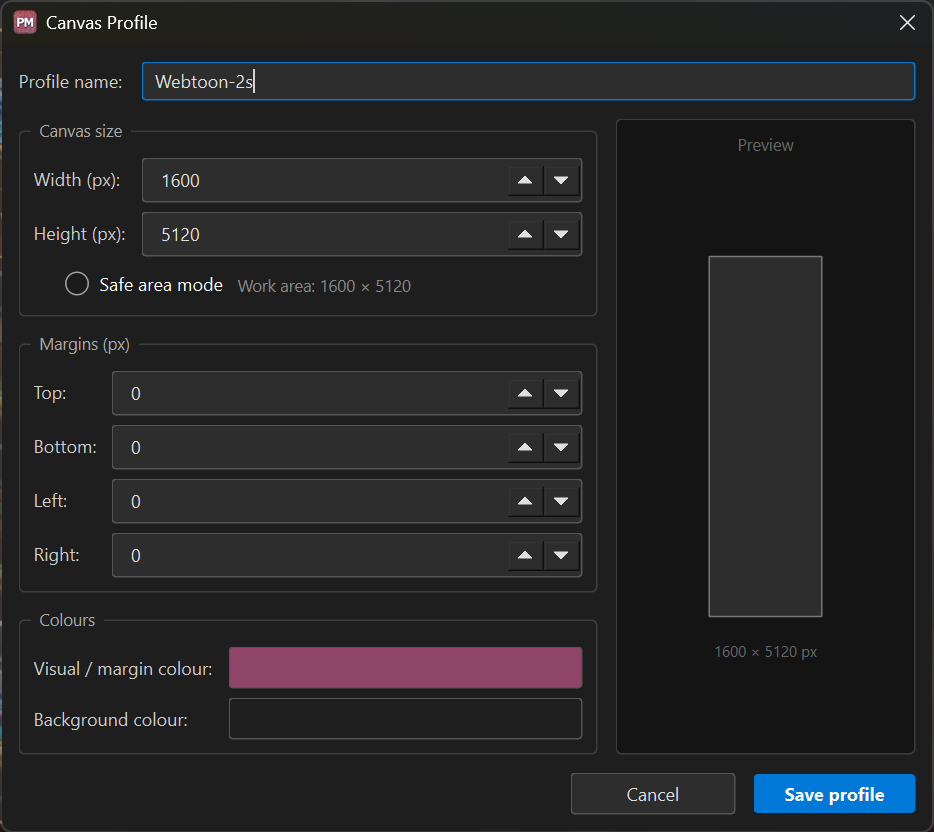
| Field | Meaning |
|---|---|
| Profile name | A label; it also becomes the template's filename. Names may repeat — see below |
| Canvas size — Width / Height | The page size in pixels (see Safe area mode below) |
| Margins — Top / Bottom / Left / Right | The border cropped off before the page joins the strip |
| Resolution (dpi) | The resolution you draw at, 300 by default. The template records it, so your drawing app sizes the canvas as intended; rendering works in pixels and ignores it |
| Visual / margin colour | The colour the margins are drawn in on a generated template |
| Background colour | The template's background; leave it empty for transparent |
The Preview on the right shows the shape and the resulting absolute pixel size.
A profile stores exactly two things that matter to the render: an absolute canvas size and margins. Everything else is presentation.
Platemaker matches each incoming page to a profile by that absolute size — the page's own pixel dimensions, exactly — and then crops the margins away. That is why two profiles cannot share an absolute size, and why a canvas that is a few pixels off will not match.
The same two numbers can mean two different things, and this toggle decides which.
| Safe area mode | The Width/Height you type is… | The dialog tells you… |
|---|---|---|
| Off | the absolute canvas | the resulting work area (margins subtracted) |
| On | the work area you want to draw in | the resulting absolute size (margins added) |
The profile itself always stores the absolute size — the toggle only changes how your input is interpreted, which is why it is a convenience rather than a stored property.
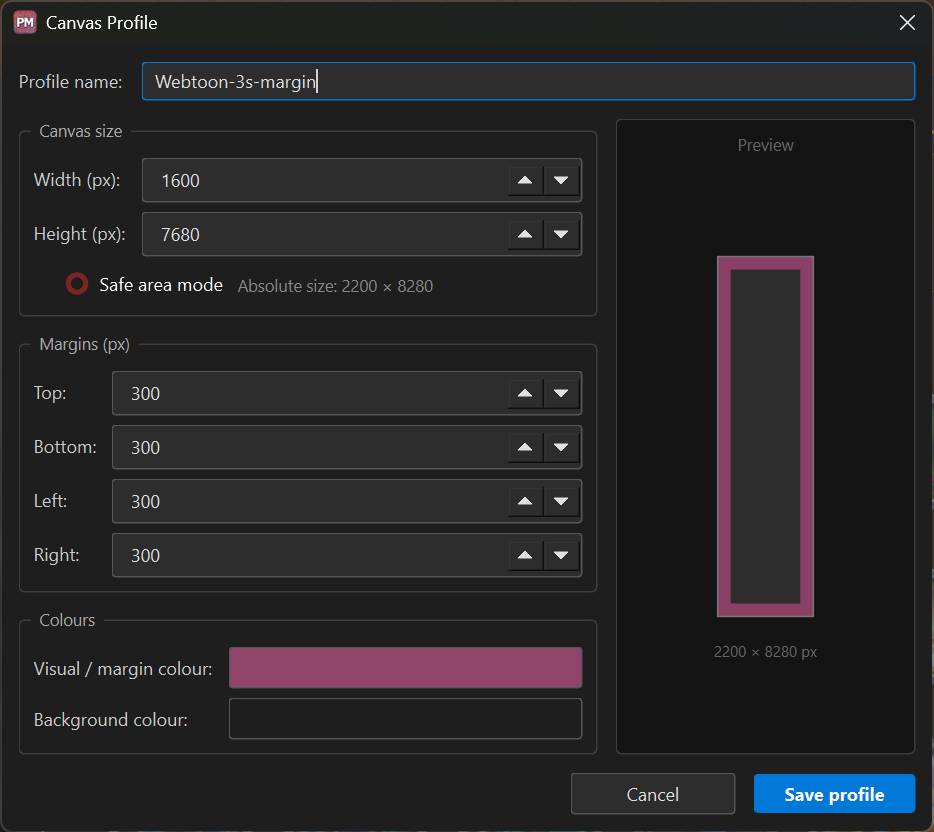
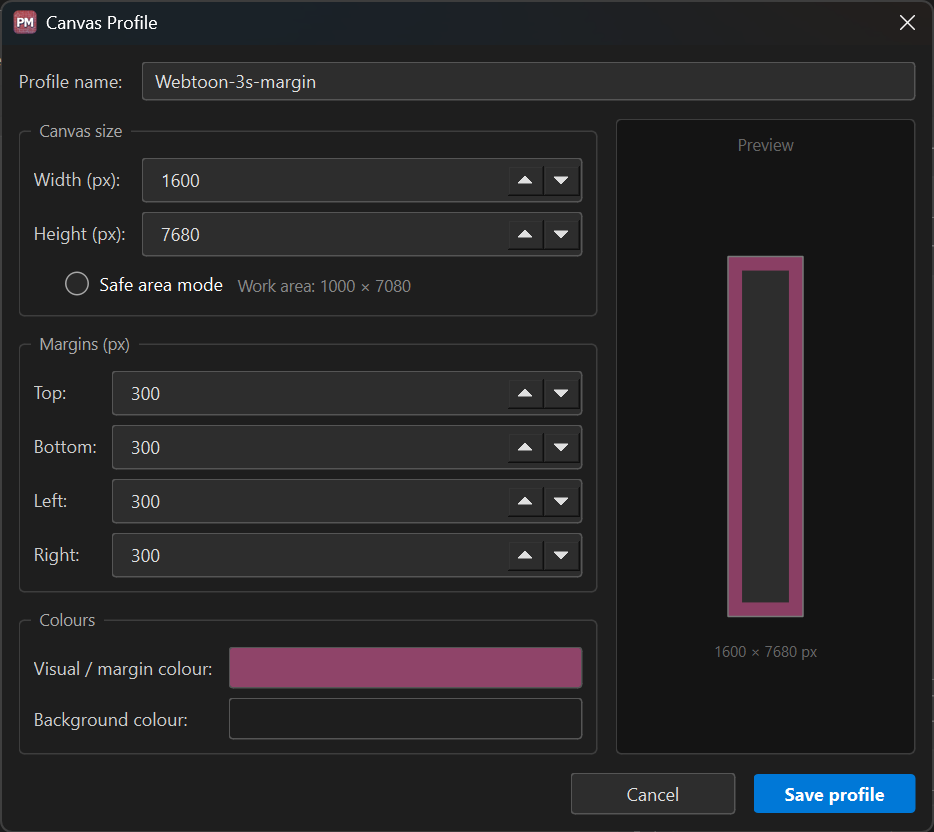
The pair below is the same profile with the same numbers typed (1600 × 7680) and 300 px margins, differing only in the toggle:
Safe area mode on — you want to draw in 1600 × 7680, so the canvas must be 2200 × 8280:
Safe area mode off — the canvas is 1600 × 7680, leaving 1000 × 7080 to draw in:
Use safe area mode when you know the size you want to draw at. If you have been working at 1600 × 7680 because it scales and slices cleanly, turn it on, type those numbers, add your margins, and Platemaker tells you the canvas to create in your drawing app.
Canvas → New canvas profile, or New… in the Manage profiles dialog.
Margins are the part of the canvas that gets cropped away, so the obvious question is why draw on a canvas bigger than what you publish. Two reasons, both practical.
Room for pasted artwork. If you paste images in to trace over, or compose a page from panels drawn in a separate file, some drawing apps — Procreate among them — rasterise the moment you paste. Scaling that up afterwards blurs it; scaling it down usually works but can glitch, particularly on hatching and cross-hatching. Extra canvas means more of the pasted image survives intact and stays editable — you can still nudge it later instead of having painted yourself into the corner.
Room to overshoot the panel edge. The panel has to end somewhere, but a raw sketch is usually a little wider than the final frame. Drawing the edge of a panel is hard without running past it, and if the panel is flush against the wall of the project it becomes impossible. Margins give you that overshoot.
A worked example — the profile behind the screenshots above: a work area of 1600 × 7680 with 300 px on every side, giving an absolute canvas of 2200 × 8280.
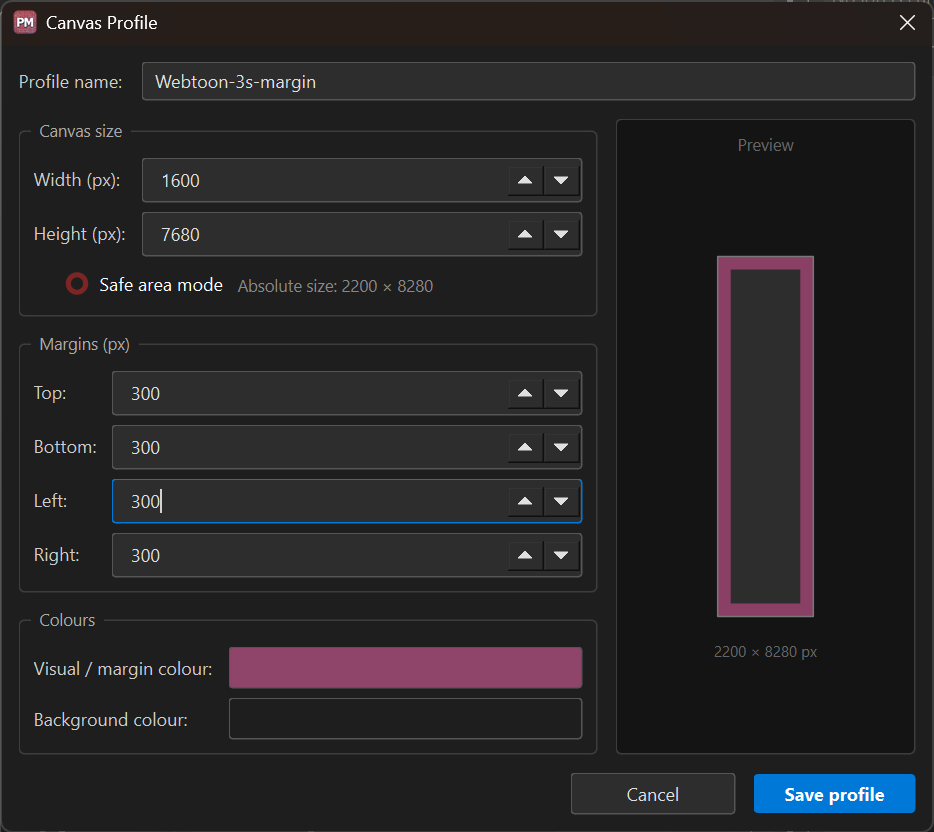
Everything inside the margin is discarded at render time, so keep anything that must survive within the work area. A generated template shows you exactly where that boundary falls — see Templates.
Double-click an assigned profile in the project, or use Canvas → Edit active profile / Manage profiles.
Since 1.2.0 an edit takes effect immediately in every open project — the assigned-canvas lists and output-profile combos of all open project docks refresh at once, with no need to press Refresh files.
Changing a profile's dimensions makes any template generated from it outdated, and can make already-rendered output stale. See Templates.
Use the Assign Canvas Profiles button on the Input tab. A project may have several assigned, and each assigned profile appears in the list with an × to unassign it.
Because a project can hold more than one profile, a single chapter can mix page sizes freely: as long as every page matches an assigned profile, their different sizes and margins are all handled in one render. This is a supported, intended workflow — draw some pages at one size and some at another, assign both profiles, and render once.
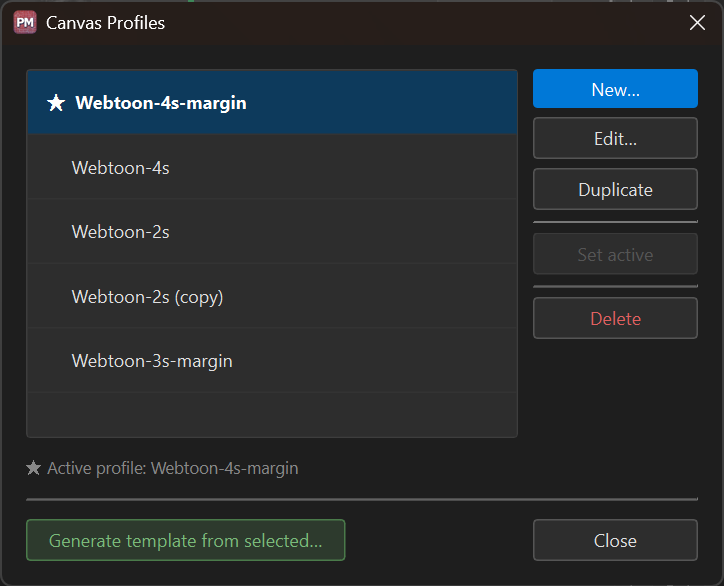
Canvas → Manage profiles opens the workspace-wide list.
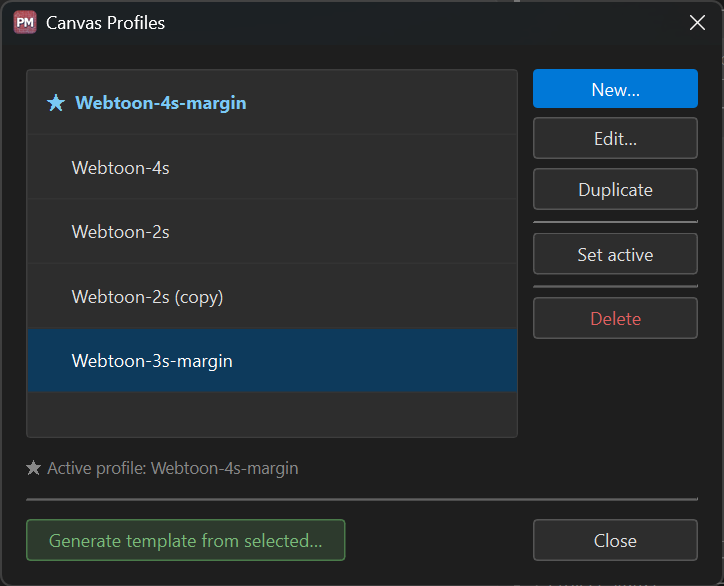
| Button | Does |
|---|---|
| New… | Creates a profile |
| Edit… | Opens the selected profile in the Canvas Profile dialog |
| Duplicate | Makes an independent copy, named … (copy)
|
| Set active | Marks the selected profile as active (★) |
| Delete | Removes the selected profile |
| Generate template from selected… | Generates a template for the selected profile without going through the template manager |
Names may repeat. Wherever profiles are listed, one that shares its name with a different profile shows a chip with what sets it apart — 2000×8080, 72 dpi — and the tooltip lists every difference. A profile identical in every setting to another of its name is marked Duplicate: a page matches either the same way, so one is enough. Saving a profile identical to another asks first; it does not refuse.
One profile in the workspace is the active one, shown with a ★ and named under the list. This is what Canvas → Edit active profile acts on, so it is a shortcut rather than a setting that affects rendering — matching is always by size, never by which profile is active.
See also: Concepts · Templates · Projects · Drawing & export


Overview
Manual
- Manual overview
- Installation
- Quick start
- Concepts
- Main window
- Workspaces
- Projects
- Canvas profiles
- Templates
- Output profiles
- Rendering
- File statuses
- Menu reference
- Troubleshooting
Comic production
Development
- Overview
- Environment
- Building
- Architecture
- Main window
- Workflows
- Releasing
- Contributing
- Windows hardening
Strip editor