Repository navigation
Manual Rendering
Running the pipeline: turning your ordered input images into upload-ready slices.
- Inputs are in the right order
- Every input matches an assigned canvas profile
- An output profile is selected
- An output directory is set
Render → Refresh all projects, or F6, renders every project in the workspace in one
sweep. The name says "refresh" but it renders — it is the closest thing to a render-all
button.
It is incremental, which is what makes it safe to run often:
- A project that is already up to date is skipped.
- A project where only some slices are affected re-renders only those slices.
- A project where a shared change touches everything — a title page added to the front, say — is re-rendered in full.
So the typical use is exactly that shared-change case: change something across every chapter,
press F6 once, and Platemaker works out per project how much actually has to be redone.
You are asked to confirm any configuration change once for the whole sweep rather than per project. The run is sequential — one project at a time, never in parallel — and finishes with a summary: N rendered, M skipped, K failed.
Do not confuse this with the per-project Refresh button on the Output tab. That one only re-scans files and repaints statuses; it renders nothing. See File statuses.
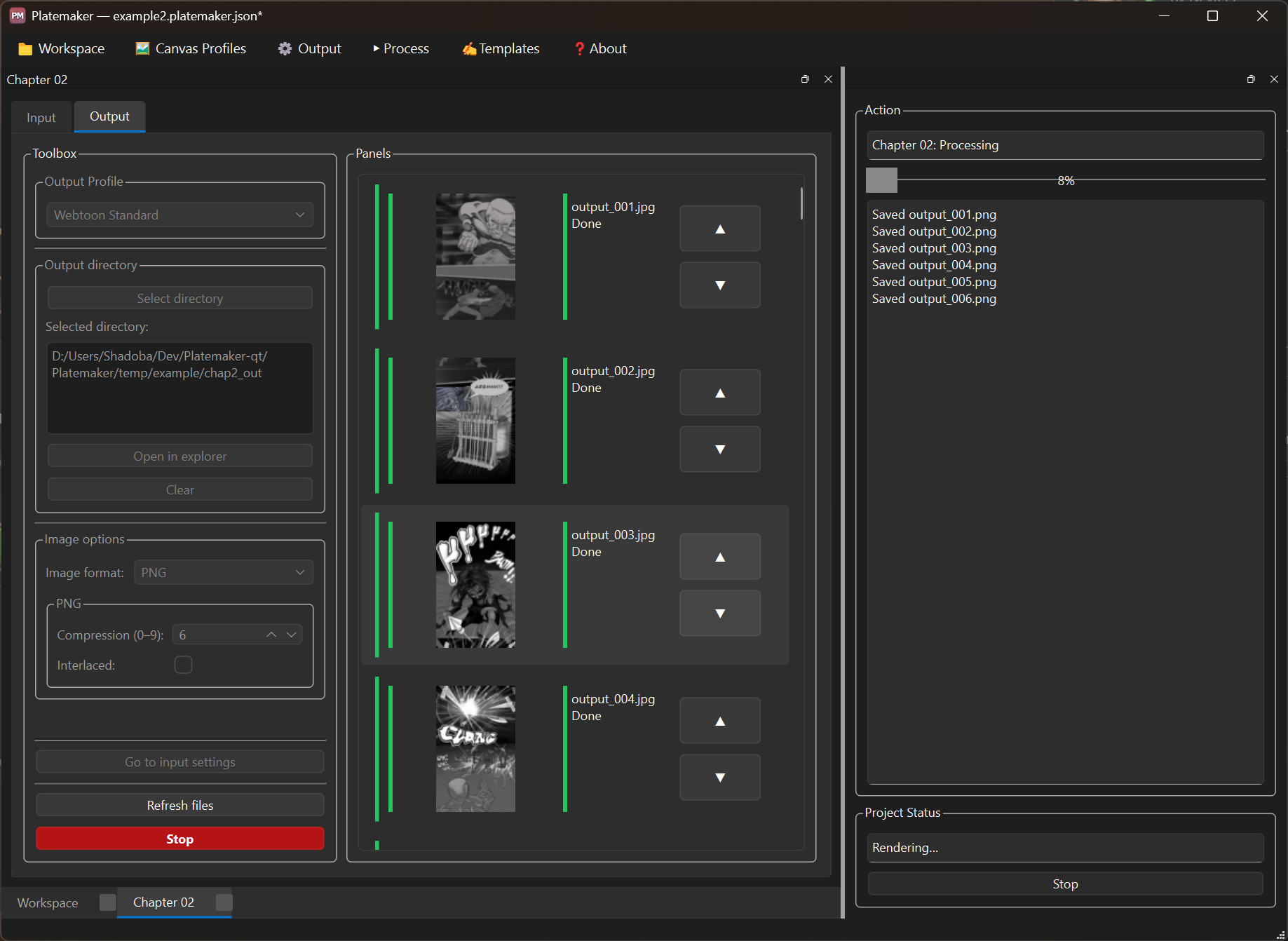
The Action panel tracks the run. The progress bar counts slices: how many have been written against how many the run plans to write, as a percentage. The log records each slice as it is saved, along with any warnings from the library, and output tiles appear in the Panels list live rather than all at once at the end.
The bar measures slices, not total work. Building the strip — loading, cropping and scaling every page — happens before the first slice exists, so a large chapter can sit at 0% for a while at the start. That is not a hang.
Since 1.4.0 the progress bar is a slim bar that turns red if the render fails or is stopped.
Since 1.4.0 a finished render ends the log with a short summary: the slice and input counts and the elapsed time, the heaviest slice (name and size), and the total output size — for example:
Output: 40 slice(s) — from 12 input(s) in 3.2 s
The heaviest slice: output_017.png (612 KB)
Output size: 18.4 MB
That total is the number to check against a platform's per-chapter cap, so you no longer have to
add up the folder yourself. A batch (F6) adds a per-project summary and the whole-sweep time.
Each run's log is saved to <workspace>/.platemaker-cache/logs/render-<timestamp>.log (a batch is
one file); the last 10 runs are kept, so a failing render's log survives the next one — useful
to review or attach to a bug report.
Right-click the log for Copy / Copy all / Select all, Open output folder (the last render's output directory), Open log folder, Save log as… and Clear log.
While a render runs, the Render button becomes Stop; Render → Stop and Esc do the
same thing.
Cancellation is cooperative — the run checks between slices rather than aborting mid-write — so Stop takes effect at the next slice boundary rather than instantly. No file is left half-written.
Slices already written stay on disk; the run reports Cancelled (partial output kept).
Nothing is wasted. Press Render again and Platemaker works out what is still missing, the same way it does for any other re-render — see Re-rendering only what changed below.
Platemaker does not blindly redo everything. When you render a project that has been rendered before, it works out how little it can get away with:
| What changed | What gets re-rendered |
|---|---|
| Nothing | Nothing — see below |
| An input's content, same pixel size | Only the slices that page feeds into |
| An input's pixel size | Everything downstream of it |
| Inputs added, removed or reordered | Everything downstream of the first change |
| The configuration — format, size, quality | Every slice |
The size rule is the one worth understanding: pages are joined into one strip before it is cut, so changing a page's height shifts every slice after it. Redrawing a page at the same size only disturbs the slices that page touches.
This is what makes Render all projects (F6) cheap to run: most projects in a sweep either skip entirely or rewrite a handful of files.
If nothing has changed, Platemaker says so and stops rather than redoing the work:
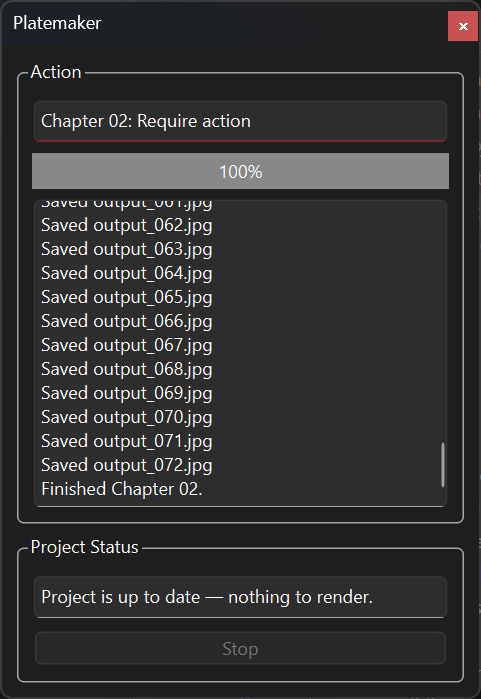
Project is up to date — nothing to render.
When the configuration has moved on from what the existing output was rendered with, Platemaker asks before doing the work, because the work is destructive:
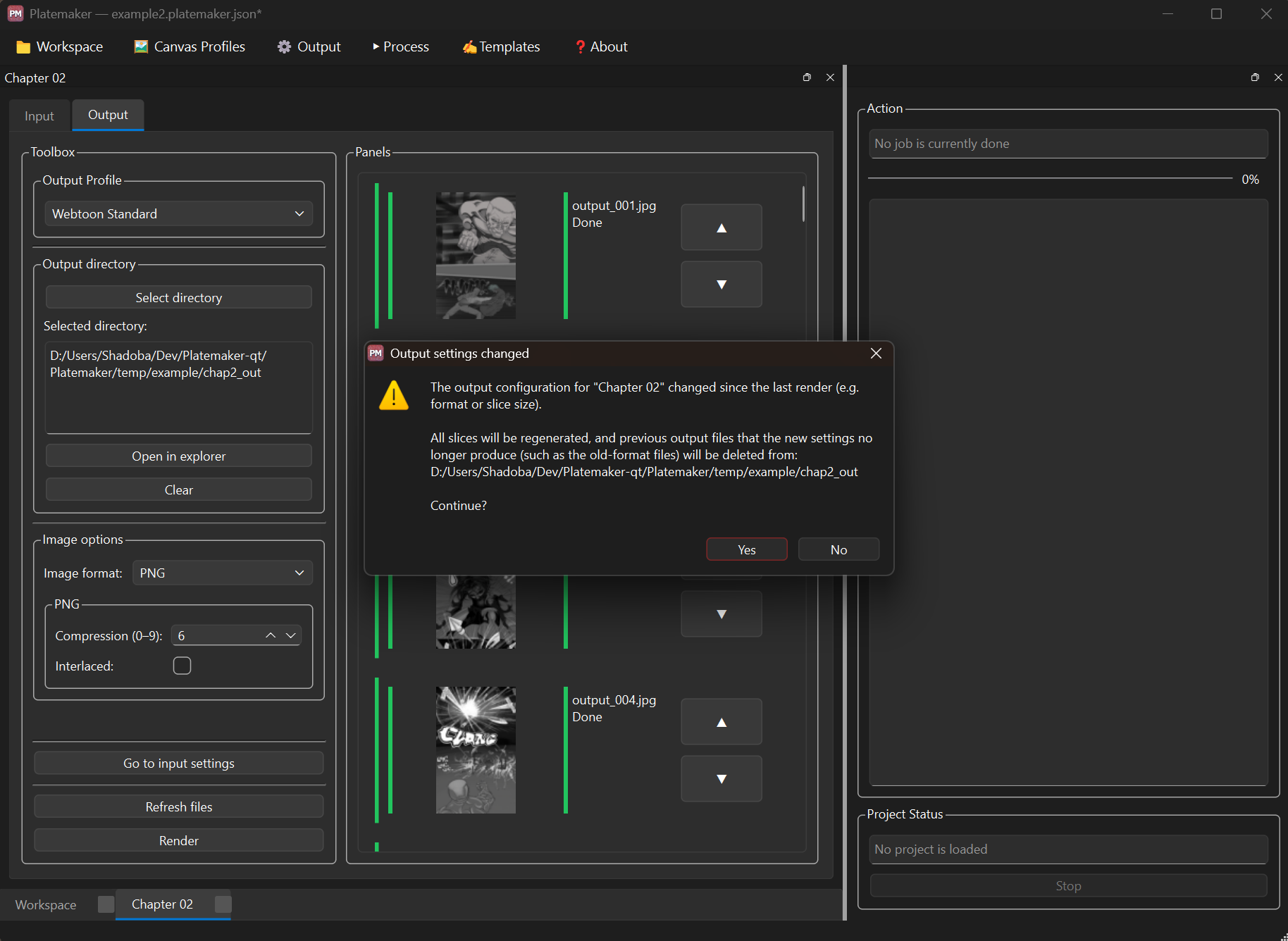
The dialog is titled Settings changed since the last render and tells you which project no longer matches, plus what will happen to the files already in the output directory:
-
After a format or size change — all slices are regenerated, and previous output files
that the new settings no longer produce are deleted. Changing PNG to JPEG leaves the old
.pngfiles orphaned under names the new run never writes, so they are cleaned up. - After a canvas-only change — all slices are regenerated in place; the filenames are the same, so nothing is deleted.
Answer Yes to proceed or No to leave the output alone; declining reports
Render cancelled. During a F6 sweep you are asked once, and that answer applies to every
project in the run.
Since 1.2.0 these are two different things, and only one of them means a page is missing.
- No matching canvas profile — the page is still rendered, just without a margin crop, and its tile turns cyan ("Processed (no canvas profile)"). Nothing is left out. See Canvas profiles.
- Skipped — the page is genuinely absent from the output, and its tile is violet ("Skipped"). This happens only when the file is missing or cannot be read, not because of its size. The render still completes and finishes in Require action, and the log names each skipped file.
So a violet tile means "find or fix this file"; a cyan tile means "this went through, assign a profile if you wanted it cropped". See File statuses for both.
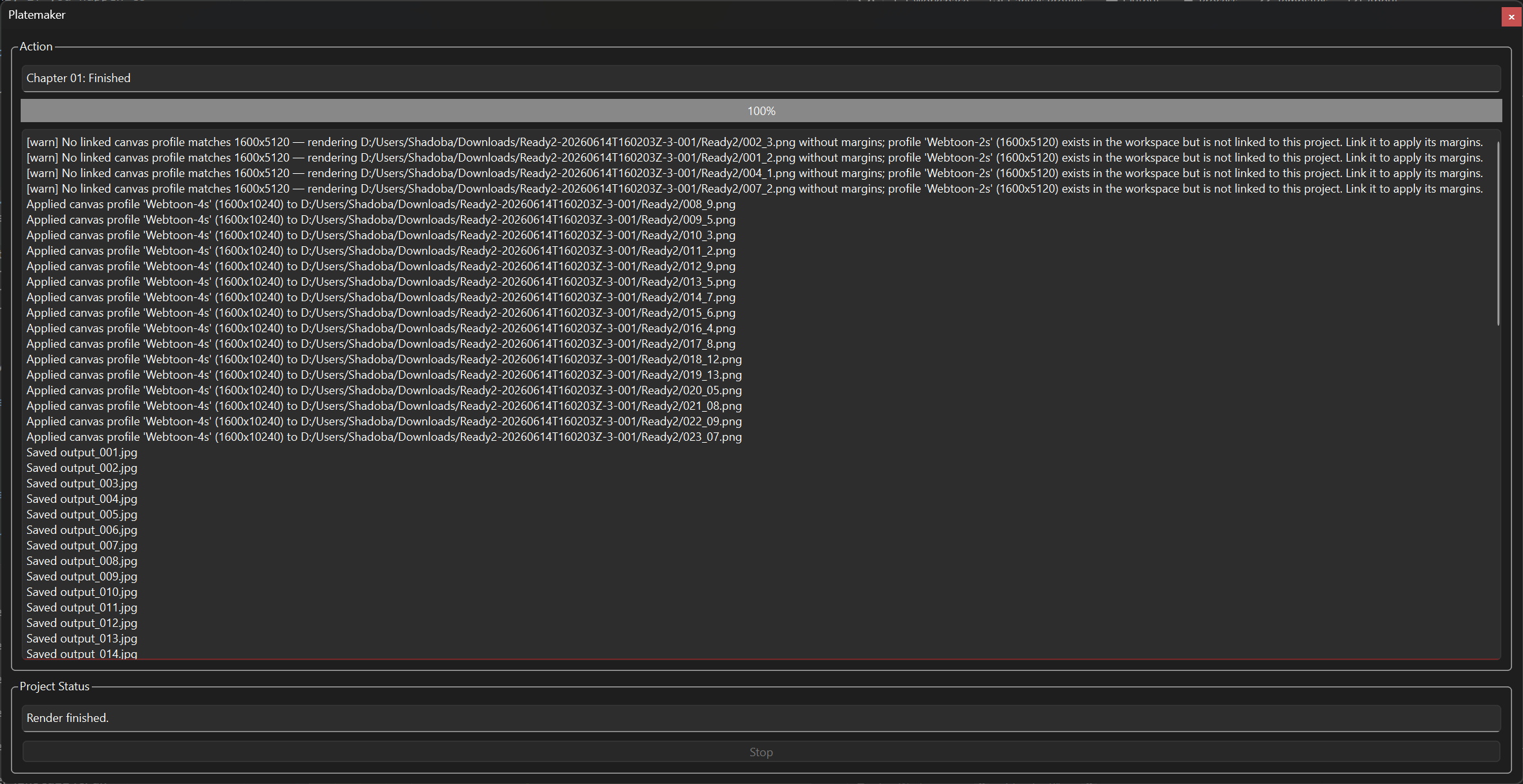
In this run four pages matched no linked profile, so each was rendered without margins and the
log said so — naming the workspace profile (Webtoon-2s) that would have cropped them, had it
been assigned. Every page rendered, and the project finished normally.
Platemaker's usual input is artwork exported from a drawing app, but it also handles ordinary photos as input.
- Rotated photos render the right way up. A phone or camera photo stores its rotation as a tag rather than in the pixels. Since 1.4.2 Platemaker reads that tag, so a portrait or sideways shot renders upright instead of on its side (older builds rendered it rotated, sometimes with a black band and split across two files). Such a photo also previews upright in the input list. Artwork exported from a drawing app is unaffected — its orientation is already baked in.
- Photos and screenshots can be mixed. Since 1.4.2 a chapter can combine ordinary photos with images that carry transparency (a screenshot, a PNG with an alpha channel) without the render aborting. Transparency is preserved for PNG and WebP output and flattened over white for JPEG, which cannot carry it.
Slices are written to the project's output directory, named output_001, output_002 and so
on, with the extension of the chosen format. The stem is fixed and cannot be changed; only the
Start index in the output profile moves the first number.
The numbering exists so that sorting the folder by filename gives you the upload order.
A completed render updates what the workspace records about your files, so save afterwards. Before uploading, check the total output size against your platform's per-chapter cap — since 1.4.0 the render summary reports it, so you no longer have to add up the folder by hand. See Publishing.
See also: Output profiles · File statuses · Projects · Troubleshooting


Overview
Manual
- Manual overview
- Installation
- Quick start
- Concepts
- Main window
- Workspaces
- Projects
- Canvas profiles
- Templates
- Output profiles
- Rendering
- File statuses
- Menu reference
- Troubleshooting
Comic production
Development
- Overview
- Environment
- Building
- Architecture
- Main window
- Workflows
- Releasing
- Contributing
- Windows hardening
Strip editor