Repository navigation
Manual Menu Reference
Every action in the menu bar, grouped by menu, in the order it appears. Eight menus, standard categories, flyouts one level deep: File, Edit, View, Canvas, Output, Tools, Render, Help. For a tour of the window itself see Main window.
The screenshots below predate the current menu layout — the actions are unchanged, only their grouping and, for a few, their menu moved.
| Action | Shortcut | Does |
|---|---|---|
| New workspace… | Ctrl+N |
Creates a new workspace |
| Open workspace… | Ctrl+O |
Opens an existing .platemaker.json
|
| Open recent | Submenu of recently opened workspaces | |
| Save | Ctrl+S |
Saves the workspace |
| Save as… | Ctrl+Shift+S |
Saves under a new name or location |
| Open package… | Unpacks a .platemaker.zip into a new folder and opens it |
|
| Export package… | Packs the open workspace — pages, overlays, templates, fonts — into one .platemaker.zip
|
|
| Reveal in Explorer | Opens the folder containing the workspace file | |
| Close workspace | Closes the workspace, prompting if there are unsaved changes | |
| Exit | Closes the application, prompting for unsaved changes exactly like Close workspace |
| Action | Shortcut | Does |
|---|---|---|
| Undo | Ctrl+Z |
Reverses the last edit |
| Redo | Ctrl+Y |
Re-applies an undone edit (also Ctrl+Shift+Z on Windows) |
Undo / Redo act on whichever tab is in front — a project has its own history, and the workspace has one of its own — and cover input edits (add / remove / clear / reorder / sort, profile links, output profile and directory) and workspace edits (rename a project; create, edit or delete canvas and output profiles; generate or delete templates).
Adding or removing a project is not undoable, and a render is never recorded. History goes back 10 steps per timeline.
| Action | Does |
|---|---|
| Workspace panel | Brings the left dock back if it has been closed |
| Action panel | Brings the Action dock back if it has been closed |
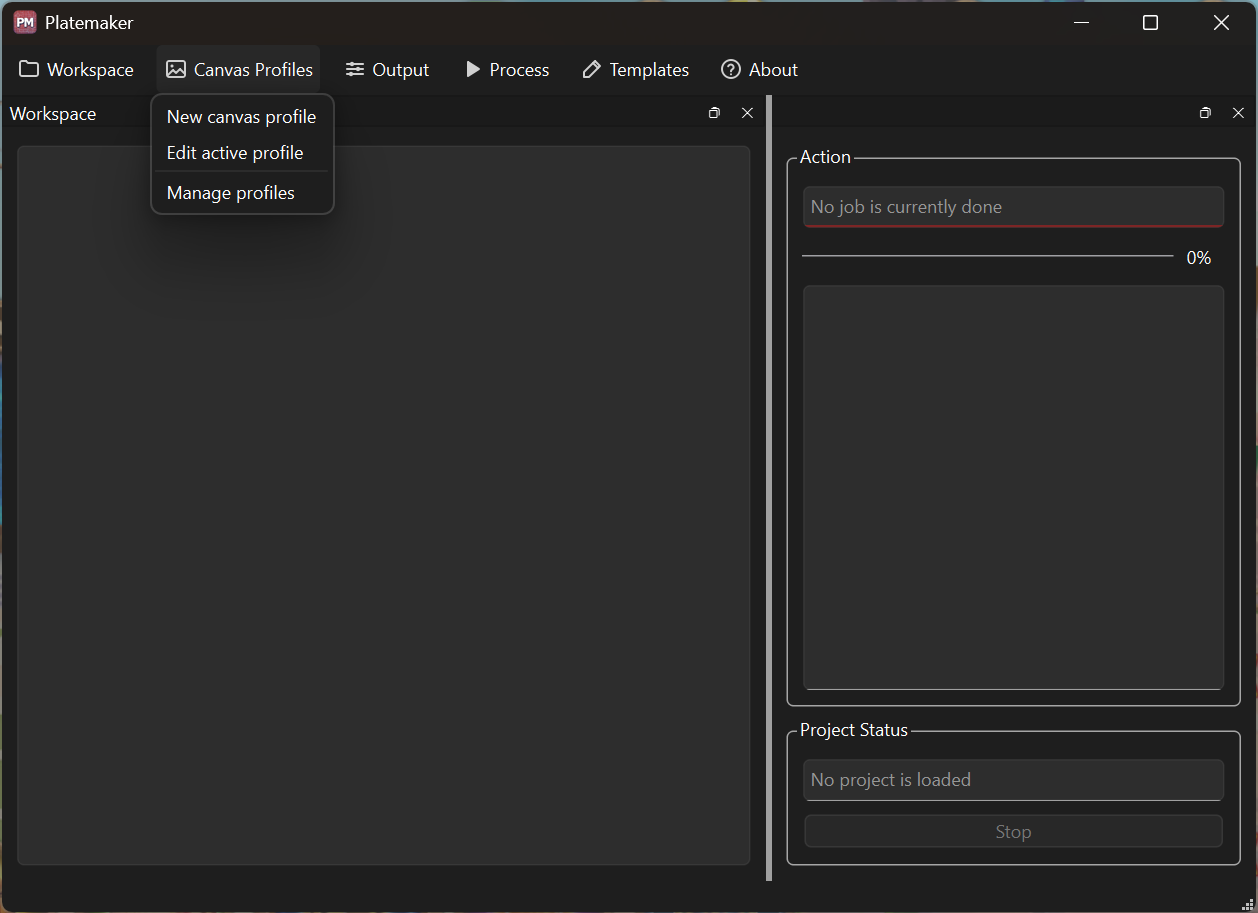
| Action | Does |
|---|---|
| New profile… | Creates a canvas profile |
| Edit active profile… | Edits the profile assigned to the open project |
| Manage profiles… | Opens the workspace-wide list of canvas profiles |
| Import | Copies canvas profiles from another workspace, a profile bundle, or your library |
| Export | Saves canvas profiles to a bundle file or your profile library |
| Templates… | Opens the template manager |
| Open templates folder | Opens the workspace's templates folder |
A template belongs here because it is a canvas profile's own file, generated from that profile's margins — see Templates.
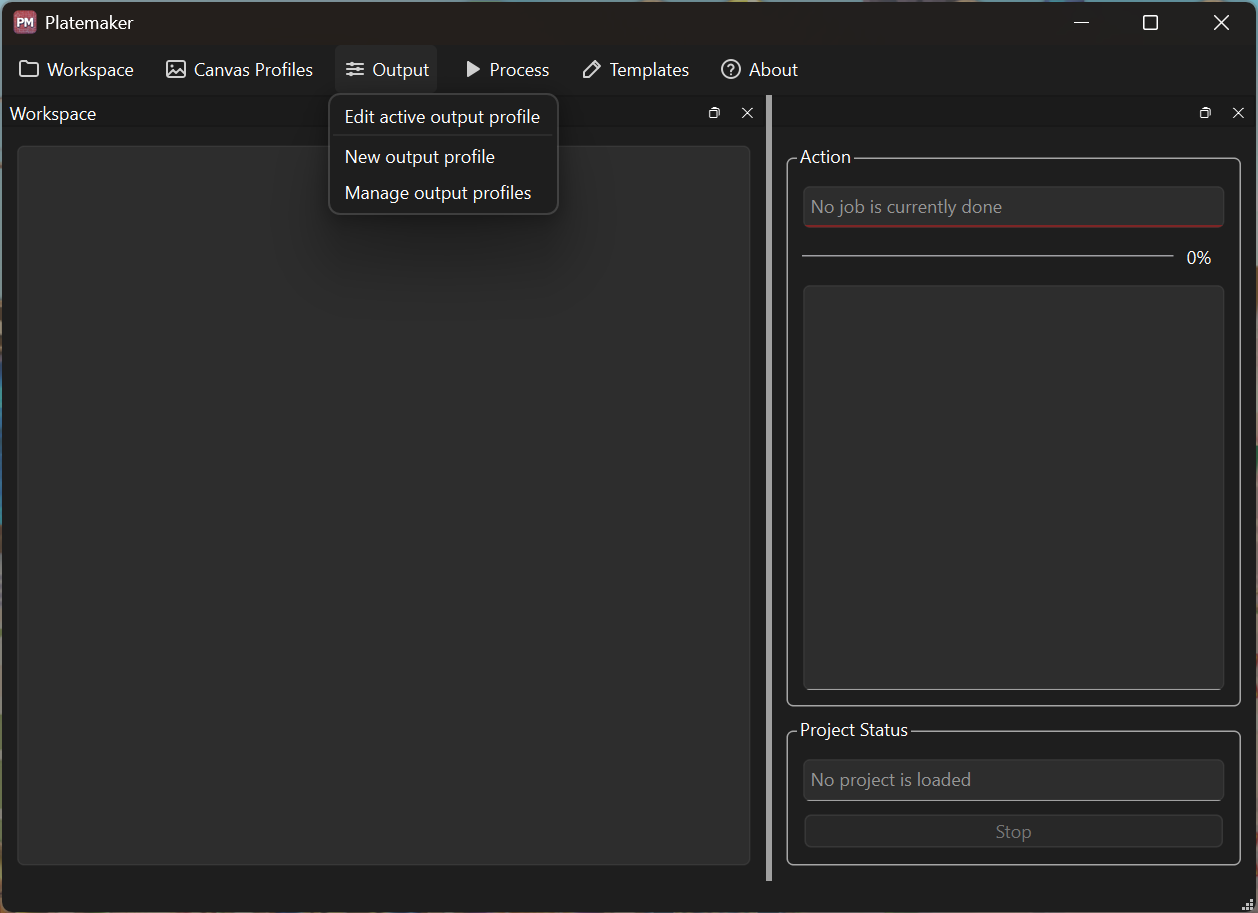
| Action | Does |
|---|---|
| New profile… | Creates an output profile |
| Edit active profile… | Edits the profile selected for the open project |
| Manage profiles… | Opens the workspace-wide list of output profiles |
| Import | Copies output profiles from another workspace, a profile bundle, or your library |
| Export | Saves output profiles to a bundle file or your profile library |
| Action | Does |
|---|---|
| Import bubble presets… | Copies bubble presets from a pack file |
| Export bubble presets… | Saves your bubble presets to a pack file |
| Fonts… | Lists the workspace's own fonts and the ones its lettering is missing; add or install a font |
Bubble presets are shared by every open strip editor — one imported or saved here (or from a strip editor's own tool options) is offered in all of them. See Object state and tool options for how presets are stored.
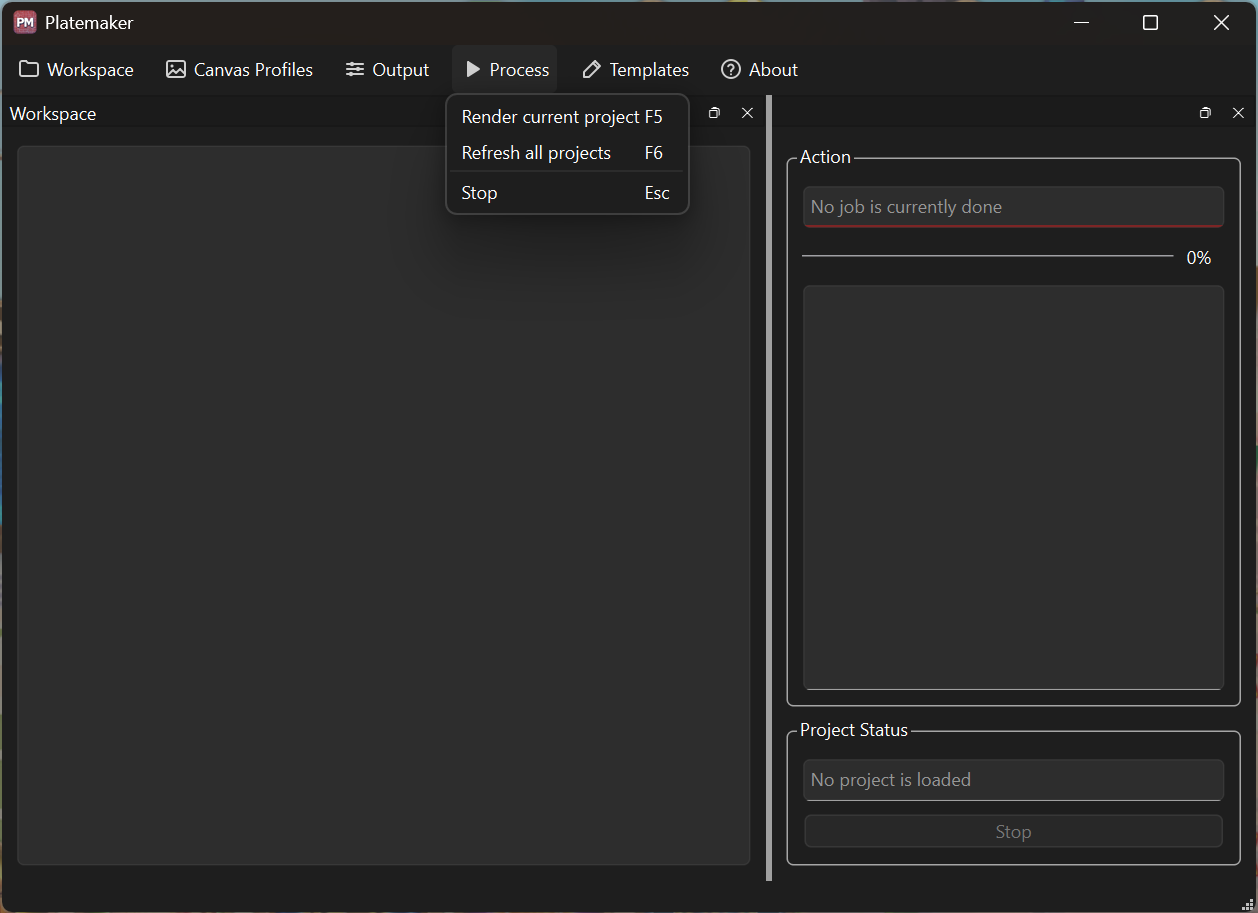
| Action | Shortcut | Does |
|---|---|---|
| Render current project |
F5 (or Ctrl+R) |
Renders the open project |
| Refresh all projects | F6 |
Renders every project, but only what each one needs |
| Stop | Esc |
Cancels the running render |
"Refresh all projects" is the render-everything action, despite the name. It walks every project in the workspace and renders each one — but incrementally: a project that is already up to date is skipped, and a project where only a few slices changed re-renders only those. Swap a shared page (a new title page, say) into every chapter and one press brings the whole workspace up to date.
Do not confuse it with the per-project Refresh button on the Output tab, which only re-scans files and repaints statuses — it renders nothing. Same word, very different weight.
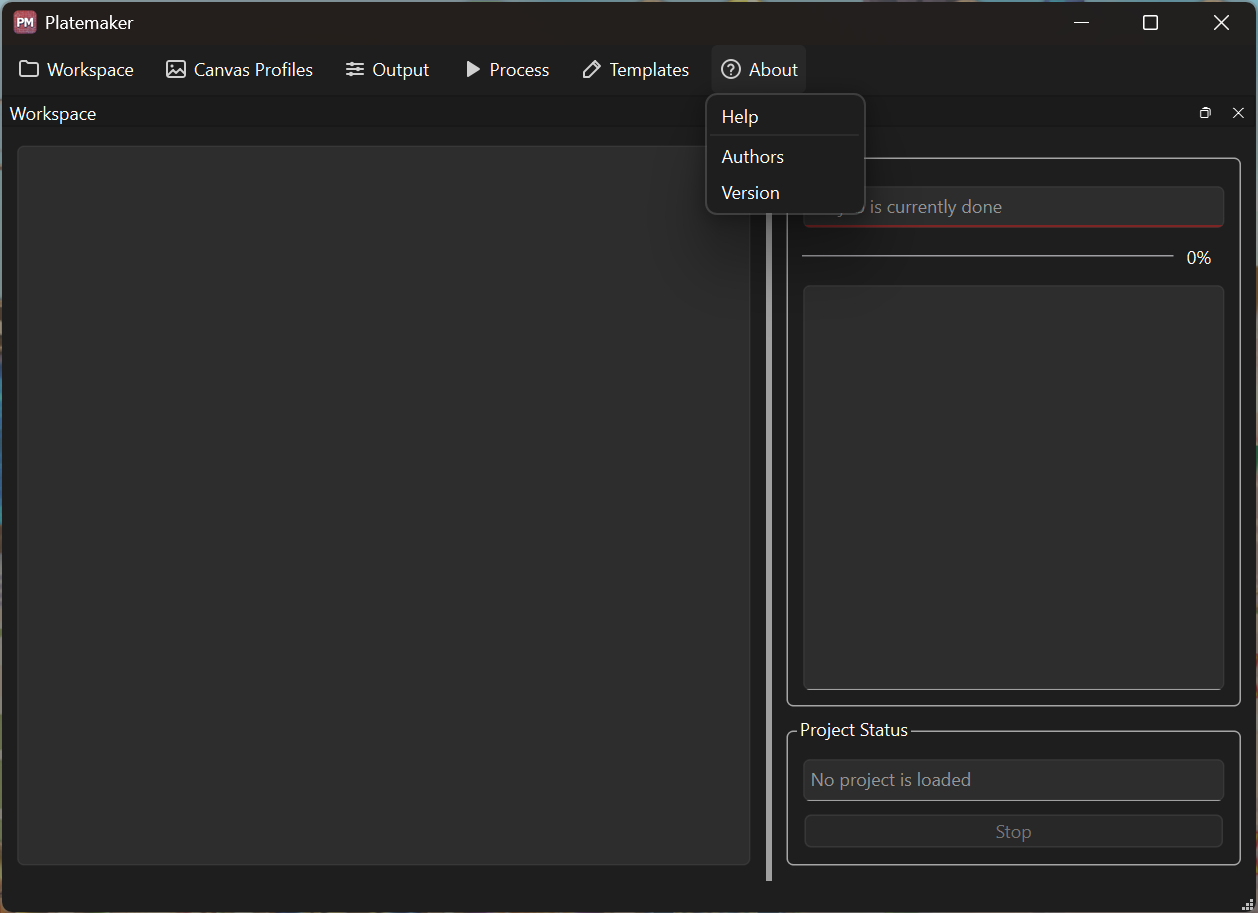
| Action | Does |
|---|---|
| Help | Opens the About dialog on its manual tab, which links to this wiki |
| Authors | Opens the About dialog on its authors tab |
| Version | Opens the About dialog on its About tab — component versions and licences, the numbers to quote in a bug report |
→ About
| Shortcut | Action |
|---|---|
Ctrl+N |
New workspace |
Ctrl+O |
Open workspace |
Ctrl+S |
Save |
Ctrl+Shift+S |
Save as |
Ctrl+Z |
Undo |
Ctrl+Y |
Redo |
F5 / Ctrl+R
|
Render current project |
F6 |
Refresh all projects |
Esc |
Stop |
Several actions are not in the menu bar at all — the eight menus above are the complete set. These live elsewhere:
- New, Rename, Delete project — right-click menu in the Workspace panel (see Projects)
- Open input directory, Open output directory, Set output directory — buttons on the project's Input and Output tabs
See also: Main window · Manual · Troubleshooting


Overview
Manual
- Manual overview
- Installation
- Quick start
- Concepts
- Main window
- Workspaces
- Projects
- Canvas profiles
- Templates
- Output profiles
- Rendering
- File statuses
- Menu reference
- Troubleshooting
Comic production
Development
- Overview
- Environment
- Building
- Architecture
- Main window
- Workflows
- Releasing
- Contributing
- Windows hardening
Strip editor