Repository navigation
Interface Guide
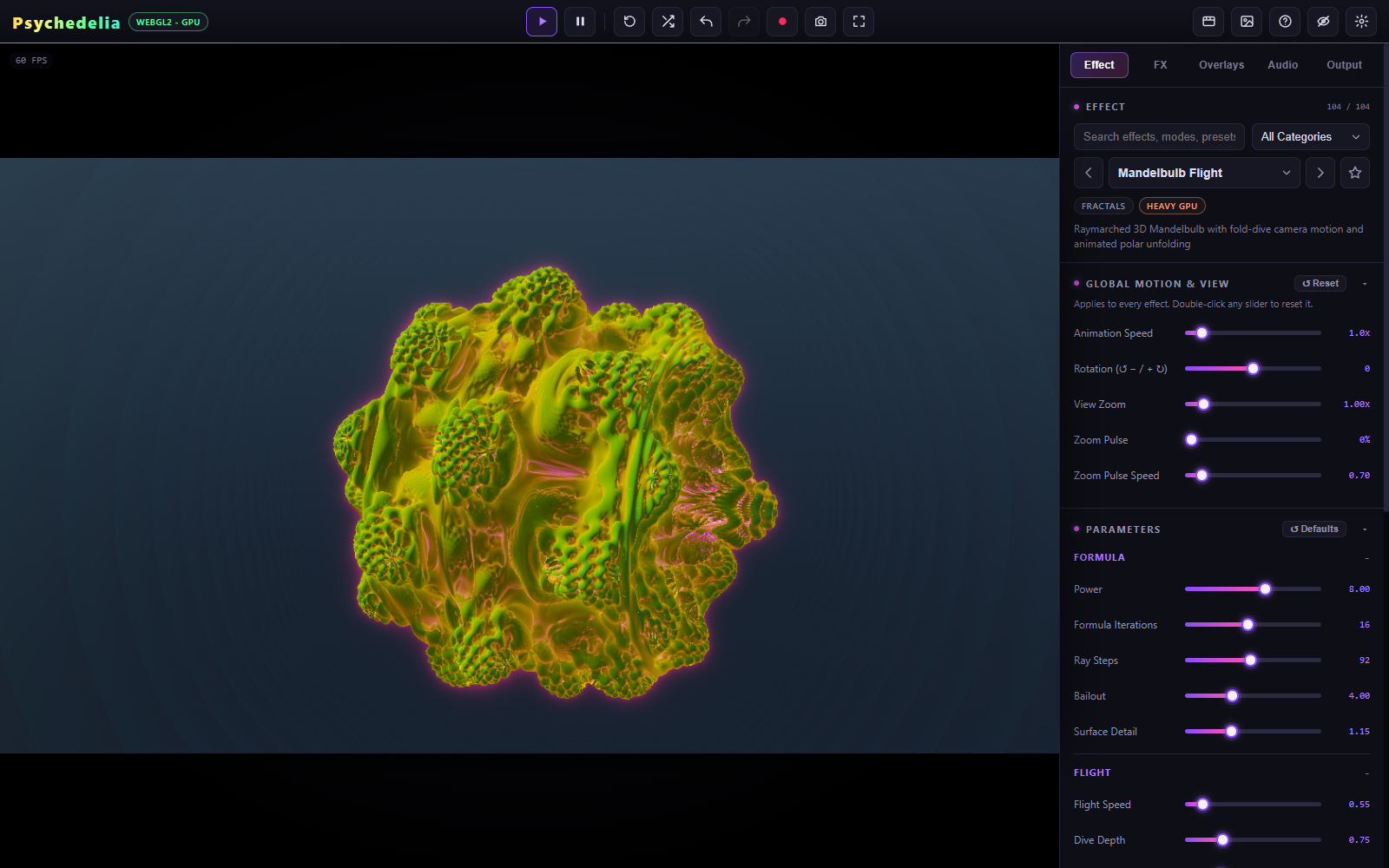
The large preview shows the composed scene. The top toolbar handles transport and common actions. The right sidebar has five tabs; each keeps related controls together and can be scrolled independently.
| Control | Purpose |
|---|---|
| Play / Pause | Run or pause the visual renderer. Audio has its own transport. |
| Reset looks | Reset FX, overlays, and current effect links; restore the Club global style. This is not the same as Effect Defaults or Motion Reset. |
| Randomize | Make a new variation of the current effect. |
| Undo / Redo | Move through supported creative edits. |
| Record | Start or stop the recording workflow selected under Output. |
| Snapshot | Download a PNG of the composed canvas. |
| Fullscreen | Expand the viewing area. |
| Timeline | Show the effect sequencing track. |
| Gallery | Review and download videos held in the current session. |
| Help | Open the shortcut reference. |
| Hide UI | Remove controls from the view; press H or Escape to recover them. |
| Settings | Open display/output-related controls. |
The renderer badge identifies the graphics backend. Preview FPS is a performance measurement, not a promise about live export frame completeness. Compile indicators may appear when switching a specialized shader mode.
| Tab | Contains |
|---|---|
| Effect | Search, category filter, effect selector, previous/next, favorite, global motion, starter presets, and effect-specific parameters. |
| FX | Post-processing passes, shuffle controls, per-pass settings, and beat modulation. |
| Overlays | Canvas layers, text and image layers, trigger settings, and shuffle. |
| Audio | Saved setups, Studio Music and mixer, source selection, file/capture controls, Beat Reactor and parameter links. |
| Output | Direct Render MP4, recording configuration, resolution, FPS, quality, and preview performance. |
Search includes effect names, modes, and starter presets. The category filter narrows the list. The star marks a favorite; the favorites filter helps return to preferred effects without scrolling through the full catalog.
Drag a slider for continuous changes; use the adjacent select menu for modes and palettes. Double-click a slider to restore its default. Click a section heading to collapse it; the app remembers the section layout.
The Parameters → Defaults button resets the active effect's controls. It does not serve as a global reset for music, overlays, FX, and motion. A Starter Preset applies a coherent starting configuration for an effect that provides presets; edits then make the state custom.
Global Motion & View stays in effect when you choose a different scene. Beat Reactor's Global Style also stays active across scenes. If several unrelated effects suddenly seem to share the same movement, inspect these two places first.
- Effect controls change the generator: shape, fractal formula, detail, scene palette, camera, and built-in music response.
- FX process the rendered image: mirroring, feedback, color treatment, blur, distortion, and lens effects.
- Overlays add foreground content: lights, particles, shapes, text, images, and audio displays.
Beat Reactor can influence all three through separate routes. An FX link and an effect link do not disappear just because the global reaction switch is off. Use Beat Reactor to isolate the source of a movement.
Use 1–5 for the sidebar tabs and [ / ] for neighboring effects. Most creative shortcuts are ignored while typing into a field. Ctrl/Cmd+Z uses normal text editing when a text field has focus and app history otherwise. Rendering/finalizing locks creative edits to preserve the exported result.
See Keyboard Shortcuts for the full list.