Repository navigation
Connecting a Model
Polygluttony doesn't include an AI model. You connect one, either from a cloud provider (you pay them for what you use) or running on your own computer (free and private, but only as good as the model you can run). Everything on this page happens on the Models page (Ctrl+3).
| Provider | You enter | Extras |
|---|---|---|
| Anthropic (Claude) | API key, model | Look up names online, thinking |
| OpenAI (GPT) | API key, model | Look up names online, thinking |
| Google (Gemini) | API key, model | Look up names online, thinking |
| Ollama | Server address, model | Free, runs on your computer |
| LM Studio | Server address, model | Free, runs on your computer |
| Other | Endpoint URL, model, API key (optional) | Any OpenAI- or Anthropic-compatible service |
Need a key? Once you pick a cloud provider, the Get a key at… link opens its key page: console.anthropic.com, platform.openai.com or aistudio.google.com.
-
Open Models, or press Connect on the welcome screen. The first time, you'll see the provider tiles straight away.
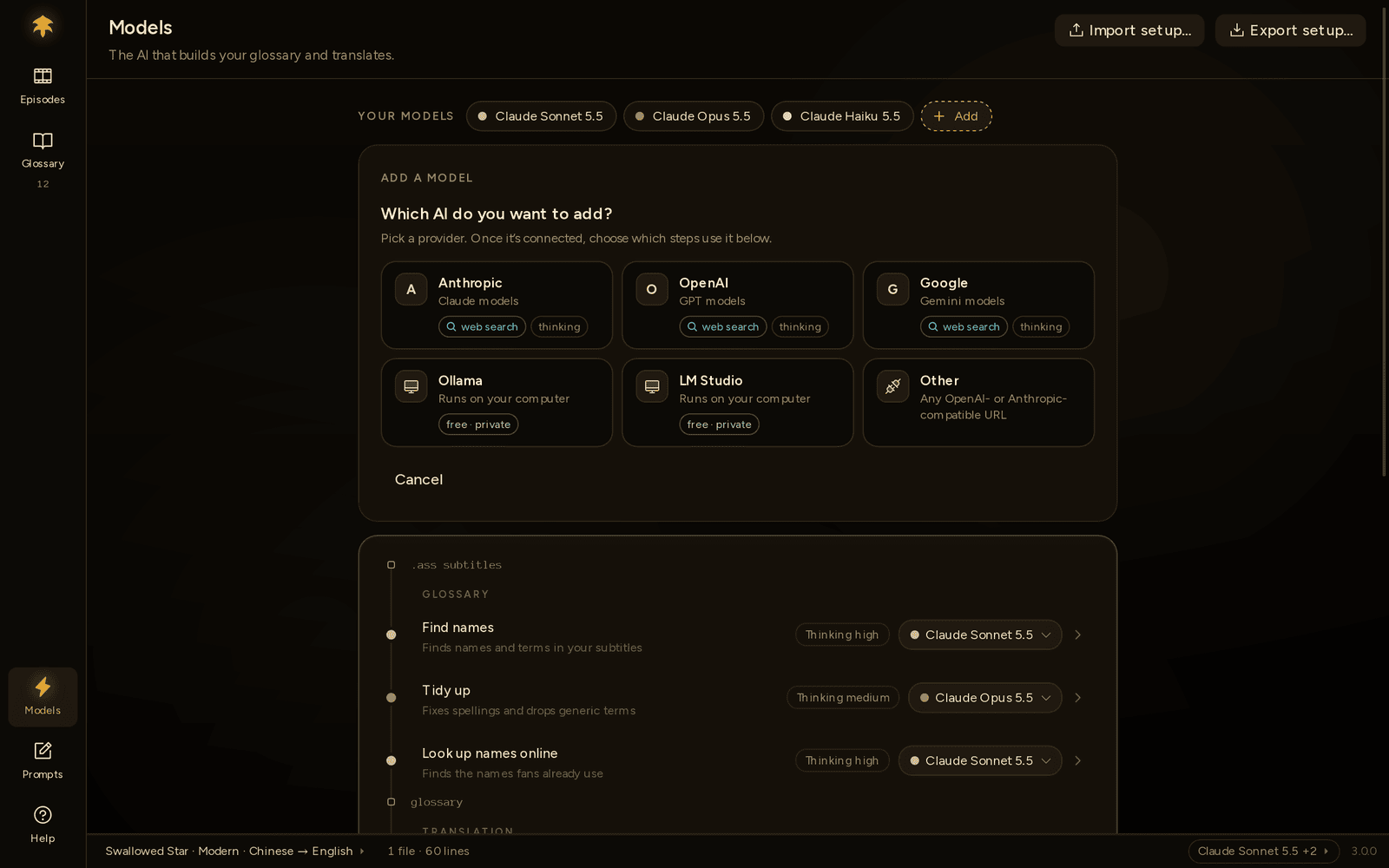
-
Pick a provider, paste your API key, and choose a model. The first suggestion is marked Recommended; the hint underneath names the others ("Opus 5.5 = best quality · Haiku 5.5 = fastest & cheapest"). If the model you want isn't listed, open the menu and type its name.

-
Press Connect. Polygluttony sends one tiny test message ("Reply with OK."), then saves.
If the test fails, the message says what went wrong and what to do: a rejected key, a model the provider doesn't recognise, an address it couldn't reach, an account out of credit, a rate limit, or trouble on the provider's side. The provider's own words are under Details. When the problem might pass by itself (the provider was slow, busy, rate-limiting you or having server trouble), Save anyway appears so you aren't stuck. The messages and their fixes are listed in Troubleshooting.
Note
You only paste a key once per provider. Add a second Claude model later and it reuses the key you saved.
Next to each model is how it stands right now:
| Status | Means |
|---|---|
| Needs an API key | It can't make requests yet. |
| Ready | Its key is saved, but it hasn't been tested since you started Polygluttony. |
| Connected | A test passed since you started Polygluttony. |
| Test failed | The last test didn't get through. The reason is shown underneath. |
Press Test to send the same tiny message again. Nothing is saved; you see "Works · 1.4 s" or what went wrong. In the per-step view (below), click a model under Your models to open its form: Test there checks what the form shows, so you can try a new key before you save it.
Start Ollama or LM Studio first, with at least one model downloaded. Polygluttony looks at the usual address (http://localhost:11434/v1 for Ollama, http://localhost:1234/v1 for LM Studio) and lists the models it finds.
-
No models installed? For Ollama, run
ollama pull <model>; for LM Studio, download one in the app. Then press Retry. - Different machine or port? Change the server address.
- Local models automatically get smaller batches (40 lines), one request at a time, and a 10-minute timeout, because a local server usually handles one request at a time and the first one also loads the model.
- Local models can't look up names online, and have no Thinking control.
Other takes any service that speaks the OpenAI or Anthropic API, such as a proxy or a self-hosted server. Enter the endpoint URL (for example https://api.example.com/v1), an API key if it needs one, and the model name. When you press Connect, Polygluttony works out which of the two API formats the service uses.
Polygluttony has five AI steps (see How it works):
| Step | What it does |
|---|---|
| Find names | Finds names and terms in your subtitles, for the glossary |
| Tidy up | Fixes spellings and drops generic terms |
| Look up names online | Finds the names fans already use |
| Translate | Every line, plus clean-up passes |
| Verify | Checks each episode and redoes lines that slipped |
At first, your one model does all of them, and the strip at the top of the page shows the flow.

To split them, click Use different models for different steps. Each step then gets its own model menu: pick any model in Your models, or Add a model… right there. The colored dot shows which model a step uses. To add a model without giving it a step yet, click + Add next to Your models.
To go back, click Use one model for everything, pick the model, and confirm. Only the steps move: your other models and their keys stay in Your models, ready if you switch back. If the model you pick can't search the web, Look up names online stays on the model it was using.
Removing a model: its steps move to your first remaining model. Look up names online moves to the first remaining model that can search, or turns off. The confirmation says exactly what will happen, including when a saved key goes with it. Removing your last model takes you back to setup.
For advice on which model goes where, see Choosing a model.
Some models can reason before they answer. Where the model supports it, each step has a Thinking control: Low, Medium or High ("Deeper = better on tricky dialogue, slower."). Higher levels also use more tokens, so they cost more.
| Models | Levels | Default |
|---|---|---|
| Claude 4.6 and later | Low, Medium, High | High; Medium for Opus 5.5 and Haiku 5.5 |
| Older Claude | Off, Low, Medium, High | Off |
| GPT-5, o1, o3, o4 | Low, Medium, High | Not set: the model decides |
| Gemini 3 | Low, High | Not set |
| Gemini 2.5 | Low, Medium, High | Not set |
Local and Other models don't show the control.
Look up names online finds the names fans of a show already use, so your glossary can follow them. It uses the provider's own search tool. Polygluttony never contacts search sites itself.
- It runs only when you ask: tick it when you build a glossary on the Glossary page, or pick Improve ▾ → Look up names online… later. Build glossary, then translate on the Episodes page leaves it off. Each lookup is one request.
- Models that can search: Claude, Gemini, and OpenAI models except o1 and o3-mini. Local and Other models can't.
- It's switched on when your first model can search. With one model, it's a switch on the Models page; Use a different model gives the lookup a model of its own. If your model can't search, the row says so and offers Add a model that can.
- In the per-step view, models that can't search are greyed out in its menu. Choose Off to turn it off.
- A model you add for looking up names is tested with search switched on, so a model or account that can't search fails at Connect, not halfway through a glossary.
Open Tuning to change how a step talks to the model. With one model, it's on the Models page and applies to every step at once. In the per-step view, click a step to open its Thinking and Tuning. Most people never need to. Use recommended values fills the defaults back in; Save tuning saves.

| Field | What it does | Cloud | Local | Other |
|---|---|---|---|---|
| Lines per request | Subtitle lines sent in one go. Fewer is safer but slower. | 100 | 40 | 100 |
| Requests at once | How much runs in parallel. More is faster but can hit rate limits. | 5 | 1 | 3 |
| Response timeout (s) | How long to wait without hearing anything before retrying. | 180 | 600 | 120 |
| Max response tokens | The longest answer allowed. Too low cuts long batches short. | 32000 | 8192 | 16000 |
Good to know:
- Each step only shows the fields it uses. Tidy up has no Lines per request. Look up names online and Verify only have the timeout and Max response tokens; Verify checks episodes as Translate finishes them, so it runs as many at once as Translate.
- For Translate, Requests at once is the number of episodes translated in parallel. The batches inside one episode always go one after another, because each uses the lines before it as context.
- Translation uses between 10 and 260 lines per request, whatever you enter.
- The timeout restarts every time part of the answer arrives, so a long answer that keeps streaming doesn't time out.
- When a provider says you're sending too much (HTTP 429), Polygluttony halves the requests in flight and climbs back up after 5 successes in a row.
Your setup fits in one file, so you don't have to connect everything again on a new computer or after a reinstall.
- On the old computer, open Models, click Export setup… at the top right, and choose where to save
polygluttony-export-YYYY-MM-DD.zip. - Copy that file to the new computer.
- There, open Models, click Import setup… and pick the file. On a fresh install, you can also click Import your setup under the provider tiles.
The file holds your models with their API keys, which model each step uses (with its Thinking and Tuning), your default languages, and the prompts you changed on the Prompts page.
It leaves out recent folders and each folder's own settings (languages, tone, world type, ticked episodes). Glossaries live in your subtitle folders, so they move when you copy the folders.
If this computer already has models or edited prompts, Polygluttony asks first and shows what the file holds:
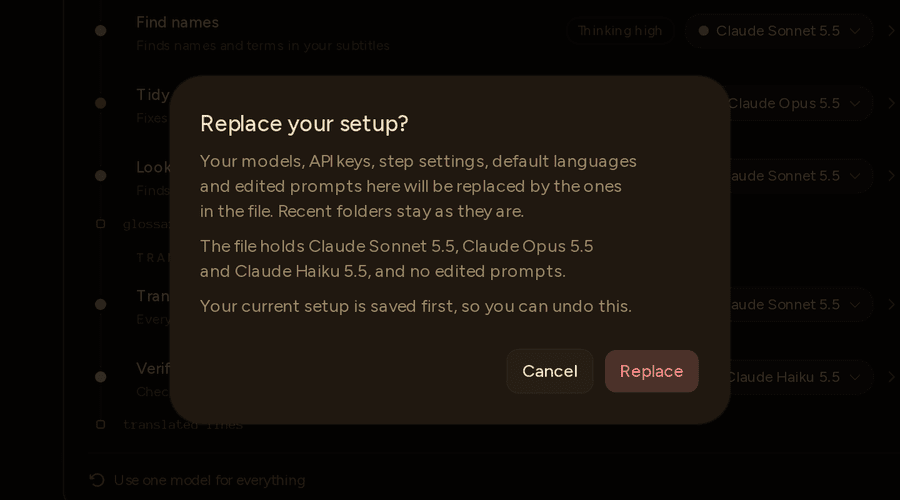
Replace swaps all of that for the file's version. A prompt you edited on this computer but not in the file goes back to its default.
Your current setup is saved first, so you can change your mind:
- The Setup replaced message has an Undo button for about 10 seconds.
- After that, the saved copy stays in Polygluttony's data folder as
setup-backup-<number>.zip(the newest 3 are kept). Pick it with Import setup… to go back.
If that copy can't be saved, nothing is replaced. The whole file is checked before anything changes, too: if it isn't a Polygluttony export, or it came from a newer version, you get a message and nothing is touched. See Troubleshooting.
Warning
The file holds your API keys as plain text, like config.json does. Keep it somewhere private, and delete it once you've imported it.
Keys are saved in config.json in Polygluttony's data folder, on your computer only, as plain text. Anyone who can read your user files can read them. An exported setup file and the setup-backup-*.zip copies hold them too. See Privacy & your data.