Repository navigation
Glossary
A glossary is your show's dictionary of names and terms, with one agreed translation each. With it, 叶长生 is "Ye Changsheng" in every episode, instead of "Ye Changsheng" in one and "Ye Chang Sheng" in the next.
Glossaries work with Chinese sources. Each folder has its own, saved as glossary.json next to your subtitles.
| Category | What goes in it |
|---|---|
| Characters | People: names, titles, forms of address |
| Cultivation | Realms, stages and energy systems (xianxia/wuxia) |
| Skills | Named techniques, moves and abilities |
| Locations | Places: sects, cities, realms, landmarks |
| Items | Objects: weapons, pills, artifacts, treasures |
| Organizations | Groups: clans, sects, factions, dynasties |
You don't have to build a glossary by hand. On Episodes, when the source is Chinese, a tick sits next to the gold button:
| The folder… | The tick | The button |
|---|---|---|
| has no glossary yet | Build a glossary first | Build glossary, then translate 3 episodes |
| has one, but a ticked episode isn't in it | Add 1 episode to the glossary first | Update glossary, then translate 1 episode |
| has one that covers every ticked episode | no tick | Translate 1 episode |
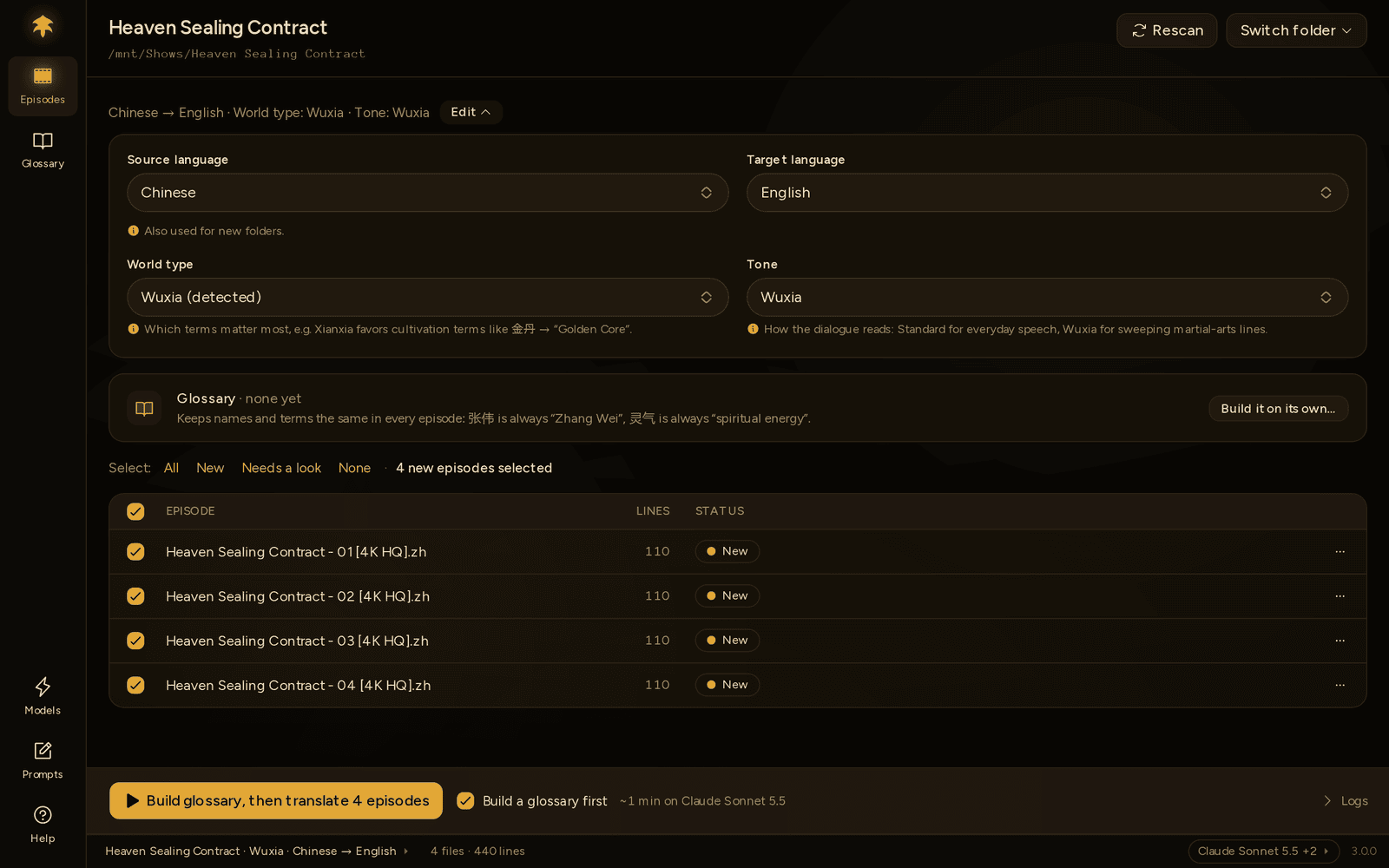
The tick is on by default. Untick it and the button goes back to Translate 3 episodes; Polygluttony remembers that for the folder.
The glossary step reads only the ticked episodes, with Tidy up on and Look up names online off (the same defaults as Build glossary). Only new terms are added. Every term already in the glossary keeps its translation, including the ones you edited.

- The banner shows the two steps, "Build the glossary" (or "Update the glossary") and "Translate 3 episodes", and says "Step 1 of 2".
- The episode being read shows Reading names…, the ones already read Names read, the rest Waiting.
- Stop during step 1 keeps the terms found so far and translates nothing.
- If the glossary step fails, the banner says why, with Open Models and Try again. Nothing is translated.
- When it's all done, the banner starts with the glossary, e.g. "Glossary built with 12 terms. Translated 3 episodes — …". Check the new terms opens the Glossary on just the new ones.
If some batches of names fail, translation still goes ahead with what came back, and the banner says so. Those episodes are offered again next time.
Above the episode list, one row says where the glossary stands:
| The row says | Button | Meaning |
|---|---|---|
| Glossary · none yet | Build it on its own… | There's no glossary. The button opens Build glossary. |
| Glossary · 12 terms · covers 3 of 4 episodes | Open | It also names a ticked episode that isn't in it yet. |
| Glossary · 12 terms · covers all 4 episodes | Open | Every episode has been read for names. |
| Glossary · has a mistake on line 14 | Fix it |
glossary.json can't be read. See below. |
Copy the new episodes into the folder and open it (or press Rescan). They have no translation yet, so they're ticked for you. The tick now reads Add 1 episode to the glossary first, and the button Update glossary, then translate 1 episode.

The glossary row names the episode that isn't in it yet. Translate it without updating the glossary, and new names there may not match the rest.
A glossary built before 3.0.0 has no record of which episodes it read. Polygluttony counts every episode that already has a translation as read, so only the new ones are offered. The row shows the term count but no "covers" count. The same goes for an imported glossary. Rebuild from scratch starts a full record.
An old glossary.prev.json from 2.x shows up as one more entry in Restore an earlier version….
Build it on its own when you want Look up names online in the first build, want to read other episodes, or want to start from translations or a glossary you already have. Open Glossary in a folder with no glossary, or press Build it on its own… on the glossary row.

- Episodes to read: all ticked to start with. This list is separate from what's ticked on Episodes.
- Tidy up (on by default): fixes inconsistent spellings and drops terms too generic to be useful, using your Tidy up model.
- Look up names online (off by default): searches the web for the names fans of this show already use. Tick it and check the show name; the box starts with the folder's name. It's greyed out until a model that can search the web is set up on Models.
Press Build glossary and watch the terms arrive, sorted into their categories:

The glossary is saved after every batch, so Stop keeps everything found so far. When it's done, every term carries a NEW tag, and the header offers Next: Translate episodes →.
If you have earlier episodes or a previous season translated the way you like, use them to steer the names:
- On Build glossary, under Import from translated episodes, click Choose files… and pick those translated
.assfiles, or - put them in a folder named
refinside your folder, or one or two levels above it. Polygluttony picks it up by itself and shows ref/ folder found · 3 files.
Polygluttony takes the names and terms out of those files and shows them for review. Hover a term and click ✕ to delete anything wrong. From then on, whenever Polygluttony finds names in this folder, it uses your wording where a term matches.
The terms are kept in glossary-reference.json. Open them again from the glossary's ··· menu → Import from translated episodes…, where you can also Add more files… or Clear all.
On Build glossary, Import a glossary → Choose file… loads a glossary.json from another folder. That's handy for a new season of a show you've already done. The file can have the full format shown below, or just the six categories. Imported terms count as yours and carry no NEW tag.
Once there's a glossary, the page is a table you edit in place.

Every change saves straight away. The header says Saved, or Not saved · Retry if a save failed.
- Change a translation or a term: click it, type, press Enter. Enter also moves to the next row. Esc cancels; clicking away saves.
- Change the category: pick another in the row's category menu.
- Add a term: type it in the top row (New term…, then Translation…), pick the category, press Add or Enter.
- More: each row's ··· menu has Edit source, Move to, Look up this name online, Mark reviewed and Delete.
A term can only be in one category; adding one that's already there tells you where it is. A translation can't be empty; delete the term instead.
When you change the translation of a term that finished episodes use, a message offers to Retranslate those lines, e.g. "Retranslate 14 lines that use 叶长生 in 3 episodes".
- Search (Ctrl+F) matches the term or its translation. Esc clears it.
- Category chips under the search show one category at a time, with counts. Hover one to see what goes in it.
- Show narrows the list further:
| Show | Lists |
|---|---|
| All terms | Everything |
| New, not reviewed yet | Terms a build found that you haven't edited or marked reviewed |
| Changed by Tidy up or Look up | What the last Tidy up or Look up names online you applied added or changed |
| Edited by you | Terms you typed, edited, moved or imported, and changes you applied from Improve |
Terms a build finds carry a NEW tag until you edit them or mark them reviewed. Mark one from its ··· menu, tick several and press Mark reviewed, or pick Show: New, not reviewed yet and press Mark all 40 reviewed.
Tick rows, or the box in the header for every row shown, and a bar appears:
- Move to another category.
- Replace in translations…: find and replace inside the glossary's translations, e.g. "Jiu Ying" → "Jiuying" in every term that has it. It lists each match with a tick, and changes nothing until you press Replace in 6 terms. It changes the glossary, not your translated subtitles.
- Tidy up or Look up names online for just these terms. See Improve.
- Mark reviewed, if any of them are NEW.
- Delete.
Every change shows a message with Undo. Ctrl+Z undoes and Ctrl+Shift+Z redoes (Cmd on macOS). Undo covers this session. It starts over when glossary.json changes some other way: a build, a restore, an import, your text editor, or Add to glossary in an episode window.
For anything bigger, Polygluttony saves a copy of the glossary before every bulk change: Tidy up, Look up names online, Add new episodes, Rebuild from scratch, Replace in translations, an import, a restore, and moving or deleting ticked rows. ··· → Restore an earlier version… lists them, newest first, with why each was taken and how many terms it had.

The last 10 are kept. Restoring one saves a copy of what you have now first, so you can go back again.
Improve ▾ works on the glossary as it is. Your subtitle files aren't read again.
- Tidy up… fixes inconsistent spellings and drops terms too generic to be useful (掌门, 山). It makes related terms match, so every 宗 becomes "Sect". It uses your Tidy up model.
- Look up names online… searches the web for the names fans of this show already use. It needs a model that can search the web, set on Models, and the show's name, which Polygluttony remembers for the folder. Without such a model the item is greyed out and the menu says where to set one up.
How it goes:
- Which terms? Pick all terms, the ones you ticked (Selected), or One category. A smaller set is faster, cheaper and less likely to time out.
- Press Tidy up 232 terms (or Look up 232 terms). You can keep editing while it runs. Stop throws the run away and changes nothing.
- Review the Proposed changes: a new translation, a term to remove, a term to add, or a move to another category. Untick what you don't want.
- Press Apply 11 changes. Nothing is saved before that. A copy of the glossary is saved first, and Undo takes it all back.

Terms marked Yours (ones you typed, edited or accepted before) start unticked, so Improve only changes your own work if you tick it. Closing the panel with changes left asks first, since getting them back means running it again.
To check one name, use Look up this name online in its row's ··· menu.
New episodes usually go in through Translate on Episodes (see New episodes). To add them to the glossary without translating, press Add new episodes….

- The episodes the glossary hasn't read are ticked. The others say in glossary.
- Tidy up the new terms (on by default) tidies what the scan finds.
- Press Scan 2 episodes.
Only names the glossary doesn't have yet are added, marked NEW. Every existing term keeps its translation. There's no online lookup here: run Improve → Look up names online… afterwards and review its answers. When the scan finds new names, the list switches to New, not reviewed yet so you can check them.
··· → Rebuild from scratch… throws the current terms away and builds a new glossary from the episodes you pick, with Tidy up if you want it. Your edits go too. A copy is saved first, so Restore an earlier version… brings the old glossary back. Stopping a rebuild keeps the names found so far, in place of the old glossary.
The ··· menu also has:
-
Import a glossary… replaces this glossary with a
glossary.jsonyou pick. A copy is saved first. - Import from translated episodes… opens the reference terms. See above.
- Export… saves a copy wherever you like.
-
Open in your text editor opens
glossary.jsonin your system's default app. Save there and Polygluttony reloads it by itself. Terms you add this way count as found by the AI, not as yours.
If glossary.json isn't valid JSON (a missing comma after a hand edit, say), Polygluttony won't change it. The Glossary page says where the mistake is, e.g. "glossary.json has a mistake on line 14.", with Open in your text editor and Restore an earlier version…. Fix it and save; the page reloads by itself.
Until then, the glossary row on Episodes says "has a mistake on line 14" with Fix it, and translations don't use the glossary.
- When a run starts, Polygluttony loads
glossary.jsononce. Edits made during a run apply from the next run. - Each batch of lines gets only the terms that appear in it. The terms are marked inline, like
星汉[→Xinghan], and the Chinese → English prompt also lists them as mandatory. - After translating, every line is checked. When a term is in the source line but its agreed translation isn't in the translation, the line is flagged, e.g. "叶长生" should be "Ye Changsheng" here, per your glossary. Missed terms are also one of the signs Verify uses to spot a translation wandering from the source. See Reading the results.
- In an episode window, Fix in glossary opens that term on the Glossary page, and Add to glossary (select text, Ctrl+E) adds a new one without leaving the episode.
The world type (xianxia, wuxia, historical or modern) is guessed from the subtitles when you open the folder. It tells Find names which terms to focus on: cultivation realms for xianxia, sects and internal arts for wuxia, court titles for historical. Change it on Episodes under Edit if the guess is off.
glossary.json is plain JSON, so you can keep it in version control or share it:
{
  "world_type": "xianxia",
  "terms": {
    "characters": { "叶长生": "Ye Changsheng", "司封师姐": "Senior Sister Sifeng" },
    "cultivation": {},
    "skills": { "东极紫电": "Eastern Pole Purple Lightning" },
    "locations": { "南山": "South Mountain" },
    "items": { "束妖索": "Demon-Binding Rope" },
    "organizations": { "侍鳞宗": "Scale Guard Sect" }
  }
}
A source term can only be in one category, and a translation can't be empty.
What Polygluttony knows about the terms (where each came from, the NEW tags, which episodes the glossary has read, the show name) lives next to it in a hidden .polygluttony folder, with the last 10 versions. See Folders & files.