Repository navigation
Getting Started
From download to your first translated episodes in a few minutes.
Grab the file for your system from the latest release:
| OS | File |
|---|---|
| Windows 10/11 (x64) |
Polygluttony-vX.Y.Z-windows.exe: an installer, no admin rights needed |
| macOS (Apple Silicon) |
Polygluttony-vX.Y.Z-macos.zip: unzip it and drag Polygluttony to Applications |
| Linux x86_64, any distribution |
Polygluttony-vX.Y.Z-linux.AppImage: chmod +x it, then run it |
Important
Polygluttony isn't signed with a paid developer certificate, so the first launch needs an extra step:
- Windows: on the SmartScreen prompt, choose More info → Run anyway.
- macOS: the first launch is blocked. Open System Settings → Privacy & Security, scroll down, click Open Anyway, then launch again and confirm.
Details for each system: Platform notes.
Polygluttony doesn't come with an AI model. You connect your own. The welcome screen walks you through it: Connect an AI model, then Open a folder of subtitles.
- Click Connect on the welcome screen, or Models in the side rail.
- Pick a provider: Anthropic, OpenAI, Google, Ollama, LM Studio, or Other for any compatible endpoint.
- Paste your API key (local models don't need one) and leave the model on the one marked Recommended.
- Press Connect. Polygluttony sends one tiny test message, then saves.

That one model now does every step. You can give steps their own models later. More: Connecting a model.
Tip
Already set up on another computer? Export your setup there, then click Import your setup under the provider tiles. See Moving to another computer.
Click Open folder and pick a folder of .ass files, or drag the folder onto the window. Polygluttony reads the .ass files directly in that folder (not in subfolders) and works out the source language and, for Chinese, the kind of story it is.
The Episodes page opens. The first time you open a folder, its settings are unfolded so you can check them:
- Source language and Target language. The source is guessed from the text; change it if the guess is wrong.
- World type (Chinese only): Xianxia, Wuxia, Historical or Modern. It decides which terms matter most.
- Tone: how the dialogue should read. See Tones.
Episodes that don't have a translation yet are already ticked. Untick any you want to leave for later.
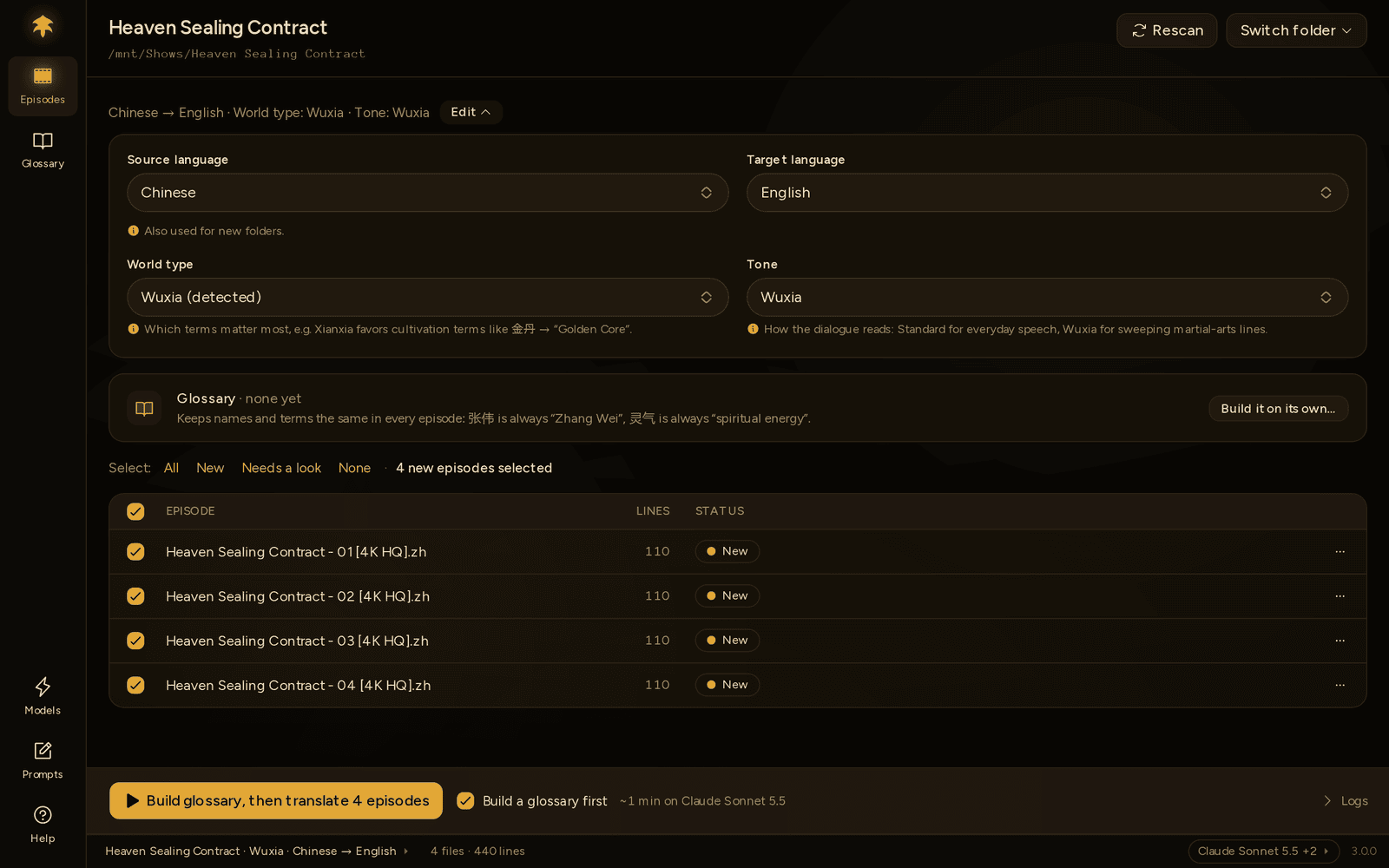
Press the gold button at the bottom. For a Chinese source with no glossary yet, it reads Build glossary, then translate 4 episodes:
- Polygluttony reads the ticked episodes and builds a glossary of names and terms, each with one agreed translation.
- Then it translates them, using the glossary in every episode.
Untick Build a glossary first if you'd rather skip it, but names may then change between episodes. For other source languages the button simply says Translate 4 episodes.

Each translated file is saved next to its source: Episode 01.ass becomes Episode 01.eng.ass. A file that still has lines to check is saved as Episode 01.warning.eng.ass and marked Needs a look. Press Review on its row to go through those lines. See Reading the results.
When the next episode comes out, drop it in the folder. It shows up ticked, and the button turns into Update glossary, then translate 1 episode.
- 🧭 How it works: what happens during a run, step by step.
▶️ Translating: the Episodes page in detail, stopping and resuming.- 📖 The glossary: checking and editing the terms it found.
- ⚖️ Choosing a model: when a second (or third) model is worth it.