Repository navigation
Categorizing and Rules
Rules decide each transaction's category. You can build them by clicking transactions
in the app, or write them in config/rules.yaml.
- How a category is chosen
- The five kinds of rule
- Fields a rule can look at
- Filters
- The rule dialog
- The Categorize tab
- Writing rules in YAML
- Strategy
- Examples
In order, the first that applies wins:
-
Just-this-transaction rules (
row). Always win. - The first matching rule from the top of the list.
- The source's bank-category mapping (
category_map, see Data Sources). -
Default:
Otherfor money out,Other creditsfor money in.
So put specific rules above general ones.
| Kind | YAML | Matches when… |
|---|---|---|
| This transaction | row: <id> |
It's that exact transaction. |
| Contains | contains: TEXT |
The field contains the text. |
| Equals | equals: TEXT |
The field is exactly the text. |
| Matches a pattern | matches: 'REGEX' |
The field matches a regular expression, e.g. 'COFFEE|CAFE'. |
| Similar to |
similar_to: TEXT (+ threshold) |
The field is at least threshold (default 0.85) alike, after removing store numbers, codes and processor prefixes. |
Text comparisons ignore case unless case_sensitive: true.
Similar to is for merchants whose descriptions vary: SQ *TACO TRUCK 123 and
SQ *TACO TRUCK 456 both become TACO TRUCK; STORE #401 and STORE #988 both become STORE.
field defaults to description. Other choices:
| Field | Value |
|---|---|
description |
The description (joined columns if several). |
category |
The bank's own category (if the source has category_column). |
source |
The source's name. |
date, amount
|
As text (2025-03-14, 12.50). |
| any CSV column name | That column's raw value, e.g. Memo. |
* |
Any field: the rule matches if any column matches. |
Optional, to narrow a rule:
| Filter | Meaning |
|---|---|
source: Visa card |
Only rows from that source. |
direction: debit / credit
|
Only money out / only money in. |
min_amount: 500 / max_amount: 20
|
Size limits (ignoring sign). |

Opened by clicking a transaction (in Settings › Categorize, or in Explore Spending with Recategorize on), or with New rule.
- The transaction is summarized at the top with its current category and why it has it.
- Category: pick one, or New category… (name + kind).
-
Which transactions:
- Just this transaction
- Where a field contains text (prefilled with the merchant name)
- Where any field contains text
- Where a field matches a pattern
- Similar to this transaction's field (with a % alike setting)
- Only some transactions (optional): source, direction, smallest / largest amount.
- The preview updates as you type: how many transactions match, how many would change, a sample, and how many are pinned by just-this-transaction rules.
- Save rule. New rules go to the top of the list; a new just-this-transaction rule replaces an older one for the same transaction.
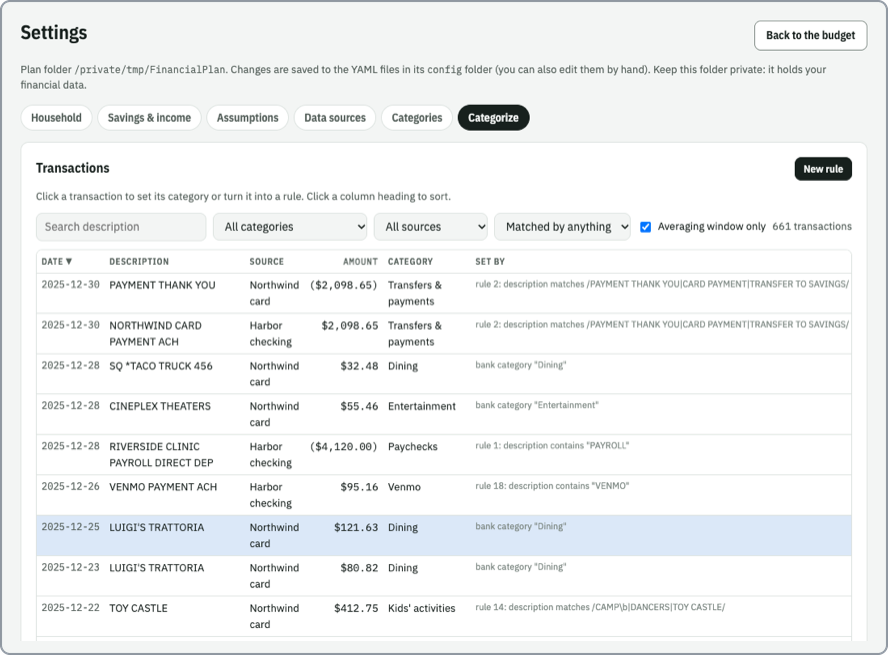
Settings › Categorize has two parts.
Transactions: every transaction from every source.
- Search; filter by category, source and Matched by (no rule / a rule / just-this-row / bank category); Averaging window only (on by default) hides rows outside the months being averaged.
- Click a column heading to sort (again to reverse).
- Set by says why each row has its category, e.g. "rule 12: description contains "VENMO"".
- Click a row to open the rule dialog.
Rules: the list in order, with how many rows each one currently sets. ↑ / ↓ reorder; Delete (click twice) removes.
Tip: filter Matched by: No rule (default) to work through what's left.
rules:
  - {category: Paychecks, contains: PAYROLL, direction: credit}
  - {category: Transfers & payments, matches: 'PAYMENT THANK YOU|AUTOPAY|ONLINE TRANSFER'}
  - {category: Coffee, matches: 'COFFEE|CAFE|ESPRESSO'}
  - {category: Groceries, similar_to: 'FRESH FIELDS MARKET #401'}
  - {category: Dining, field: category, equals: Dining}
  - {category: Gifts, field: '*', contains: birthday}
  - {category: Furniture, contains: FURNITURE, min_amount: 500}
  - {category: Groceries, row: 3f2a91c0b7de}
Quote values containing #, : or starting with special characters. Each rule needs exactly one
of row, equals, contains, matches, similar_to. You won't usually write row rules by hand:
the dialog's "Just this transaction" writes them with the transaction's id, which stays the same as
long as the CSV row doesn't change.
From the command line, financial_plan categorize ~/MyFinancialPlan --unmatched lists the rows no
rule caught.
- Ignore first: paychecks, card payments, transfers between your accounts, savings and 529 transfers. Otherwise they look like huge spending or income.
- Big recurring items: mortgage/rent, utilities, insurance, tuition.
-
Frequent merchants: one
containsormatchesrule each covers dozens of rows. -
Use the bank's categories (
category_map) as a safety net. - Pin oddities with just-this-transaction rules.
- Check Spending for anything that looks off.
| Goal | Rule |
|---|---|
| All Amazon orders are shopping | {category: Shopping & Household, matches: 'AMAZON|AMZN'} |
| Only big furniture purchases are one-time | {category: Furniture, contains: FURNITURE, min_amount: 500} |
| Refunds from one store count as credits | {category: Other credits, contains: MEGAMART, direction: credit} |
| A memo column says "gift" | {category: Gifts, field: Memo, contains: gift} |
| A merchant with changing store numbers | {category: Pets, similar_to: 'PAWS & CLAWS #12'} |
| Everything Venmo, from checking only | {category: Venmo, contains: VENMO, source: Checking} |