Repository navigation
Data Sources
A source describes one kind of CSV export: which files, and which columns hold the date, description and amount. Nothing about a file's layout is assumed, so any bank or card works.
- Getting your CSVs
- Adding a source in the app
- Adding a source on the command line
- Amounts: one column or two
- Dates
- Descriptions
- The bank's own categories
- File patterns and new exports
- Odd files
- Amazon orders
- Full example
- Troubleshooting
On each bank and card website look for "Download", "Export" or "Statements & documents" and choose
CSV (sometimes "Excel/CSV" or "comma separated"). Take about 12 months. Save the files in your
plan's data/ folder, or upload them in the app.
You need one source per layout, not per file: twelve monthly exports from the same card are one source.
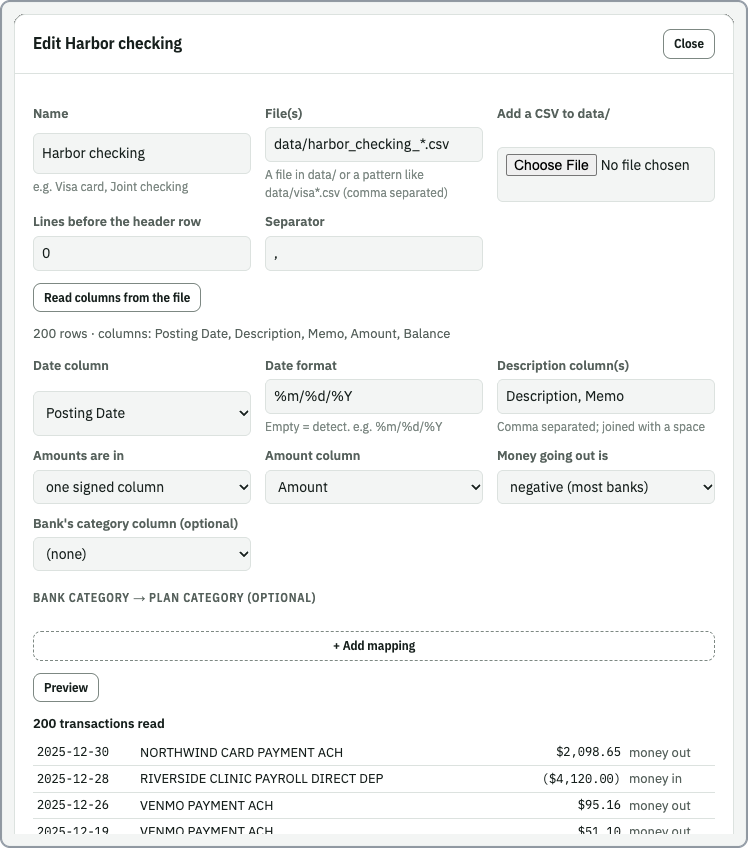
Settings › Data sources › + Add data source:
- Name: e.g. "Visa card".
-
File(s): pick from the list, type a name or pattern (
data/visa*.csv), or use Add a CSV to data/ to upload one. - Read columns from the file. You'll see the row count and column names, and the app guesses the date column (and its format), description, amount style and the bank's category column.
- Check each choice:
- Date column; Date format (leave empty to detect).
-
Description column(s): comma separated to join several (e.g.
Description, Memo). - Amounts are in: one signed column, or separate money-out / money-in columns (see below).
- Bank's category column: optional.
- Optional: Bank category → plan category mappings.
- Preview shows how many transactions were read and the first rows with "money out" / "money in". Purchases must say money out.
- Save.
pixi run financial_plan inspect-csv ~/MyFinancialPlan/data/visa_2025.csv --name "Visa card"It prints the columns, sample rows and a suggested entry to paste into config/sources.yaml.
Check it, then run financial_plan validate ~/MyFinancialPlan.
Internally, money out is positive and money in is negative. Tell the app how your file does it:
One signed column (common for checking accounts):
amount: {column: Amount, outflow: negative}   # purchases/withdrawals are negative in the file
amount: {column: Amount, outflow: positive}   # purchases are positive (common for cards)
Two columns (common for cards):
amount: {debit: Debit, credit: Credit} # money out in Debit, money in in CreditEither column may be empty on a row. Amount cells may include $, commas, (12.00) for negatives,
a trailing -, or CR.
date: {column: Transaction Date} detects the format from the values. Detected formats:
2025-01-31, 01/31/2025, 01/31/25, 31/01/2025, 2025/01/31, 01-31-2025, 31.01.2025,
Jan 31, 2025, 31 Jan 2025, January 31, 2025, 20250131.
If detection picks wrong (e.g. day/month order is ambiguous) set it explicitly with Python's
strptime codes:
date: {column: Date, format: '%d/%m/%Y'}description is one column or a list joined with a space:
description: [Description, Memo]Rules match against this text (and can also look at any other column; see Categorizing and Rules).
Some exports have a category column. Name it with category_column and you can:
- use it in rules (
field: category), and - map it straight to your categories as a fallback when no rule matches:
category_column: Category
category_map:
  Dining: Dining
  Gas/Automotive: Transportation
Airfare: Travelfiles takes names or patterns, relative to the plan folder:
files: data/visa*.csv
files: [data/checking_2025.csv, data/checking_2026.csv]
Use a pattern and future exports are picked up automatically. If two exports overlap in dates, identical rows appear twice. Export non-overlapping ranges, or remove the old file.
skip_rows: 3          # lines before the header row (bank name, account info…)
delimiter: ';'        # separator if not a comma
encoding: latin-1     # if the default (utf-8) shows garbled characters
Blank lines are ignored. Rows with an unreadable date or amount are skipped and counted in a warning.
Banks show Amazon as one charge per shipment ("AMAZON MKTPL*AB12CD"), so it all lands in one category. Amazon's own data export lists every item, so the plan can categorize them one by one.
- On amazon.com go to Account › Request your data, pick Your Orders, and wait for the email (a few days). Do this for each Amazon login.
-
Settings › Data sources › + Add Amazon export: say whose it is and pick the
.zip. Only its CSV files are kept (not the delivery photos), indata/amazon/<whose>/. Add each login's export the same way. - Tick the cards whose statements are in the plan. Each card shows what was spent on it and when; a reissued card has a new number, so match the dates. Orders on other cards are left out. Items with no card (mostly digital orders) are always kept.
- Leave Set aside the bank's Amazon charges ticked and Save. That adds:
- an
Amazonsource (kind: amazon) that reads the exports; Amazon's department is its bank category; - an
Amazon (itemized)category withkind: ignore; - one rule per bank or card source, at the top, moving the bank's Amazon rows into it, so nothing is counted twice. Prime membership and AWS stay on the bank side (and out of the items).
- an
- Sort the items in Settings › Categorize with rules on
source: Amazon: product names first (matches: 'vitamin|supplement'), then Amazon's department (field: category), then one catch-all (field: source, equals: Amazon) last.
The Amazon card in Data sources compares the itemized total with the bank's Amazon total. A few
percent off is normal (ship dates vs posting dates, gift-card balances); a big gap usually means a
card is missing, or one that isn't in the plan is ticked. financial_plan amazon shows the same
check month by month.
What goes in: retail orders (cancelled ones left out, dated by ship date), digital orders (price plus tax) and completed refunds (dated when refunded, matched to their order's card and department), only for the dates the bank files cover. For a new export, add it again (same name replaces the old one) or replace the folder.
In YAML:
sources:
- {name: Amazon, kind: amazon, files: data/amazon, cards: ['1234', '5678']}sources:
- name: Visa card
files: data/visa*.csv
date: {column: Transaction Date}
description: Description
amount: {debit: Debit, credit: Credit}
category_column: Category
category_map: {Dining: Dining}
- name: Checking
files: data/checking*.csv
date: {column: Posting Date, format: '%m/%d/%Y'}
description: [Description, Memo]
amount: {column: Amount, outflow: negative}| Message | Fix |
|---|---|
no files match data/x*.csv |
Check the pattern and that the files are in data/. |
has no column(s) Date (columns are: …) |
Use a column name from the list exactly as written. Header on a later line? Set skip_rows. |
could not work out the date format |
Set date.format. |
skipped N unreadable row(s) |
Usually summary/total lines at the end of the export; safe to ignore. |
| Purchases show as "money in" | Flip outflow, or swap debit / credit. |