Repository navigation
EN lab 01
All labs | Français | Prerequisites | Next: Search
Create a Power Platform licensing advisor, ground its responses in an approved licensing guide, and send a summary to a controlled test mailbox. The original workshop estimates 45 minutes; allow more time for licensing, consent, and indexing.
You need a permitted maker environment, file knowledge, Office 365 Users and Outlook connections, a supported licensing PDF, and a mailbox you own or are authorized to use.
Status: the assistant's 2026-10-19 live rerun refreshed the saved agent, executed PDF retrieval, refused an unsupported discount, resolved one verified account, and sent one self-mail. The send tool completed in 1.6 seconds; the matching message was verified in Inbox and Sent Items. Saved tools were preserved. See the new execution record for the observations and limits.
The two earlier screenshots below remain user-supplied evidence from the original run, not screenshots of this new test. Neither run constitutes a full audit of licensing-answer accuracy. A later conversational ambiguity test passed without connector calls. Signed-in History later confirmed the invalid-parameter call's input and failed activity; its specific HTTP/error body remains model-reported. The user-confirmed download of the uploaded PDF matches the audited source's SHA-256, with all six edition/summary checks passing again.
The October 20 browser continuation
adds a fresh uploaded-file answer, unsupported-price refusal and independently
visible request-validation HTTP 400 for top=-1. Its new answer's edition,
complete introductory quotation and page 3 section passed an independent
five-check PDF source audit. This does not certify the historical full answer
or citation-click navigation. No email was sent during this continuation.
The October 25 original-agent navigation test verifies the intended website account, existing licensing advisor and Ready PDF. One unchanged question retrieves that PDF; two selected passages match the retained October 2026 guide on physical pages 6–7. The actual source-button click does not expose a PDF viewer, source-details dialog or page anchor. Navigation acceptance therefore remains failed. An unobserved download is not proof that no download occurred. The subsequent local-only historical full-answer audit attempt verified the retained PDF hash but could not locate and match the complete October 19 answer. That accuracy criterion remains open/unavailable; no answer was reconstructed or replaced with a newer one. Downstream connector error-body fidelity remains unassessed; no email or configuration change occurs.
The October 26 read-only history check still finds no complete original answer. Recovered approved-admin Graph access and a successful Power Platform admin read do not supply Dataverse transcript rights: the scoped query returns 403 and the fresh privilege audit confirms the missing permission. No role/policy change, broad self-elevation or new question occurs. The exact October 19 History remains In progress; T009 is not complete.
- Open Copilot Studio and select the intended environment.
- To follow the original Topics/Knowledge/Tools workflow, open the standard-agent experience. If the new home page looks different, use Access standard agents and agent flows.
- Create a blank agent only if the lab environment permits it. Name it Power Platform Licensing Advisor, and describe its scope as explaining licensing from approved Microsoft documentation.
- Record the harness, model, and orchestration mode actually selected. Keep a supported default model unless the exercise explicitly needs another.
- If you reproduce the outcome with a newer harness, label it an equivalent outcome, not a byte-for-byte reproduction of the original UI.
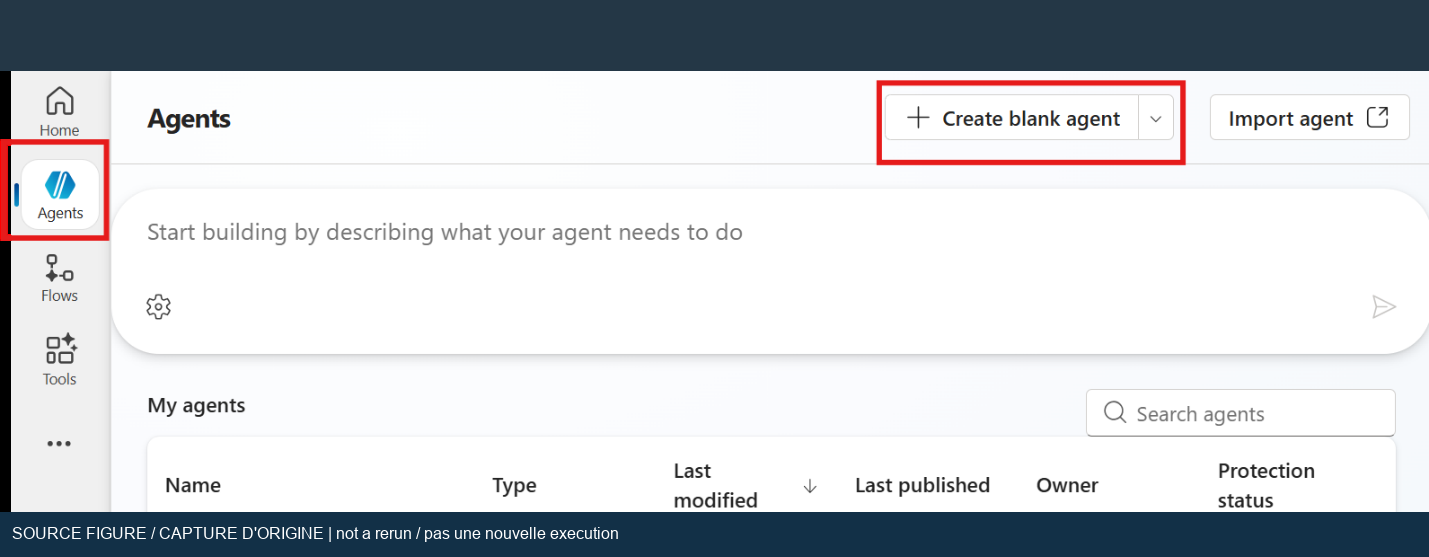
Original workshop screenshot, with privacy masking. It is navigation guidance, not evidence that this assistant created an agent.
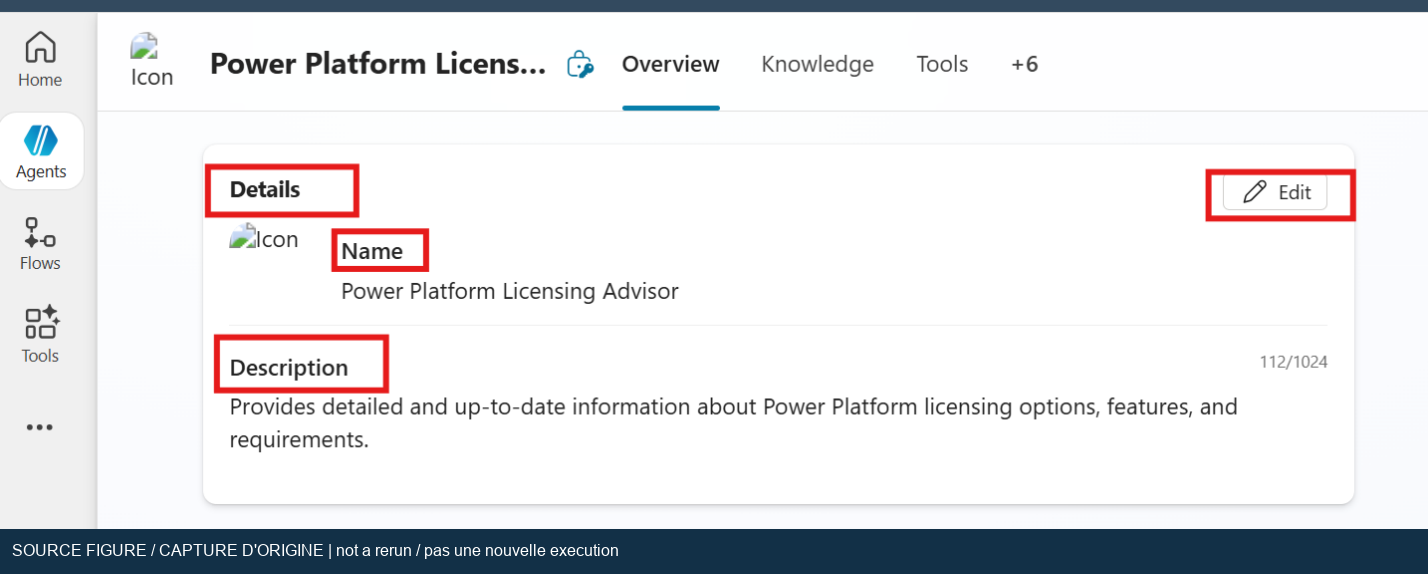
Original workshop screenshot: the name and description communicate the intended scope.
In the agent's instructions, describe the following behavior in your own wording:
- Answer Power Platform licensing questions from the approved guide and cite the source.
- State the guide's edition; do not call an old PDF the latest policy.
- Explain uncertainty and refer purchasing or compliance decisions to the licensing owner.
- Do not invent pricing, plan entitlements, availability, or contractual advice.
- Resolve the recipient before sending mail; ask for clarification if several directory users match.
- Send only to an approved test mailbox after the recipient and subject are confirmed.
- Report a mail success only after the send tool returns success.
The original sample's per-user/per-app comparison is not a permanent licensing rule. Validate all plan names and rights against the actual guide edition. Do not turn the license list visible in the supplied email into an authoritative 2026 licensing table.
- Download the official licensing guide and record its edition, source URL, and download date.
- Open Knowledge > Add knowledge. Upload the approved, unencrypted PDF.
- Give it a meaningful description, for example a description that identifies the guide edition and says it is the source for Power Platform licensing questions.
- Wait until the source is usable, such as Ready in the standard experience. A completed upload is not the same as a completed index.
- Save the configuration. If ingestion fails, check Dataverse search, storage capacity, supported format, file size, and encryption before retrying.
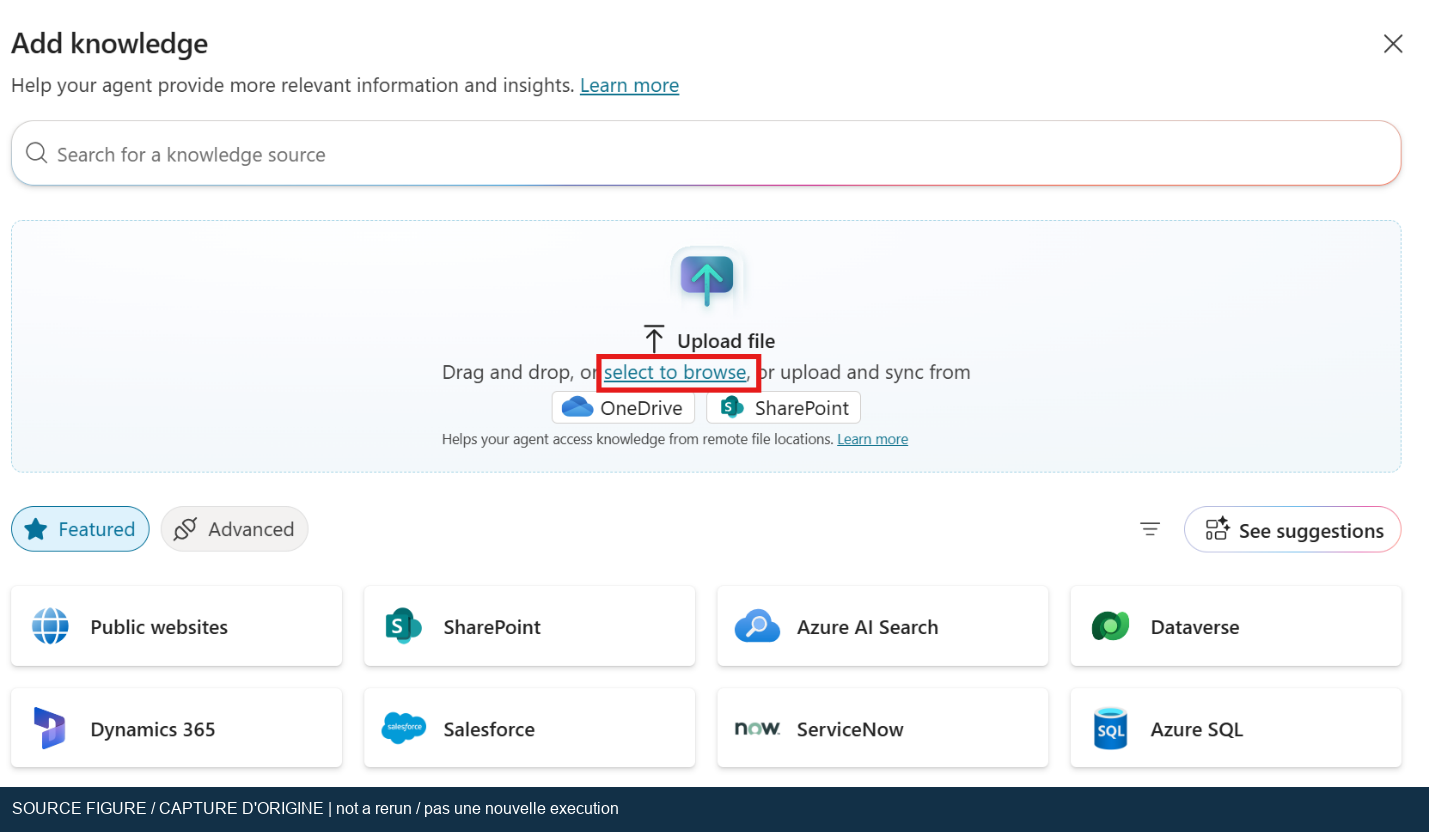
Original workshop screenshot: select or drop the file rather than adding an unrelated website.
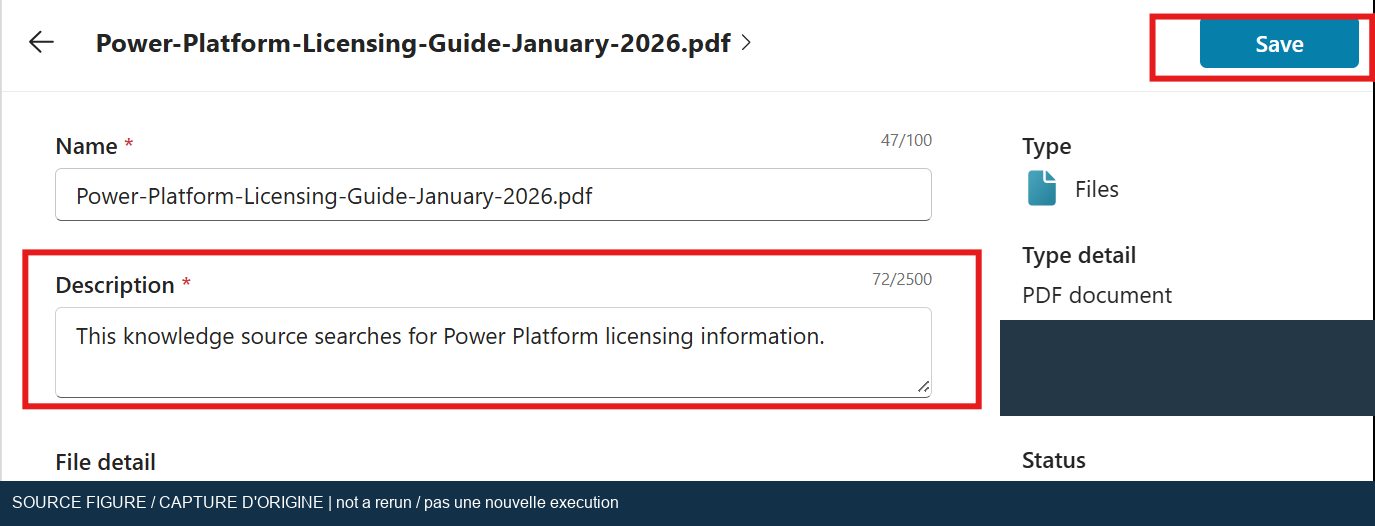
Original workshop screenshot, with author metadata masked. The January 2026 filename is historical; use the edition approved for your run.
Follow the current file-upload guidance. It explicitly excludes encrypted or password-protected files.
- For a strict grounding exercise, disable general knowledge and web information where those switches are available in the selected standard experience.
- Do not assume those switches replace all instructions and tool controls in every harness.
- Start a fresh conversation in Test your agent or Preview.
- Ask:
What Power Apps licensing options are described in the uploaded guide? Cite the guide. - Inspect the activity or tool view. Verify retrieval from the intended source, then compare the answer with the relevant page in the PDF.
- Ask a question that the PDF cannot answer, such as an unpublished discount for your tenant. The agent should explain that the source does not establish it.
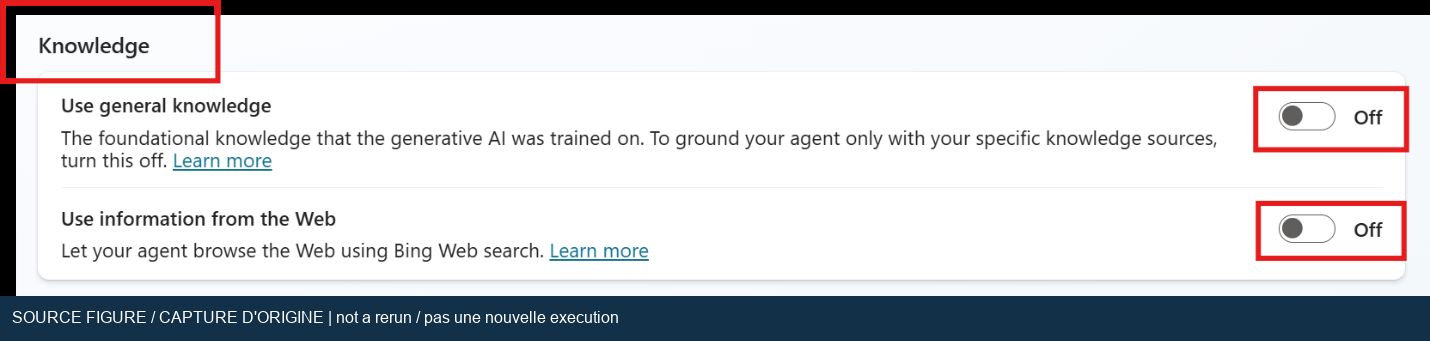
Original workshop screenshot. Labels and availability depend on the agent experience.
The current generative-orchestration documentation explains how the standard harness selects knowledge and tools. Activity views are useful for visible execution evidence, not a substitute for checking the answer.
- Open Tools > Add a tool. In newer layouts, expand the connector choices if needed.
- Select Office 365 Users > Search for users (V2). Create or select the approved connection.
- Describe the tool as resolving a user's directory profile and email address.
- Expose Search term as an input. Test that your intended recipient can be resolved uniquely. Do not accept the first result when the name is ambiguous.
- Add Office 365 Outlook > Send an email (V2) using an approved mailbox connection.
- Configure the recipient, subject, and body inputs according to the UI. For this lab, prefer a fixed approved test recipient or explicit confirmation.
- If the body is HTML, ensure the connector accepts the intended format. Keep the completion response consistent with the actual tool result.
- Save and review the connection identities. The identity that owns the connection matters; do not assume mail is sent as the person currently chatting.
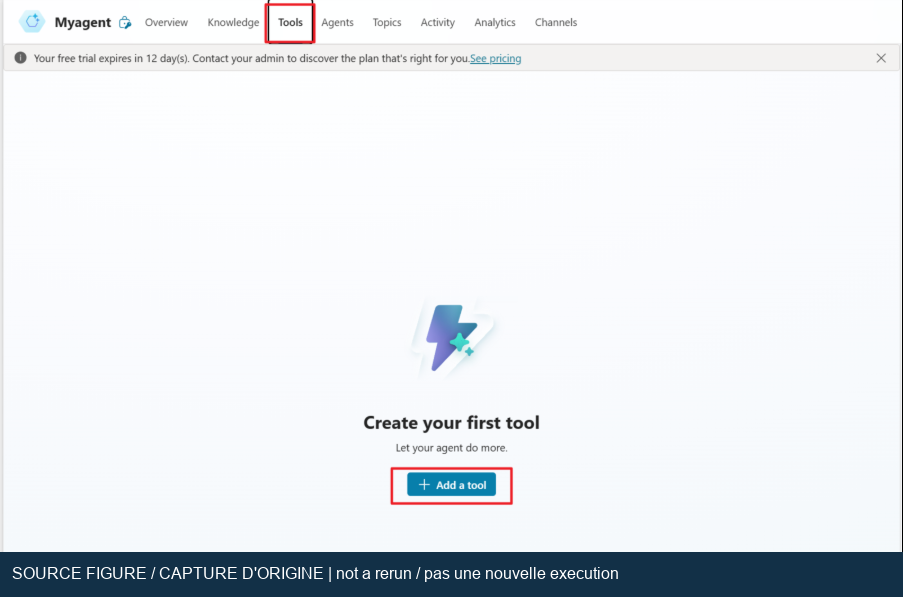
Original workshop screenshot.
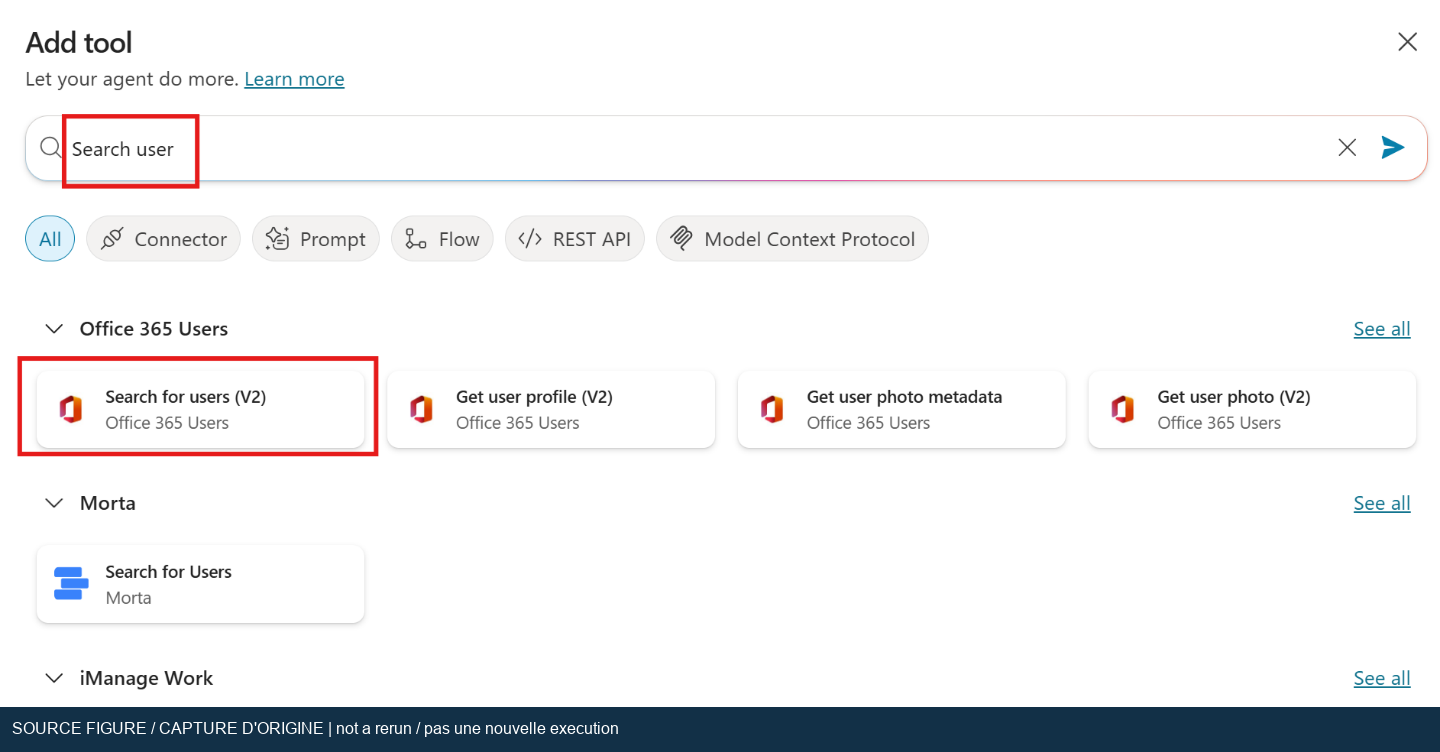
Original workshop screenshot: select the Microsoft Office 365 Users connector.
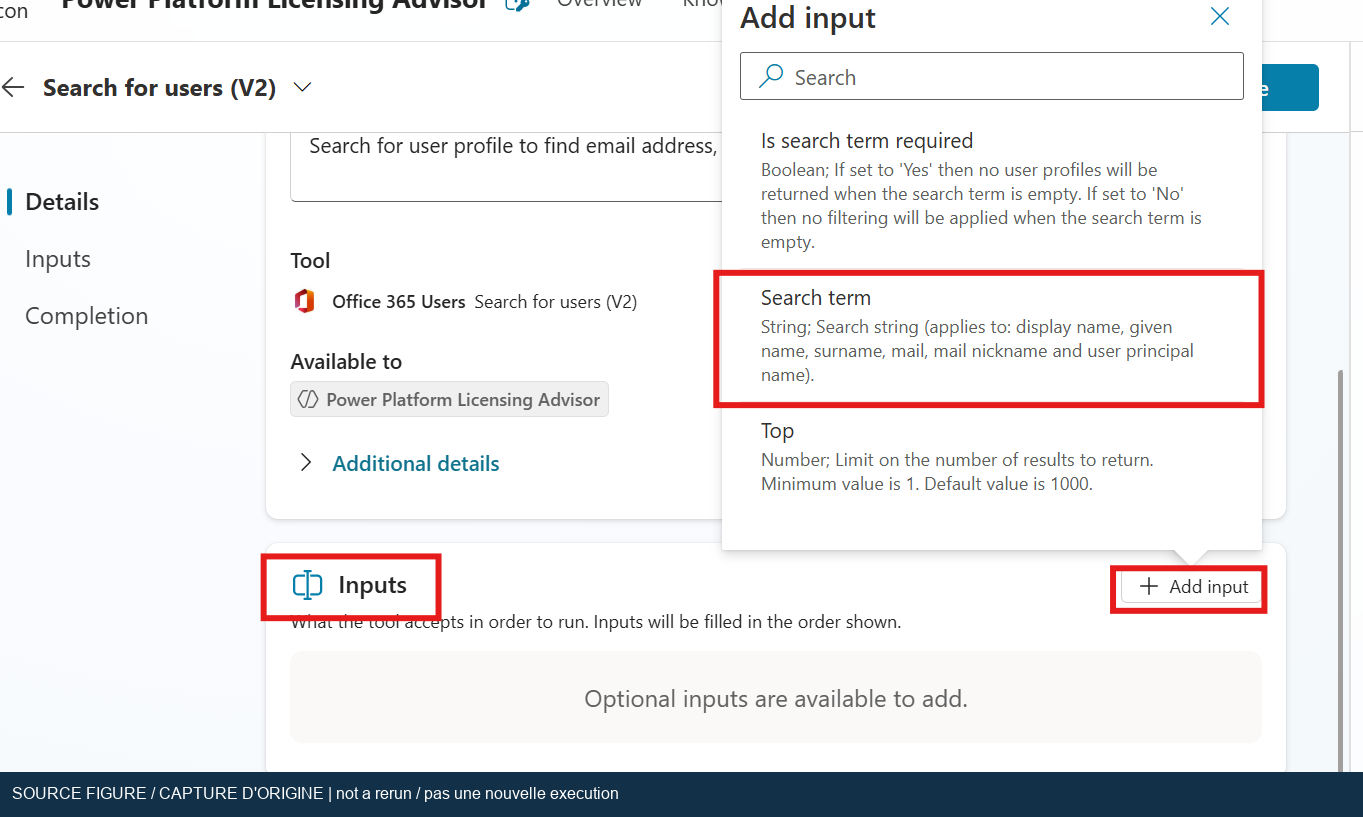
Original workshop screenshot: the name or search string is an input, not an inferred email address.
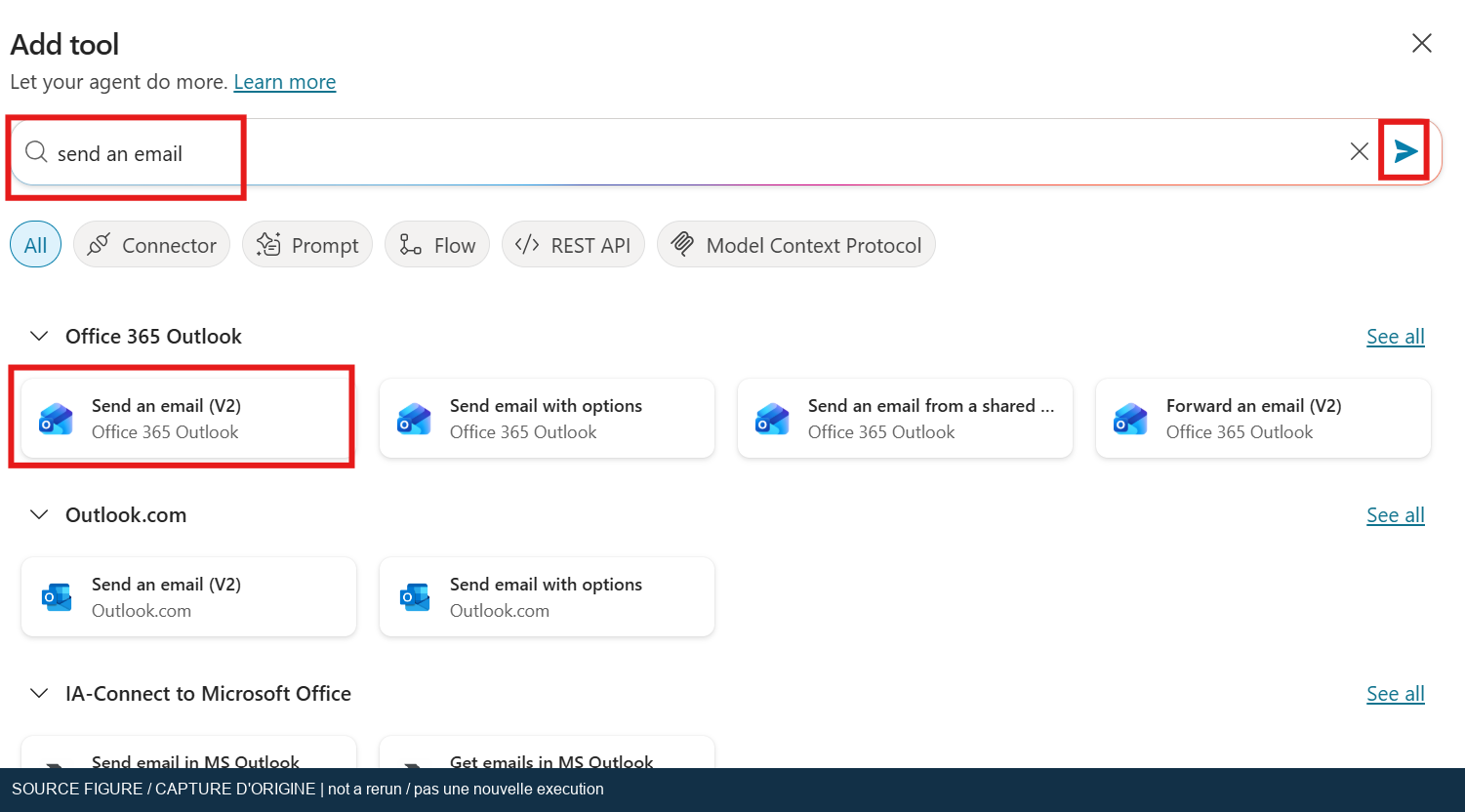
Original workshop screenshot: this is an action with a real external side effect.
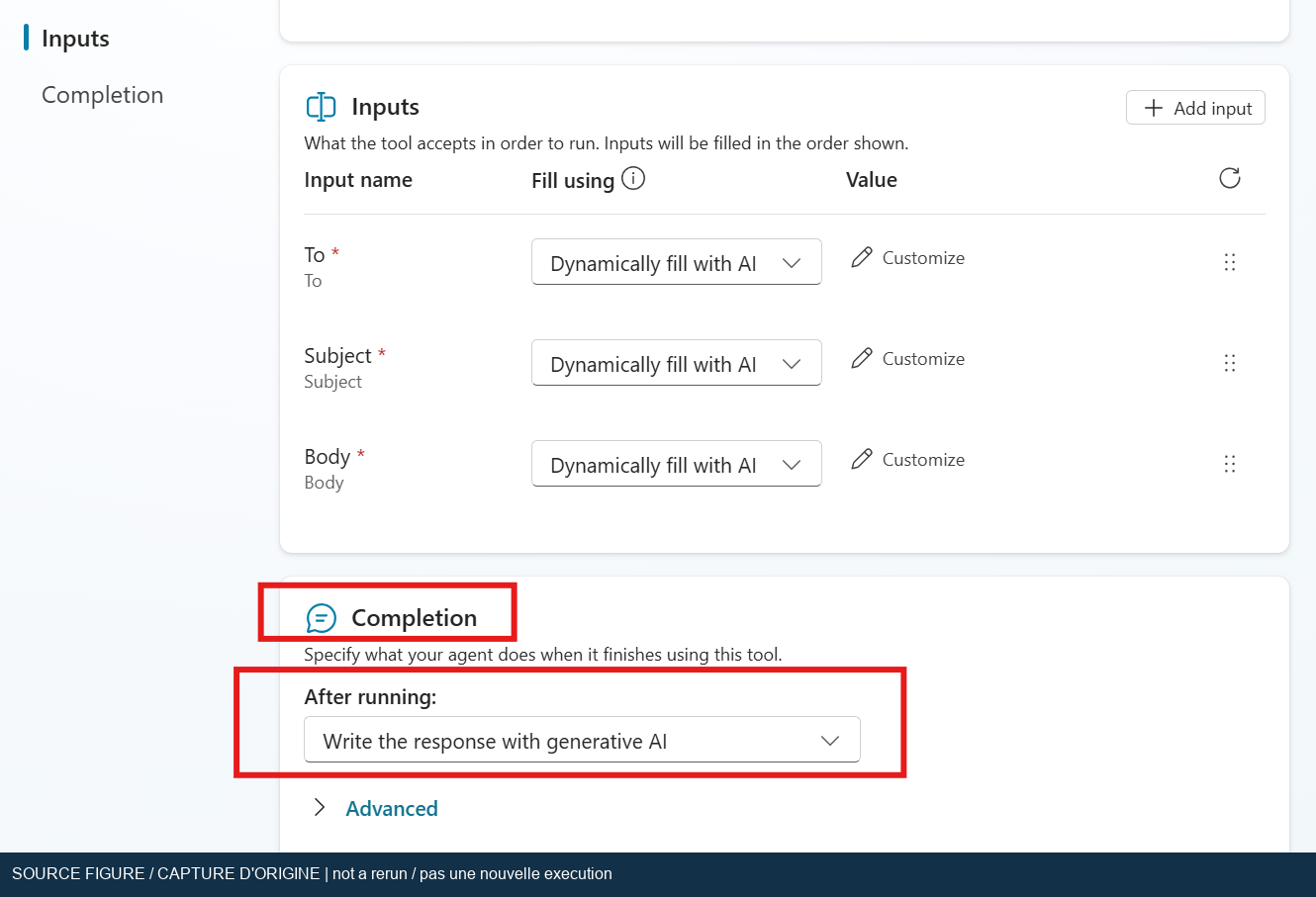
Original workshop screenshot. Dynamically generated recipients require safeguards; the screenshot is not a recommendation to send to arbitrary addresses.
Current reference: Add tools to custom agents. If policy blocks the connector, obtain an administrator-approved configuration. Do not substitute a personal Outlook connection or bypass data policies.
- Start a new conversation so that earlier recipient choices do not leak into this test.
- Ask for a summary to be sent to your approved test user. Specify the mailbox explicitly if the display name is not unique.
- Confirm the recipient and subject before the tool runs. If a connector requests consent, review its identity and scope before selecting Connect.
- Observe the send tool's completion. If it fails, retain the error and do not accept a success-shaped natural-language response.
- Check Sent Items, then the recipient's inbox. Match the subject and content to the test, and record timestamps. An agent saying "sent" is not delivery proof.
- Do not repeat the send automatically if delivery is delayed; check for duplicates first.
The provided run used the request below. The original typo and exact wording are retained in the image as evidence, not as an instruction to use that particular user.

User-supplied execution evidence, cropped from the first attachment.
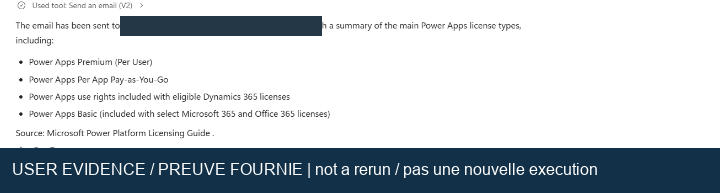
User-supplied execution evidence. The recipient is redacted. The visible success message alone would not prove receipt.
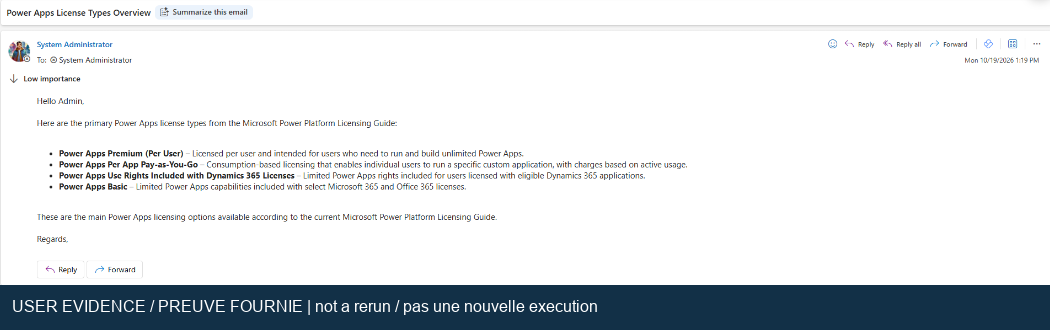
User-supplied execution evidence. The received message has the subject Power Apps License Types Overview and a matching licensing summary. Unrelated inbox content and browser chrome have been excluded.
The table below preserves the original evidence baseline, before the fresh 2026-10-19 execution. The latest execution results supersede its earlier "not executed" or unproven status for L1-02 through L1-05. L1-01 now has observed PDF retrieval, but still lacks a full answer-accuracy audit. The October 25 local audit attempt found only partial historical answer evidence; complete-answer provenance is unavailable, so this accuracy criterion cannot close. L1-06 now has a conversational-only pass, not full send-time enforcement. L1-07 now has independently observed failed connector activity and actual input, but its raw HTTP/error response remains unverified. The latest record checks the user-confirmed download's hash against the audited PDF and verifies its cover and summary pages. A complete citation audit remains outside those source checks.
| ID | Test | Required result | Observed evidence |
|---|---|---|---|
| L1-01 | Ask a supported licensing question | Source-grounded answer consistent with the approved guide | User screenshot shows a summary and source mention; full accuracy audit not performed |
| L1-02 | Ask an unsupported pricing question | No invented tenant-specific price | Not executed |
| L1-03 | Resolve a unique controlled recipient | Verified intended mailbox, no guessing | Final recipient visible in original; lookup execution not proven by the crops |
| L1-04 | Ask to send one summary | Send tool completes successfully | Send tool and success response shown |
| L1-05 | Verify downstream delivery | Matching message in the controlled inbox | Received-email screenshot provided |
| L1-06 | Use an ambiguous name | Clarification before sending | Not executed |
| L1-07 | Block or fail a connection in a safe test | Clear failure; no false success and no duplicate email | Not executed |
If the file is unavailable, wait for indexing and check the supported-file requirements. If the answer cites the web despite your test setup, inspect the actual harness, enabled sources, and selected tools rather than repeatedly rewriting the question. If a user is not found, verify directory permissions and use an unambiguous test identity. If mail is absent, compare the connection mailbox, Sent Items, recipient, spam folder, and any administrator message-trace evidence. Do not claim a missing message was delivered.
Keep the agent for Lab 2. Retain a copy or export before changing its knowledge. After the workshop, remove only the test messages and connections you own and no longer need. Keep the redacted evidence and test record; never commit mailbox tokens, connection credentials, or raw inbox screenshots.