Repository navigation
Dashboard
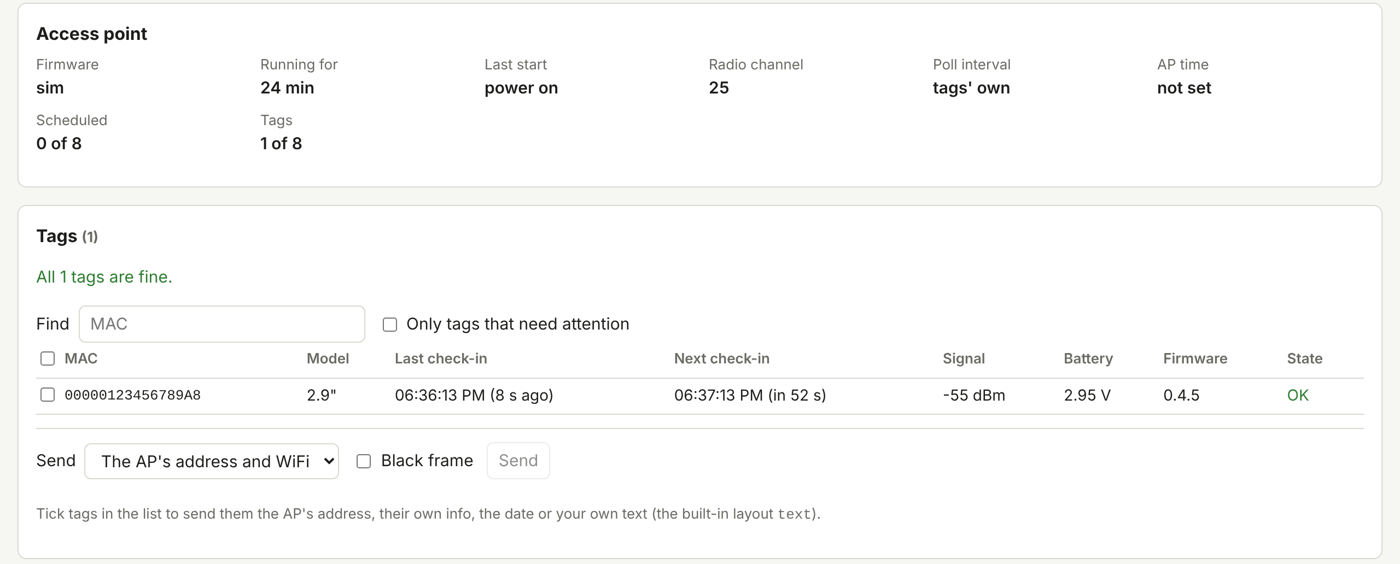
The dashboard shows the AP's state and every label, refreshed every 10 seconds.
-
Over WiFi:
http://openesl.local/dashboard(or the AP's IP address). The AP serves it itself. It asks for the API token once. An AP with room for it also has the Design tab there, with the label designer working on the layouts stored on that AP. - Over USB: the Dashboard tab on the web page, with the AP plugged into the computer.
-
Through the bridge (for developers):
python3 tools/esl-client/esl_client.py --url http://openesl.local --token <token> serve, then choose Bridge (advanced) on the web page and connect tohttp://localhost:8080.
The web page on GitHub cannot call the AP over WiFi by itself, since a page on https may not call a plain http address on your network. That is why it uses USB, or opens the AP's own page.
When the designer sends a layout file with Open my AP, it shows up at the top of the AP's own dashboard, to check and save. See Getting layouts onto the AP.
- The AP: firmware, uptime, why it last restarted, radio channel, poll interval, time, schedule and WiFi. On an ESP32-S3 AP also its C6 radio: when the AP last heard it, or how long it has been gone.
- A red line at the top when an ESP32-S3 AP has lost contact with its C6 radio for 30 seconds, with what to check. Until it is back the labels hear nothing from the AP (Health and webhook).
- Four figures that also filter the table: labels, need attention, busy or late, scheduled.
- Every label: its screen as the AP draws it, last and next check-in, signal, battery, firmware, and what it is waiting for or what is wrong.
The Signal column shows how the AP heard the label's last 8 check-ins (32 on an AP with PSRAM) as small bars: taller is stronger. A red mark is a check-in the label made but the AP never answered, an amber mark one that got through only on the label's second try. Next to the bars is the last signal in dBm, and hovering shows the weakest and average signal, and how many check-ins were lost or needed a retry. Click the bars (on a phone, the dBm in the line under the label) for a bigger chart under the row, with a dBm scale and the −85 dBm line; it stays open while the page refreshes, until you close it. The label is marked weak when the AP hears it below about −85 dBm on average, or when check-ins are lost, or a quarter of them need a retry: that label is close to the edge of the range, often before it drops out. The history is kept in the AP's memory only, so it starts empty after the AP restarts.
The Layouts card shows what the AP can draw, for each label size. Click its head to fold it away; the head still says how many layouts the AP has, how many more can be sent, and whether labels use one the AP lacks.
-
On the AP: the built-in
priceandtext, and every layout in the AP's layout file, drawn as the AP draws them, with how many labels show each one. One no label uses can be removed. Edit opens it in the designer, where the page has one (the web page and APs with the designer built in). - Can be sent to the AP: the ready-made layouts of the template library the AP does not have yet. Send to AP adds one to the AP's file at once.
- A warning when labels use a layout the AP does not have (they keep their old picture), with Send it when the library has it.
Click a layout to see the data it needs: its fields in the order a client sends them, each with a box to type in. Pick a label and Send to tag sends them straight from the browser; it asks first when the label already shows something. Under the form is the same request to copy for curl, plain JSON, a CSV for esl_client.py sync, and Home Assistant, with what you typed in it. The labels that show it are listed at the bottom. The designer has the same panel behind the API button of each layout.
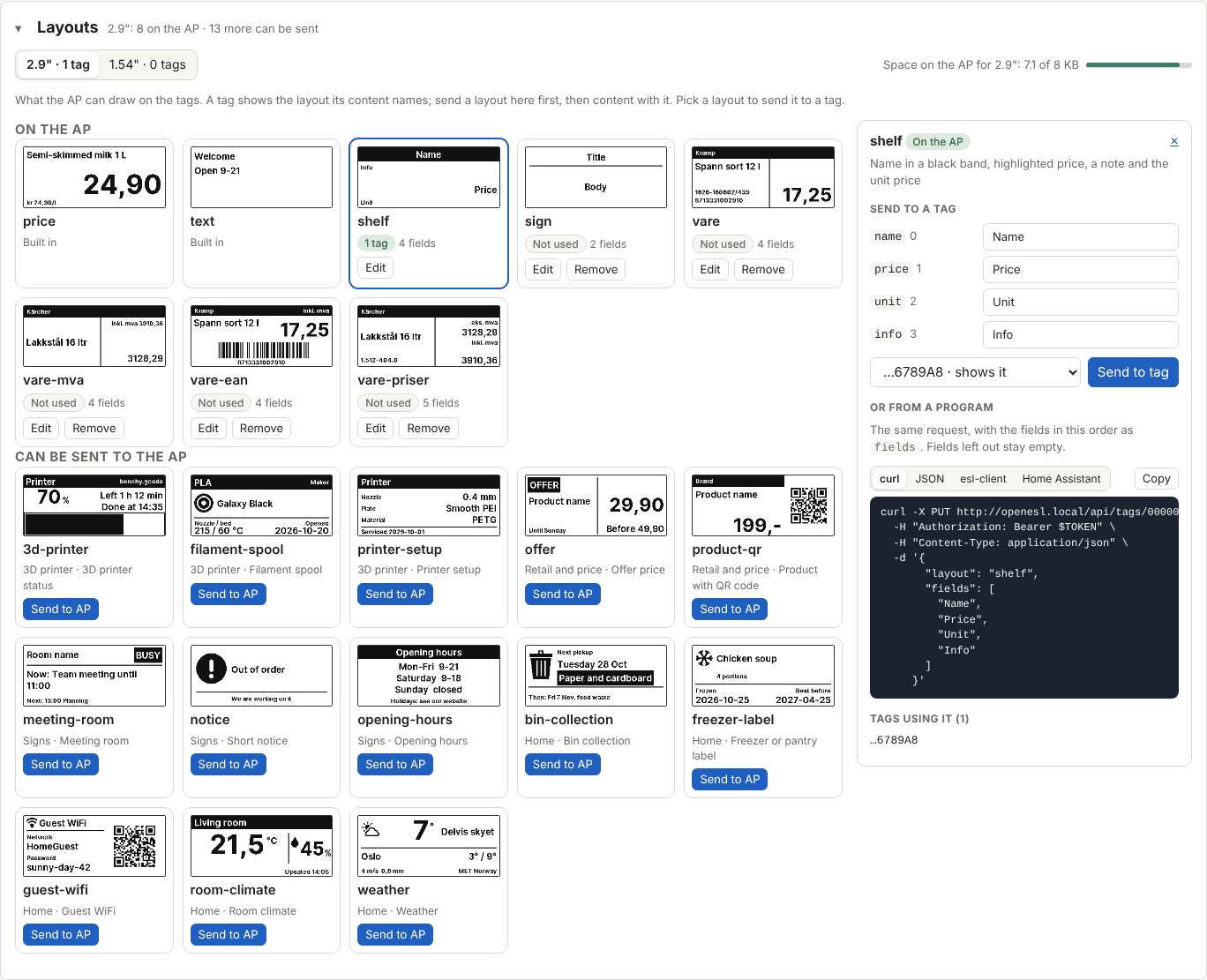
On the AP's own page the pictures and the library come from the web page, so they need internet. Without it the card lists the layouts by name only.
Tick labels in the table to:
-
Send text with the
textlayout: the AP's address and WiFi, the label's own info, today's date, or your own four lines. Words in braces are filled in per label, such as{mac},{battery},{date}and{ap_ip}. With the date in it, the next days are scheduled so the label changes date at midnight by itself. - Send a picture: drop, paste or choose a PNG or JPG of any size. It is cropped to the label's screen (or fitted whole, or stretched), and can be zoomed, moved by dragging the preview, turned, and made lighter or darker. The browser turns it into black and white, dithered for photos or not for drawings and text, and the preview shows exactly what the label will show, one per label model ticked. The labels get it at their next poll, as with text. Which access points take pictures: What each board has.
- Send firmware to the labels that need it (Updating labels).
- Forget labels: removes them from the AP. A label that still polls comes back as a new one.
Settings (next to Tags and AP at the top of the dashboard) changes the AP while it runs, without esl-client. The menu on the left has its groups, one shown at a time:
-
General: the AP's name (
NAME.local), the time zone (for dates and local times the AP fills in itself) and how often the labels check for news (the poll interval for all labels). Save and Undo show up once something differs from what the AP has, and save the whole group at once. Set it from this computer shows when the AP's clock is unknown or wrong, for an AP that cannot reach a time server. - Network: the WiFi network the AP is on (Change network … to join another), the webhook where the AP posts its health report (Health and webhook), and the time server (NTP).
- Radio: the radio's transmit power, with the EU limit for each kind of antenna (Access point settings). Only on an AP with a radio.
- Security: a new API token. This page uses it at once; other apps that call the AP need it too.
- Backup: download a backup file, or put one back (Backup and restore).
Every AP board has the Settings page, on the AP's own dashboard and over USB. The time zone and NTP server need AP firmware 0.9.0 or newer; the rest works on older firmware too (What each board has).
The "need attention" figure comes from the AP's health report. To get told about problems without keeping the dashboard open, see Health and webhook.