Repository navigation
Getting layouts onto the AP
A layout is a drawing of how a label should look: where the name goes, where the price goes. You draw it in the Label designer. The AP keeps one layout file per label size (2.9", 1.54"), with up to 16 layouts in it. When the file is on the AP, the AP draws every label that uses it, and each label gets its new look the next time it checks in.
So there are two steps: draw it, then send it to the AP.
Press Send to your AP… in the designer and pick how your AP is connected:
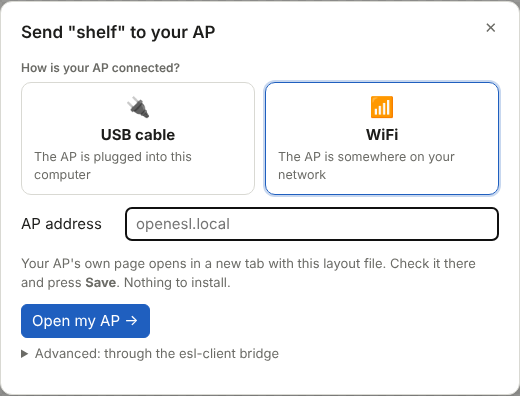
| Your AP is … | Choose | What happens |
|---|---|---|
| plugged into this computer | USB cable | Press Connect over USB and pick the AP's port. The dialog lists the AP's labels: Send puts the layout with its sample text on the one you pick, Upload layout file only just stores the file. Chrome or Edge on a computer. |
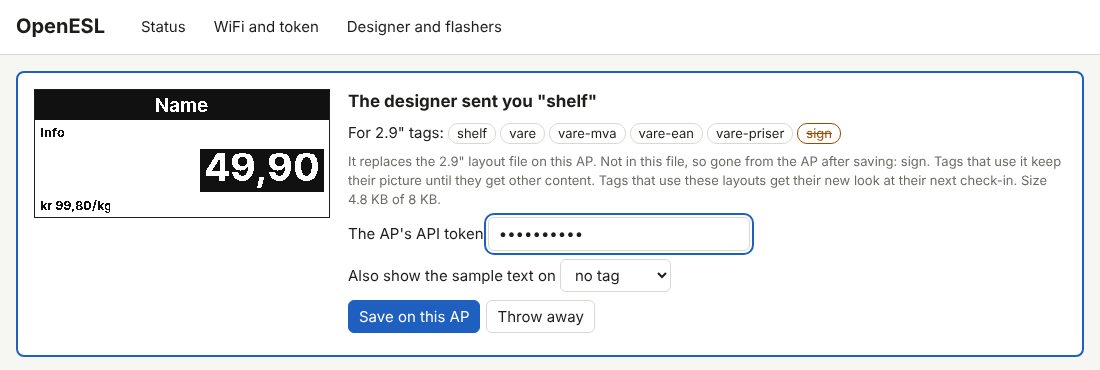
| somewhere on your network | WiFi | Type the AP's address (openesl.local, or its IP address) and press Open my AP. The AP's own page opens in a new tab with the file. Check it there and press Save on this AP. Any browser, also on a phone (phones often do not find openesl.local: use the IP address there). |
On the AP's page you see the preview, the layouts in the file, and what changes on the AP: a layout in green is new, a crossed-out one is on the AP now but not in this file, so it is gone after saving. You can also put the sample text on one of the AP's labels. The first time, the page asks for the AP's API token, and keeps it.
Why a new tab? The web page is on https, and the AP is on plain http in your home network. Browsers do not let an https page call such an address. It may open the AP's own page, though, and hand it the file. The AP's page only takes files from the openESL web page, and stores nothing until you press Save. A copy of the designer hosted somewhere else (a fork's own GitHub Pages, say) cannot hand files to the AP: use USB, or run the page on localhost.
The Layouts card on the Dashboard lists what the AP has, and the ready-made layouts it can get from the template library, each with Send to AP. It also shows, for each layout, which fields a client sends and an example to copy. This works on the AP's own page too, over WiFi.
The ESP32-S3 + C6 and the ESP32-C5 have the designer on the AP too, at http://openesl.local/dashboard#design. There it opens the layout file stored on that AP, and Save to AP writes it back. Nothing to send.
-
A file: save it from the designer's File menu and upload it yourself:
esl_client.py layout-put 2.9 layouts.json, orPUT /api/layouts/{model}(see HTTP API). -
The bridge (for developers):
python3 tools/esl-client/esl_client.py --url http://openesl.local --token <token> servelets the web page call the AP through your computer. Under WiFi → Advanced in the Send dialog, connect tohttp://localhost:8080. See esl-client.
Tags with the same screen can share a file. When two tag models have the same screen (for example the same panel from another maker), one of them can be set up to use the other's layout file. Pick either tag in the designer's tag list: both open the same file, and the file name says which other tags use it ("also used by"). You upload the file once, for the model the file is named after; uploading to the other gives an error that names the file to use. Today every supported tag has a screen of its own, so each has its own file.
The AP needs firmware 0.9.0 or newer for Open my AP. With older firmware, the new tab shows the dashboard but nothing arrives: update the AP from the Dashboard, or use USB.