Repository navigation
Label designer
A layout says where each text field goes on the label, in which font, and what fixed text, boxes, lines, icons, barcodes and QR codes are around it. Your software then sends only the text fields and the layout's name.
The AP comes with two layouts: price (name, price, unit price) and text (up to four lines).
Open the Design tab. It works in any modern browser.
-
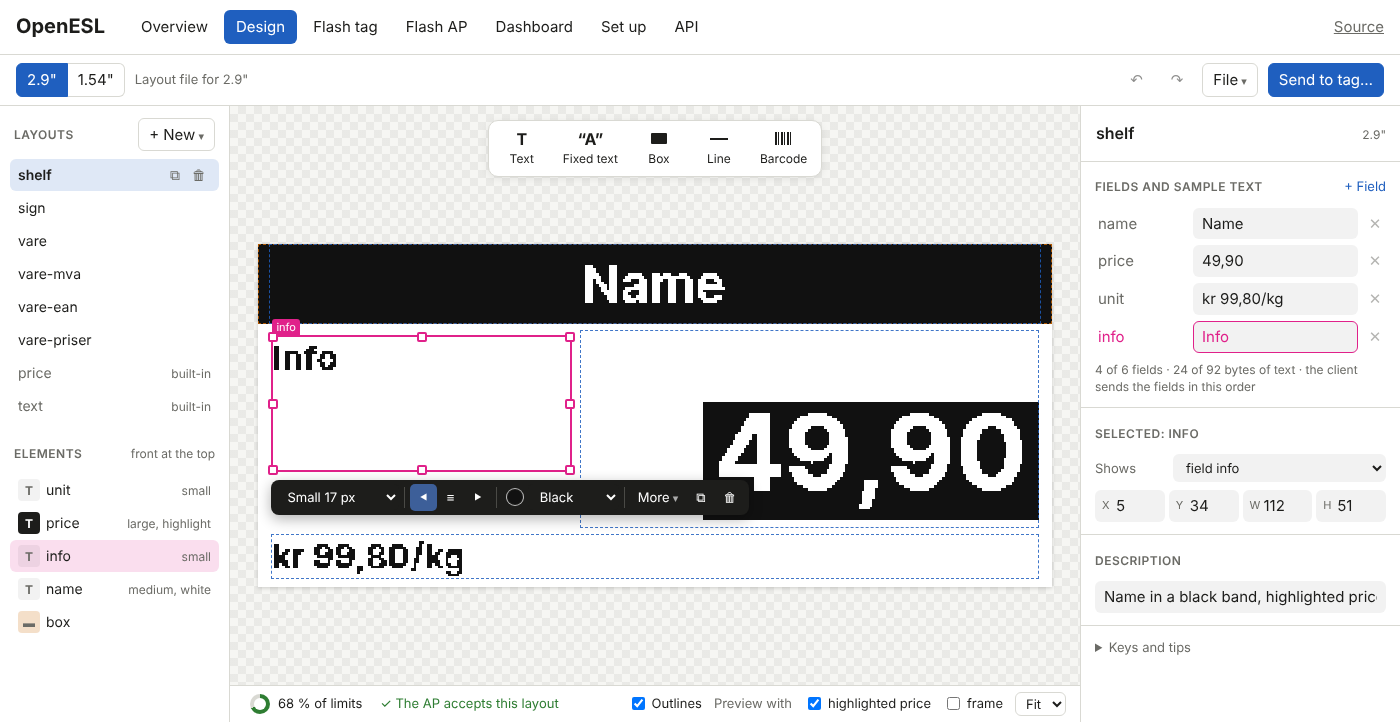
Left: the layouts in the file, each with a small picture and how many fields it has, and the elements of the one you picked. + Empty adds an empty layout, + From template a ready-made one from the template library (3D printer, retail and price, signs, home), drawn on your label model with its sample text. See Label templates. The built-in
priceandtextare folded away under the list. Once you are connected to an AP (Send to your AP…), each layout also says whether the AP has it: On the AP (with how many labels show it), Changed, not sent, or Only in this browser. A layout the AP has and your file does not is named under the list, since sending the file removes it. The API button of a layout shows what your software sends for it: its fields in order, a form that sends them to a label once you are connected, and the request for curl, JSON,esl_client.pyand Home Assistant. - Middle: the label, with the tools over it (text, fixed text, box, line, icon, barcode, QR code). Drag and resize boxes; they snap to the edges, the centre and each other (hold Alt to turn it off). The bar next to the selected element sets font, alignment and colour, and more under "More".
- Right: the layout's name, its fields with the sample text the preview shows, and where the selected element is.
- Under the label: how much of the AP's limits the layout uses, and whether the AP will accept it. The limits are those of the AP you are connected to under Send to your AP, or of an ESP32-C6 AP (the smallest) until you connect; click the ring to see which, and each limit. See Layout elements and limits.
Undo and redo with Ctrl+Z and Ctrl+Shift+Z. Arrows, Tab, Delete and Ctrl+D (duplicate) work on the selected box.
The preview is exact. It is the AP's own drawing code, built for the browser, so what you see is pixel for pixel what the label shows.
Press Send to your AP… and choose how the AP is connected:
- USB cable: the AP is plugged into this computer. Connect, pick a label, and Send puts the layout with its sample text on it (Chrome or Edge on a computer).
- WiFi: type the AP's address and press Open my AP. The AP's own page opens with the file; press Save on this AP there.
-
On the AP itself: an AP with room for it (the ESP32-S3 + ESP32-C6 and the ESP32-C5) has the designer too, at
http://openesl.local/dashboard#design. There it opens the layout files stored on that AP, Save to AP writes your changes back, and File → Reload from the AP drops changes you have not saved. The head says when something is not saved to the AP yet. It uses the Dashboard's token. The preview comes from the AP's own firmware, so it draws exactly as that AP does and works without the internet.
Step by step, and the other ways (a file, or the bridge for developers): Getting layouts onto the AP.
There is one layout file per label model, holding up to 16 layouts. The built-in price and text can always be used, with or without a file. When you upload a new version, the AP draws every label that uses it again, and each label gets its new screen at its next poll. A layout the AP cannot draw gets a 422 with the reason, the same message the designer shows. A file that no longer fits the content some labels already have (a barcode, QR code or price that is now too big for its smaller box) is stored, but the AP lists those labels in its answer, and the designer says so: they keep the screen they show, with the reason as content_error in GET /api/tags, until they get content that fits or a file that fits them.
The format is described in docs/protokoll.md, part 3. Example files: tag/designs/layouts. What a layout can hold: Layout elements and limits.