Repository navigation
Home Assistant
OpenESL works with Home Assistant in two ways:
- The OpenESL integration, installed with HACS: the AP and every label become devices, and actions put text and pictures on the labels. This is the easy way.
-
A plain
rest_command, with nothing to install: below.
The integration lives in its own repository, mathiasbk/openesl-homeassistant, whose README has every detail. It only uses the AP's HTTP API, so nothing on the AP needs to change. It needs Home Assistant 2025.3 or newer (2026.3 or newer for its icon).
- In HACS: the menu (⋮) → Custom repositories, add
https://github.com/mathiasbk/openesl-homeassistantwith the type Integration. - Find OpenESL in HACS, Download it, and restart Home Assistant.
- Settings → Devices & services. The AP shows up by itself as Discovered (it is found by its name,
openesl-xxxx): press Add and give it the API token. Otherwise Add integration → OpenESL, with the AP's address and the token.
An AP set up with firmware 0.6.0 or older is named openesl, like every AP of that age: add it with its address, and give it a fixed address (a DHCP reservation).
-
Each label is a device named after the first 8 digits under its barcode (
Tag 02066346; rename it to where it hangs), with battery voltage, signal, last check-in, a problem sensor (silent, low battery, drawing failed, as on the Dashboard) and its firmware. New labels show up by themselves. - The AP is a device with the number of labels, labels with problems, its firmware, WiFi signal and radio channel. An ESP32-S3 AP also has Radio (on while it has contact with its C6, on the cable or over WiFi; Radio 1-3 with several radios), and when the S3 loses a C6 for 30 seconds a repair shows under Settings → System → Repairs, until it is back (integration 0.3.0 and AP firmware after 0.9.2).
-
Actions:
openesl.sendputs text in a layout on one or more labels (the same asPUT /api/tags, optionally at a later time),openesl.send_imageshows a PNG of the label's screen size, andopenesl.refreshreads the labels at once.
action: openesl.send
data:
  device_id: 4f0c6a...            # the label: pick it in the UI
  layout: text
  fields:
    - "Bins out tonight"
    - "{{ states('sensor.next_collection') }}"
Ready-made automations (today's calendar from one or more calendars, bin collection, weather, room climate, low battery alerts) are in the integration's wiki, and their layouts are in the designer's template library.
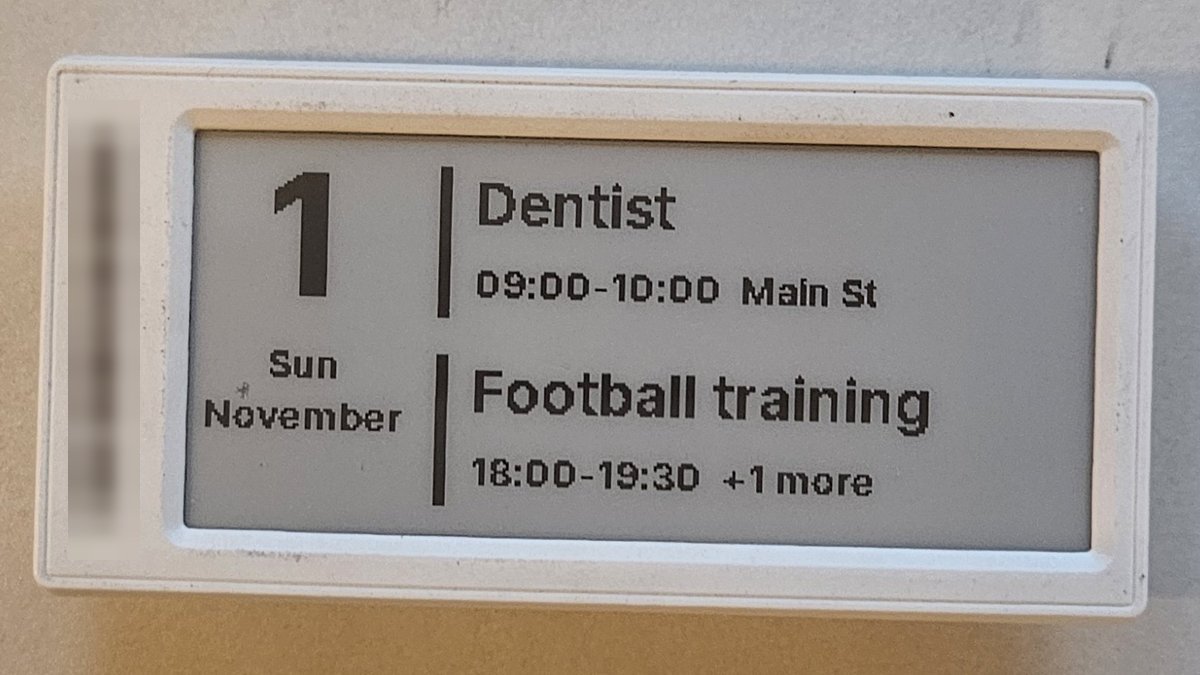
The integration reads the AP every 120 s; change it under the AP's Configure. The list of labels is about 600 bytes a label, so with many labels or weak WiFi, read it less often. Reading costs the labels nothing: only the AP answers.
The example in the repository shows a 3D printer's progress on a label, but the same pattern fits anything Home Assistant knows about: temperatures, the bin collection day, who is home.
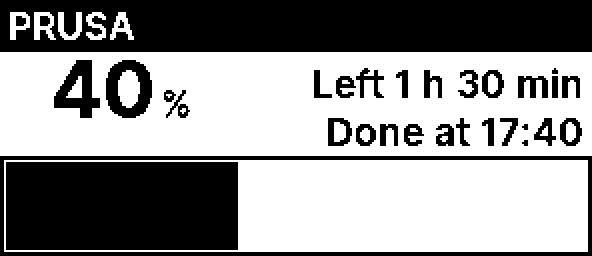
- Put the AP's address and token in
secrets.yaml. - Add a
rest_commandthat callsPUT /api/tags/{mac}with a layout and fields. - Call it from an automation when the state changes.
The full example, with YAML ready to copy, a layout with a progress bar, and how to test it from Developer tools: docs/home-assistant.md.
- Battery: every new screen costs power. Send at most every few minutes (the 3D printer example sends every 10 minutes while printing), or round the numbers (5 % or 5 minutes) when the automation runs on every change of a sensor, so the label is not redrawn for every small change. Sending the same text again is free.
- Timing: the label shows the change at its next poll, about a minute with the default interval. Do not lower the poll interval to make it faster; that costs battery all the time.
- Monitoring: point the AP's webhook at a Home Assistant webhook to get told when a label goes silent or its battery runs low.