File Manager
SSH Pilot includes a built-in dual-pane SFTP file manager and quick SCP transfers, so you can move files without leaving the app.
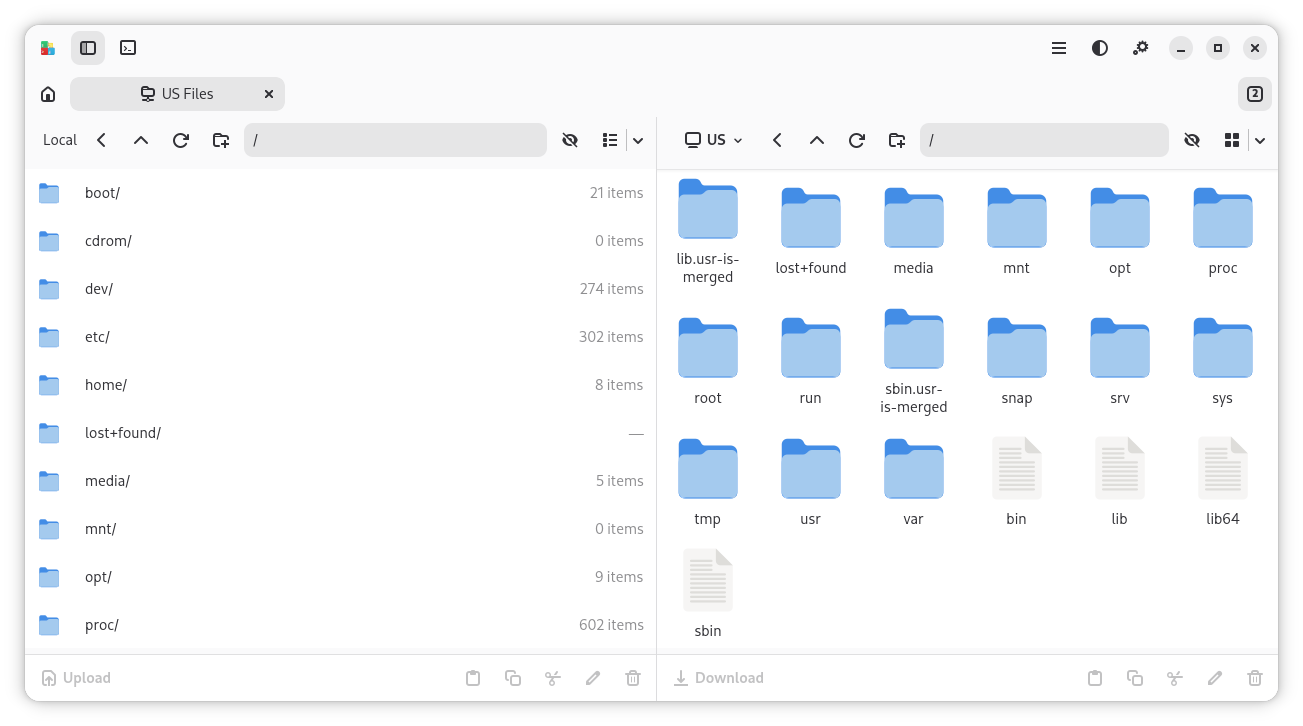
There are several ways to open it:
-
Keyboard shortcut -- Press
Ctrl+Shift+O(Cmd+Shift+Oon macOS) while a connection is selected or focused - Right-click -- Right-click a server in the sidebar and select Manage Files
- Context menu -- Right-click a terminal tab and select Manage Files
- Hover -- Hover a connection in the sidebar and click the folder icon
The file manager shows two side-by-side panes:
| Pane | What it shows |
|---|---|
| Left pane | Your local filesystem (e.g., Home folder) |
| Right pane | The remote server's filesystem |
You can browse each pane independently.
- Double-click a folder to open it
- Use the path bar at the top to type a path directly (press
Ctrl+L/Cmd+Lto focus it) - Click the breadcrumb buttons in the path bar to jump to a parent directory
- Press
Tabto switch focus between the left and right pane
- Press
F5orCtrl+R(Cmd+Ron macOS) to refresh the current directory
- In the left pane (local), navigate to the file you want to upload
- Select the file
- Press
Ctrl+Cto copy, then switch to the right pane (Tab) and pressCtrl+Vto paste - Or simply drag the file from the left pane to the right pane
- In the right pane (remote), navigate to the file you want to download
- Select the file
- Press
Ctrl+Cto copy, then switch to the left pane (Tab) and pressCtrl+Vto paste - Or simply drag the file from the right pane to the left pane
- Select the file
- Press
Ctrl+Xto cut - Switch to the destination pane
- Press
Ctrl+Vto paste
Right-click any file or folder to access these options:
| Action | What it does |
|---|---|
| Open | Open the file with the default editor |
| Rename | Rename the file or folder |
| Delete | Remove the file (press Delete or Shift+Delete) |
| Create Directory | Create a new folder |
| Permissions | Change file permissions (chmod) |
| Properties | View file size, permissions, and dates |
You can open remote files directly in SSH Pilot's built-in text editor:
- Right-click a file in the remote pane
- Select Open or Edit
- The file opens in an editor with syntax highlighting (when GtkSourceView is available)
- Make your changes and save
This is great for quickly editing config files without downloading them first.
To see details about a file:
- Right-click the file
- Select Properties
- You will see the file size, permissions, owner, and modification date
For quick one-off transfers without opening the full file manager, SSH Pilot includes a legacy SCP transfer dialog.
- Select a connection, then click the SCP toolbar button (tooltip: Legacy: Transfer files with scp)
- Or open Omni-search (
Shift+Shift) and typescp, then choose Transfer Files with SCP and a connection
- Pick the server if needed
- Choose Upload or Download
- Select the local or remote path and start the transfer
Prefer the dual-pane file manager for browsing and drag-and-drop. SCP remains available for simple single-file transfers.
You can customize file manager behavior in Settings > File Management:
| Setting | What it does |
|---|---|
| Open in separate window | Open the file manager in its own window instead of a tab |
| SFTP keepalive interval | How often to send keepalive packets (prevents timeout) |
| SFTP keepalive retry limit | How many keepalive failures before disconnecting |
| SFTP connection timeout | How long to wait for the SFTP connection |
The file manager operates with the permissions of the user you connected as. If you connect as a standard user, you cannot modify files in /etc/ or other system directories through the file manager. Use the terminal instead for operations requiring sudo.
- Connections -- How to set up servers
- Key Management -- Deploy SSH keys for passwordless login
- Terminal -- Work with multiple terminals