Key Management
SSH Pilot helps you generate SSH keys, deploy them to servers, and manage which keys a connection uses -- all without leaving the app.
An SSH key is a pair of cryptographic files that prove your identity to a server. Using keys is more secure and more convenient than passwords -- once a key is deployed, you can log in without typing a password every time.
The easiest way to enable passwordless login is to copy your public key to the server.
- Right-click a server in the sidebar and select Copy Key to Server
- Or press
Ctrl+Shift+K(Cmd+Shift+Kon macOS)
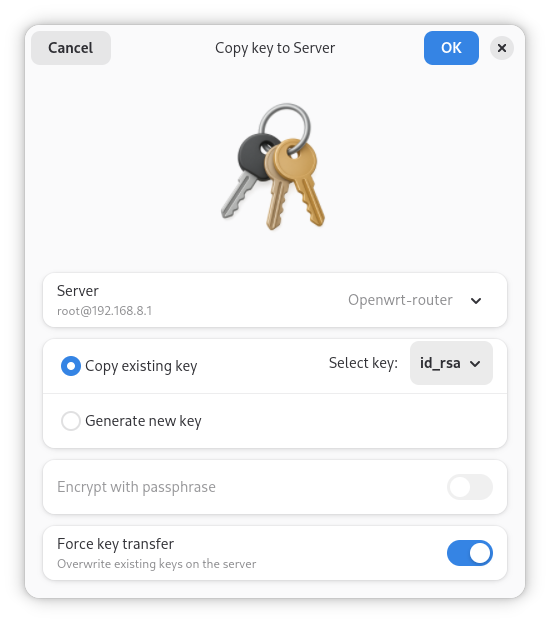
The window title is Copy key to Server.
Pick one of:
-
Copy existing key -- Choose a key from the Select key dropdown (discovered under
~/.ssh), or pick the trailing Browse for a key file… item to select another file - Generate new key -- Create a new key pair, then deploy it in the same flow
- Encrypt with passphrase -- Available when generating a new key. If enabled, OpenSSH prompts for the passphrase securely after generation starts (via the app’s protected dialog)
- Force key transfer -- Overwrite / force install on the server when a conflicting key situation would otherwise block the copy (on by default)
Click OK. SSH Pilot will:
- Generate a key first if you chose that mode
- Connect to the server
- Install your public key into the remote
authorized_keysfile
You may be prompted for the server password one last time. After this, reconnect -- you should no longer need that password for key-based login.
You can generate a key from the same Copy key to Server dialog:
- Select Generate new key
- Set the Key file name (defaults to
id_ed25519orid_rsabased on type) - Choose a Key type:
- ed25519 (default, recommended) -- Fast, secure, widely supported
- rsa -- Generated at 3072 bits for compatibility with older systems
- Optionally enable Encrypt with passphrase
- Click OK to generate and copy in one step
ECDSA is not offered in this generator. Prefer ed25519 unless you need RSA for an older server.
The new key pair is written under your SSH directory (normally ~/.ssh). The public key (.pub) is what gets installed on the server.
In Edit Connection → Authentication:
- Switch between Key-based and Password authentication
- Add one or more identity files (and optional certificates)
-
Only use the selected key(s) -- writes
IdentitiesOnly yes -
Add keys to agent -- maps to OpenSSH
AddKeysToAgent(Default,Yes,No,Ask,Confirm)
Under Agent and hardware keys you can also set:
- IdentityAgent -- which agent socket to use
- PKCS#11 provider -- path to a smartcard / YubiKey library
- FIDO security key provider -- path for FIDO/U2F providers
PKCS#11 is an optional provider path on a key-based connection -- it is not a separate top-level “authentication method” next to Password.
To inspect or edit keys already installed on a server:
- Right-click the connection in the sidebar
- Select Manage authorized_keys…
For the full editor (local and remote), options, and how it differs from Copy Key to Server, see Authorized Keys.
To remove outdated server host keys after a rebuild, see Known Hosts.
When Add keys to agent is set to load keys on first use:
- The key can be loaded into
ssh-agentwhen needed - You only enter the passphrase when the agent requires it (often once per session)
You can also pick keys that are already In agent from the key chooser described above.
SSH Pilot supports PKCS#11 providers (for example YubiKey) and FIDO security key providers.
- Edit the connection
- Stay on Key-based authentication
- Under Agent and hardware keys, set PKCS#11 provider (and/or FIDO security key provider)
- Browse to the library path if needed (example on many Linux systems:
/usr/lib/x86_64-linux-gnu/libykcs11.so) - Save the connection
Exact library paths depend on your OS and the vendor package you installed.
- Security -- Why password and passphrase handling is designed to be safe
- Credentials -- Store passwords and passphrases in a vault
- Authorized Keys -- Edit local or remote authorized_keys
- Known Hosts -- Fix host key verification problems
- Connections -- Full connection editor reference
- Quick Start -- Set up your first connection