Main Window
This page explains the layout of SSH Pilot's main window and how to navigate it.
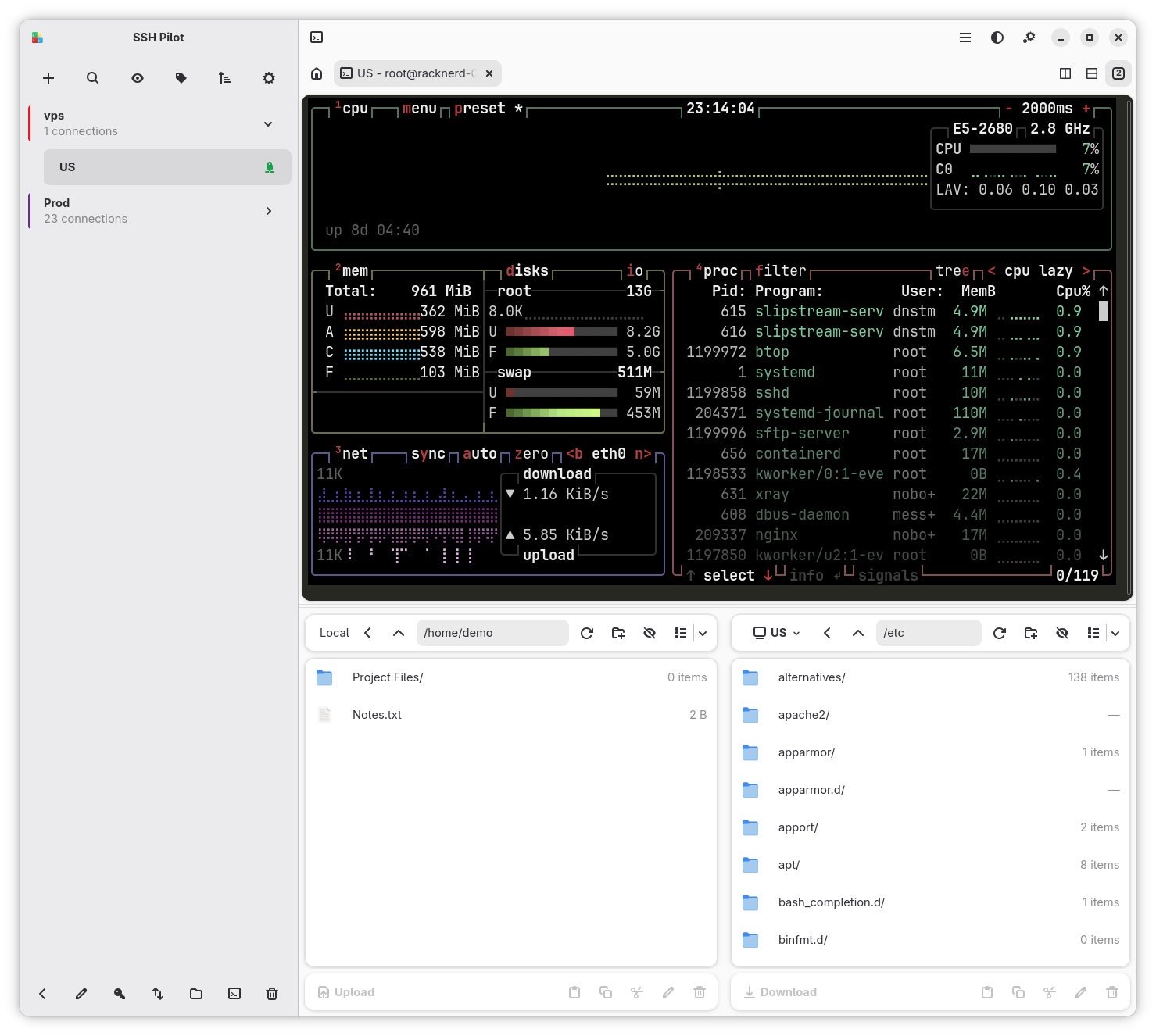
SSH Pilot's window has three main areas:
The bar at the very top of the window contains quick-access buttons. You can customize which buttons appear in Settings > Interface.
By default, you will see:
| Button | What it does |
|---|---|
| Sidebar toggle | Show or hide the sidebar |
| Split view | Open a split-view tab |
| Snippets | Toggle the command snippets panel |
| Terminal theme | Change the terminal color scheme |
| Local terminal | Open a local shell tab |
| Theme menu | Switch between light, dark, or system theme |
The sidebar lists your connections. Search, connect, organize into groups, or hide it for a wider terminal.
- Hide or show:
F9(Cmd+Bon macOS) or the header sidebar toggle - Modes: Full (details) or Minimal (icon strip)
Full guide: Sidebar. For a wider terminal, see Plain Terminal Mode.
The large center area is your workspace. It uses a tabbed interface where each tab holds:
- A terminal session (SSH or local)
- A split view with multiple terminals
- A file manager
- A plugin page (e.g., Docker Console)
When you first open SSH Pilot (or close all tabs), you will see the Start Page (accessed with the "home" icon). It provides:
- Omni-search -- a search box that finds connections, tools, and settings, and can run SSH commands
- Recently used connections
- Pinned connections
- Links to documentation and help
When the welcome page is visible, the search box is already focused. You can start typing right away:
- Type a connection name, hostname, or keyword
- The connection list below filters to show matching entries
- Press
Enterto connect to the first match - Use
Arrow Up/Arrow Downto navigate through the results - Press
Enteron any result to open it
This means you can launch a connection without touching the mouse -- just type and press Enter.
There are several ways to open new tabs:
| Action | Shortcut |
|---|---|
| Connect to a server | Double-click in sidebar, or Enter
|
| Force open in new tab |
Ctrl+Enter (even if a tab already exists) |
| Local terminal | Ctrl+Shift+T |
| Split view | Header bar button, or drag a tab to the edge |
| File manager | Ctrl+Shift+O |
| Snippets panel | Header bar button |
The omni-search is a global search that finds connections, commands, and actions all at once.
-
Double-tap Shift (
Shift+Shift) -- the default shortcut - Or assign a custom shortcut in Settings > Shortcuts > Omni-search
When the start page is visible, the omni-search is already docked in the center -- just start typing.
| Type | Examples |
|---|---|
| Connections | By nickname, hostname, or username |
| Commands | Settings, SSH config editor, local terminal, new connection |
| SSH commands | Type ssh user@host to connect directly |
| Transfer intents | Type sftp, scp, or ssh-copy-id to open a file transfer for a connection |
-
Arrow Up/Arrow Down-- Navigate through results -
Enter-- Open the selected result -
Escape-- Close omni-search
- Type
webto find connections with "web" in the name - Type
ssh root@192.168.1.1to connect using a raw SSH command - Type
sftp myto open SFTP for a connection named "my-server" - Type
settingsto open the Settings window
- Click any tab in the tab bar at the top
- Press
Ctrl+Page Down/Ctrl+Page Upto cycle through tabs - Press
Ctrl+Shift+Tabto open the tab overview (shows all tabs as thumbnails)
- Drag a tab to reorder it
- Press
Ctrl+Shift+Page Up/Ctrl+Shift+Page Downto move the current tab left or right
- Click the x on any tab
- Press
Ctrl+Shift+Wto close the current tab
- Right-click a tab and select Rename to give it a custom name
Press F11 to toggle fullscreen mode. The header bar will auto-hide when you move your mouse to the top edge of the screen.
Press F11 or Escape to exit fullscreen.
The first tab (labeled "Start") is pinned and cannot be closed. It always shows the welcome page. You can switch back to it at any time by clicking it.
- Sidebar -- Full and Minimal connection list
- Plain Terminal Mode -- Hide the list for a wider terminal
- Connections -- How to create, edit, and organize your servers
- Terminal -- Tabs, split view, and terminal features
- Omni-search -- Global search for connections and actions
- Keyboard Shortcuts -- Complete shortcut reference