Quick Start
This guide walks you through connecting to your first server in under a minute.
Open SSH Pilot from your application menu (Linux) or Applications folder (macOS).
You will see the main window with a sidebar on the left and a welcome page in the center.
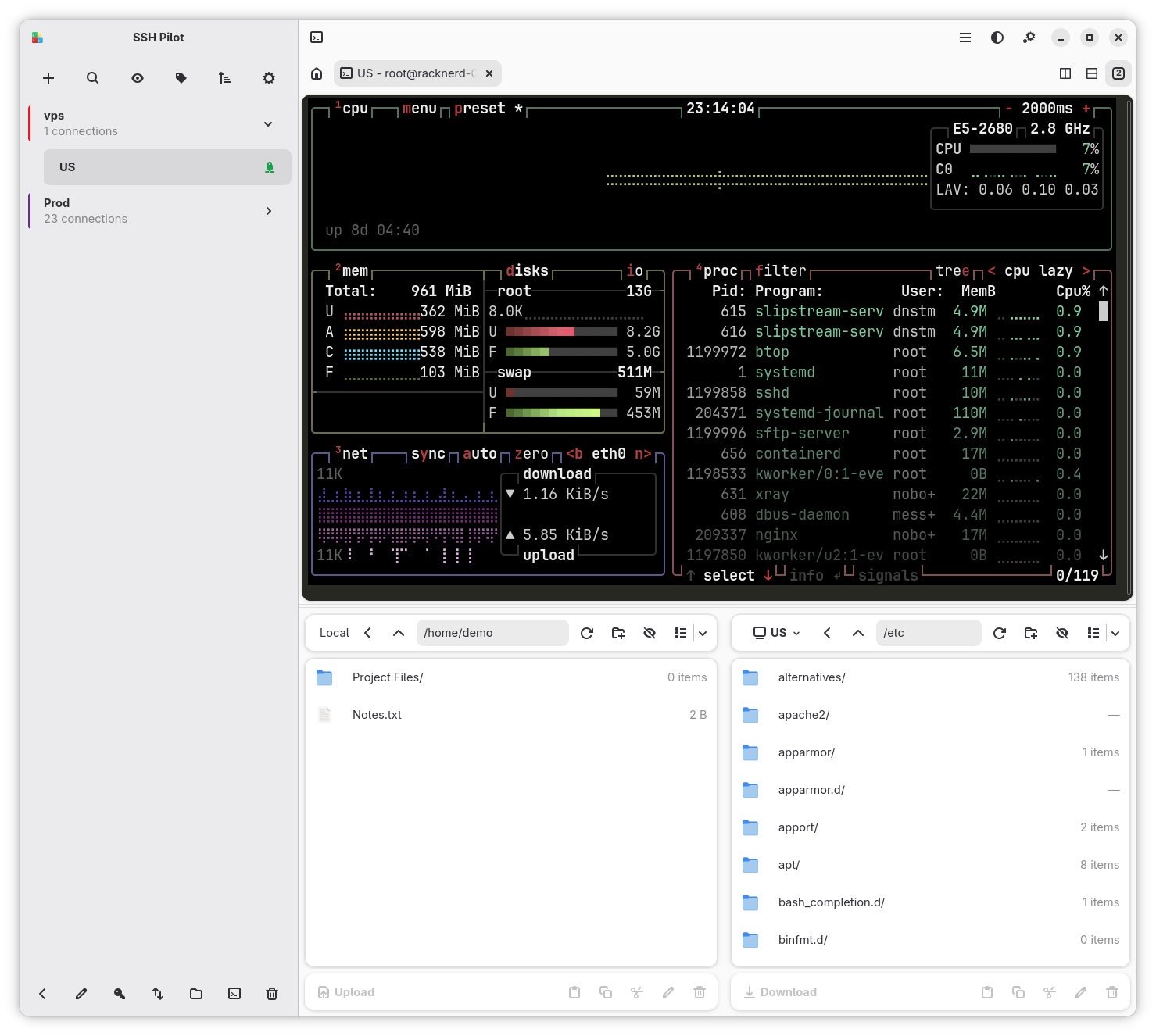
If you already have servers defined in your ~/.ssh/config file, they will appear automatically in the sidebar. No setup needed.
If your sidebar is empty, continue to Step 3 to add a new server.
- Click the + button at the top of the sidebar (or press
Ctrl+Shift+N/Cmd+Non macOS) - A connection editor dialog will open
- Fill in the details:
- Name: A friendly name for this server (e.g., "My Web Server")
-
Hostname: The server's IP address or domain (e.g.,
192.168.1.100orexample.com) -
Username: Your login name on the server (e.g.,
rootorubuntu)
- Configure authentication: choose your preferred authentication method
- Click Save (or press
Ctrl+S/Cmd+S)
The new connection will appear in your sidebar.
- Double-click the server in the sidebar, or select it and press
Enter - A new terminal tab will open in the main window
- If the server requires a password, SSH Pilot will show a secure dialog asking for it
- If you check "Save password", SSH Pilot will remember it for next time
You are now connected to your server.
Now that you are connected, try these common actions:
- Middle click the connection or select it and press
Ctrl+Enterto force a new tab for the same server
- Hover mouse pointer over the connection until a folder icon appears. Click it or press
Ctrl+Shift+O(Cmd+Shift+Oon macOS) to open the SFTP file manager for the current connection
- Click the terminal icon in the header, or press
Ctrl+Shift+T(Cmd+Shift+Ton macOS) to open a terminal on your own machine
- Press
Ctrl+F(Cmd+Fon macOS) and type to filter the sidebar list. You can also press Shift twice to open Omni-search.
- Main Window -- Learn about the interface layout
- Sidebar -- Full and Minimal connection list
- Plain Terminal Mode -- Hide the list for a wider terminal
- Connections -- Create, edit, and organize servers
- Groups -- Organize servers into folders
- Terminal -- Master tabs, split view, and broadcast mode
- File Manager -- Browse and transfer files
- Keyboard Quick Reference -- Speed up daily use
- FAQ -- Common questions, short answers