Terminal
SSH Pilot's terminal is where you interact with your servers. It supports tabs, split view, broadcast mode, and more.
-
SSH connection -- Double-click a server in the sidebar, or select it and press
Enter -
Local terminal -- Press
Ctrl+Shift+T(Cmd+Shift+Ton macOS), or click the local terminal button in the header bar -
New tab for same server -- Press
Ctrl+Enter(Cmd+Enteron macOS). You can do the same thing by a middle-click or 3-finger tap.
Each connection opens in its own tab at the top of the window.
- Click any tab in the tab bar
- Press
Ctrl+Page Down/Ctrl+Page Upto go to the next/previous tab
- Click the x on the tab, or press
Ctrl+Shift+W(Cmd+Shift+Won macOS). You can also close a tab by middle-clicking it.
- Right-click the tab and select Rename - Double clicking a tab title also allows you to rename.
- Type a new name and press Enter
- Drag a tab to reorder it
- Press
Ctrl+Shift+Page Up/Ctrl+Shift+Page Downto move left/right
- Press
Ctrl+Shift+Tab(Cmd+Shift+Tabon macOS) to see all open tabs as thumbnails
Split view lets you view multiple terminals side by side in a grid. This is great for monitoring one server while working on another.
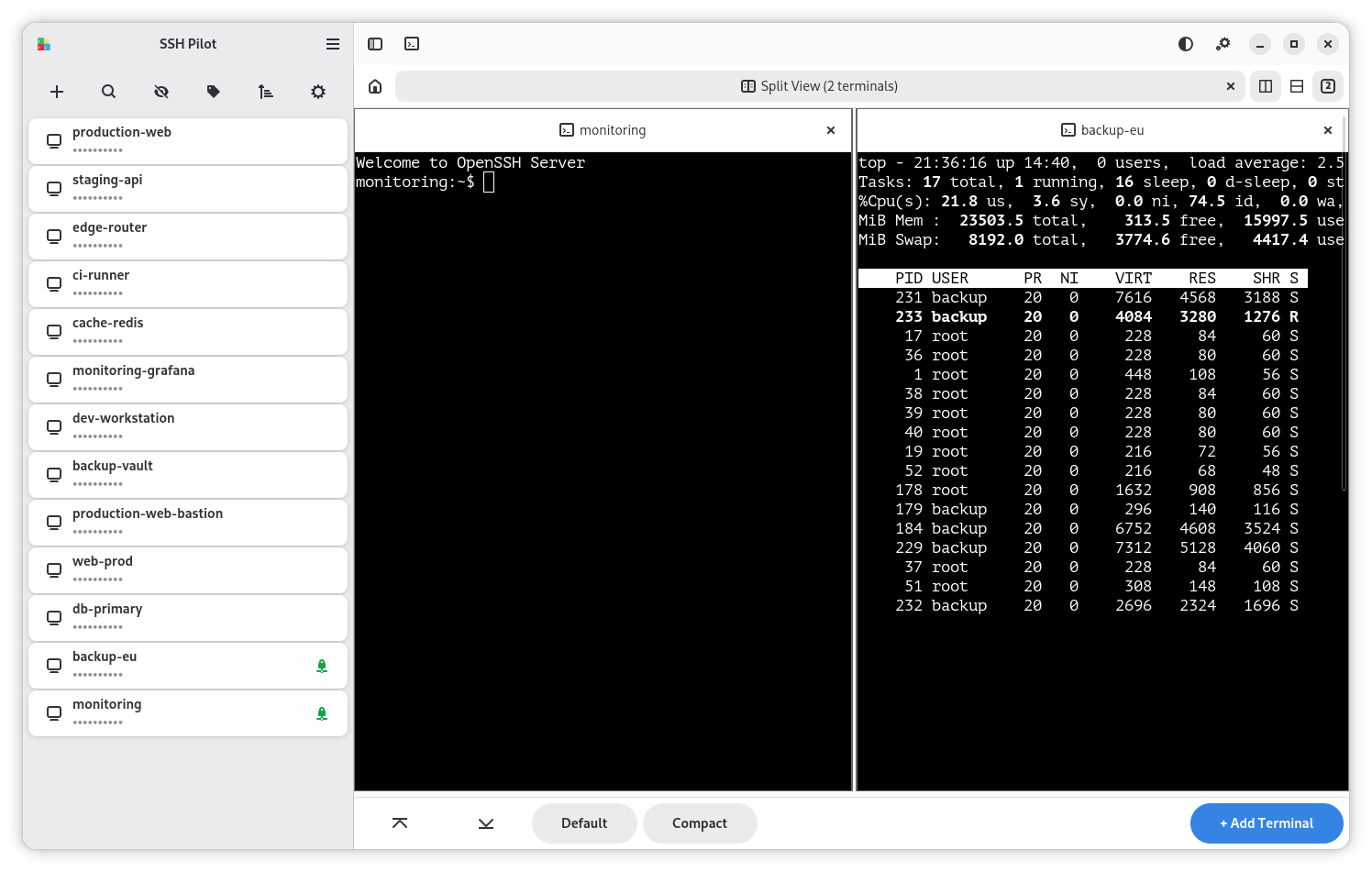
Method 1 -- From the header bar:
- Click the split view button in the header bar
- A new split-view tab opens with an empty grid
- Drag connections from the sidebar into the panes, or click the + button in a pane to pick a connection
Method 2 -- From an existing tab:
- Right-click a tab header
- Select Split Right or Split Down
Method 3 -- Drag a connection into a terminal:
- Drag a connection (or group) from the sidebar
- Drop it onto any existing terminal tab
- The terminal converts to a split view with the new connection added
This works with both single connections and groups. Dragging a group opens all its connections in the split view.
Split view supports two layouts:
- Side by side -- Terminals arranged in columns - This turns into a grid automatically if you open more than 2 tabs.
- Top and bottom -- Terminals arranged in rows
Toggle between layouts using the buttons in the split view header.
Drag the border between panes to resize them.
Click the + button in any empty pane to add another terminal. You can also drag connections from the sidebar into empty panes.
Use the regular close tab shortcut (Ctrl+Shift+W) to close the focused pane.
Assign shortcuts in Settings > Shortcuts > Split View to:
- Focus adjacent panes (left, right, up, down)
- Resize panes with the keyboard
- Add new panes
Broadcast mode sends the same command to multiple terminal tabs at once. This is useful for running the same command on a cluster of servers.
Press Ctrl+Shift+B (Cmd+Shift+B on macOS). A broadcast bar appears at the bottom of the terminal.
Type the command you want to run on all open terminals.
Press Enter. The command is sent to every open terminal tab.
Press Escape or close the broadcast bar to stop broadcasting. After that, typing goes to only the focused terminal.
Warning: Be careful with broadcast mode. A command like
rm -rf /will run on every open terminal.
Copy:
-
Ctrl+Shift+C(Cmd+Con macOS) -- copy selected text - Or enable Copy on selection (below) to auto-copy when you select text
Paste:
-
Ctrl+Shift+V(Cmd+Von macOS) -- paste from clipboard - Or enable Paste on right-click (below) to paste with right-click
When enabled, text is automatically copied to the clipboard as soon as you finish selecting it. No keyboard shortcut needed -- just select and it is ready to paste elsewhere.
To enable: Settings > Terminal > Mouse > Copy on selection
When enabled, right-clicking in the terminal pastes the clipboard contents. If you need the context menu instead, hold Shift and right-click.
To enable: Settings > Terminal > Mouse > Paste on right-click
| Right-click behavior | Paste on right-click OFF | Paste on right-click ON |
|---|---|---|
| Right-click | Opens context menu | Pastes from clipboard |
| Shift + right-click | Opens context menu | Opens context menu |
- Press
Ctrl+Shift+F(Cmd+Shift+Fon macOS) to open the search bar - Type your search term
- Press
EnterorCtrl+Gto find next - Press
Shift+EnterorCtrl+Shift+Gto find previous - Press
Escapeto close the search bar
-
Zoom in --
Ctrl+=(Cmd+=on macOS) -
Zoom out --
Ctrl+-(Cmd+-on macOS) -
Reset zoom --
Ctrl+0(Cmd+0on macOS)
Hold Ctrl and click a URL in the terminal to open it in your default browser.
Click the terminal theme button in the header bar to pick a different color scheme. Choose from dark, light, dracula, monokai, solarized, and more.
Go to Settings > Terminal > Font to choose your preferred monospace font.
SSH Pilot supports two terminal backends. You can switch between them in Settings > Terminal > Backend.
The native GTK4 terminal widget. This is the default on macOS and the fallback on Linux.
- Lightweight and fast
- Native GTK4 integration
- UTF-8 only (no encoding selector needed)
- Best for most users
An embedded xterm.js terminal running inside a WebKitGTK 6 view. This is available on Linux only (not macOS, because WebKitGTK is not used on the macOS build).
- Better compatibility with modern terminal applications (htop, vim, tmux, mc)
- Supports multiple character encodings (selectable in Settings)
- Command autocomplete from local history and snippets
- Slightly heavier than VTE (uses WebKit)
Requirements: WebKit 6.0 and the xterm.js assets (bundled or from your system's libjs-xterm package).
- Open Settings > Terminal > Backend
- Select your preferred backend
- If you have open terminal tabs, the change applies to new tabs only. Existing tabs keep their current backend.
Note: On macOS, only VTE is available. PyXterm.js will not appear as an option.
Tip: If you use a tiling window manager or text expander (like Espanso) and experience conflicts, enable Terminal Shortcut Pass-through in Settings > Terminal > Keyboard. This disables all SSH Pilot shortcuts and passes keys directly to the terminal.
Tip: Press
F9(orCmd+Bon macOS) to hide or show the sidebar. For auto-hide on connect and related settings, see Plain Terminal Mode.
- File Manager -- Browse and transfer files
- Keyboard Shortcuts -- Every shortcut reference
- Snippets -- Save and reuse common commands