Repository navigation
Usage
- Click the bell in the menu bar, then Settings… › Topics › +.
- Give the topic a label. Pick the server. Enter the topic name, the same one you use in the ntfy phone app or in your scripts. Random makes an unguessable one.
- Set the plan: what you see, how long a popup stays and which sound; switch on Handle important messages differently for priority 4 and up (see Topics and Rules).
- Press Save, then Send Test Message.
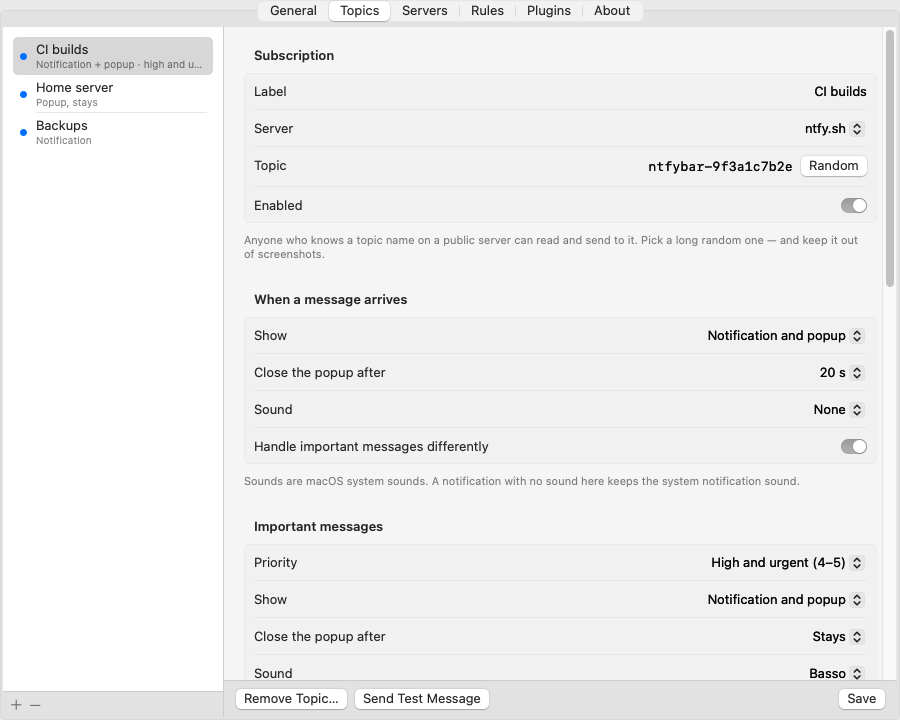
Topic names work like passwords on a public server. Use long random ones.
curl -H "Title: Backup done" -H "Tags: white_check_mark" -d "3.1 GB, no errors" ntfy.sh/<your topic>Priority and tags work too:
curl -H "Title: Disk almost full" -H "Priority: urgent" -H "Tags: warning" -d "95% used" ntfy.sh/<your topic>For headers, priorities (1 to 5, or min to urgent) and tag emoji, see the ntfy publishing docs.
The bell shows an unread count. The menu has:
- the connection state
- your recent messages (click one to open its popup)
- Send Clipboard to “…” and Publish… (see below)
- Mark All Read
- Pause Notifications
- History…
- Settings…, About NtfyBar, Support on Ko-fi, Quit
NtfyBar can send too, not only receive.
-
Send Clipboard to “…” sends what you copied to the topic you last sent to: copied files (one message each, up to 20), else a copied picture as
clip.png, else the text. The first time, it opens Publish…. - Publish… opens a window: topic, title, extra tags, priority, a message and files (Add… or drop them from Finder onto the window, not the Message box). The message goes first, then each file as its own message. If a send fails midway, the status says how many went out; sending again repeats those.
- Text up to 4,000 bytes is a normal message; up to 2,000 bytes it also gets a Copy button in the ntfy phone app. Longer text is sent byte-exact as the file
clip.txt. Files over 100 MB are refused before upload. - Every message carries the sender tag
ntfybar-macfirst, then your tags; the title defaults to the Mac's name. Change them underpublishinconfig.json(deviceTag,title). Other devices can use that tag to ignore your messages, and NtfyBar ignores its own messages when they come back. - A topic your server only lets you read answers "not allowed on this topic".
- Receiving long text: on a topic set to copy or download, a
clip.txtorattachment.txt(plain text up to 1 MB, which is how long text arrives from NtfyBar or the ntfy phone app) is copied and shown as text, not as a file.
History… lists every message, with a topic filter and search. Double-click a row to show its popup. The context menu has Show Popup, Copy, Open Link and Mark Read. Clear removes one topic's history or all of it.
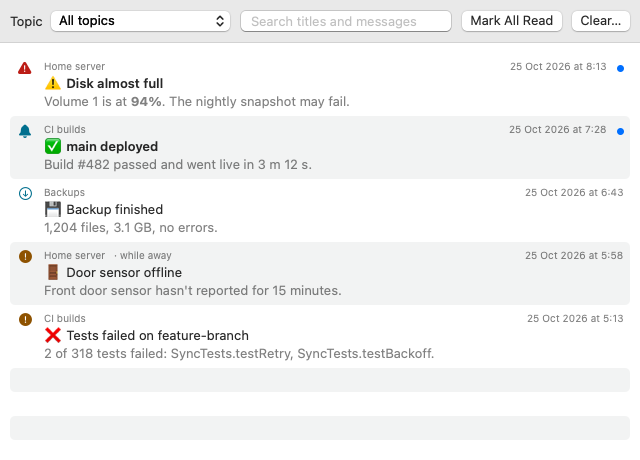
Retention is set per topic in the topic editor.
Pause Notifications for 15 min, 1 h, or until you resume. While paused, NtfyBar still stores messages but shows no notification or popup, plays no sound and runs no commands.
In Settings › General set a start and end time (HH:MM) and a maximum priority. Quiet hours cap the priority of everything NtfyBar itself publishes (rules and plugins). Ranges can cross midnight.
Only for messages NtfyBar sends — rules, plugins, Publish and test messages. Incoming messages are not affected: use Pause, or give the topic a quieter plan.
NtfyBar reconnects automatically and asks the server for what you missed. See the FAQ. Missed messages become one summary notification ("N messages while away") instead of a flood. Rules, popups and commands do not run for them unless you turn on process missed for the topic.
Settings › General › Launch at login.
General, Topics, Servers, Rules, Plugins, About. For servers see Self-hosted servers.
