Repository navigation
Home screen
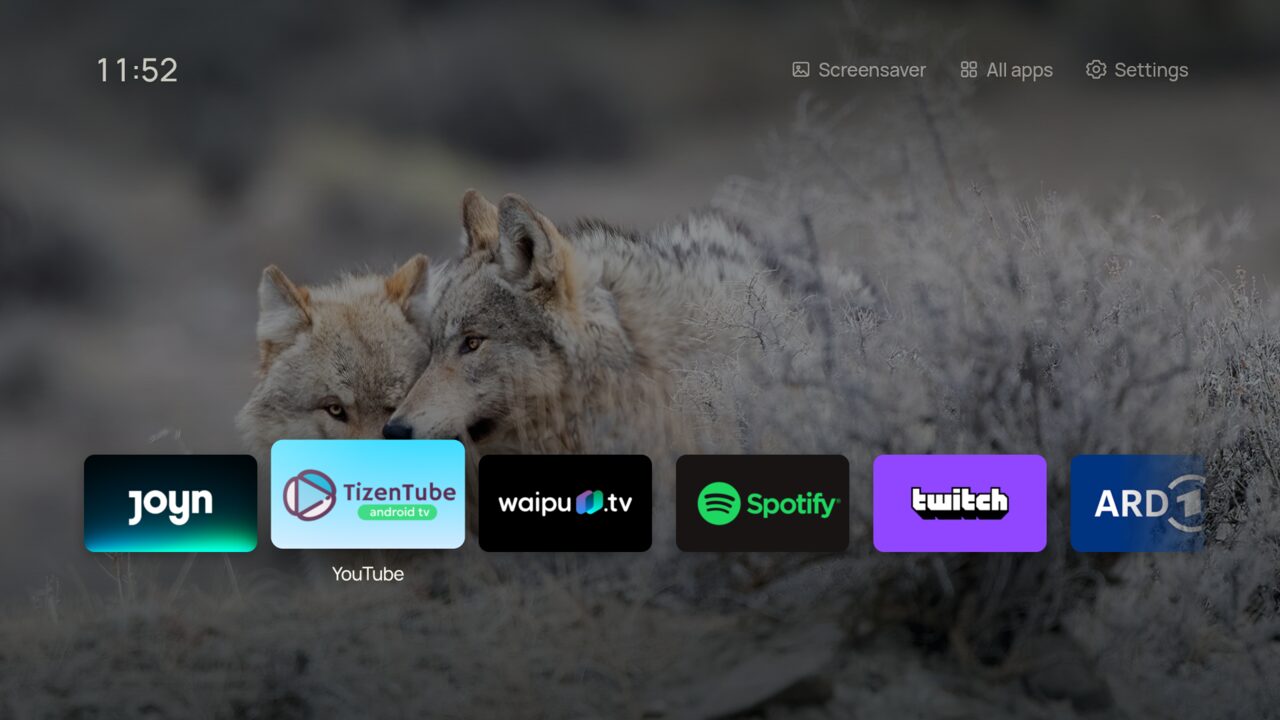
Three layouts: Dock, List and Shelf. Dock and List draw every app logo the same way: Shore's own logos in colour or in one colour, or the icons from an installed icon pack (for example one made for Projectivy Launcher). Shelf shows each app's own banner, with a Top Shelf above it.
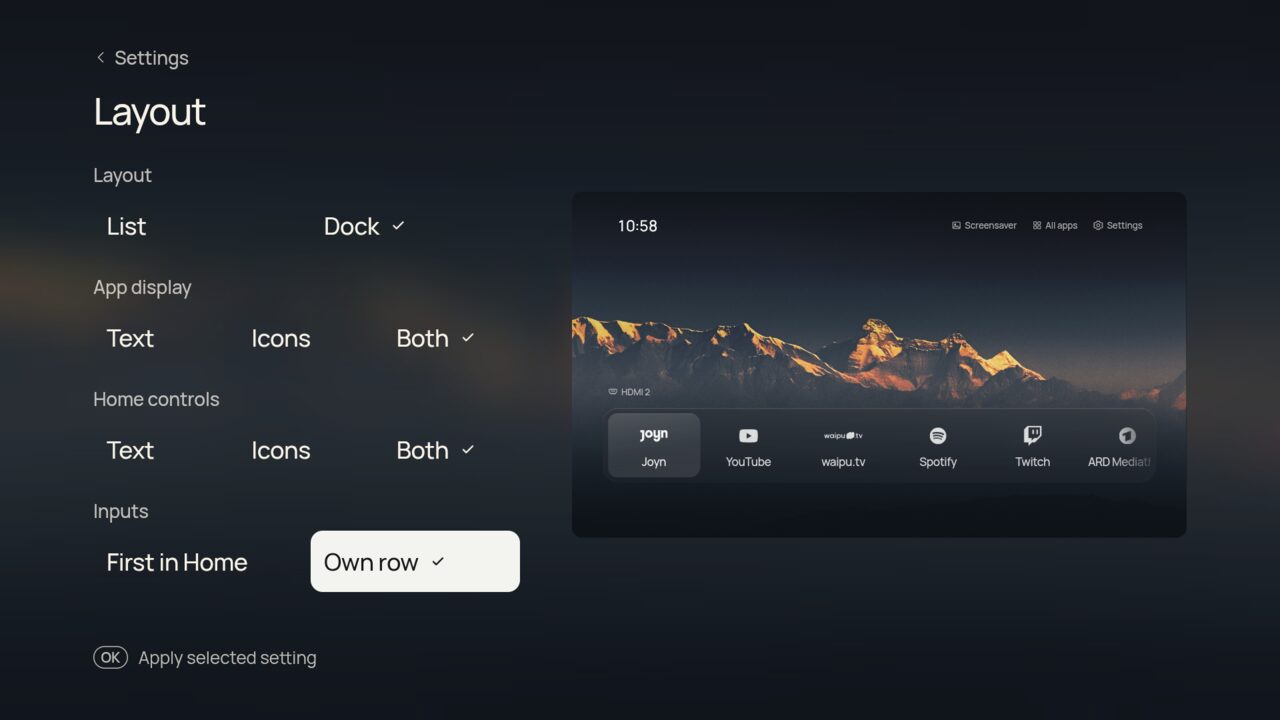
- Shore finds your installed apps. Pick up to nine for Home and put them in order, under Settings › Apps on Home or in the phone companion.
- Recently used: in Dock, up to three apps you opened lately but haven't put on Home follow Home's apps, after a thin line. Turn it off in Settings › Home screen.
- Your own icon for each app: hold OK on an app and choose Icon, or go to Settings › Home screen › App icons › Per app. Pick one of Shore's icons, the app's own icon or a one-colour version.
- Hold OK on an app on Home for Open, Move, Remove, Icon or App info. A normal press still opens the app; Move and Remove go through Apps on Home, so they can be undone.
In Dock, a row under the apps with what you were watching in apps that share it with Android (Twitch, Apple TV and others). In Shelf, each app's own items come first in its Top Shelf row. Allow it when Android asks.
While something plays, a ♪ Music button joins the top-right row and opens the music view. After a pause it stays for 10 minutes so you can resume. It needs Notification access, like Now playing.
- Hide controls when idle (Night page): after 1 or 5 minutes only the picture and clock stay.
- Animations pause outside Home, so menus stay snappy.
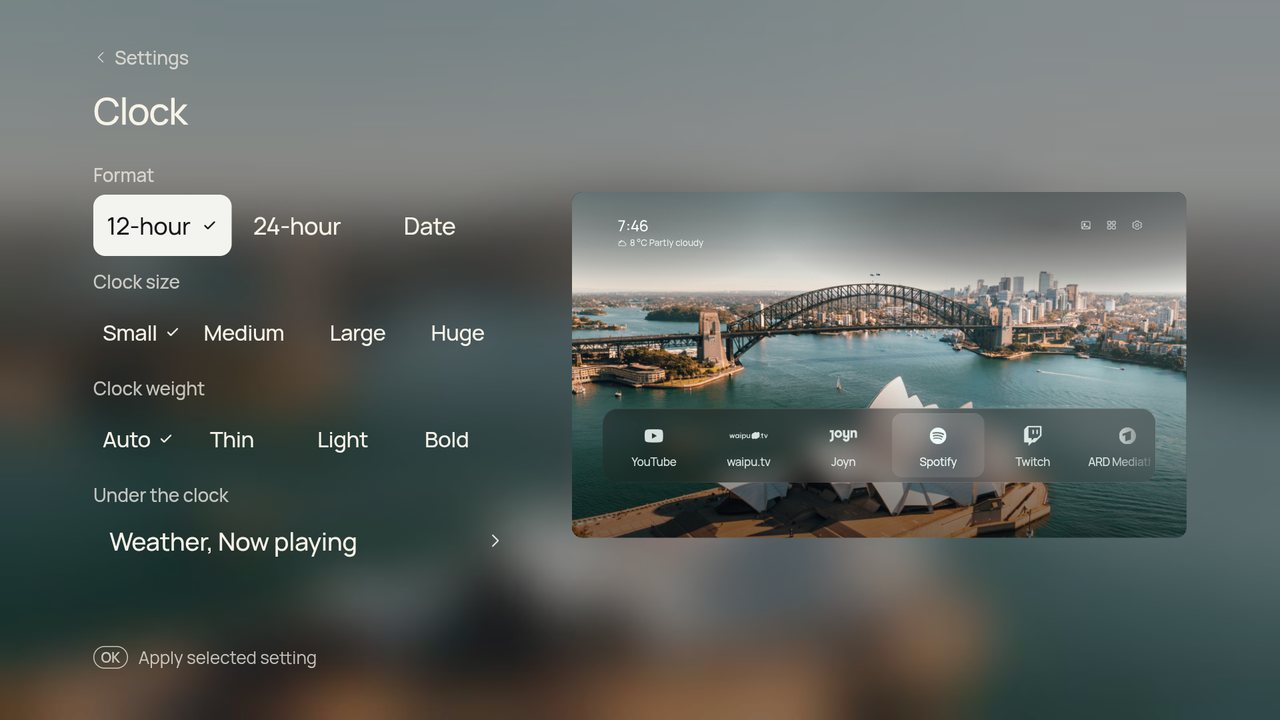
See also: HDMI inputs · Search and settings · Wallpapers · Under the clock