Repository navigation
Phone companion
Settings › Phone › Phone companion. Turn it on and the TV shows a QR code. Scan it with your phone's camera and tap Install app: Shore Companion lands on your home screen. Opening it takes you to a small web app served by the TV itself, styled like the launcher, with your current wallpaper behind glass cards.
 |
 |
 |
 |
| Photos | Frame it | TV settings | Apps |
Screenshots of the real page with invented data.
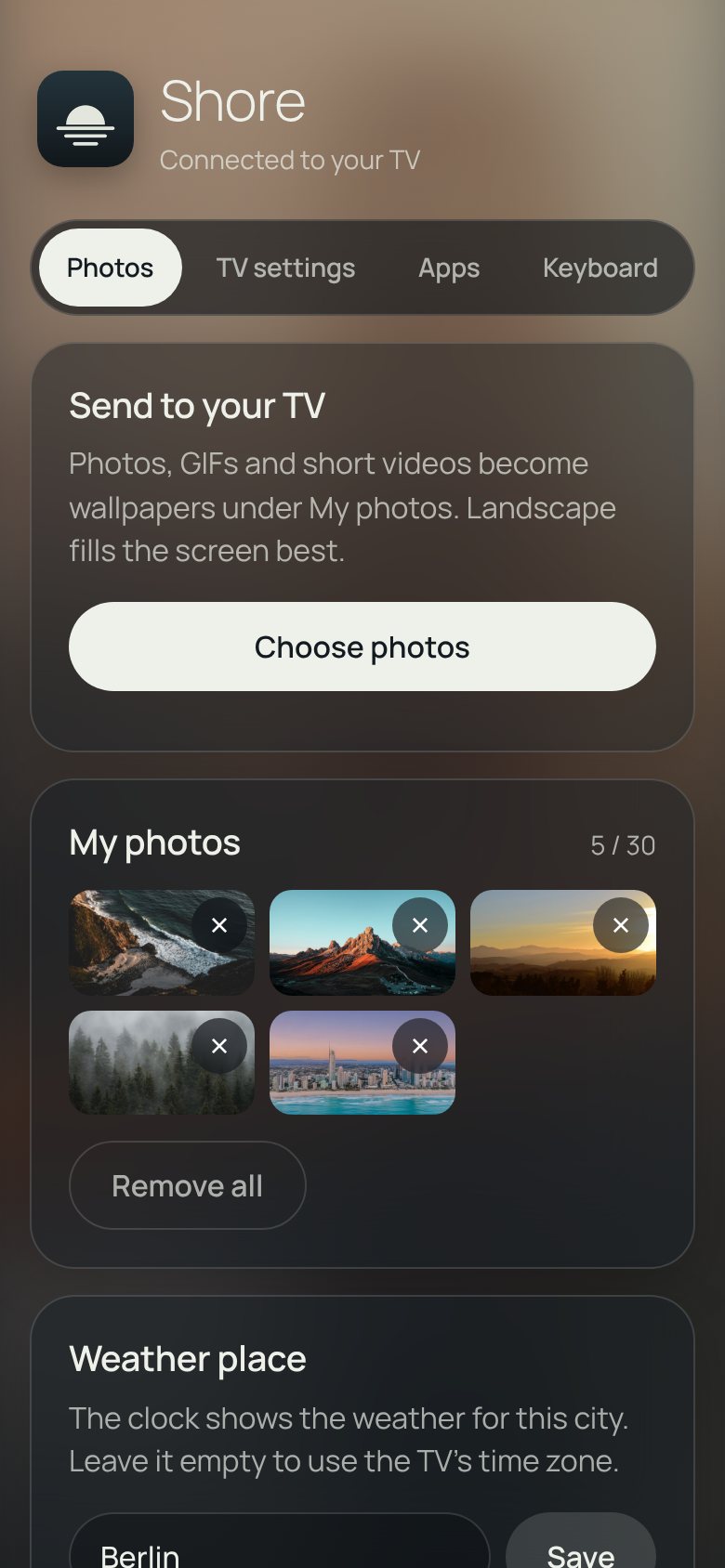
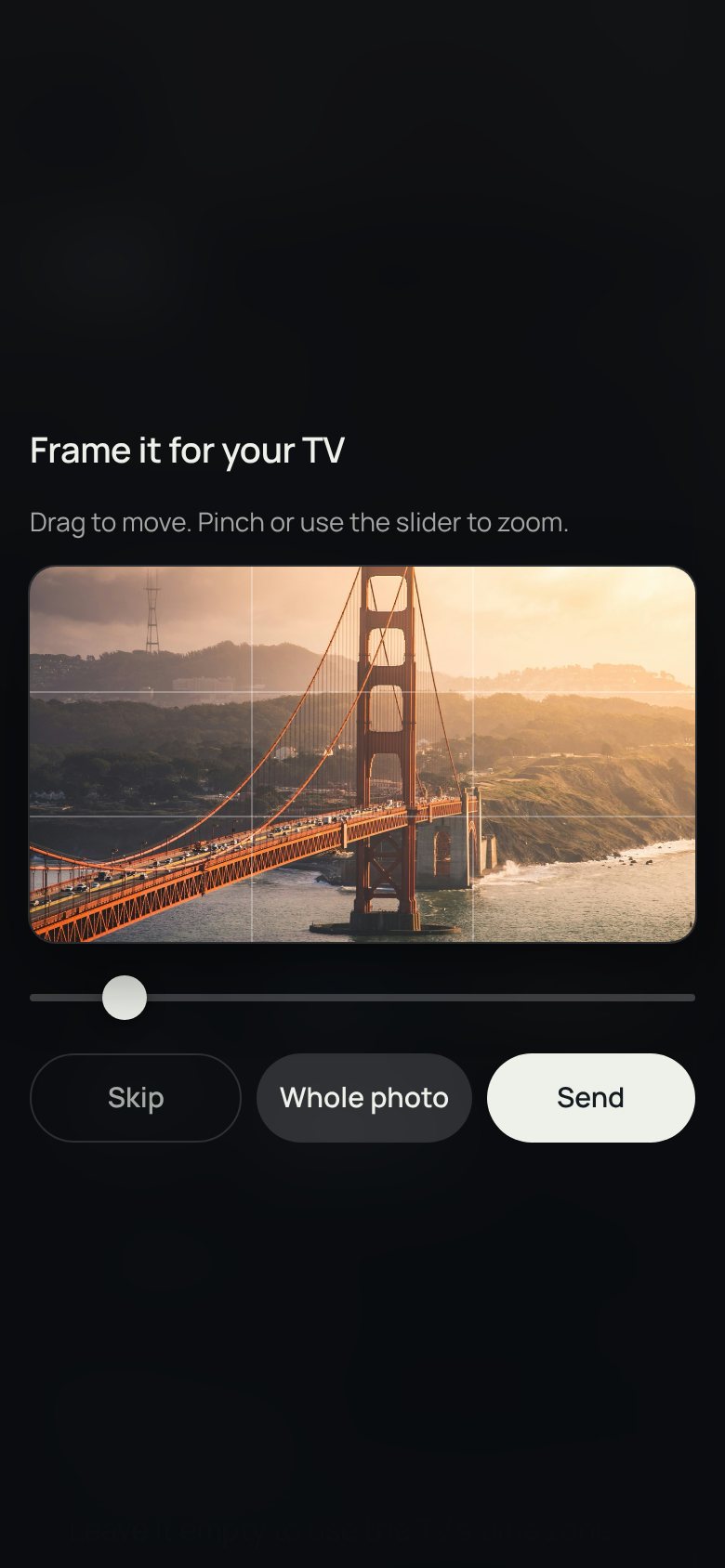
- Send to your TV: pick photos (JPEG, PNG, WebP), GIFs or MP4 clips. Each photo first opens in a 16:9 frame, the TV's shape: drag to move it, pinch or use the slider to zoom, then Send. Whole photo sends it uncropped, Skip leaves it out. The crop is made on the phone at the photo's own resolution (up to 3840 px wide). They appear under My photos, a wallpaper source like the others. Glass is rendered once, rotation cycles through them, and GIFs and clips play animated. Choose Settings › Phone › My photos to use them.
- My photos: see what's stored and delete single photos or all of them. Shore keeps the newest 30, in its private storage on the TV.
- Weather place: the city for the weather under the clock.
-
Calendar: your calendar's iCal address (a
webcal://link works too). Saving it turns on the calendar line under the clock. - News feed: an RSS or Atom address for the headlines. Saving one makes it the news source (Your own feed in Settings › News); clearing it goes back to Google News.
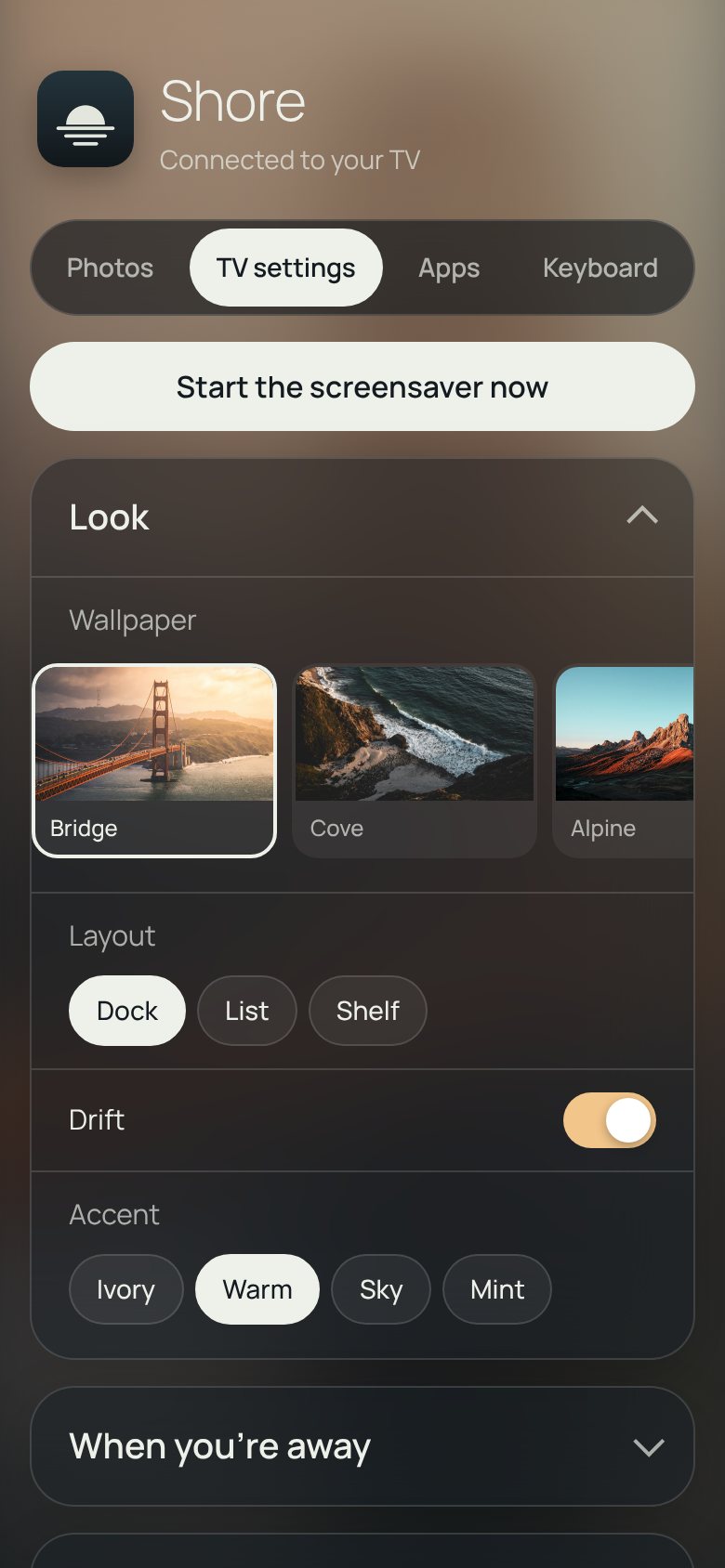
Every setting from the TV's own Settings, grouped the same way, as buttons and switches. Changes apply on the TV at once, as if chosen with the remote, and Start the screensaver now is one tap. Shore must be open on the TV (in front or behind another app).
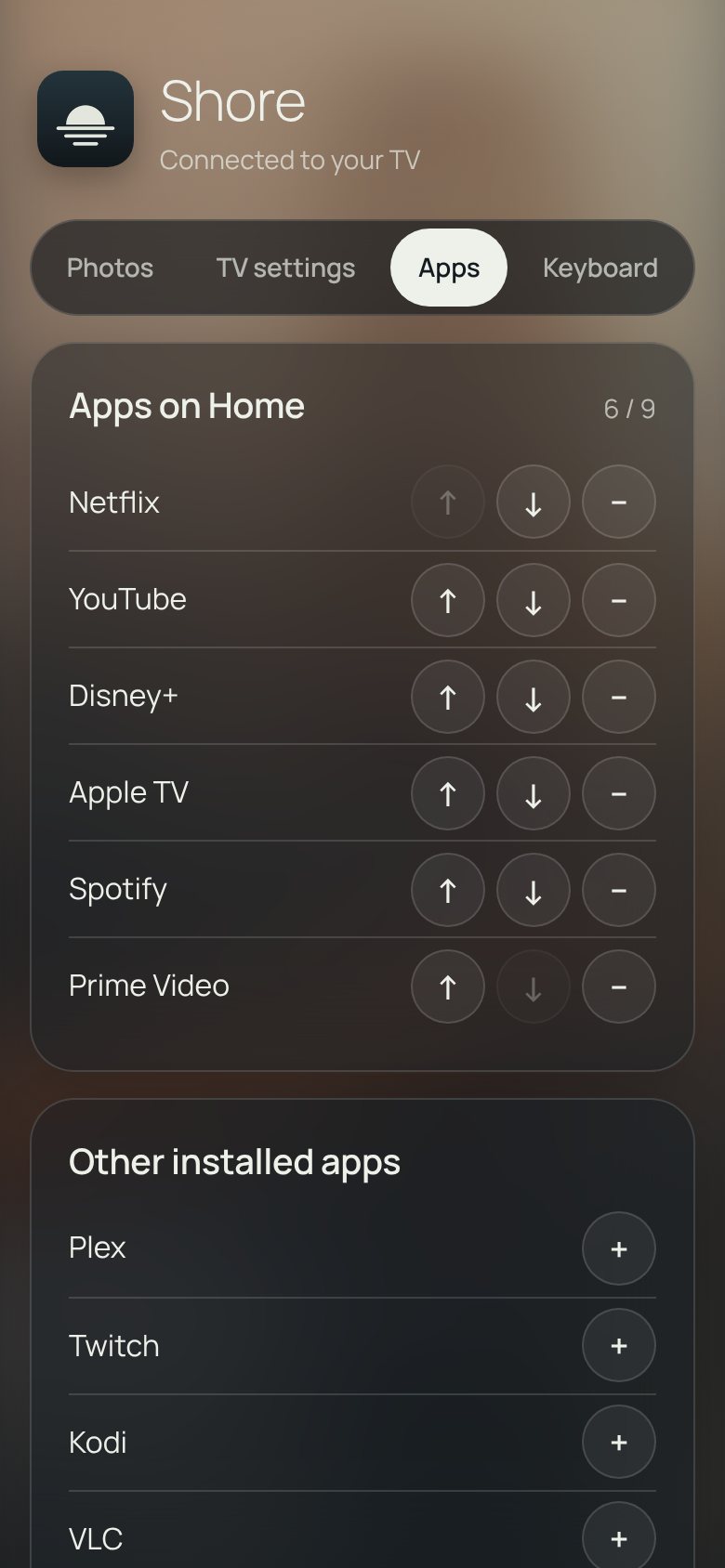
Reorder Home with the arrows, remove an app, or add one of the other installed apps. Name your HDMI inputs here too.
Type on the phone instead of with the remote. While Shore is on screen the text goes to Shore's Search (Enter opens the first result). In other apps it replaces the text of the focused field, such as a search box or a password, once you turn on the optional Shore phone keyboard under the TV's Settings › Accessibility. That service is separate from the Home button one and looks for the field only when the phone sends text. The text travels in the request body on your Wi-Fi, never in a URL.
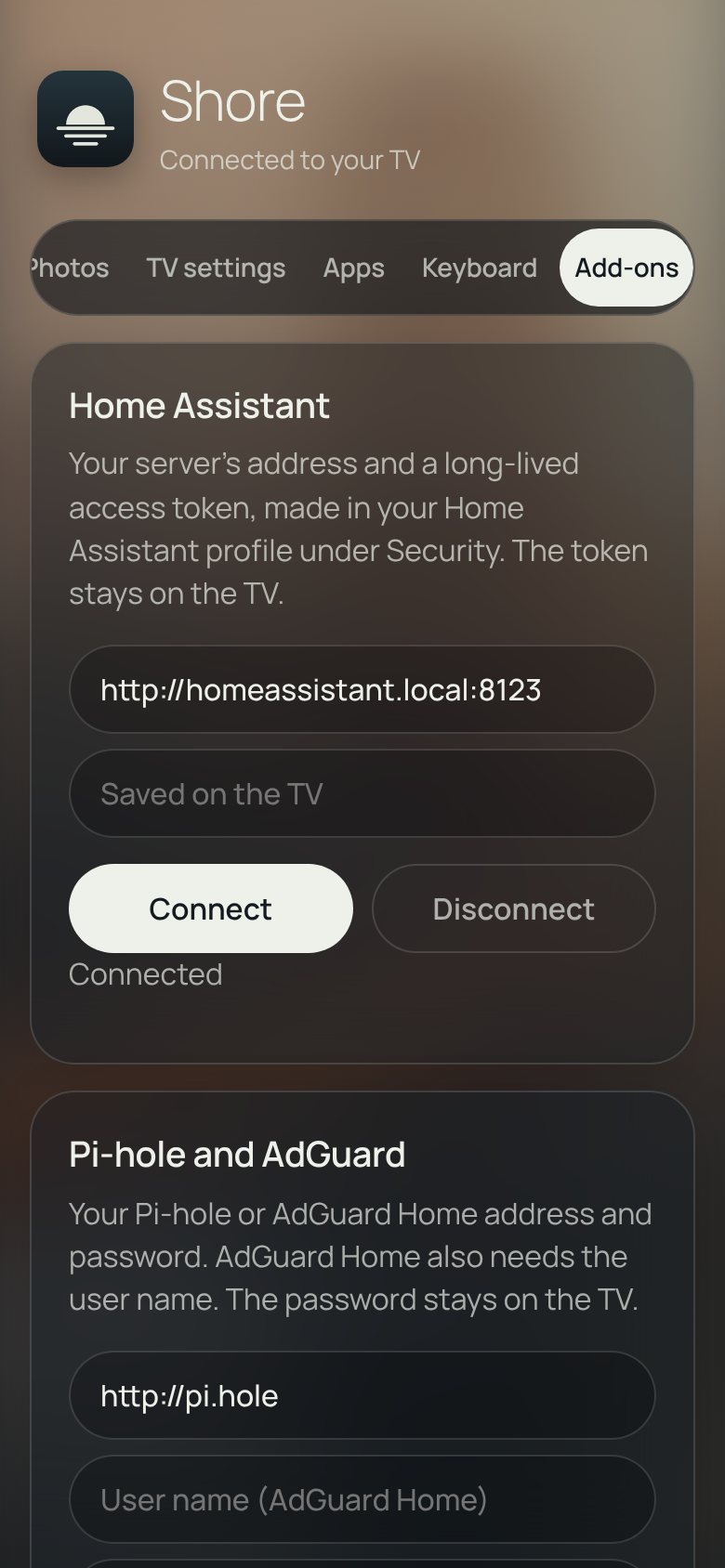
The server address and password or token for Home Assistant and Pi-hole or AdGuard, typed on the phone and kept on the TV. This tab shows only while one of those add-ons is on.
-
Backup: Save backup stores every TV setting (look, clock, Home apps and their order, wallpaper sources, screensaver) as a
.jsonfile on the phone. Restore… sends one back, after you confirm, to the same TV or another one running Shore. The TV checks the file like its own saved preferences, so a damaged or edited one can't break anything. Photos stay on the TV and are not part of the backup. - Problem report (TV settings tab): downloads a text file with Shore's crashes, Android's record of recent exits (including Shore not responding, on Android 11 and later) and errors from the page, plus the Shore, Android and WebView versions and the TV model. Attach it to a bug report. It stays on the TV until you download it and has no settings, addresses or passwords; Clear empties it. If the page's renderer stops, Shore notes it and reloads the page instead of closing.
The QR code opens taynotfound.github.io/shore/app, a tiny installable page (HTTPS, manifest, offline cache). It remembers your TV and opens it whenever you start the app. If your browser shows no install button, use its menu: Install app or Add to Home screen. On iPhone: Share › Add to Home Screen.
- Nothing goes through the internet. Phone and TV must be on the same Wi-Fi, and the companion only runs while it's switched on.
- The QR code carries a random pairing key, which the phone keeps. Without it the TV answers nothing but the page itself. Forget paired phones makes a new key, and every phone has to scan again.
- Why two pages: browsers only install HTTPS sites, and a TV can't get a trusted certificate on a home network. So the installable part lives on the website, and the TV keeps serving the real page over
http://on your Wi-Fi. The TV address and pairing key travel after the#in the link, which browsers never send to the website, and stay on your phone. The TV also shows its address for use without internet. - If the TV's IP address changes, scan the code again. A DHCP reservation in your router avoids that.
- Forks: change
Companion.PAIR_URLto your own GitHub Pages address.