VTS Model Settings
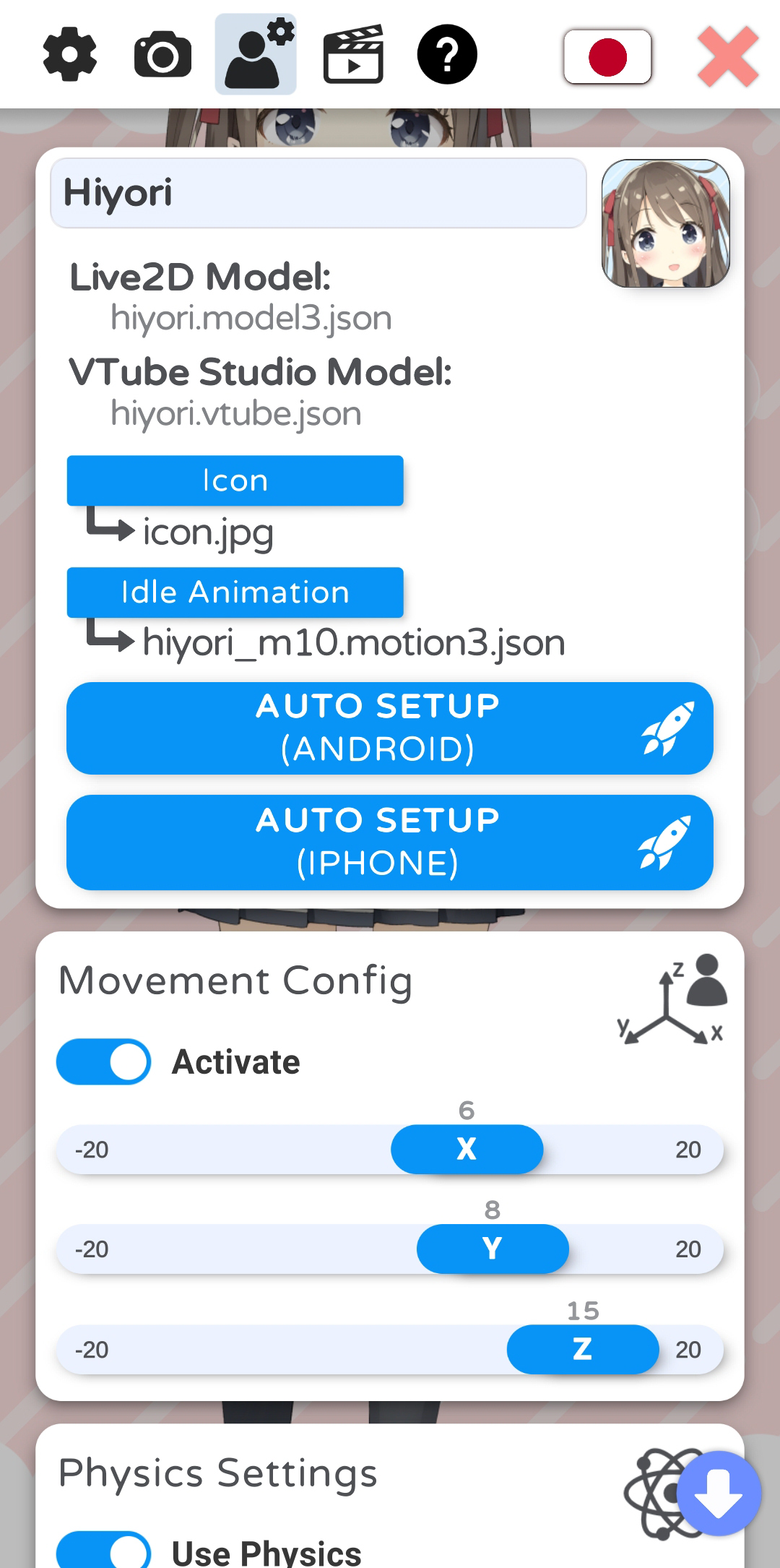
Once you have loaded a model, you will be able to access the model settings in the VTube Studio model config tab.
At the top, you can enter a name for your model. This name will be shown in the model selection bar. Below that, you can see the name of the Live2D model file and the automatically created VTube Studio model file (VTS model).
You can choose an icon (.jpg or .png, click icon at top right to open file selection) and default idle animation (.motion3.json) for your model. You can choose from any file inside your model folder.
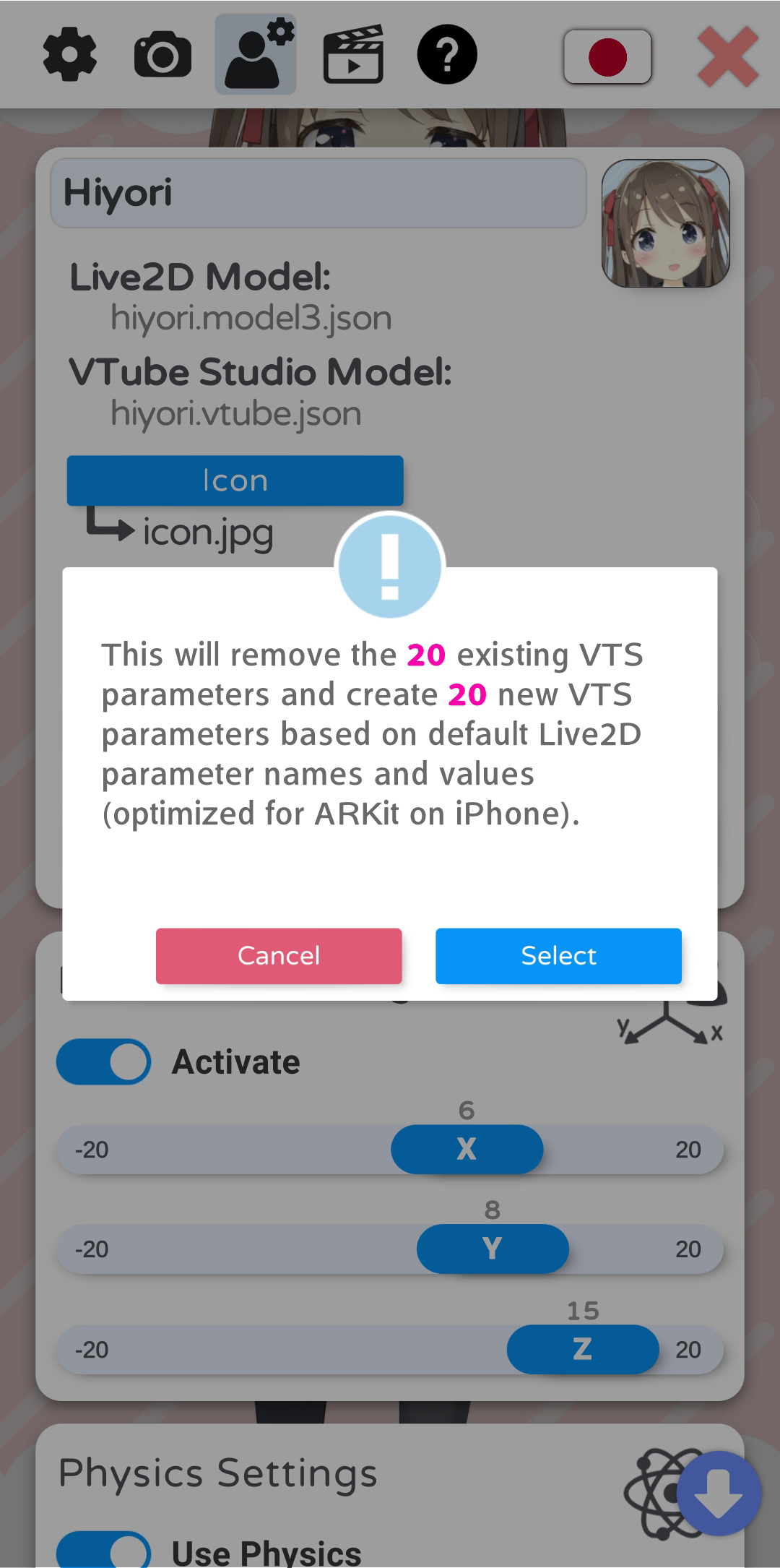
You can also run the auto-setup for your VTube Studio model. This will set up your model based on standard Live2D parameter names and values. For more information about these parameters, please see: https://docs.live2d.com/cubism-editor-manual/standard-parametor-list/#
If you change the parameter IDs or ranges, auto-setup will not be able to set up your model and you’ll have to do it manually. Even if you use auto-setup, you may have to fine-tune your VTS model to fit your Live2D model.
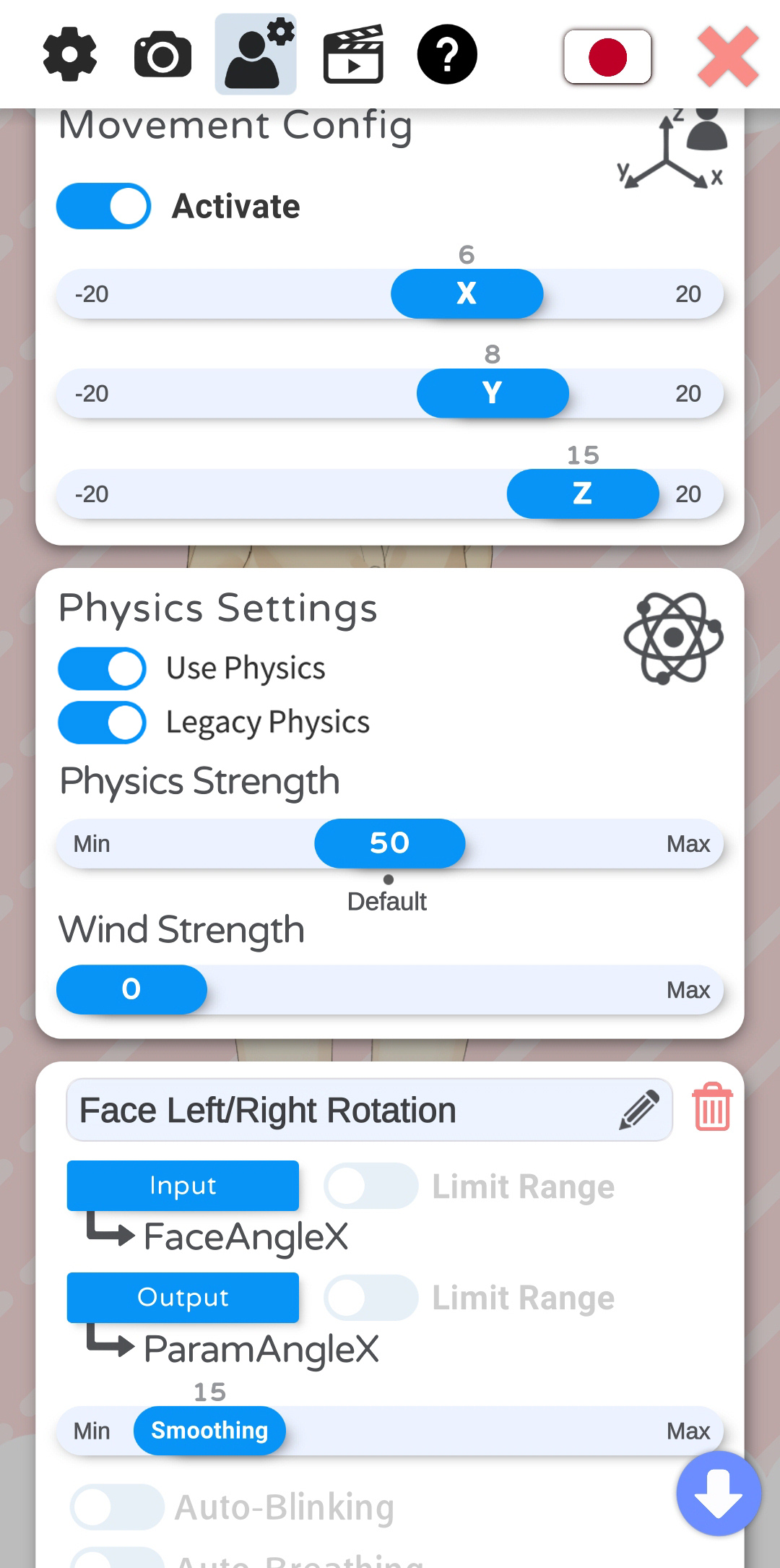
With the "Model Movement" settings, you can move the model left/right and closer/further away from the screen based on your head position. With the sliders, you can configure how much the model is moved.
Here, you can boost or reduce the effect of your Live2D physics setup. You can also activate “wind”, which will randomly apply a wind-like force to the physics system. This is experimental and may not look good depending on how your model is set up.
The "Legacy Physics" toggle
 If you have any questions that this manual doesn't answer, please ask in the VTube Studio Discord
 !!
!!

 Contact
- Android vs. iPhone vs. Webcam
- Getting Started
- Introduction & Requirements
- Preparing your model for VTube Studio
- Where to get models?
- Restore old VTS Versions
- Joining the Beta
- Controlling multiple models with one device
- Copy config between models
- Loading your own Backgrounds
- Recoloring Models and Items
- Record Animations
- Recording/Streaming with OBS
- Sending data to VSeeFace
- Starting as Admin
- Starting without Steam
- Streaming to Mac/PC
- VNet Multiplayer Overview
- Steam Workshop
- Taking/Sharing Screenshots
- Live2D Cubism Editor Communication
- Lag Troubleshooting
- Connection Troubleshooting
- Webcam Troubleshooting
- Crash Troubleshooting
- Known Issues
- FAQ
- VTube Studio Settings
- VTS Model Settings
- VTube Studio Model File
- Visual Effects
- Sound Effects
- Twitch Interaction
- Twitch Hotkey Triggers
- Spout2 Background
- Expressions ("Stickers"/"Emotes")
- Animations
- Interaction between Animations, Tracking, Physics, etc.
- Google Mediapipe Face Tracker
- NVIDIA Broadcast Face Tracker
- Tobii Eye-Tracker
- Sony mocopi trackers
- Hand-Tracking
- Controller-Tracking
- Lipsync
- Item System
- Live2D-Items
- Between-Layer Item Pinning
- Item Scenes & Item Hotkeys
- ArtMesh/Layer Groups
- Add Special ArtMesh Functionality
- Display Light Overlay
- VNet Security
- Plugins (YouTube, Twitch, etc.)
- Web-Items
- Web-Item Plugins