Animation FX
SDX's native Animation FX engine drives Sequencer to play item and event effects. The bundled presets cover spells, weapons, common NPC attacks, equipped weapon sprites, torches, and level-up indicators.
Animations or previews missing? Check Feature Manager → Advanced & Hidden Features → Animation — 7 toggles; Per-Item Animation Overrides is also blocked when Animation FX is disabled.
Sequencer is required by the current module manifest, and a JB2A pack supplies the visual database entries behind most bundled presets. psfx provides sound files and is optional, since a missing psfx file should fail silently and leave the visual alone. Automated Animations is optional too, including for the colour controls below.
Go to Configure Settings → Shadowdark Extras → Configure Animations.
The manager sorts presets into five groups. Each one can be enabled on its own.
| Category | Matches |
|---|---|
| Spells / Scrolls / Wands | Spell-like item names |
| Weapons | Attack effects for weapon names |
| NPC Attacks | Natural and named monster attacks |
| Equipped Weapon Sprites | Persistent art attached to equipped weapons |
| Ambient & Events | Torch/light types and level-up animation |
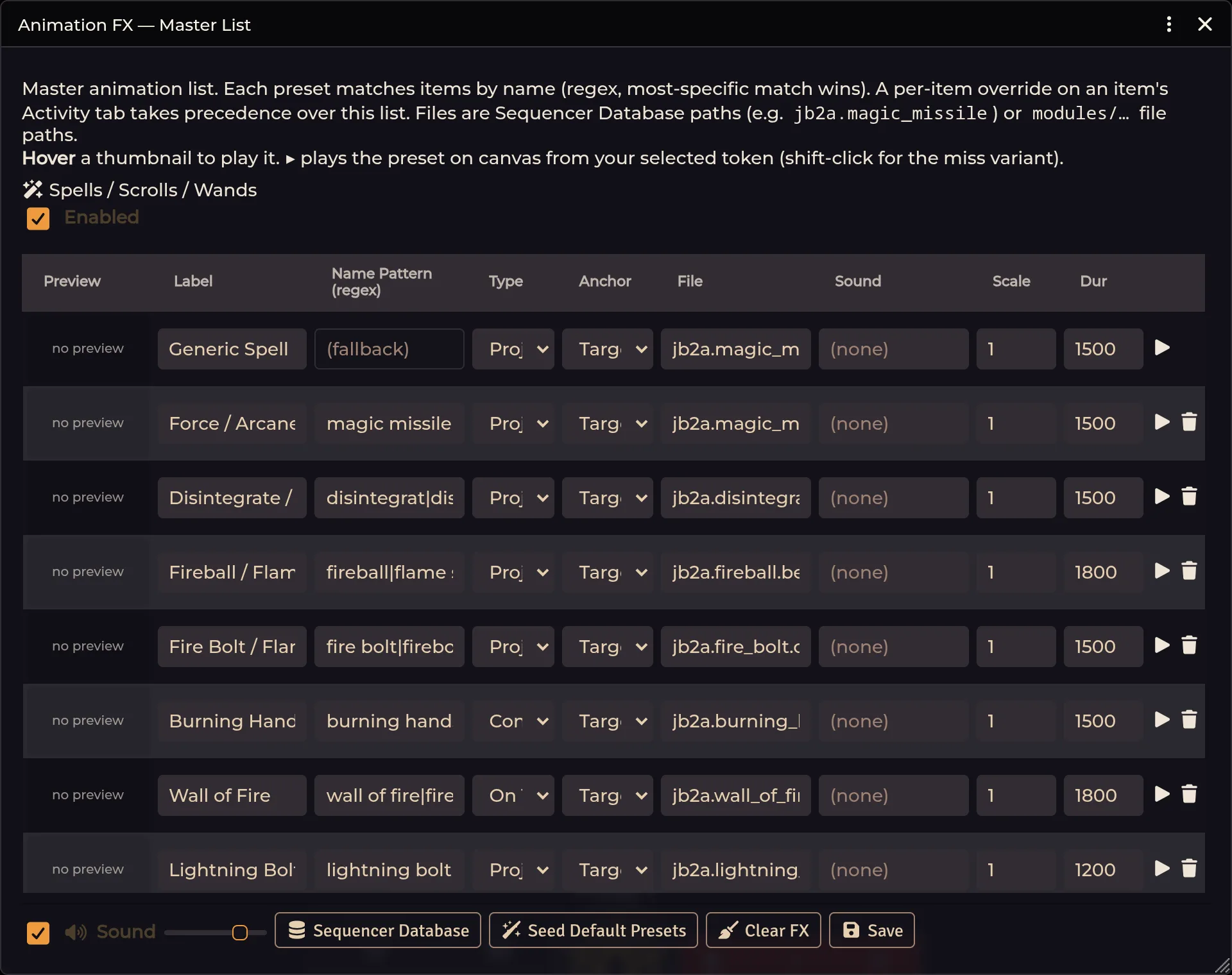
Every master preset carries a name pattern, so one preset can cover the normal, magic, and suffixed variants of an item name, and when several patterns match the most specific one takes it.
Resolution runs in three steps: an enabled per-item override first, then the most-specific master-list name match, then the category default.
The item Activity panel deliberately reports No preset when all it found was a generic category fallback. Read that as "nothing named matched", rather than as an inherited preset.
An active GM seeds the bundled defaults once in a new world, merging in whatever keys are missing. After that, your edits stick, your deletions stick, and a later module update won't keep overwriting world choices.
Use Seed Default Presets when you deliberately want defaults merged in again, then review the result if you maintain custom patterns of your own.
A typical preset defines a label and name-match pattern, an effect type such as projectile, cone, on-token, or persistent, a hit file, an optional miss file, a sound, and whatever scale and geometry that type needs.
The Sequencer Database browser helps you pick registered entries, with a thumbnail previewing image and video media and a hover that plays video inline. Select a token first for the canvas preview.
Some database paths are prefixes. Distance-aware projectile paths may resolve a suitable leaf on purpose, but a prefix holding unrelated shapes should be pinned down to one specific entry.
Duration (ms, 0 = Auto) takes 0 to let an animation run its own media
length, and any positive number as an explicit override. Bundled Spell, Weapon,
and NPC Attack presets ship on Auto, so they finish when the file finishes
instead of being cut short or padded.
Worlds seeded before that change are migrated once, and only where an entry's file and duration both still match the old bundled default, Generic Melee's 1000 ms included. A file you picked yourself or a duration you typed yourself is left alone.
Native JB2A Color lists the colour variants your installed JB2A packs actually contain, and picking one repoints the preset at that file. Native variants are the default, and they usually look cleaner than tinting because they are drawn rather than filtered.
Optional Color Tint covers the cases where no native variant fits. It adds a tint colour plus contrast and saturation, applied through Sequencer, and none of it needs Automated Animations installed.
On-token previews follow Anchor. Caster plays on the selected token; Target uses a targeted or second controlled token when one is available, and falls back to the caster rather than an empty canvas. Projectile and cone previews keep their fixed caster-to-target geometry, because Anchor does not change their path.
Two routes reach the same per-item editor.
Weapon and Spell sheets carry an Attack FX (or Spell FX) button in the sheet's tab row, beside Bonuses. It opens an editor bound to that one item, so several Weapon or Spell sheets can stay open at once without one editor writing into another item.
Spell, Scroll, and Wand sheets also expand Animation FX on the Activity tab.
Leave the override off and the panel shows inherited master values read-only, with a badge naming the inherited preset or reading No preset. Opening the sheet copies nothing into the item.
Turn the override on to capture and edit item-specific values, and switching it back off clears the override and resumes live inheritance.
The panel handles effect and miss files, sound with audition, a media thumbnail,
a canvas preview, the colour and duration controls described above, and the
inherited/override status. Hold Shift while previewing, where supported, to
test the miss variant.
Both routes need Per-Item Animation Overrides enabled in the Feature Manager, and the controls are absent from the sheet rather than inert when it is off.
Equipped Sprites paint a weapon or shield image onto the token, and the bundled art and presets cover the common weapon categories. The label replaces Weapon Animation everywhere the persistent token attachment is configured, which keeps it apart from transient Attack FX. The master-list category is still called Equipped Weapon Sprites.
Offset, scale, rotation, anchor, and PIXI filters control placement, while idle wobble, bob, float, and rotation give the sprite some life. An item can also be set to appear only during an attack. Sprites draw above scene lighting, so the colour, contrast, transparency, and line detail you set in the editor survive the scene's ambience instead of washing out.
Open one from the Equipped Sprite button on a Weapon or Armor sheet.
A sprite sits in one of three states, and the editor opens on the effective master values rather than an empty form.
Edit any sprite field on an inherited setup and it becomes an item override. Use Master Preset deletes that override and resumes inheritance. Switching a custom sprite off keeps its image and its transform and filter settings, so switching it back on restores the same setup.
Per-item configuration always beats the master sprite match.
Unsaved changes preview on your own client as a temporary effect, debounced by 75 ms, rather than as a replacement for the saved scene sprite. Save, Cancel, Use Master Preset, and the title-bar close all clear that temporary preview and put the saved effect back, and none of them persist changes you discarded.
The Ambient & Events section owns the animation file for torch, lantern, oil, candle, light-spell variants, and level-up readiness.
Torch geometry such as per-light offset and scale still belongs to the torch system. The master manager owns only the chosen animation file.
Sound enablement, volume, and animation scale are all per-client controls in the manager. A GM can set a sound path in the world preset while every client keeps its own volume, or no sound at all.
With AA active and SDX integration enabled, AA gets filtered down to successful workflows, targetless utility spells can be allowed separately, and AA is suppressed for any item SDX already animates. One attack or cast should produce one owned effect.
Prefer AA for a particular item? Remove or disable the SDX match or item override, then configure AA the normal way.
Every spell preview is blank. Check whether JB2A registered its Sequencer database namespace. Current SDX versions repair the common load-order failure, but JB2A still has to be installed and active.
Animation shape changes randomly. The preset is almost certainly pointing at a database prefix holding several shapes. Pick a concrete leaf in the browser.
Silent visuals are nearly always a client-side sound setting. Enable sound for this client, raise the volume, and install the source sound pack if the preset uses psfx.
The saved sprite looks cyan-white or over-contrasted next to its preview.
Update SDX. Current versions map the editor's neutral contrast of 1 onto
Sequencer's neutral 0, so the scene sprite matches what the editor showed.
Effect plays twice. Confirm SDX's Automated Animations integration is on, and that no second workflow module is independently listening to the same chat message.
Historical messages replay after refresh. Hard-refresh after updating. Current versions ignore messages created before the client load epoch.
Cleanup logs a Sequencer ticker error. Update SDX. Current cleanup guards half-initialized effects, so one bad effect can't strand the rest.
Related: Spell Automation · Combat & Damage · Settings Reference