Theater of the Mind
Theater of the Mind puts a fullscreen image or video on everyone's screen. You choose the backdrop and broadcast it. Everyone at the table sees it at the same time.
Try it right now, no Foundry needed
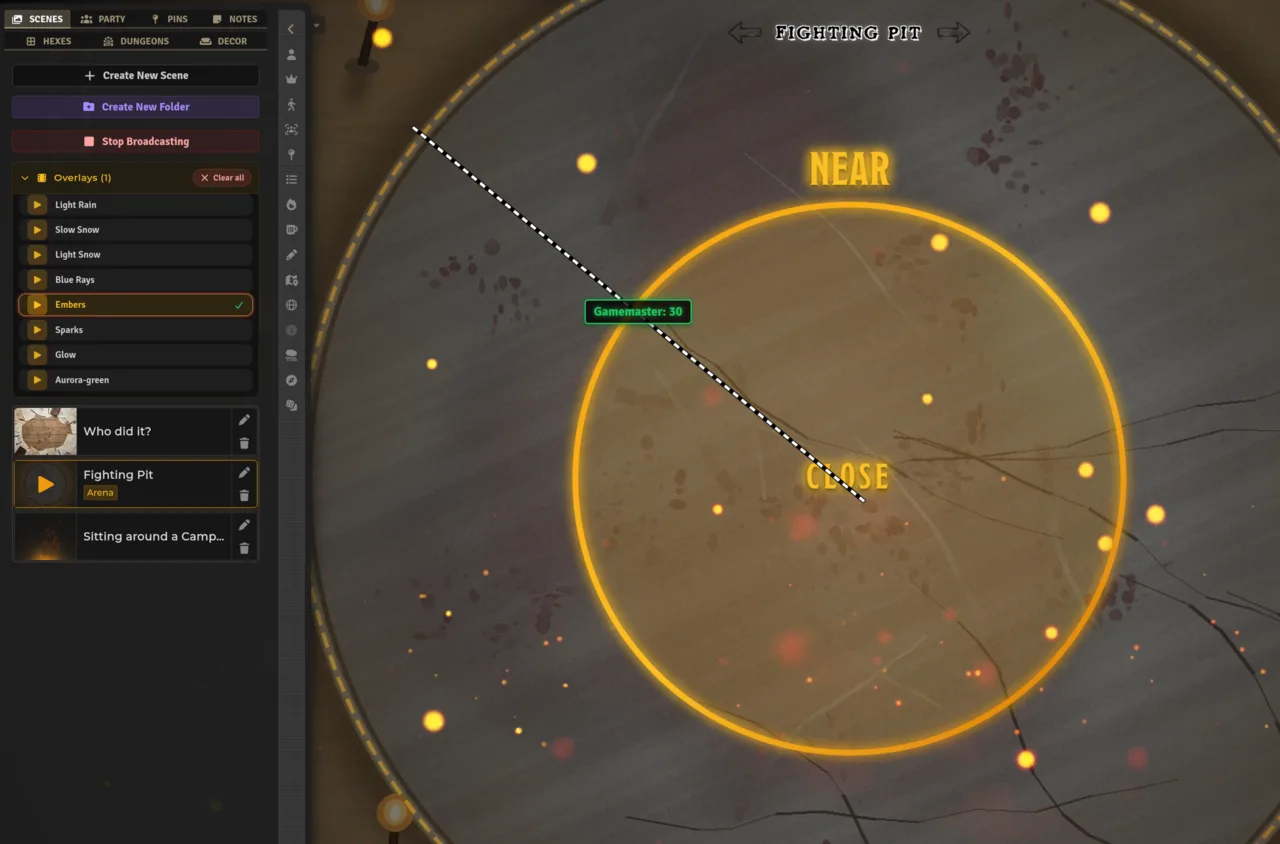
Open the Theater of the Mind demo in your browser. Click any scene card to broadcast it to the stage, then toggle video overlays while it is playing. The demo uses the real module styles and artwork — what you see there is what you see in Foundry.
Scenes tab or broadcast missing? All five ToM traits live under Feature Manager → SDX Tray Tabs → Scenes — ToM Scenes & Broadcasting, ToM Video Overlays, ToM Scene Editor, ToM Player View, and ToM Scene Navigation. Video Overlays needs ToM Player View enabled.
- SDX Tray → Scenes tab — the Images tab on the left edge of the tray. Only the GM sees this.
- Scene Navigation Bar — the small pill at the top center of the screen. It appears only while a scene is broadcasting.
- Player view — the fullscreen backdrop itself. Players see this automatically when you broadcast. No click needed on their side.
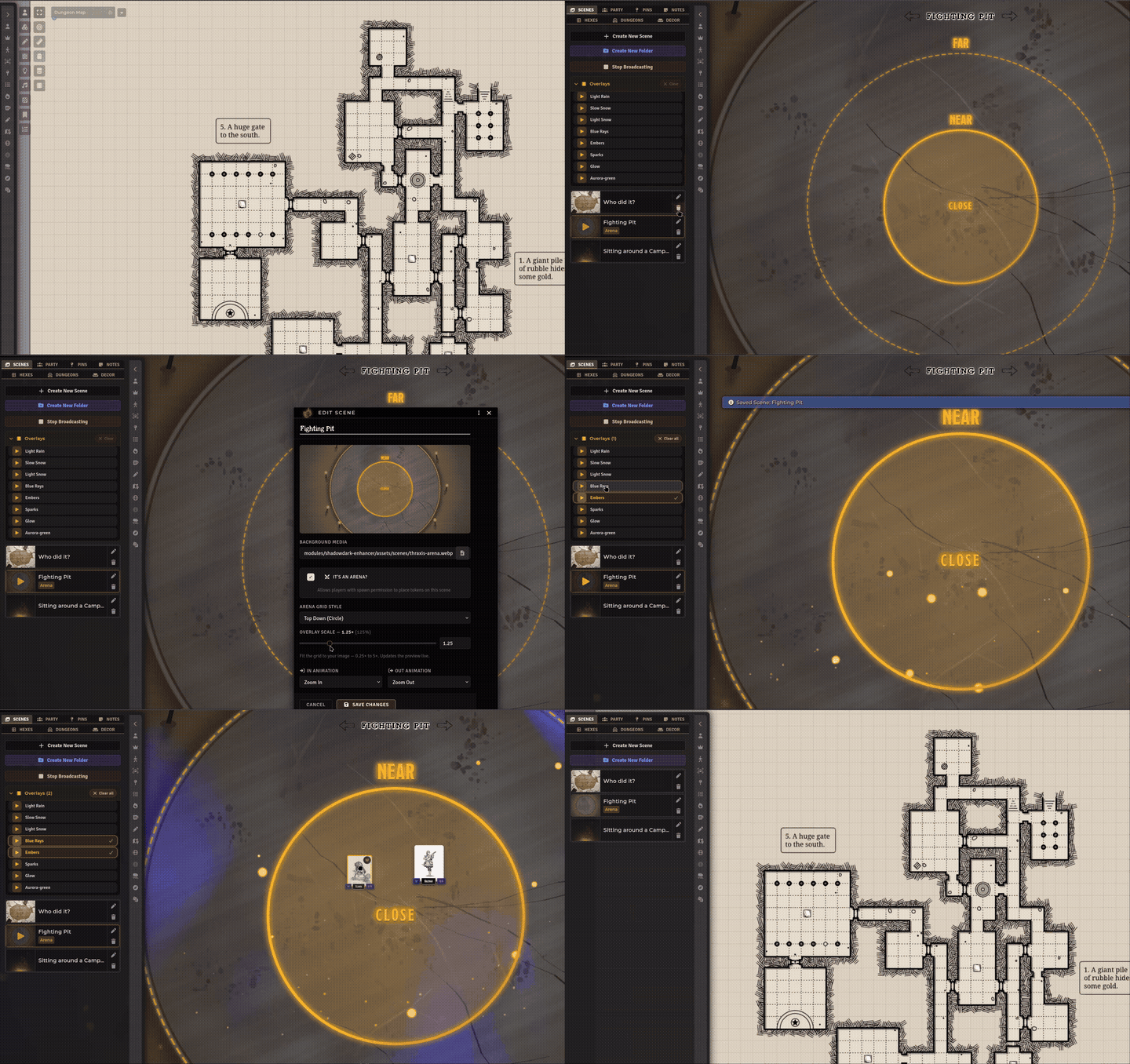
- Create a scene. Open the Scenes tab and click Create New Scene. Give it a name, pick an image or video, and save. The preview in the editor shows you exactly how it will look when broadcast.
- File it. Drag the card into a folder if you want. Leave it in Uncategorized if you don't. Folders are just for organizing — they don't change how the scene plays.
- Broadcast. Click the card's image or name. That sends it to everyone. The card gets a Play marker so you know which one is live.
- Add overlays. While broadcasting, an Overlays strip appears at the top of the Scenes tab. Click any overlay to turn it on. Click it again to turn it off. You can stack several — fire plus rain plus fog, for example. Use Clear all to remove them at once.
- Step through scenes. Use the ◀ / ▶ bar at the top of the screen to move to the next scene in the same folder. It wraps around at the ends.
- Stop. Click Stop Broadcasting in the Scenes tab. Everyone's screen closes with a smooth exit.
Overlays are short looping videos that sit on top of your backdrop — fire, rain, fog, embers, and more. There are 20 built in.
You turn them on from the Overlays strip. In the demo you can try them on the stage without starting Foundry:
Open the overlay strip in the demo — broadcast any scene, then click the pills in the left panel.
A few to start with: Fire, Rain, Fog, Snow, Campfire. The rest are in the strip — same list you see in Foundry.
If you mark a scene as an arena, players who have permission can place tokens on it. The grid is just a visual guide — it does not enforce movement or distance.
When you create or edit a scene, check It's an Arena? and pick a style:
- Isometric — ellipse with close / near / far zones
- Top Down — concentric circles
- Expanded — five colored rings from Engaged out to Extreme, with radial lines
- Ladder — a horizontal track with five zones
- No Grid — just the backdrop, no overlay
Use Overlay Scale to fit the grid to your image. Drag the slider and watch the preview update. What you see in the editor is what broadcasts.
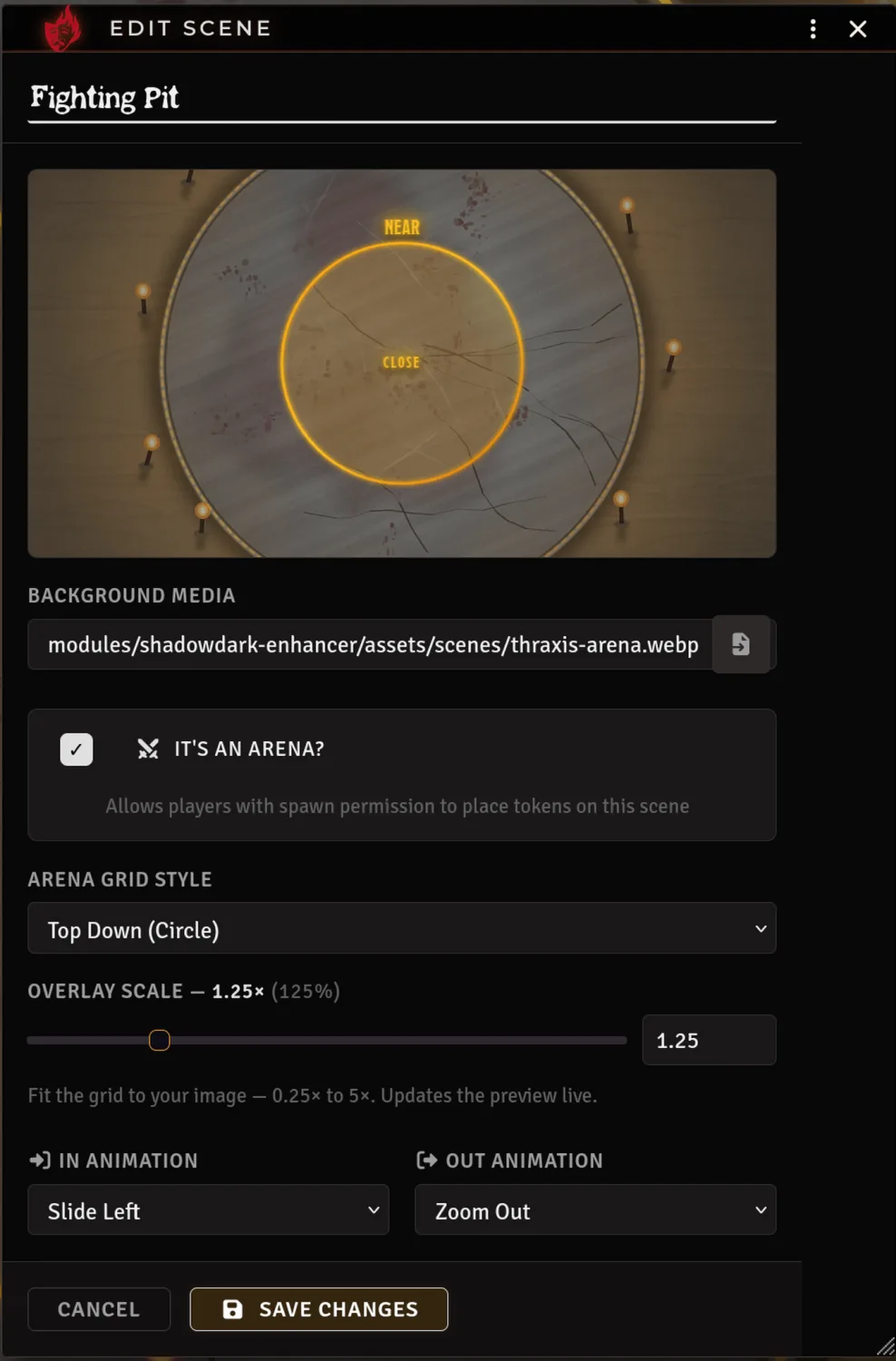
You only need a few fields:
- Scene name — what shows on the card and in the navigation bar
- Background — image or video. Drop a file or paste a path. Foundry figures out the type from the extension.
- It's an Arena? — turn it on if you want the grid and token placement
- Arena Grid Style — which grid to draw (only shows when Arena is on)
- Overlay Scale — fit the grid to your artwork, 0.25× to 5×
- In / Out Animation — how the scene appears and disappears (fade, slide, zoom, and a few more)
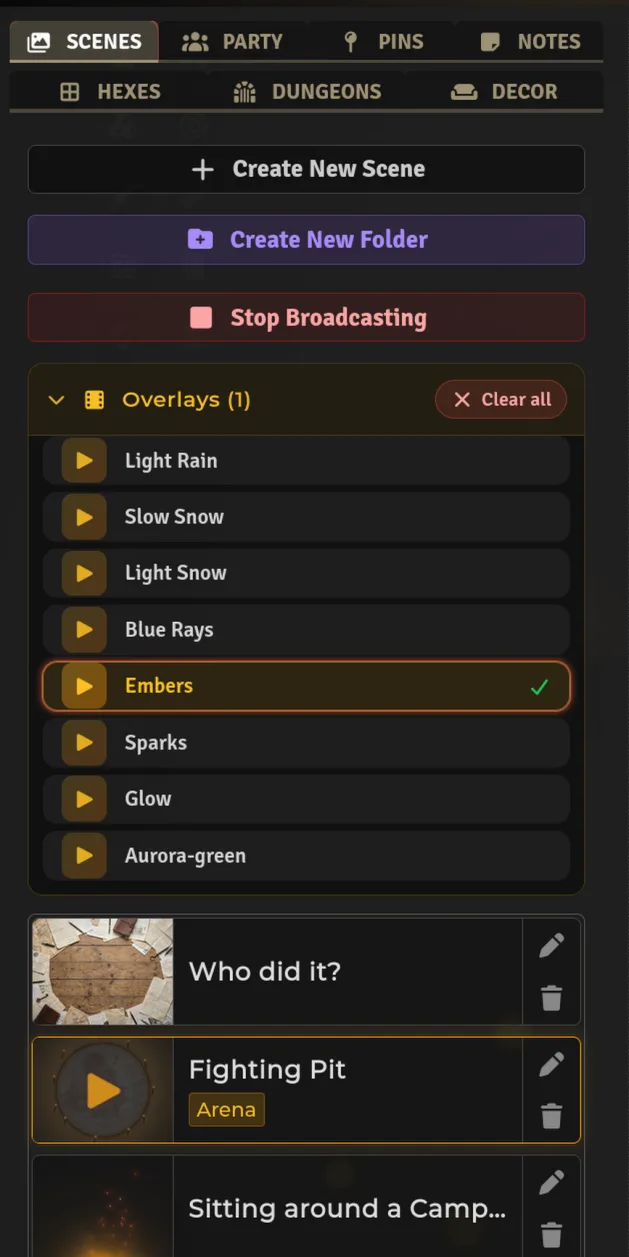
You as GM: You see the Scenes tab, you create and edit scenes, you control broadcast and overlays and the navigation bar. You can drag tokens on arena scenes.
Players: They see the fullscreen backdrop and any overlays you picked. They can move tokens they own on an arena, but they cannot open the Scenes tab or start a broadcast. If you stack three overlays, they see all three stacked in the same order you do.
Players don't see the broadcast. Make sure a GM is connected and everyone is on the same module version. Theater of the Mind uses the normal Foundry connection — no extra setup.
The navigation bar doesn't show up. It only appears while a scene is broadcasting. Check that a card shows the Play marker. Stop and broadcast again if you don't see it.
An overlay stays on or won't appear. Click the pill again — active ones have a check mark. Clear all removes the whole stack. The demo is a good place to test this: if it works there, it will work in Foundry.
Technical reference
Full field list, storage details, socket names, and template IDs live in source. A few pointers if you need them:
- Scene model:
scripts/tom/TomSceneModel.mjs—id, name, background, bgType (image|video), isArena, arenaType, arenaScale (0.25–5), inAnimation, outAnimation, folderId - Editor:
templates/tom-scene-editor.hbsviascripts/tom/TomEditors.mjs - Library:
templates/sdx-tray/tray.hbs(scenes-view) - Player view:
templates/tom-player-view.hbsandscripts/tom/TomPlayerView.mjs - Sockets:
module.shadowdark-extras—emitBroadcastScene,emitStopBroadcast,overlay-set / overlay-toggle / overlay-clear - Storage: world settings
tom-scenes,tom-folders,tom-dataVersionviascripts/tom/TomStore.mjs
Related: Canvas & Table Tools · Map Generators · Settings Reference · Troubleshooting · Theater of the Mind demo