Journal Tools and Pins
SDX wires campaign text to the canvas through character journals, notes on placeable objects, styled journal pins, folders, map-note conversion, and read-aloud narration.
Pins, Notes, or journal menus missing? Pins and Notes tabs are under Feature Manager → SDX Tray Tabs; narration, display cards, and icon picker are under Advanced & Hidden Features → Journal & Reference.
With Enable Journal Notes on, a Player's Notes tab becomes a small multi-page journal.
Use the page sidebar to create and navigate entries. The editor gives you normal ProseMirror formatting plus quick blocks for information, warning, quest, loot, and NPC.
The content stays actor data throughout. Disabling the enhanced UI won't deliberately delete saved notes, but back up important actor data before you switch note systems.
With Enable Notes on placeables and Notes tab in tray on, the configuration windows for Tokens, Tiles, Walls, Ambient Lights, and Ambient Sounds all gain a Notes control.

Write rich text and save. The tray's Notes tab lists every annotated object on the current scene, where you can expand or collapse the note, pan to the object, rename the note label, toggle player visibility, and delete it.
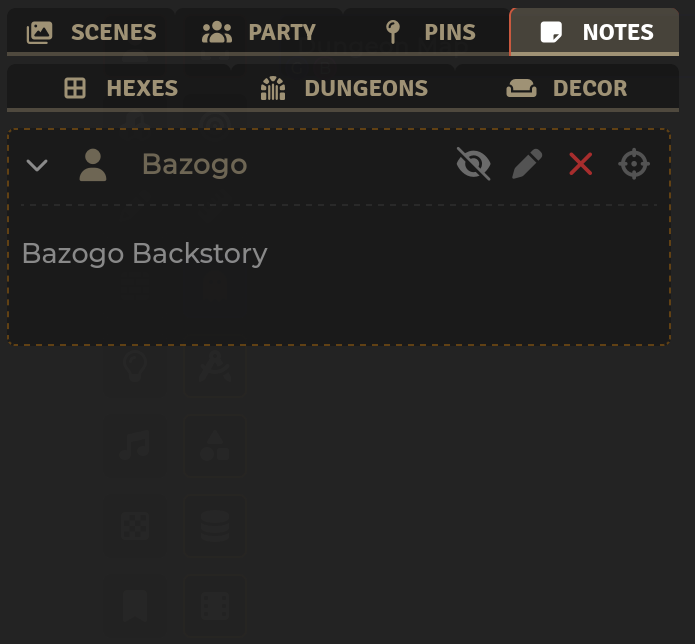
These notes are metadata attached to the placeable. Delete the placeable and its note goes with it.
The pin tool creates an SDX canvas marker. Link it to a Journal, to a specific Journal page, or leave it unlinked as a tooltip or label.
From the Pins tab you can search, pan or ping, bring players to the location, open and edit the pin, copy and paste style, duplicate it, flip it between GM-only and player-visible, require line of sight, and remove or delete it.
For the full walkthrough — every setting in the editor, folders, conversion, and a live browser demo — see Journal Pins. The rest of this section is a short pointer; the detail lives there and the demo is at Journal Pins demo.
Try it right now, no Foundry needed
Open the Journal Pins demo. Drag pins on the parchment, hover for tooltips, right-click for Pan / Ping / Bring, and open any pin's Pin Style Editor — the same fifty-setting editor you use in Foundry.
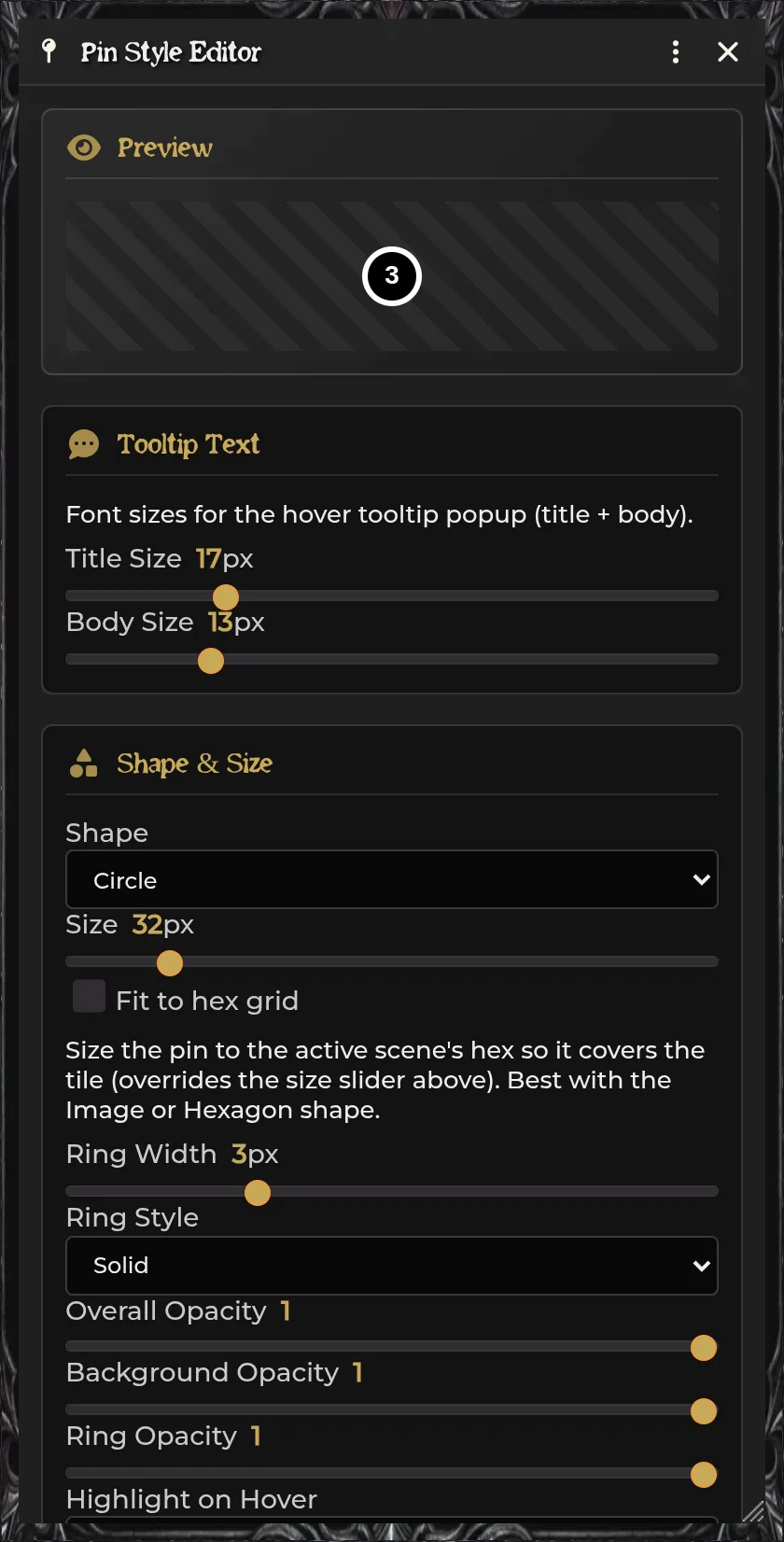
Edit one pin, or the world defaults. The marker takes a shape (circle, square, diamond, pointy hex, flat hex, or image), a content type (page number, symbol, custom icon, text, or none), its own colors and ring, a label with its own font and background, tooltip title and body text with independent font sizes, and visibility rules (GM-only, requires vision, above fog, hide tooltip).
The full field-by-field guide is on the Journal Pins page. Open the Pin Style Editor in the demo and click any pin's palette button to see every section live.
The GM can build nested folders in the Pins tab. Drag pins in and out, drag folders to reorder or nest them, collapse and expand, and give each one a color and a Font Awesome or image icon.
Folder scope can be:
| Scope | Definition appears |
|---|---|
| Scene | Only on the current scene |
| World | On every scene, marked with a globe |
Pins stay scene-owned even inside a world folder. A world folder is a shared organizational definition that shows up everywhere, while each pin keeps living on its own scene.
Search reaches matches inside collapsed folders. See Journal Pins → Folders and try dragging pins between folders in the demo.
Use Notes→Pins for every Map Note on the current scene, or the convert control on a single note.
The new pin carries over position, the Journal or page link, the text label, and the icon path, tint, and size.
Choose a target folder and decide whether the original Note gets deleted. Deletion is optional so you can compare the converted result first.
Converted pins start GM-only, whatever the source Note allowed — Map Notes are prep material, so nothing you convert reaches players until you reveal it with the pin row's visibility control. The demo's Notes→Pins button simulates this — pick a count and a target folder.
The playable hex-dungeon builder creates one pin per generated room, linked to the matching room Journal page. Use that path whenever the room number on the map and the room key have to stay synchronized.
With Enable Journal Narration on, rendered Journal blockquotes get a narration toolbar. Put read-aloud text in a blockquote, render the page, and present it from the added control.
The ProseMirror Easy Reference menu inserts live NPC, Item, RollTable, check, and dice syntax. See Easy Reference.
Placeable Notes button is absent. Enable the setting and reload. Foundry v14 uses the DocumentSheetV2 header-controls hook.
A note saved blank. Reopen after updating SDX. Current builds read the real ProseMirror field path.
Pin has an unhelpful name. Set Pin Name to Auto or Tooltip, and give it a real title.
World folder is empty on another scene. Expected. The folder definition is world-wide, and the pins stay on their source scene.
Map Note conversion duplicated markers. You kept the originals. Delete them once you've verified the converted pins, or use the conversion dialog's delete-originals option next time.
Image pin is hard to select. Try pixel-perfect mode, or a lower alpha threshold. For map-sized hex art, use Fit to hex grid.
Related: Journal Pins · Hexcrawls & Dungeons · Easy Reference · Character Sheets