Canvas and Table Tools
The smaller table-facing utilities live here: a selected-token toolbar, the light tracker, sketch tools, a group roller, the scene overlay broadcaster, scene navigation, and portable scene archives.
Missing a toolbar or tool? Feature Manager gates these outside the tray as well — look under Advanced & Hidden Features → Tray & Canvas (Token Toolbar, Wall Context Menu) and SDX Tray Tools (Drawing Tools, Light Source Tracker, SDX Roller, etc.). GM only, reload required.
Off by default. Enable it in settings and reload.
For the selected token it can show the actor name and portrait, level, AC, Luck on Player actors, current and max HP with direct current-HP editing, equipped items, Active Effects, focus spell icons, duration spell icons with time remaining, and a SHEET shortcut.
World settings pick GM, player, or both for visibility, plus combat-only mode and whether effect and equipped icons appear at all.
Clicking a supported spell or effect icon opens or ends the associated tracked entry, subject to ownership. Treat it as an actor HUD. Targeting and token controls stay where they always were.
Open the flame tool from the tray. It collects active light-source items and handles Party actors alongside normal Shadowdark actors.
Use it to review what's still burning and toggle eligible lights. Visual torch animations are configured elsewhere, in Animation FX.
Click the pencil tool. The toolbar remembers per client: sketch or stamp mode, symbol/stamp style, symbol size, line width and style, color, opacity, timed erase, and its own position on screen.
The default hold-to-draw key is L. Let go to finish the stroke.
World settings control player drawing and the timed-erase delay. Client settings can disable the hotkey outright, or just block it while you're typing.
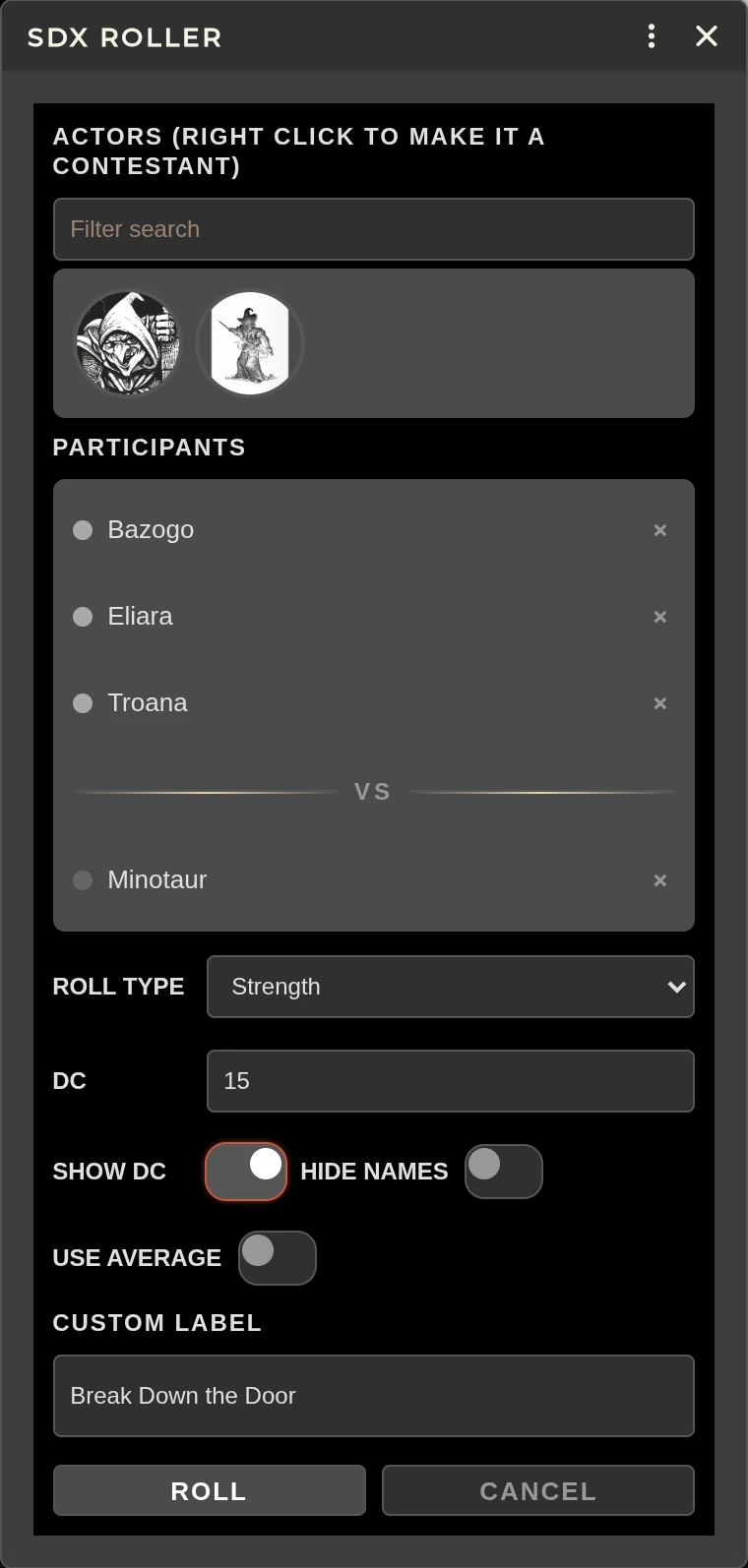
The dice tool builds a group check:
- Filter the actor portrait strip.
- Click to add participants.
- Right-click an actor to make it a contestant on the opposing side.
- Choose the ability or roll type.
- Set a DC.
- Choose whether to show the DC, hide names, or use the average.
- Add an optional custom label.
- Roll.
Participants and contestants get separated visually by Vs. The result and recap views summarize the group outcome, which saves the GM opening eight sheets.
Party camping activities run through this same roller when you click a task header or the GM runs Begin Rest. The configured activity image becomes the roll banner. Those tasks stay off the generic roller's list of roll types because the Party sheet is what supplies the assigned actors, chosen abilities, DC, campfire disadvantage, and rest context.
The tray's GM Scenes tab, socket-broadcast player view, video overlays, and folder-local Scene Navigation Bar are documented in Theater of the Mind. That page covers the full workflow (create → file into folders → broadcast → overlays (multi-select stack) → nav → stop), the scene record and editor fields (including Overlay Scale), the Scenes tab (collapsible inline strip) and inline header, broadcasting and the player view/arena, every arena grid style, all 20 video overlays, the navigation bar, storage/settings, GM-versus-player differences, and troubleshooting. The interactive demo is at Theater of the Mind demo.
ToM scenes are presentation records. Foundry canvas Scenes are separate documents.
The formation and marching-order tools are documented alongside the party workflow in The SDX Tray & Party Tools.
SDX Scene Exporter builds a ZIP archive holding the Scene data and its embedded documents, the referenced Actors and Journals, whichever referenced image assets it can fetch, SDX hex-tooltip data, and a manifest recording Foundry and system versions plus counts.
Archives land under the exported-scenes location in Foundry user data, ready
to move to another world.
Import takes an SDX .zip, and the module's supported text-wrapped form:
- Assets upload under
imported-scenes/<safe-scene-name>/assets. - Referenced world documents are created with unique names.
- UUID and path references get remapped.
- The Scene is created with a unique name.
- SDX hex data is attached under the new Scene ID.
Owned items embedded in imported Actors stay embedded rather than being duplicated as world Items.
Every import creates new documents. An existing Scene with the same name is left alone.
- Scene archives can contain copyrighted assets. Share only material you're allowed to redistribute.
- Import creates documents, so back up the destination world first.
- External or protected asset URLs may be unreachable for the exporter.
- Module-specific flags from absent modules can survive the trip, but they stay inert until their module is installed.
Toolbar does not appear. Enable it, reload, select one token, then check its visibility and combat-only settings.
Drawing hotkey conflicts. Rebind it under Configure Controls, or turn the SDX drawing hotkey off.
Roller buttons do not respond. Update SDX. The current ApplicationV2 template declares explicit actions and non-submitting buttons.
Players do not receive a ToM broadcast. Confirm socketlib, an active GM, and the player's module version. Full diagnostics are in Theater of the Mind.
Scene export misses an image. That source is probably cross-origin, protected, or unreadable. Swap it for a Foundry-hosted user-data asset and export again.
Import says JSZip is missing. Reload. libs/jszip.min.js is declared right
in the module manifest.
Related: The SDX Tray & Party Tools · Theater of the Mind · Map Generators · Troubleshooting