Hexcrawls and Dungeons
The SDX Tray holds a complete prep workflow. Format a hex scene, paint or generate terrain, place POIs, key the exploration data, add fog and coordinates, then generate linked settlements or playable dungeons off any hex. A separate Dungeons tab handles square-grid interiors, either painted by hand or generated.
Hexes, Dungeons, or Decor not showing? They are gated by Feature Manager → SDX Tray Tabs — Hexes, Dungeons, and Decor. Decor also needs Hexes — the app shows Also blocked because Hexes is disabled.
Open Hexes → Format Map before you place any terrain.
Choose the orientation and the width and height you want. Current formatting sizes the scene to those grid dimensions with whole far-edge hexes. Foundry's usual staggered half-hex behavior still shows up at the appropriate top or bottom edge.
Formatting rewrites scene dimensions and grid. Duplicate an existing keyed scene before you reformat it.
The Hexes tab keeps four sources apart: bundled default tiles, bundled colored tiles, custom tiles, and symbol/POI assets.
Custom tile dimensions and placement save per client through the tray. Settle on one consistent source and dimension set before any bulk generation.
Click a terrain tile and paint hex cells by hand, or expand the procedural generator, which takes a seed, map dimensions or the current formatted scene, and biome, elevation, and vegetation parameters. Then Generate, or clear the generated tiles.
A seed makes the layout repeatable given the same inputs. Clear touches only tiles marked as SDX-generated, and it's still destructive enough to ask for confirmation unless an authorized API caller forces it through.
Switch to Symbols and place point-of-interest art. The tray tool rail adds undo/redo, scale down and up, rotate left and right, and a horizontal mirror.
POI scale is remembered per client. Decor painting uses the same quick transform controls.
Flatten Hexagons consolidates the painted result into a lighter finished scene. Treat it as a commit step and keep a duplicate around if you expect to repaint individual tiles later.
Enable Hex Tooltip / Hexplorer on a hexagonal scene. The Edit Hex dialog gives you two tabs.
| Field | Purpose |
|---|---|
| Show to Players | Whole-record visibility |
| Image | Hex illustration |
| Hex Name / Zone / Zone Color | Region identity |
| Terrain / Travel | Table-facing movement description |
| Notes | Individual text rows with player visibility |
| Features | Keyed locations with discovered state |
| Field | Purpose |
|---|---|
| Status | Unexplored/exploration progress |
| Cleared / Claimed | Campaign state |
| Reveal Radius |
-1 world default, 0 current cell, 1+ rings |
| Reveal Cells | Extra comma-separated grid offsets; Alt-click can add |
| RollTable UUID | Table rolled on entry/travel |
| Chance | 1–100%; blank/default is always |
| First Time Only | Prevent repeat entry rolls |
Hex records belong to their scene and live in SDX's internal hex-data Journal. Leave that Journal alone.
Hex context tools generate three things. Settlements arrive complete with named NPCs, shops, taverns, factions, relations, quests, and a Watabou map link plus configuration. The other two are text-only keyed dungeons and playable dungeon Scenes.
Whatever you generate creates or updates Journal pages, adds a feature to the hex record, and registers the content so quests can cross-reference it.
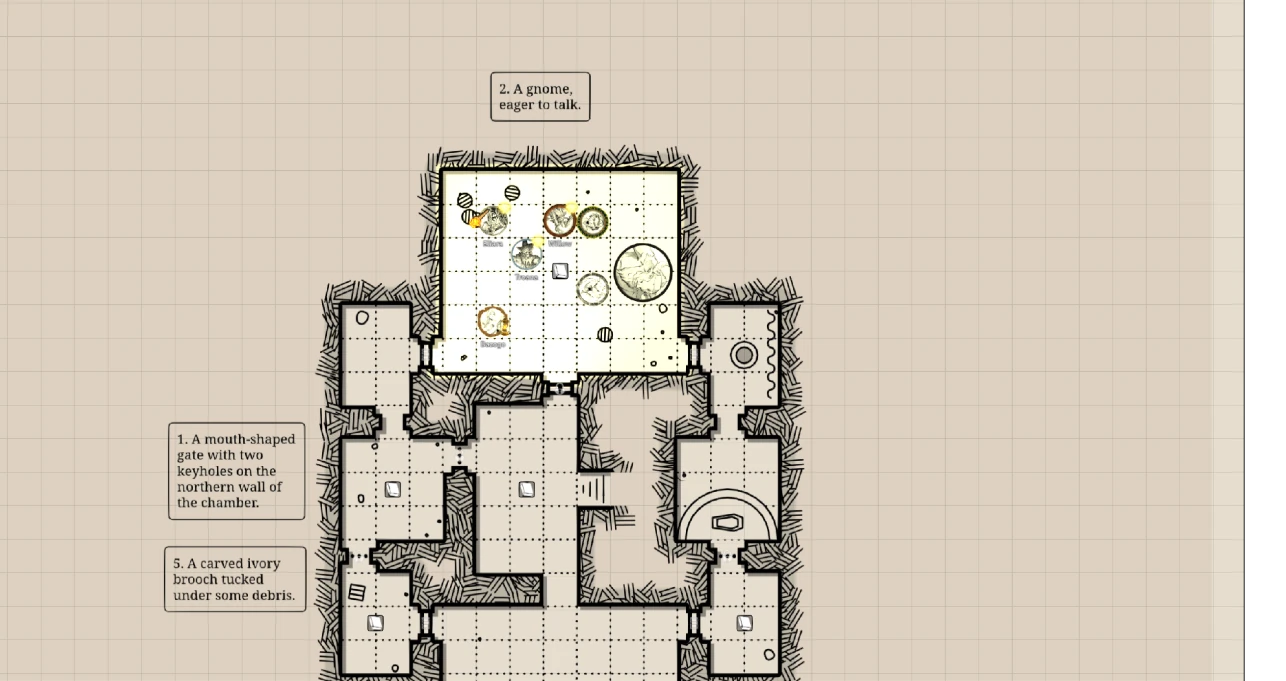
The playable flow asks for a dungeon type and size, then:
- Creates and views a new square-grid Scene.
- Runs the procedural dungeon geometry.
- Generates narrative rooms from the actual placed-room graph.
- Creates an Overview plus one Journal page per room.
- Places numbered SDX pins linked to those room pages.
- Records the Scene and Journal back on the source hex.
- Returns the GM to whichever Scene they were viewing before.
Room text and map geometry come out of that with matching room counts and adjacency.
The fog tool hides and reveals exploration cells. Movement reveals one ring by default. Per-hex records can override that radius and name additional cells.
Right-click the Hex Fog tool to pick optional shaders. Enable Fog Effects is off by default, and leaving the shaders off on low-power clients still gives you the underlying reveal system.
The globe tool cycles four coordinate display states: hidden, margin and axis labels, labels in cells, and Shadowdark zine mode.
Configure Coordinates controls fonts, colors, outline, opacity, label size, numeric or letter axes, the modifier key, and click-label duration.
Zine mode uses staggered 000/100/200 column headings with two-digit rows, and
skips the cropped edge column on hex-column maps. That's built to match printed
zine keys.
The compass tool switches on the module's solo exploration flow for supported hex scenes. It reads Hexplorer and fog data. Turn it off before broad GM map edits, or movement will advance exploration when you didn't want it to.
The Dungeons tab is square-grid territory. Pick assets for room and floor tiles, interior walls, doors, outer walls, stairs, and decor.
The controls worth knowing: paint tiles or doors, a no-Foundry-walls mode, wall shadows, curved walls, auto-rebuild walls, and flatten current elevation Level.
Players only see this tab when Allow Players to Paint Dungeons is on, and their changes commit through the connected GM.
Expand Procedural Dungeon and choose:
| Control | Examples |
|---|---|
| Layout | Rooms & Corridors, Caves, Mixed, Classic/rot.js |
| Biomes | Random/selected room themes |
| Rooms / density / branching | Layout scale and connectivity |
| Room size | Small-to-large bias |
| Stairs Up / Down | Generated transition markers |
| Clutter / decor lights | Dressing density |
| Walls | Texture, color, width, shadows, curved cave boundaries |
| Seed | Repeatable layout |
Generation runs against the active Scene at the current elevation Level. It clears only SDX-generated documents at that level before rebuilding, then lays down floors, walls, doors, biome props, stairs, decor, lights, and Regions according to the options you picked.
The public API hard-caps the especially expansive values, rooms and stairs and clutter among them. See Developer API.
The Biome Editor enables and disables built-in biomes, adds custom biome definitions, overrides built-in keys, and resets custom data.
The Decor tray accepts individual files, whole folders, URLs the UI allows, and imported Dungeondraft object packs. Manage Dungeondraft Decor Packs is where you preview, enable, hide, and maintain those.
On Foundry v14 elevation Levels, generation and flattening respect the current
Level. SDX can create per-level generated documents, defineSurface Regions,
changeLevel stair Regions, level-aware decor, and template and effect
elevation metadata.
Switch to the Level you intend before every generation call. A stair graphic becomes a working transition once its Region links the correct two Level IDs.
5×5 became a larger map. Update SDX and format again on a duplicate scene. Older format logic added buffer cells.
Generated tiles use the wrong dimensions. Reformat the scene, then confirm the active tile set before generating.
Hex tooltip button is disabled. The active scene isn't on a supported hex grid.
A hex entry RollTable does not fire. Check its UUID, chance, and first-only state, then confirm the token actually entered or traveled through that grid cell.
Dungeon content and map room counts differ. Use the playable hex-dungeon flow, which derives text from placed geometry, instead of generating text and map independently.
Generation changed the wrong elevation. Activate the Level you meant first, and restore from your duplicate if the damage is done.
Related: Map Generators · Journal Tools & Pins · Developer API