Installation and Setup
Straight from the module manifest:
| Component | Minimum | Verified |
|---|---|---|
| Foundry VTT | v13 | v14 |
| Shadowdark RPG system | v3.0.0 | v4.0.6 |
module.json carries the version you actually have installed. This manual
describes the 6.10.49-era interface plus the current working tree.
Open Foundry's Add-on Modules → Install Module dialog and paste this:
https://github.com/DimitroffVodka/shadowdark-extras/releases/latest/download/module.json
Install the module along with its required dependencies, then enable Shadowdark Extras under Game Settings → Manage Modules for your Shadowdark world.
Five modules sit in the manifest, so Foundry treats them as hard requirements.
| Module | Why SDX uses it |
|---|---|
| socketlib | Player-to-GM actions such as transfers and GM-authoritative automation |
| libWrapper | Compatibility-safe wrapping of Foundry and Shadowdark behavior |
| Sequencer | Native SDX animations and persistent visual effects |
| portal-lib | Interactive placement workflows |
| TokenMagic FX 0.7.5.1+ | Template and token filter effects |
Two more are worth having even though the manifest doesn't demand them.
| Module | What changes when present |
|---|---|
| JB2A | Supplies the visual files used by the bundled animation presets |
| psfx | Supplies sound files used by bundled weapon and spell presets |
Automated Animations is optional. SDX runs its own Sequencer-driven Animation FX engine, and when AA is also active, SDX filters it so effects it already owns don't play twice.
Several things happen at once the first time the world comes up. The SDX Tray appears at the left edge for every client whose tray setting is on, and the four bundled compendium packs show up under the Shadowdark Extras pack folder. An active GM seeds the bundled Animation FX presets once per world, merging in missing defaults rather than continually restoring presets that GM later deleted.
Socket-backed systems initialize alongside all that. Anything needing a GM connection will want an active GM present the moment a player reaches for it, and the sheet, item, editor, chat, canvas, and ProseMirror integrations attach themselves according to whichever settings you enabled.
Most feature toggles are world-scoped. Appearance, tray visibility, and a handful of drawing and animation controls are per-client instead, and the Settings Reference lists which is which.
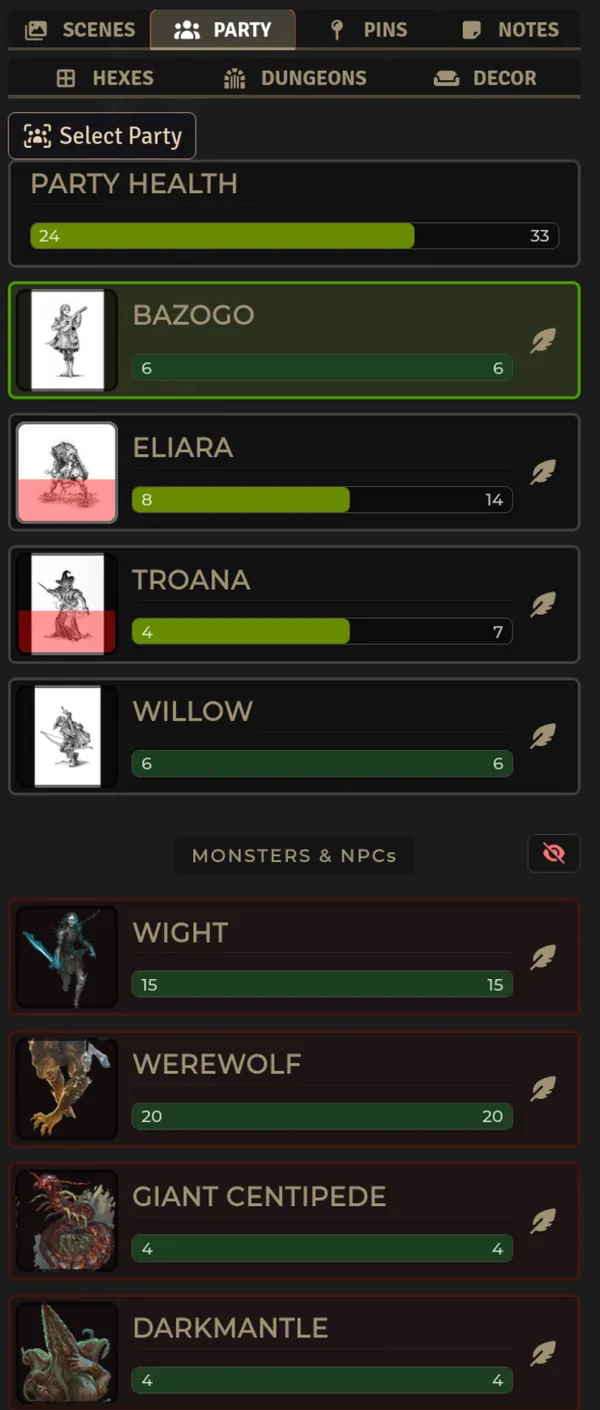
Open a scene and look for the narrow SDX handle at the left edge of the canvas. Expand it, check that the tabs render. Nothing at all usually points at the per-client Enable SDX Tray setting. Turn it on. Reload.
Open Configure Settings → Shadowdark Extras → Configure Combat Settings. The defaults that matter:
| Behavior | Default |
|---|---|
| Show enhanced damage card | on |
| Show it to players | on |
| Auto-apply damage | on |
| Auto-apply conditions | on |
| Require a target | no check |
| Check weapon range | no check |
| Untarget after use | dead targets |
Want the GM to sign off on every HP change? Turn off auto-apply damage, or enable GM Only Apply Damage.
For a first session I'd leave all of this alone. It's much easier to work out which switch is bothering you once you've watched the defaults run a real fight.
The enhanced player header and the NPC player-sheet theme both ship on. Dark mode is per-client. Three editors handle the rest: Sheet Style Editor for borders, panels, colors, and a live preview, Configure HP Waves for the portrait HP overlay, and Configure Sheet Locks to define what a locked character sheet actually protects.
Enhance Spells and the Focus Spell Tracker are both on by default. Open a spell item and read its Activity tab before you trust automatic damage, templates, auras, or effects. SDX follows the data saved on the item, and it has no safe way to guess at every homebrew spell.
Open Configure Animations. A preset can be fully configured and still show no preview when its JB2A or psfx source is missing, which looks like a broken preset and isn't one. Select a token, hit preview, see what this client does.
Map formatting, dungeon generation, scene import, flattening, and some cleanup actions create or delete scene documents outright. Duplicate any scene you care about before experimenting, and double-check both the active scene and the current elevation level.
| Action | Typical access |
|---|---|
| Change world settings and configuration menus | GM |
| Generate/import maps or modify scene structure | GM |
| Paint dungeons | GM; players only when explicitly enabled and a GM is online |
| Use the player tray, owned character sheets, conditions, and configured item actions | Owning player or GM |
| Trade or transfer to another user | Player, processed through socketlib/GM authority when needed |
| Add and organize journal pins | GM |
| Use drawing tools | Players when Allow Player Drawing is on |
| Edit client settings such as dark mode or drawing hotkeys | Each client |
Some player actions are GM-authoritative by design, so with no GM connected the UI stays visible while the world change behind it quietly has nowhere to go.
Update from Foundry's Add-on Modules screen. Afterwards:
- Relaunch the world if the manifest, required files, sheets, or reload-required settings changed.
- Hard-refresh with
Ctrl+Shift+Rwhen styles or templates look stale. - Open the browser console with
F12if the module doesn't load at all. - Run the Medkit to compare owned spells, scrolls, and wands against current source-pack enhancements. GMs can fire Medkit: Scan All Actors from settings to do the whole world at once.
Disabling SDX stops its hooks and its UI. Everything it already wrote stays put: actor and item flags, any world actors, items, journals, RollTables, scenes, Regions, tiles, walls, or drawings created through its tools, imported and generated scene images, and existing chat messages.
Back up the world before you start manually removing generated content or flags.