Journal Pins
Journal Pins are styled markers you drop on the canvas. Link one to a Journal or a specific page, or leave it unlinked as a standalone tooltip or label. What you style in the editor is what players see on the map.
Try it right now, no Foundry needed
Open the Journal Pins demo in your browser — it loads AK Bay (Scene
v5jFewvPb3vxnvQe) with its 7 pins across Dungeons, Cities, and Villages. Drag them, hover for tooltips, right-click for Pan / Ping / Bring, and click any pin's palette button to open the full Pin Style Editor.
Pins missing? The Pins tab and Add Pin tool are gated by Feature Manager → SDX Tray Tabs → Pins; the Pin Style Editor is always available when Pins is enabled.
- SDX Tray → Pins tab — the Pins icon on the left edge of the tray. This is the pin list, search, and folders. Only the GM sees the folder controls.
- Add Pin — the pushpin button at the top of the Pins tab, beside New Folder and Notes → Pins. Click it, then click the map. It is not on the tray handle rail.
- Pin Style Editor — right-click a pin → Edit Style…, the palette button in the list, or Configure Settings → Pin Style Editor (world defaults). In the demo all three open the same modal.
- Settings → Pixel Perfect — two world toggles: Enable Pixel perfect on Pins and Pin Pixel Perfect Alpha Threshold (0–255).
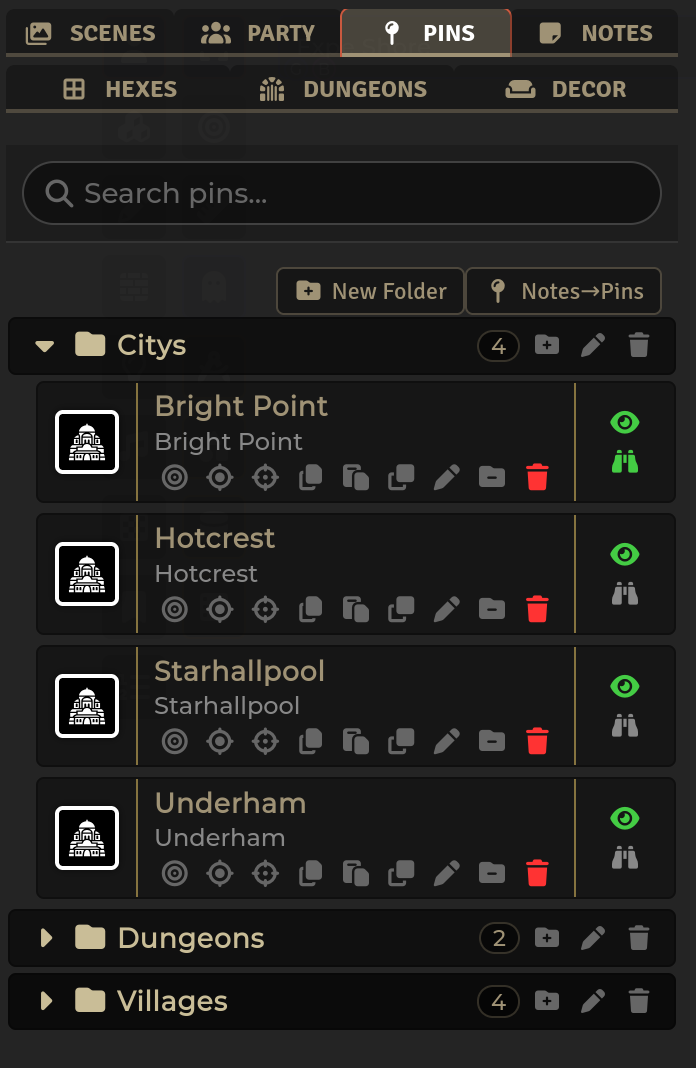
- Open the Pins tab. On AK Bay you see three folders (Dungeons 2, Cities 2, Villages 3), seven image pins on the hex canvas, and a search box at the top.
- Add a pin. Click Add Pin or Click to Place, then click the canvas. The new pin lands where you clicked. In Foundry you can also drag a journal entry onto the canvas.
- Link it. In the editor pick a Journal and a Page — or pick — None — to keep it unlinked. Write a Tooltip Title or Content if you want custom hover text that shows even without a page link.
- Style it. Pick a Shape (circle, square, diamond, pointy hex, flat hex, or image), a Ring Width/Style, and a Content Type — page number, symbol, custom icon, text, or nothing. Add a Label and choose where it sits (top / bottom / left / right / center) and whether it shows only on hover. The preview updates as you change anything. In the demo single-pin edits also move the live pin on the canvas.
- File it. Drag pins between folders, drag folders to reorder, collapse what you don't need. A globe on a folder means it is a World folder — it appears on every scene. Without the globe it is Scene-only. Pins themselves always stay on the scene you placed them on — world folders just share the folder definition.
-
Use it at the table. Hover a pin for its tooltip, double-click to open the journal, or right-click and pick Pan to, Ping, or Bring Players Here. Ping flashes the pin with the style's ping animation; Bring pans every client to it (both emit on
module.shadowdark-extrasin Foundry).
You can edit world defaults or one pin's overrides. The single-pin editor starts from the defaults, and anything you leave untouched keeps tracking the defaults.
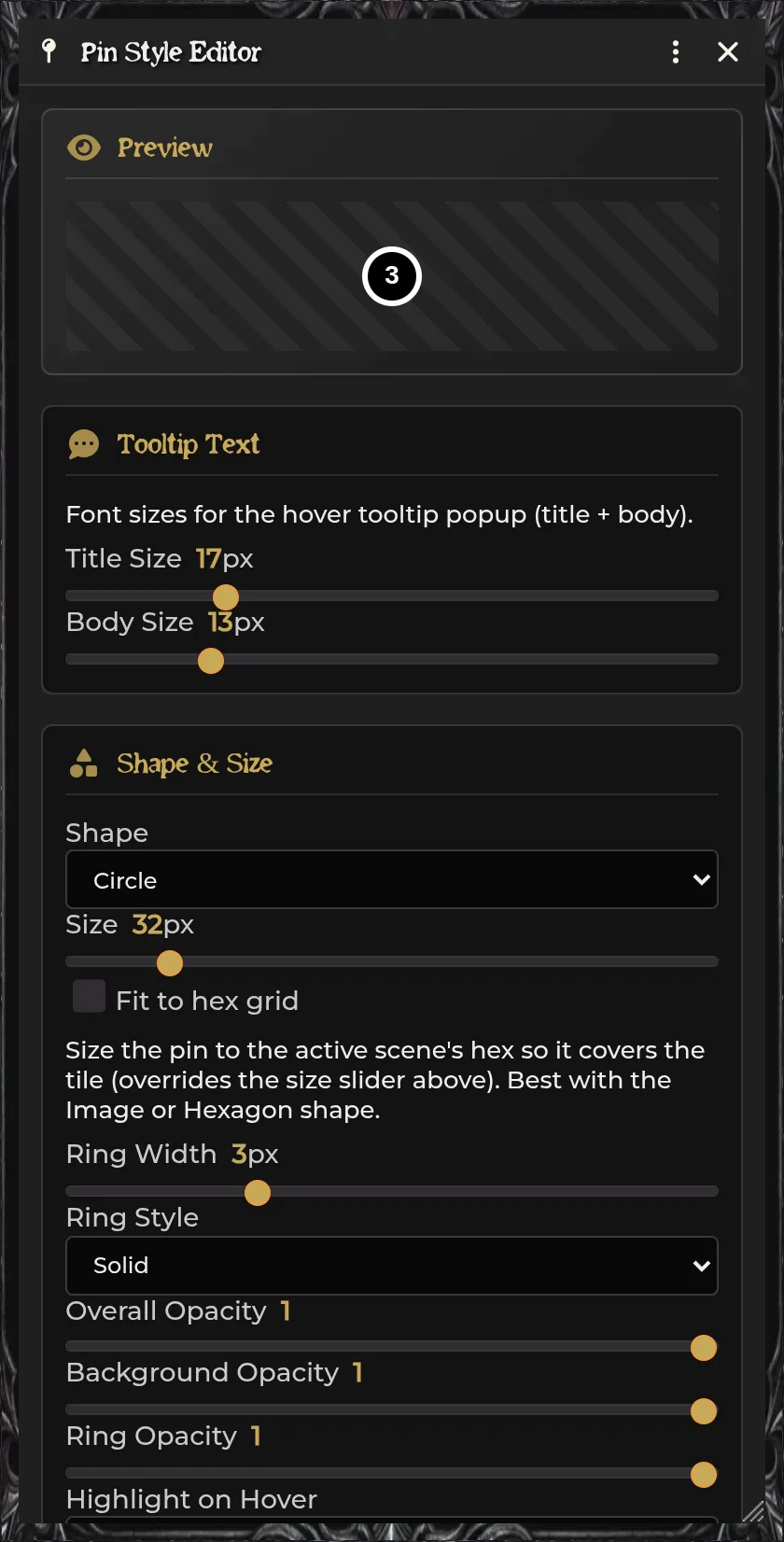
Try the main style groups in the demo — open a pin's palette button and work through Preview → Shape & Size → Colors → Content → Label. Each group is one section in the editor:
Preview — a live CSS preview of the pin and its label. In Foundry the real pin is a PIXI.Graphics (JournalPinGraphics) drawn through the same style values.
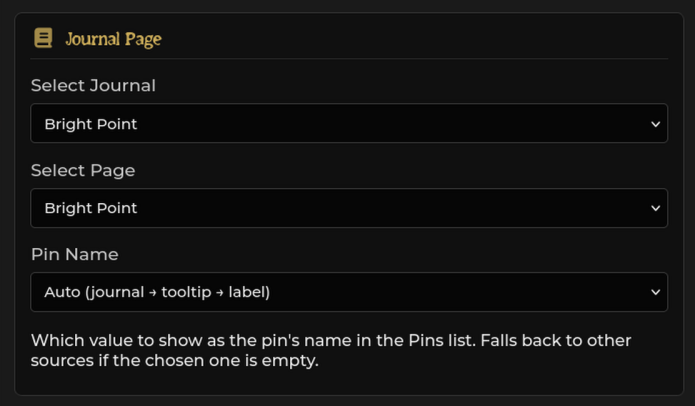
Journal & Page (single pin only) — journal and page pickers plus Pin Name — which text shows in the Pins list. Auto prefers the page name, then tooltip title, then label, and skips placeholder names like "New Pin" when it can. Journal, Tooltip, and Label pin the name to one source.
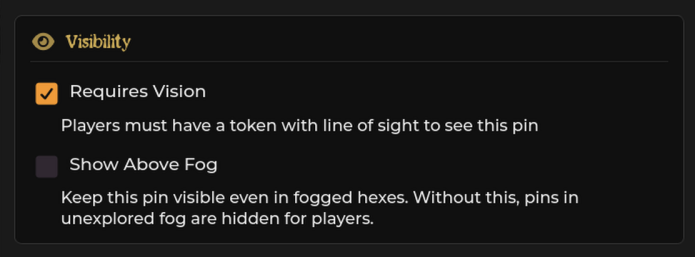
Visibility (single pin only) — Requires Vision (players need a token with line of sight), Show Above Fog (keep the pin visible even in fogged hexes — without it, pins in unexplored fog are hidden), GM-only (hide from players entirely), and Hide Hover Tooltip (suppress the popup). These change who the pin renders for and whether its popup appears; none of them add a marker to the pin itself.
Custom Tooltip (single pin only) — Tooltip Title and Tooltip Content override the hover popup. Leave either empty to fall back to the linked page's title and text; fill them in and the pin shows custom hover text even with no page link. Hide Hover Tooltip turns the popup off for this pin.
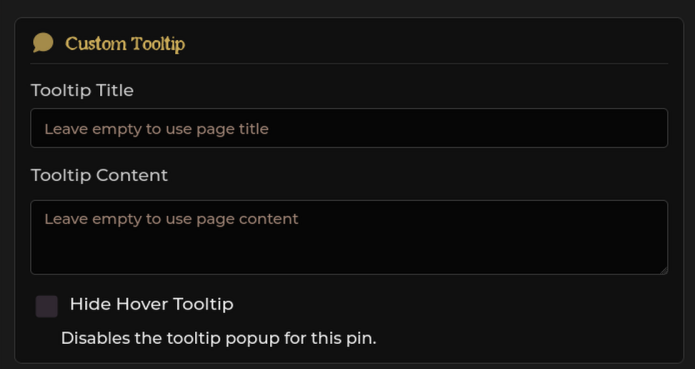
Tooltip Text — two sliders for the hover popup's Title Size and Body Size in pixels. These live per-pin and come from tooltipTitleFontSize / tooltipContentFontSize.
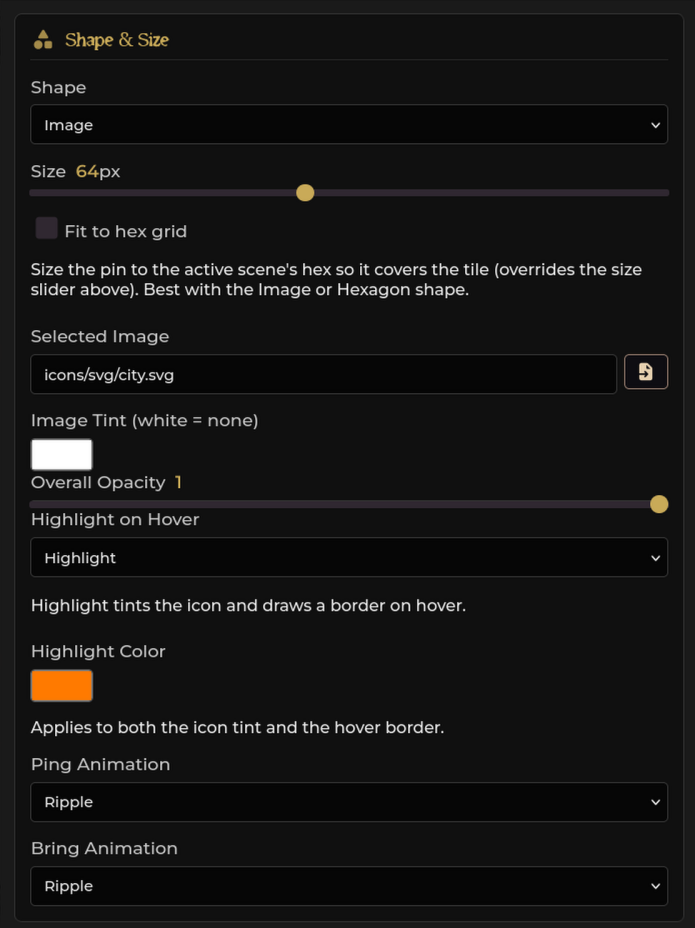
Shape & Size — Shape, square Border Radius, Size (16–128 px), Fit to hex grid (size the pin to the scene's grid hex so it covers the tile — best with Image or Hexagon), image Selected Image + Image Tint, Ring Width/Style / opacities (or a single Overall Opacity for image pins), and three animation pickers: Highlight on Hover (the default is orange tint + border), Ping Animation, and Bring Animation (ripple / shake / flash / none; rotate is legacy).
Colors (standard shapes) — Ring Color and Fill Color. Opacity is handled in the Shape section so the slider numbers stay next to the swatches they affect.
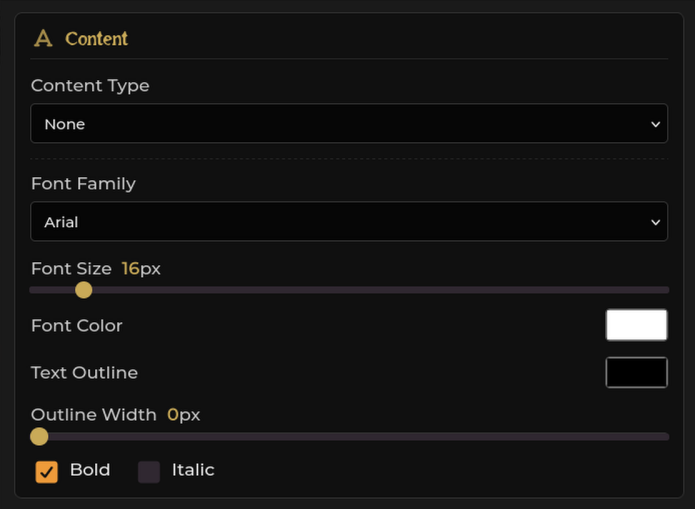
Content — what sits inside the ring. Page Number shows the linked page's index, Symbol picks a FontAwesome glyph, Custom Icon picks an SVG from assets/icons/ (or any image path), Custom Text is free text, and None leaves it empty. Number and Text expose font family, size, color, outline and bold/italic; Symbol exposes Symbol Color; Custom Icon exposes Icon Color.
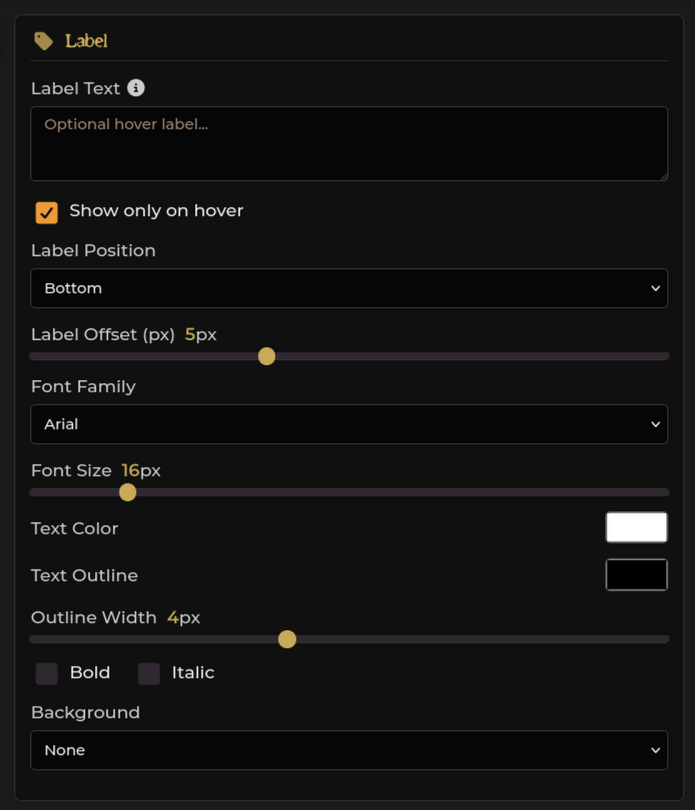
Label — text beside the pin. Multiline is allowed. Show only on hover keeps it quiet until needed. Label Position and Label Offset place it, then font, color, outline, bold/italic, and Background: None, Solid Color (bg, border, opacity, border width, corner radius) or Image Border (bg, opacity, a Custom Border Path, and four 9-slice sliders for top/right/bottom/left).
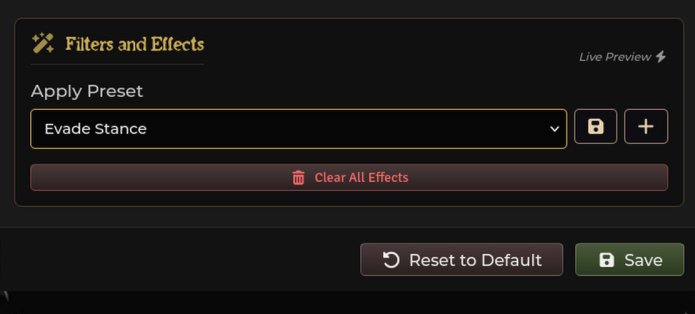
Filters and Effects (single pin, requires TokenMagic) — a preset picker that calls TokenMagic.getPresets("sdx-presets") and addFilters on the live placeable. The demo shows the panel disabled and explains it — static pages can't host TokenMagic, but the shape matches Foundry.
Fifty settings is a lot. Skim it in the demo: set Shape to Hexagon, Content to Custom Icon (../../assets/crown.svg), Label to hover at Top, and hover the pin.
The demo ships with the real AK Bay scene so you can compare behavior against the live world:
-
Scene
v5jFewvPb3vxnvQe— 3559×3494, pointy-top hex, grid 168, backgroundmaps/maphub/aligned_realm_1786248717692.png(downscaled todocs/demo/assets/ak-bay/ak-bay-map.webpfor the static page). -
7 pins copied from
scene.flags["shadowdark-extras"]["journalPins"]with exact folder assignments:- Dungeons (2): Lair Of Night (q17_r3, skull) and Library Of The Silent God (q2_r15, skull)
- Cities (2): New Cove (q12_r8, city) and Orn (q4_r19, city)
- Villages (3): Brightmill (q9_r16), Coldtalon (q17_r7), and Crimson Mill (q6_r13) — each with a Generate-Map button in its journal page.
-
Journal entries — 7 entries in folder Ak Bay (
PILvOAdanm7Hs5W2), each with one page:ZSoIvN0n0TUU5y8FBrightmill,a46ShxuXQtcajMkaColdtalon,cpYwWyQ7HIFcfxOHCrimson Mill,DIvcYyVM3oFEXpYiLair Of Night,3RszqXSXy1LEav5RLibrary,1msT9n9nRDRMIOQ3New Cove,jC83DpwtgeyVT1BGOrn. In the demo, tooltips fall back to the page name/excerpt and double-click opens the entry. -
Icons —
assets/ak-bay/village.svg/city.svg/skull.svgtrailing the green Arrowhead labels on the realm map, rendered here as image pins (no ring, no number — just the icon at 64 px).
In the world the same pins live in three scene folders Dungeons / Cities / Villages (scene pinFolders), the canvas shows the full realm hex map, and each journal entry carries its Perilous-Shores seed (hex coords + “Generate this map” wiring). In the demo the map is a static background and placement/ping are local — no sockets — but every other control (search, collapse, Add Pin, Notes→Pins, per-pin visibility toggles, Ping/Bring animation pickers) is the shipped UI.
Build them in the Pins tab. New Folder prompts for a name and whether it should be World (globe) or Scene (no globe). Drag pins in and out, drag folders to reorder or nest them, collapse them, and give each a color and icon.
A few things that surprise people:
- A World folder's name and order appear on every scene, but the pins inside it do not move with it. A pin always belongs to exactly one scene.
- Drag-reorder within a folder actually reorders the underlying
scene.flags["shadowdark-extras"]["journalPins"]array so the list order sticks. - Search reaches into collapsed folders — matches show even when their folder is closed.
- Names sort naturally, so
Room 2comes beforeRoom 10rather than after it. Both list paths agree on that ordering.
The tray's Notes → Pins button and each individual note's convert control turn native Foundry Map Notes into Journal Pins. The new pin carries over position, journal/page link, label, icon path, tint, and size. The demo simulates this with Notes→Pins in the toolbar — pick how many mock notes to create, choose a target folder, and decide whether to keep the originals.
Keeping the originals is the safe default so you can compare. Use the delete-originals option once you are happy with the converted pins.
Converted pins start GM-only. Map Notes are usually prep material — keyed rooms, secret doors, what the party finds here — so every pin the conversion creates begins hidden from players, whatever the source note's own permissions were. Reveal each one deliberately once you want it at the table: click the red eye-slash on its row in the Pins tab, or clear GM-only in the editor. Until you do, nothing you converted is visible to players.
Converted notes that stored their size as note.iconSize seed the editor's size slider with the effective rendered size, so the preview doesn't snap to 32 px on open.
Leave it off unless picking at an irregular transparent image is actually a problem. When Enable Pixel perfect on Pins is on, the renderer checks the image's alpha channel: only pixels above Pin Pixel Perfect Alpha Threshold (0–255) count as hits. Higher values demand more opaque pixels. This is more precise on ornate art but it costs CPU on every pointer move.
You as GM: You see the full Pins tab — folders, creation, conversion, style defaults, and per-pin menus. You edit, copy/paste, duplicate, move, and delete. GM-only pins draw for you exactly as they draw for anyone allowed to see them: SDX paints no status marker on the canvas — no dim pass, no red dashed ring, and no eye badge beside the pin. Those overlays were removed because image and icon pins cover the pin's edge, so the indicator read as damaged art rather than as a status. Requires Vision and Show Above Fog are still enforced and still gate only what players see, not what you see — they simply no longer announce themselves on the map.
Read a pin's current state from the controls instead. In the Pins tab every row carries an eye (green = visible to players, red eye-slash = GM-only) and a binoculars icon (green = Requires Vision on, grey = off), and both are toggles — click to flip that pin. The Pin Style Editor's Visibility section shows the full set for the selected pin.
Players: They see player-visible pins and the hover tooltip (if not hidden and if they can read the linked page — or if a custom tooltip exists). They can double-click to open pages they have at least Limited permission on, but they cannot create pins, open the Pins tab's folder controls, or toggle GM-only.
In the demo the GM-only checkbox in the canvas toolbar simulates the player filter — uncheck it and GM pins vanish from the map and counts.
A pin's name is "New Pin" or "Unlinked Pin." Set Pin Name to Auto and give it a real tooltip title or label, or relink it to a page with a real name.
A world folder looks empty on another scene. Expected. The folder definition synced — the pins didn't. They stayed on their source scene.
An image pin is hard to click. Try Pixel-Perfect with a lower alpha, or switch to a plain shape for the hit area and use the image as the icon instead. For map-sized art use Fit to hex grid.
Tooltip never appears. Check Hide Hover Tooltip — it suppresses the popup entirely. Also check permissions: page text only shows if the viewer can actually read the page, but a Custom Tooltip always shows.
Technical reference
Storage, renderer, and template pointers if you need them:
- Defaults: world setting
pinStyleDefaultsread viagetPinStyle()inscripts/journal/pin-style.mjs—DEFAULT_PIN_STYLEmerged over the stored blob. About fifty keys (size, shape, ring/fill, opacity, hover/bring/ping animations, image paths, content type + font/icon/label, tooltip font sizes). - Per pin:
scene.flags["shadowdark-extras"]["journalPins"]— each entry keepsx, y, journalId, pageId, label, nameSource, folderId, sort, size, style{}, gmOnly, requiresVision, aboveFog, tooltipTitle, tooltipContent, hideTooltip, flags.tokenmagicplusversion. - Folders: world setting
pinFoldersWorld([{id, name, color, icon, scope: "scene"|"world", collapsed}]) viascripts/journal/pin-manager.mjs— definitions are world-wide, pins remain per-scene. - Renderer:
scripts/journal/pin-rendering.mjs/JournalPinGraphics(PIXI.Container) withpin-draw.mjs(ring geometry for dotted/dashed) andpin-icons.mjs(glyph/SVG;addVisionIndicatoris still exported but no longer called — the canvas vision badge and the GM-only red dashed ring were both removed, sogmOnly/requiresVisionare enforced without drawing anything). Tooltip:scripts/journal/pin-tooltip.mjs(JournalPinTooltip.show/hide). Interactions:scripts/journal/pin-interactions.mjs(drag viapointerdown/move/up, pan, ping, context menu). Label: inlinePIXI.Text/ canvas label container. - Editor:
templates/pin-style-editor.hbsviascripts/journal/PinStyleEditorSD.mjspluspin-style-form.mjs(_getFormData / _onSave toJournalPinManager.updateorgame.settings.set("pinStyleDefaults")),pin-style-preview.mjs(_updatePreview, live_updateCanvasPreviewdebounce 150ms),pin-style-tmfx.mjs(TokenMagic.getPresets/addFilters), andpin-iconspicker. - Layer:
sdx-journal-pins-layerinserted afterwallsinCONFIG.Canvas.layers(scripts/journal/JournalPinsSD.mjs). - Styles:
styles/journal-pins.css(tooltip + context menu),styles/pin-style-editor.css(editor chrome),styles/sdx-tray.css(Pins list rows). - Animations:
hoverAnimation(highlight= tint +hoverRingWidth/hoverRingColor, plusscale/pulse/shake/brightness/hue),pingAnimation/bringAnimation(ripple/shake/flash/none/rotate). - Sockets:
module.shadowdark-extras—panToPin({sceneId, x, y, pinId}) andpingPin({sceneId, pinId}) viascripts/journal/pin-manager.mjs.
Related: Journal Tools & Pins · Hexcrawls & Dungeons · Canvas & Table Tools · Easy Reference · Journal Pins demo