Settings Reference
Every setting and GM configuration menu the module registers — snapshot-verified on module 6.11.0 (Foundry 14, Shadowdark 4.0.6): 144 static settings, 18 configuration menus (plus up to 18 dynamic keys and 3 optional-module settings depending on world state — a live world on 6.11.0 shows 159 settings without Automated Animations, 162 with it).
World settings apply to everyone in the world. Client settings belong to one browser and user. Where a row says "Reload", the setting asks for a reload after you change it — it attaches or removes hooks and templates at startup.
Every panel below is an ApplicationV2 window. The header's ⋯ (Toggle Controls) → Detach pops any of them into its own browser window; the same menu shows Attach to dock it back. There are no module-custom pop-out buttons.
Feature Manager owns this page. Most menus and many settings below are gated by Configure Settings → Shadowdark Extras → Feature Manager (Feature Manager ·
featureManagerMenu·FeatureManagerApp· Configure Features, GM only, reload required). Disabling a feature there hides its menu, its settings, its hooks/sockets, and its tray controls without deleting stored data (journal pages, actor/item flags, Regions, style values, etc.). Re-enable and reload to bring it back.
Each of these opens a dedicated editor instead of flipping one checkbox.
| Menu | Key | What it configures |
|---|---|---|
| Feature Manager | featureManagerMenu |
Master enable/disable for every SDX feature — hooks, sheets, tray tabs, sockets, animations (GM only, reload required) — shows as Configure Features |
| Configure Sheet Locks | sheetLockMenu |
Which player-sheet fields and item operations are locked |
| Configure Animations | animationFxListMenu |
Animation FX master presets, categories, sound, ambient effects |
| Configure Combat Settings | combatSettingsMenu |
Damage cards, auto-application, targets, multipliers, range, untargeting |
| Configure Effects | effectsSettingsMenu |
Condition behavior; currently the Silenced rules for spells, scrolls, and wands |
| Configure HP Waves | hpWavesSettingsMenu |
Portrait wave, default color, ancestry color overrides |
| Configure Activities | travelActivitiesMenu |
Party travel/camp tasks, allowed abilities, campfire requirement, art |
| Configure Speeds | travelSpeedsMenu |
Named party travel speeds |
| Configure Weather Table | partyWeatherTableMenu |
World or compendium RollTable drawn by the Party sheet's Weather button |
| Edit Inventory CSS | inventoryStylesMenu |
Styling priorities and colors for item rows |
| Sheet Style Editor | sheetEditorMenu |
Sheet borders, panels, colors, gradients, live preview |
| Manage Dungeondraft Decor Packs | decorDungeondraftPacksMenu |
Import, enable, preview, or hide object packs in the Decor tray |
| Light Templates | customLightTemplatesMenu |
Custom light-source templates attached to items |
| Medkit: Scan All Actors | medkitWorldScanMenu |
Runs the world-wide medkit scan immediately; no window |
| Manage Carousing Tables | carousingTablesMenu |
Original or Expanded tables, based on the active carousing mode |
| Manage Creature Types | manageCreatureTypes |
Custom creature-type choices for NPC sheets |
| Configure Pin Styles | pinStyleEditorMenu |
World defaults for journal pins |
| Configure Coordinates | sdxCoordsMenu |
Coordinate mode, placement, labels, and appearance |
The pin editor also opens for a single selected pin, and the map and dungeon editors launch from the tray instead of Configure Settings.
Medkit's entry is a launcher, not a panel: clicking it immediately runs the world scan (updating items and actors against the module's compendium versions) and stays closed. The per-actor Medkit window opens from the actor sheet header button.
Feature Manager · featureManagerMenu · FeatureManagerApp · button label Configure Features (GM only, reload required)
Master switchboard for the whole module. Open Configure Settings → Shadowdark Extras → Feature Manager, tick the SDX Tray tabs and tools you recognize (Scenes, Party, Pins, Notes, Hexes, Dungeons, Decor and the handle tools), keep the collapsed Advanced & Hidden Features enabled unless you mean to turn off underlying automation, then Save Feature Settings and reload when Foundry prompts you.
-
World, hidden, requires reload — stored in
disabledFeatures(Array, default[],config: false). No direct toggle lives in Configure Settings — only this editor writes it. - What disabling does — the feature's menu, settings, hooks, libWrapper patches, sockets, templates, and tray controls do not initialize. Stored data stays (container flags, journal pin pages, aura Regions, carousing sessions, style values, granted advancements, etc.).
- Blocked by dependency — some features depend on another (e.g. Decor → Hexes, Per-Item Animation Overrides → Animation FX, Template Effects/Auras/Spell Configs → Spell Activity System). Disabling the parent disables the child and the UI shows “Also blocked because … is disabled.”
-
Where the choice previews come from —
assets/feature-manager/*.webp(one per visible choice).
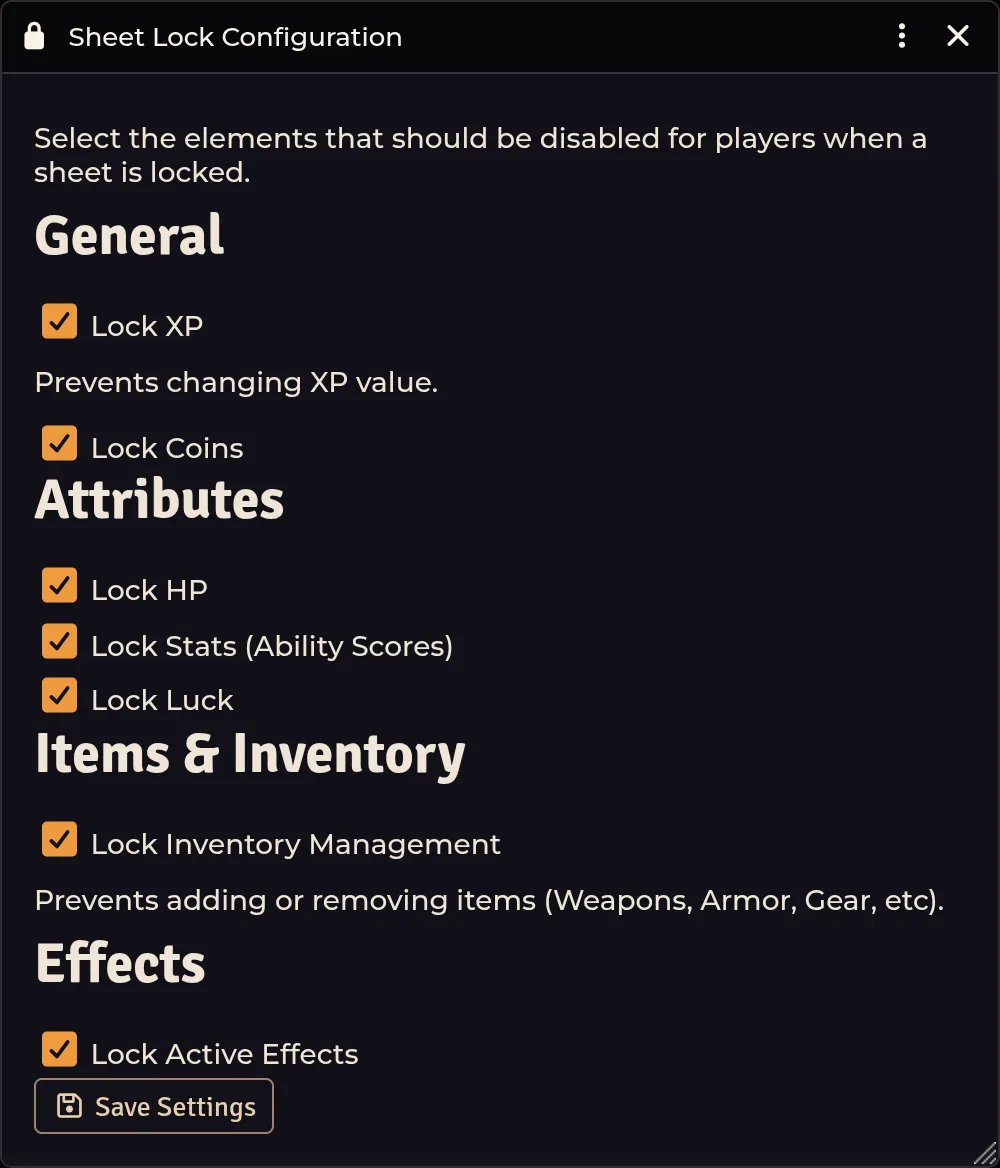
Configure Sheet Locks · sheetLockMenu · SheetLockConfig
-
General — Lock XP (
xp), Lock Coins (coins). -
Attributes — Lock HP (
hp), Lock Stats/Ability Scores (stats), Lock Luck (luck). -
Items & Inventory — Lock Inventory Management (
inventory): prevents adding or removing items. -
Effects — Lock Active Effects (
activeEffects).
Players see locked fields greyed out; the GM keeps full control. Locked sheets still accept sanctioned transfers (the trade window, Transfer to Player).
Configure Animations · animationFxListMenu · AnimationFxListApp
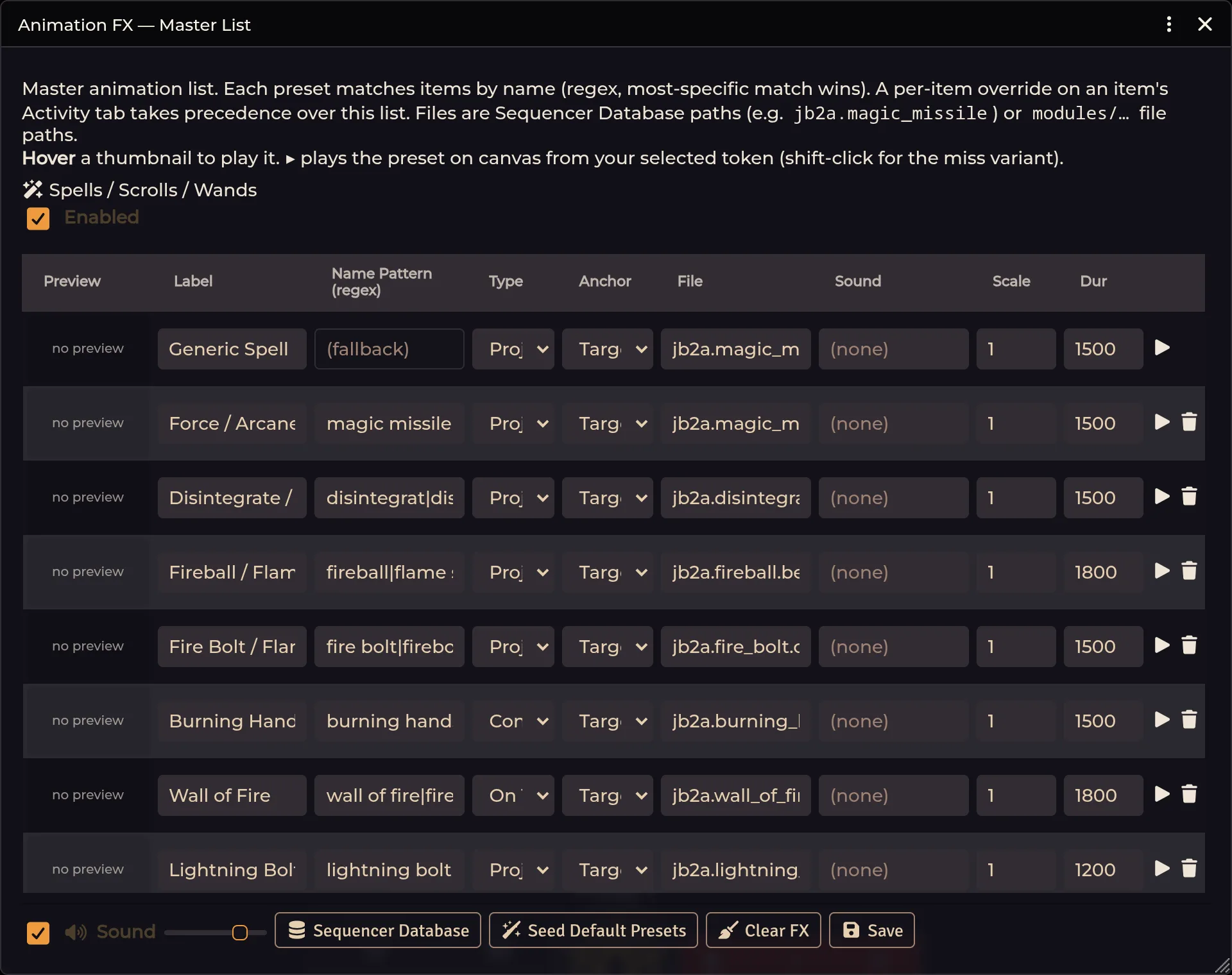
The master list assigns animations to items by name; each preset matches many items via a regex pattern (most-specific match wins). A per-item override on an item's Activity tab takes precedence over this list.
-
Categories — Spells/Scrolls/Wands, Weapons, NPC Actions, Weapon Sprites. Each has an enable checkbox (
enabled.<cat>). -
Preset rows — per preset: Label, Name Pattern (regex), Image Path, Offset X/Y, Rotation, Scale, Animation Type (none / wobble / bobbing / floating / rotating), FX Type, Target, Video/Image File (Sequencer Database paths like
jb2a.magic_missileor module file paths), Sound File, Duration. Rows have add/delete, inline thumbnails (hover to play), and a preview button that plays the preset on your selected token. - Ambient & Events — per entry: File and Scale.
- Sound — Enable Sound and Volume.
The category toggles, master data, client scale, and sound live here rather than in the normal settings list.
Configure Combat Settings · combatSettingsMenu · CombatSettingsApp
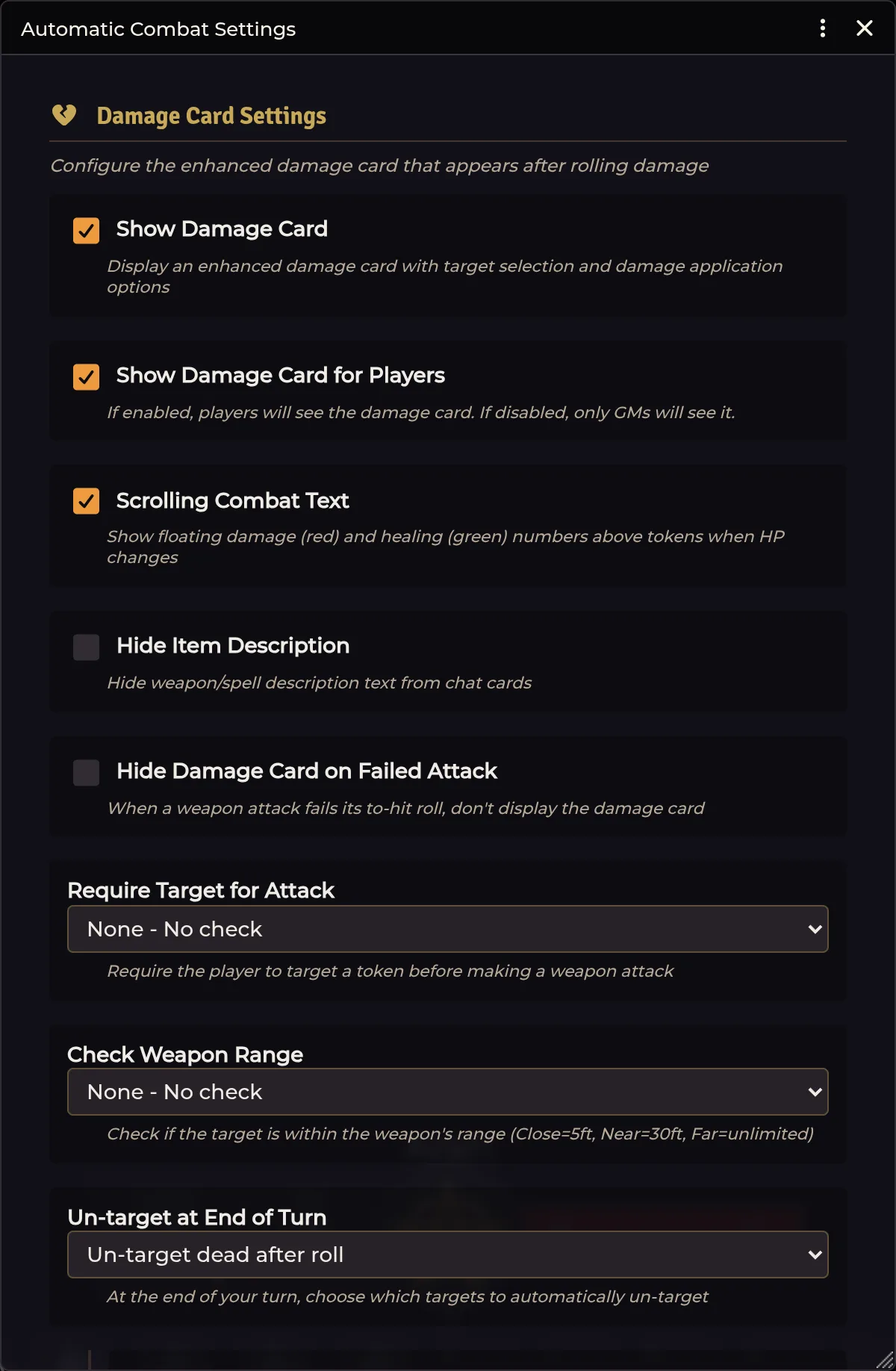
Damage Card Settings
| Option | Default | What it does |
|---|---|---|
| Show Damage Card | on | Enhanced damage card with target selection and damage application |
| Show Damage Card for Players | on | Off: only GMs see the card |
| Scrolling Combat Text | on | Floating damage (red) and healing (green) numbers above tokens |
| Hide Item Description | off | Hides weapon/spell description text on chat cards |
| Hide Damage Card on Failed Attack | off | No card when the to-hit roll fails |
| Require Target for Attack | none | None / Warn / Block |
| Check Weapon Range | none | None / Warn / Block. Close = 5 ft, Near = 30 ft, Far = unlimited |
| Untarget at End of Turn | dead targets | None / Un-target dead after roll / Un-target all |
Damage Card Sub-Settings (shown when Show Damage Card is on)
| Option | Default | What it does |
|---|---|---|
| Show Targets | on | Lists targeted tokens on the card |
| Show Damage Multipliers | on | Buttons to apply resistance/vulnerability multipliers |
| Show Apply Button | on | Button to apply damage to targets |
| Auto-Apply Damage | on | Applies damage on a successful attack roll |
| GM Only Apply Damage | off | Only GMs can use the Apply buttons |
| Auto-Apply Conditions | on | Applies conditions on a successful spell |
Damage Multipliers — per-multiplier toggles choose which buttons appear: clear, ×0, ×¼, ×½, ×1, ×2. The clear control uses an internal zero-valued entry, which is a different thing from applying zero damage.
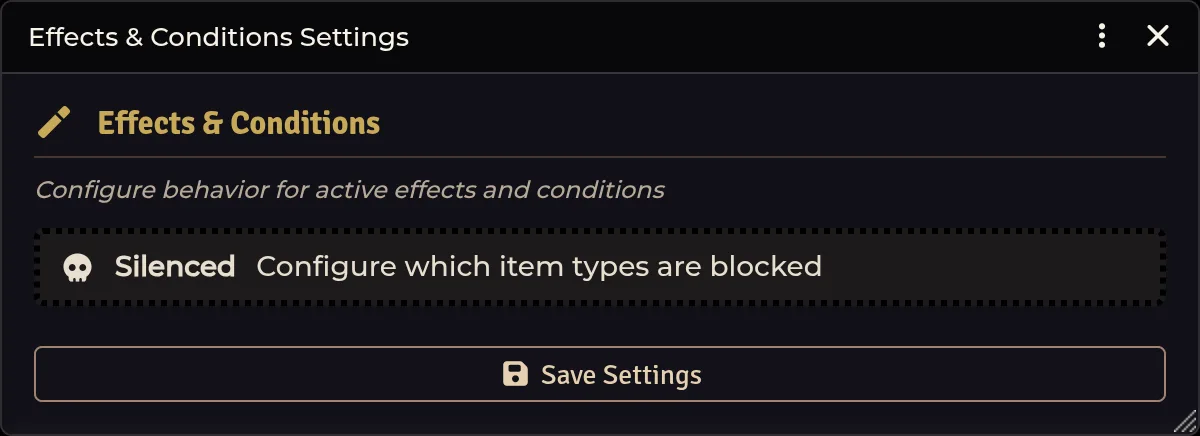
Configure Effects · effectsSettingsMenu · EffectsSettingsApp
-
Silenced (collapsible) — "Configure which item types are blocked."
-
Block Spells (
silenced.blocksSpells) — prevents casting Spell and NPC Spell items. -
Block Scrolls (
silenced.blocksScrolls) — requires reading aloud. -
Block Wands (
silenced.blocksWands) — requires a command word. - Potions are never blocked: drinking doesn't require speech.
-
Block Spells (
Configure HP Waves · hpWavesSettingsMenu · HpWavesSettingsApp
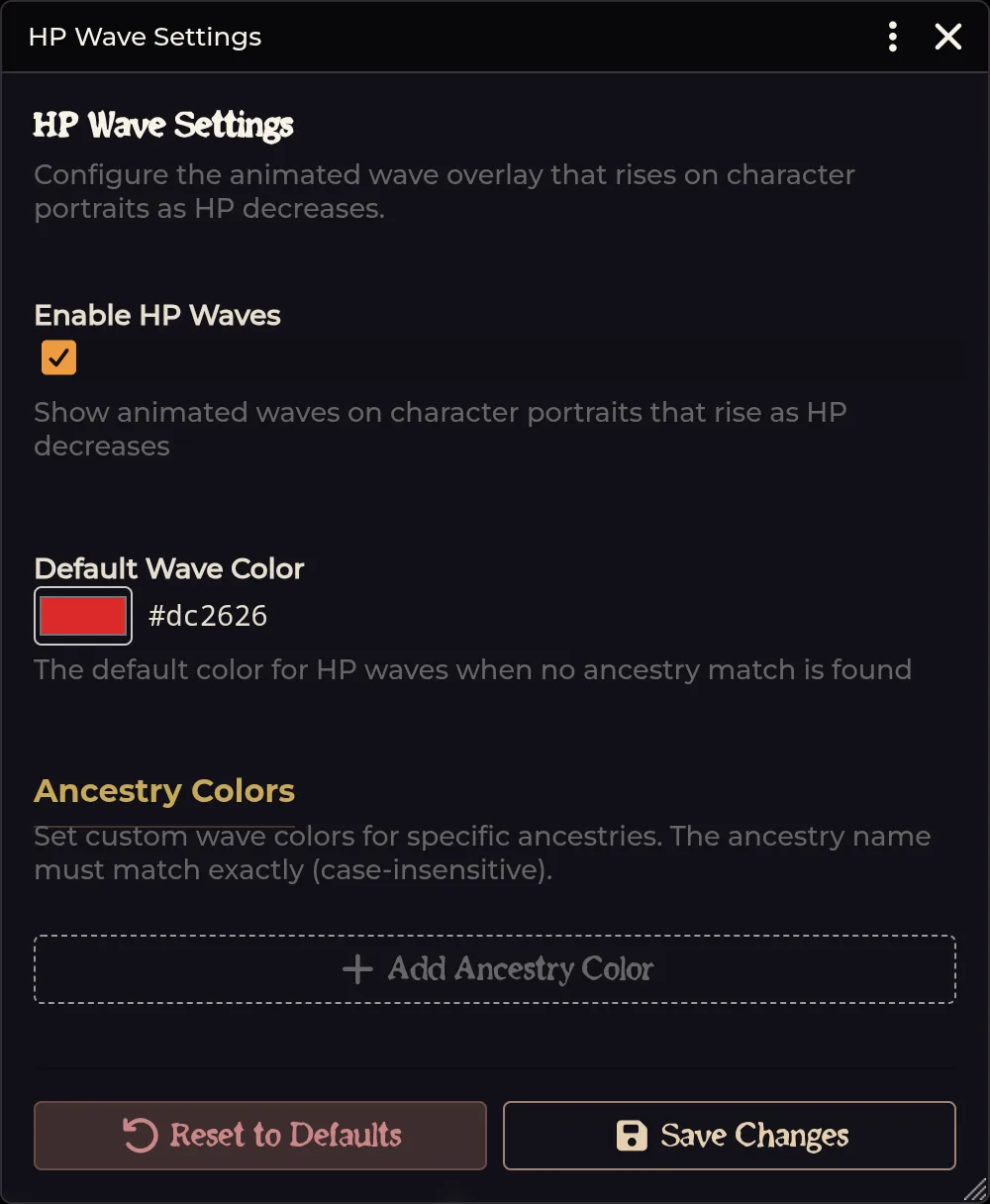
- Enable HP Waves — animated waves on character portraits that rise as HP decreases.
- Default Wave Color — used when no ancestry match is found.
- Ancestry Colors — dynamic rows of Ancestry name + Color, with add/remove and Reset Defaults.
Configure Activities · travelActivitiesMenu · TravelActivitiesSettingsApp
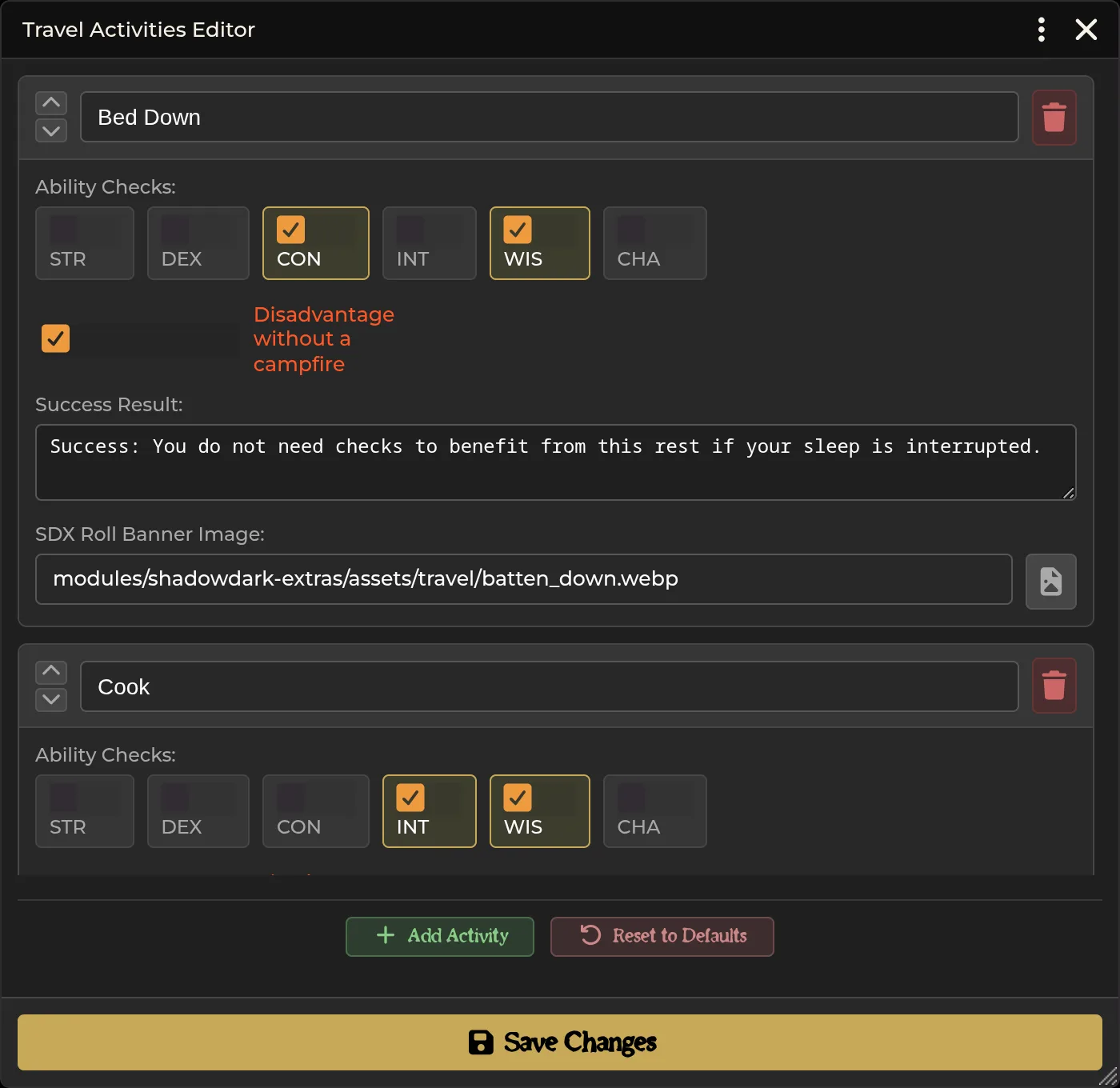
Travel/camping activities shown in the Party Sheet Travel tab. Rows are reorderable (up/down) and removable.
- Per row: Activity Name, hidden Key, Abilities checkboxes (one per available ability), Campfire activity checkbox, Task Description, Banner Image (text + file picker).
- Add Activity and Reset Defaults.
Configure Speeds · travelSpeedsMenu · TravelSpeedsSettingsApp
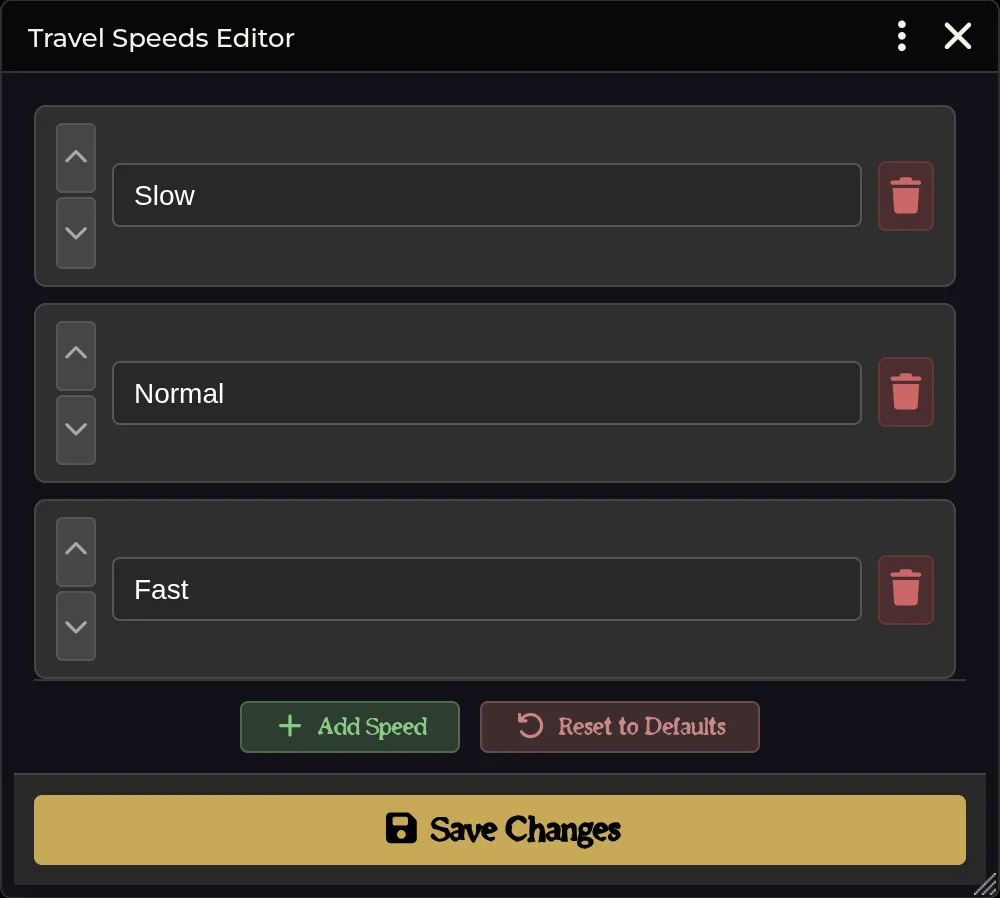
Travel speeds shown in the Party Sheet Travel tab; defaults are Slow, Normal, and Fast. Per row: Speed Name and hidden Key. Add Speed and Reset Defaults.
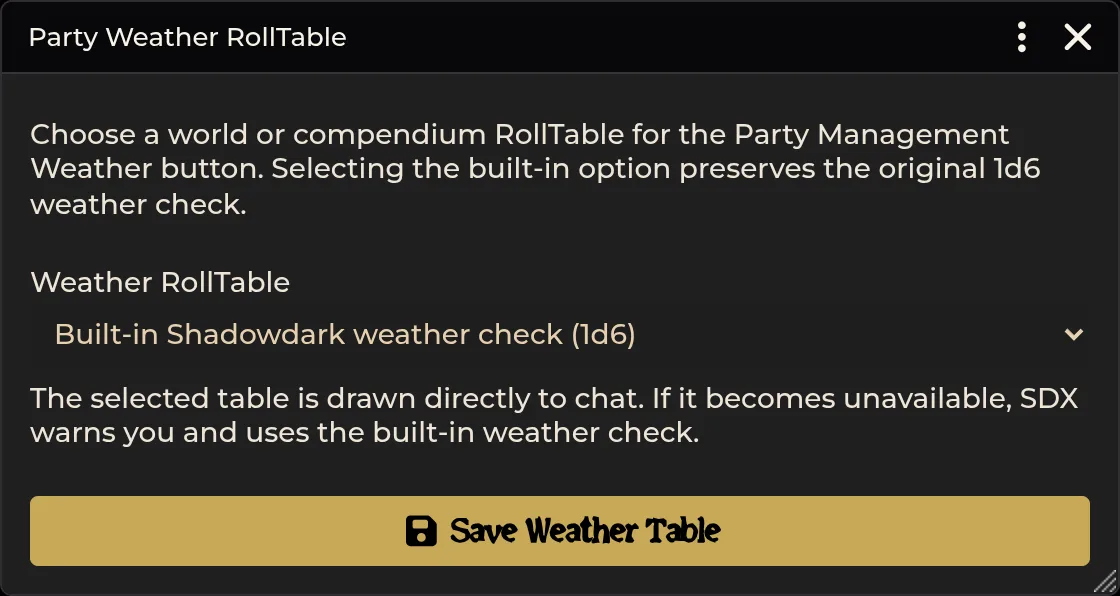
Configure Weather Table · partyWeatherTableMenu · PartyWeatherSettingsApp
-
Weather RollTable (
tableUuid) — link a Foundry RollTable (world or compendium) used by the party sheet weather tab, or leave unset.
Edit Inventory CSS · inventoryStylesMenu · InventoryStylesApp
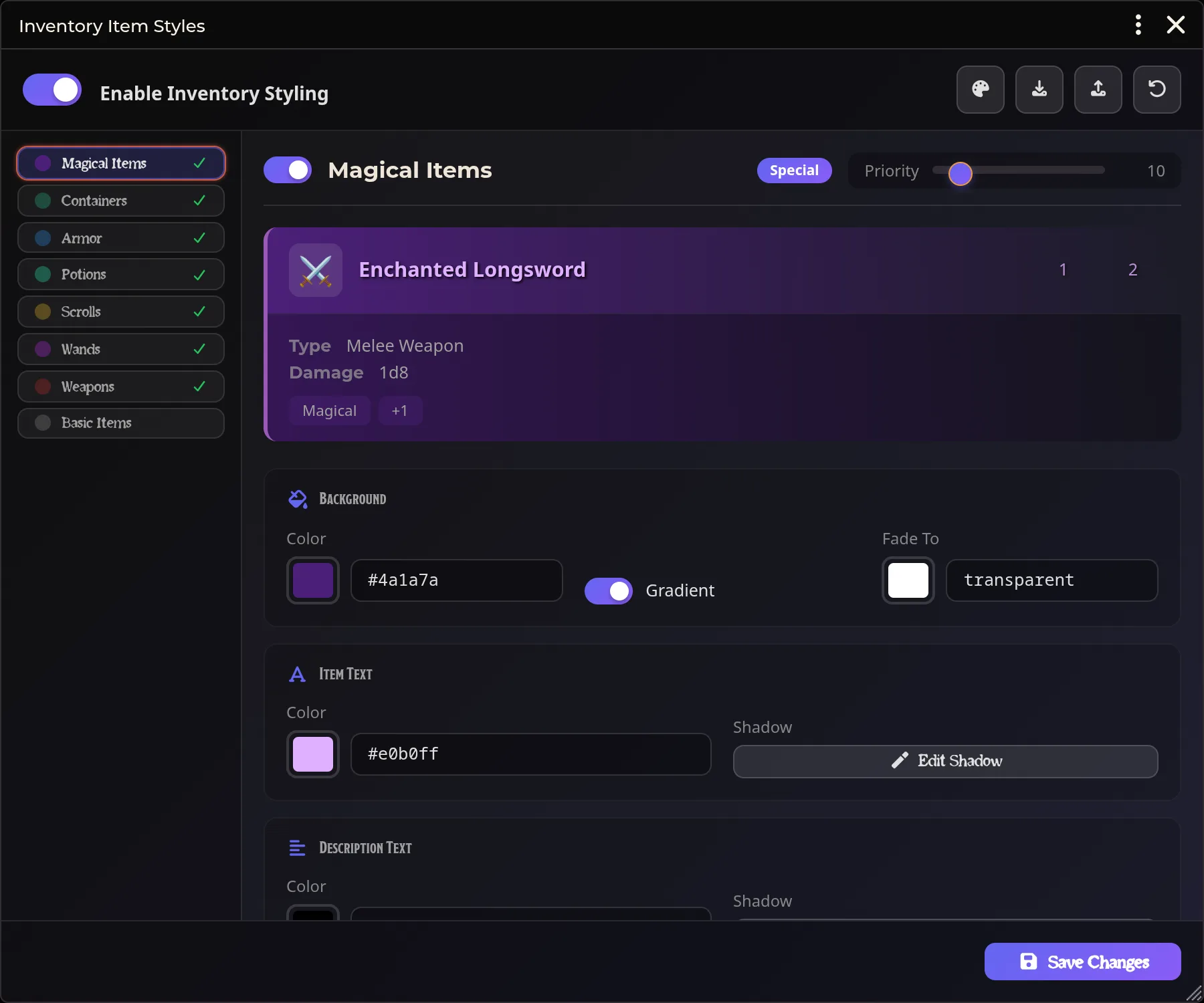
Theme editor that restyles inventory items in the actor sheet, applied per item category (each category has its own tab, enable toggle, and priority slider).
- Enable Styling master toggle; header actions Theme Presets, Export Theme, Import Theme, Reset to Defaults.
- Quick Presets — one-click cards: Default, Dark Mode, Vibrant, Parchment, Neon, Minimal.
-
Per-category tabs — Background, Item Text, Description Text, Left Border. Each has Enable + Priority (0–100) and a live preview.
- Background — Color, Gradient checkbox with Fade To color.
- Item Text — Color, Shadow (popup builder: X/Y offset, blur, color).
-
Description Text — Color, Shadow (same builder; placeholder
(inherit)). - Left Border — Width (0–10), Style (Solid / Dashed / Dotted / Double / Groove / Ridge), Color.
Sheet Style Editor · sheetEditorMenu · SheetEditorConfig
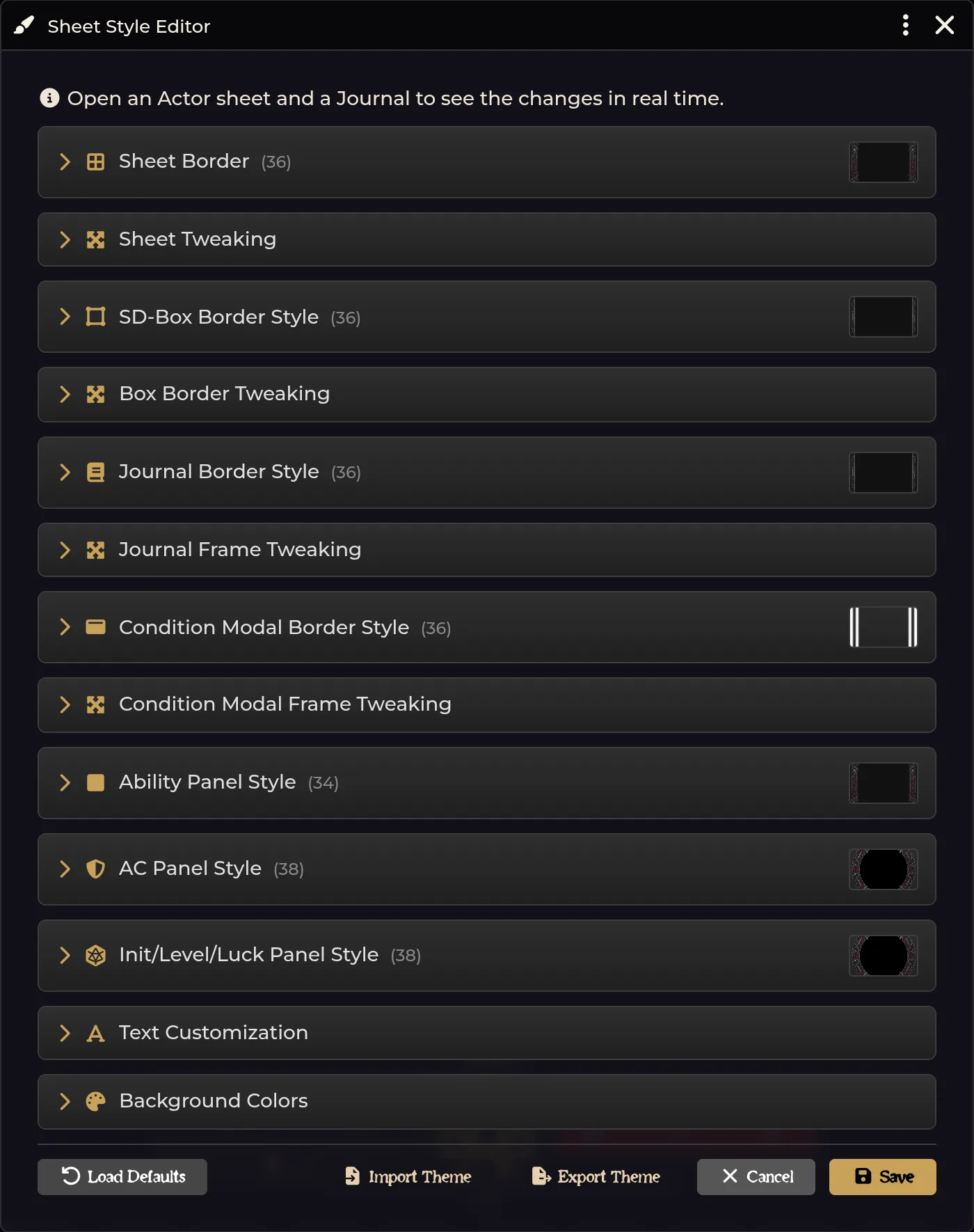
Real-time-preview theme editor for the whole character sheet. Border and panel categories show a searchable thumbnail grid of bundled images; tweaking categories expose numeric/select/color fields. Changes apply live.
-
Sheet Border — image picker →
sheetBorderStyle. - Sheet Tweaking — Border Width (0–200), Border Image Width (1–200), Border Image Slice (1–200), Border Image Outset (0–50), Border Image Repeat (Stretch / Repeat / Round / Space).
- SD-Box Border Style — image picker; tweaks for width, image width, slice, transparency width.
- Journal Border Style — image picker; tweaks for image width, slice, outset, repeat.
- Condition Modal Border Style — image picker; tweaks for image width, slice, outset, repeat.
- Panel styles — Ability Panel, AC Panel, Init/Level/Luck Panel (image pickers).
- Text Customization — ~18 color/weight fields: ability modifier, level, AC, initiative, luck, actor name (+ shadow color/alpha/font weight), window header, nav links (normal + active), details row, luck container, effects, talents, XP row, stats label.
- Background Colors — border background, sheet header, window title bar, nav background, nav border, tab gradient start/end.
Manage Packs · decorDungeondraftPacksMenu · stub that opens DDPackSettingsApp
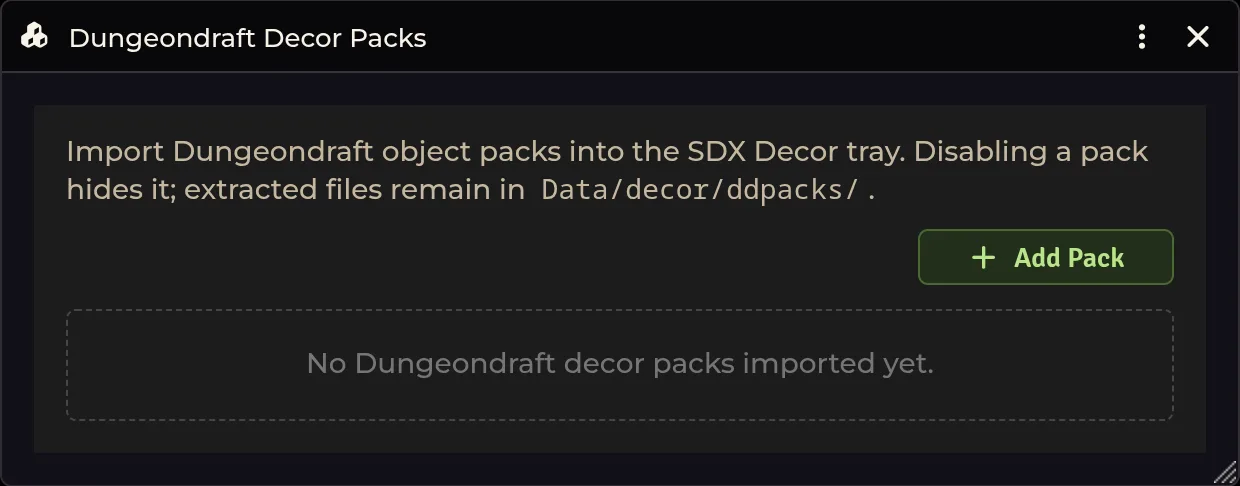
Import, enable, or hide Dungeondraft object packs in the SDX Decor tray. The settings entry is a stub that immediately opens the real pack-manager window (that window carries the header pop-out).
Light Templates · customLightTemplatesMenu · LightTemplateEditor
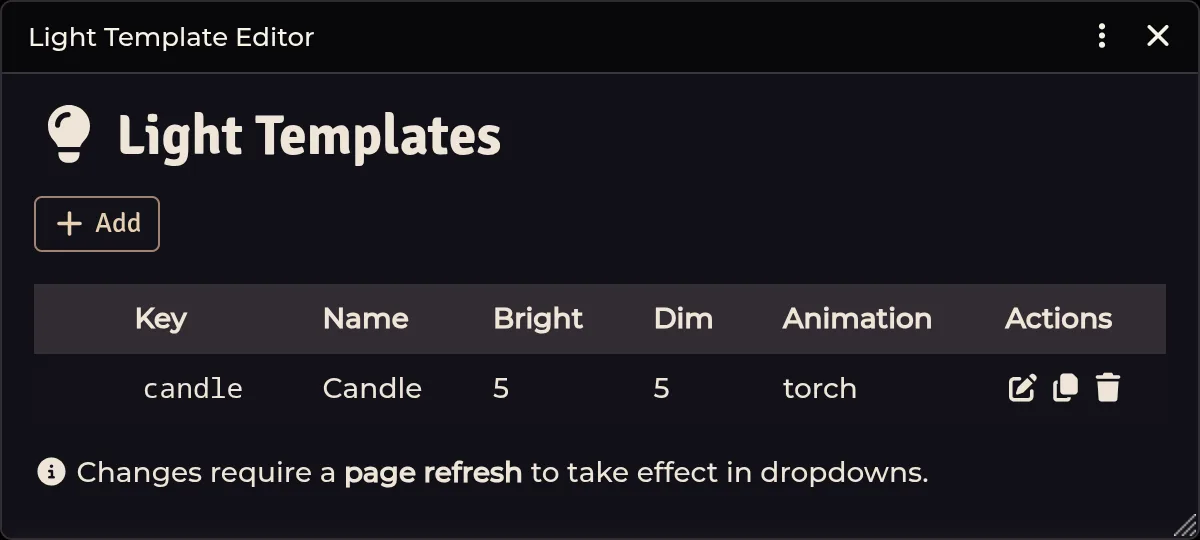
Custom light templates for items (the "Custom" option in item light settings).
- Basic Configuration — Name, Key, Light Radius (ft), Emission Angle, Light Color, Color Intensity, Priority, Is Darkness Source.
- Light Animation — Animation Type, Animation Speed, Reverse Direction, Animation Intensity.
- Advanced Options — Coloration Technique, Luminosity, Attenuation, Saturation, Contrast, Shadows.
Scan World · medkitWorldScanMenu
Launcher, not a panel — clicking it immediately runs the world-wide medkit scan (updates items/actors against the module's compendium versions) and stays closed. No window, no pop-out. The per-actor Medkit window opens from the actor sheet header button.
Manage Carousing Tables · carousingTablesMenu · CarousingTablesApp (Original) / ExpandedCarousingTablesApp (Expanded)
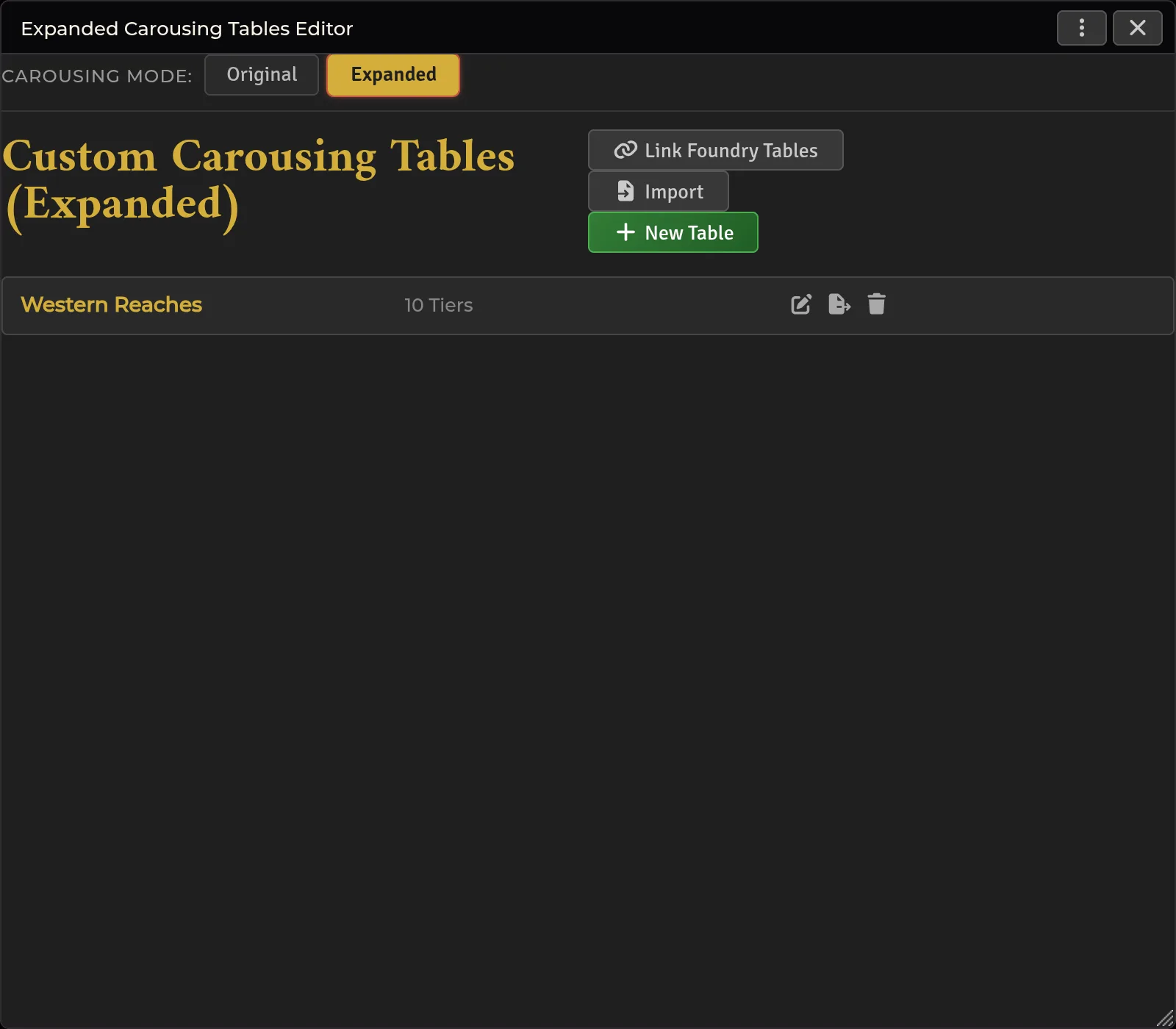
One editor hosts both modes via an in-window (and overlay-header) switch, and opens on the mode selected in Carousing Mode. Tables can link live Foundry RollTables (world or compendium) for Events, Outcomes, Benefits, and Mishaps; linked tables are re-resolved at roll time.
- Original — Carousing Event: rows with Tier Cost, Tier Bonus, Tier Description.
- Original — Carousing Outcome: rows with Roll, Description, Benefit.
- Expanded — Carousing Event/Outcome (d8 + Event Bonus): rows with Roll, Mishaps, Benefits, Modifier, XP.
- Expanded — Benefit (d100): rows with Roll, Description.
- Expanded — Mishap (d100): rows with Roll, Description.
- Custom Carousing Tables — add/remove your own tables in either mode.
Manage Creature Types · manageCreatureTypes · CreatureTypesApp
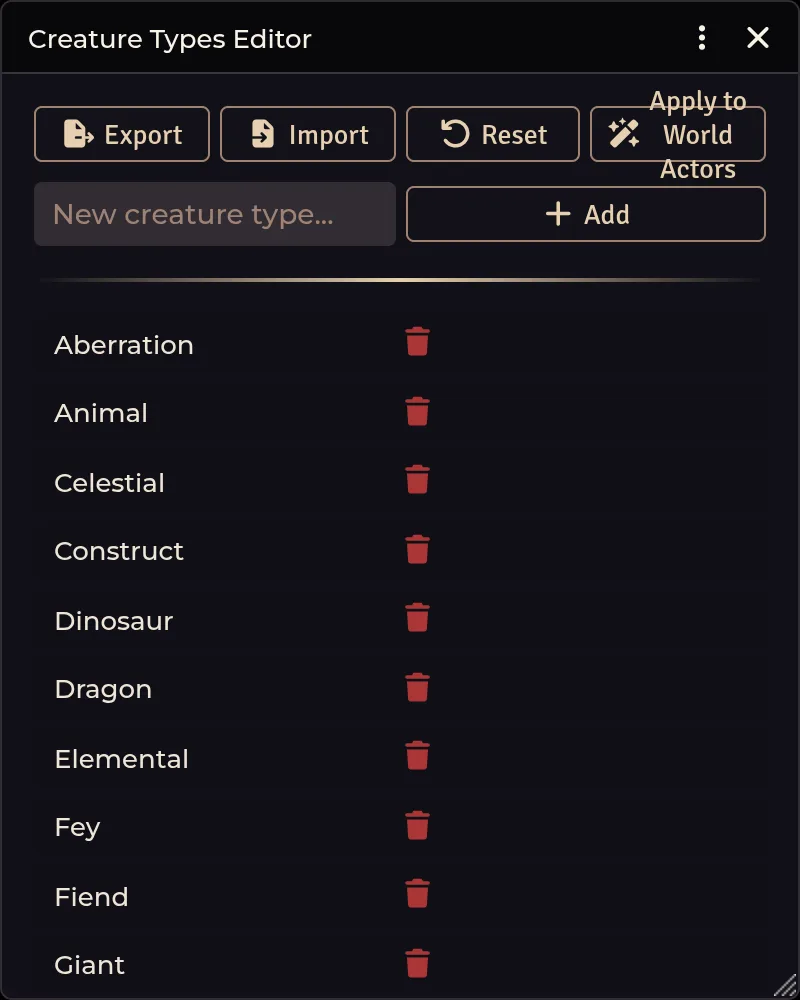
Editor for the creature-type mapping used by NPC sheets (displayed type name, mapping to system types).
- Add new type — text field + Add.
- Type list — each entry with a delete action; empty state when none exist.
- Header actions: Export Types, Import Types, Reset Defaults, Bake Types.
Configure Pin Styles · pinStyleEditorMenu · PinStyleEditorApp
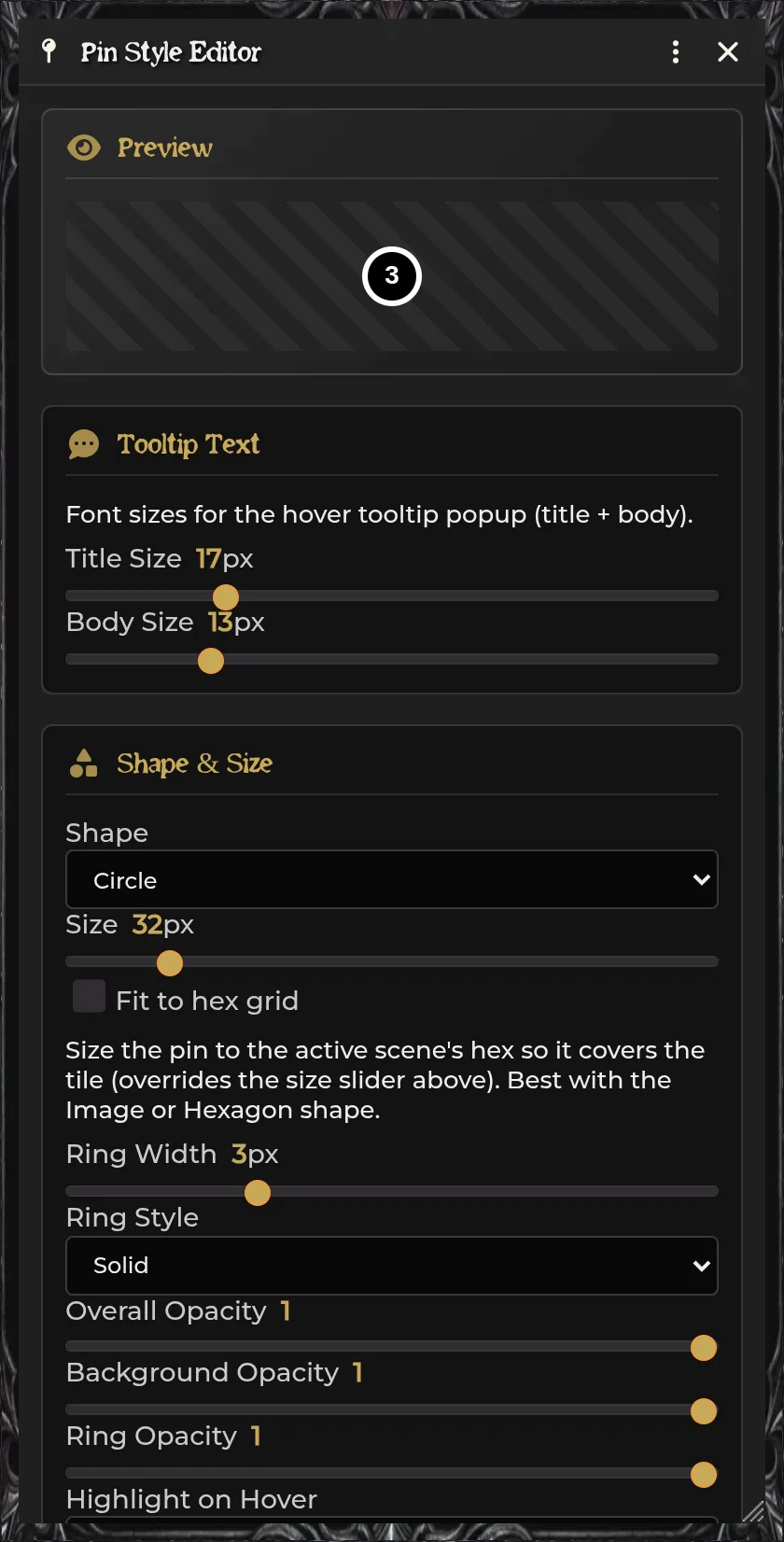
World defaults for journal pins; also opens for a single selected pin. Live preview at the top.
- Journal Page — Select Journal, Select Page.
- Visibility — Pin Name (Auto / Journal / Tooltip / Label; falls back to other sources when the chosen one is empty), Requires Vision, Show Above Fog.
- Custom Tooltip — Tooltip Title, Tooltip Content, Hide Hover Tooltip.
- Tooltip Text — Title Size px, Body Size px.
- Shape & Size — Shape, Border Radius px, Size px, Fit to hex grid.
- Colors — Selected Image, Image Tint (white = none), Ring Width/Style/Opacity/Color, Overall Opacity, Background Opacity, Fill Color.
- Content — Content Type (Number / Symbol / Custom Icon / Text / None), Custom Text, Symbol Type and Color, Selected Icon, Icon Color, Font Family/Size/Color, Text Outline, Bold.
- Label — Label Text, Show only on hover, Label Position (Top / Bottom / Left / Right / Center), Offset px, Font Family/Size/Color, Text Outline, Bold.
- Advanced Border Settings — Background (None / Solid Color / Image Border), BG color/opacity for the solid variant, Custom Border Path, Slice Top/Right/Bottom/Left for the image-border variant, and the solid variant's BG color, border color, opacity, border width, corner radius.
- Filters and Effects — Apply Preset (TMFX filter presets), Highlight on Hover (None / Scale / Pulse / Shake / Brightness / Color Cycle), Ping Animation (Ripple / Shake / Flash / None), Bring Animation (Ripple / Shake / Flash / None).
Configure Coordinates · sdxCoordsMenu · SDXCoordsSettingsApp
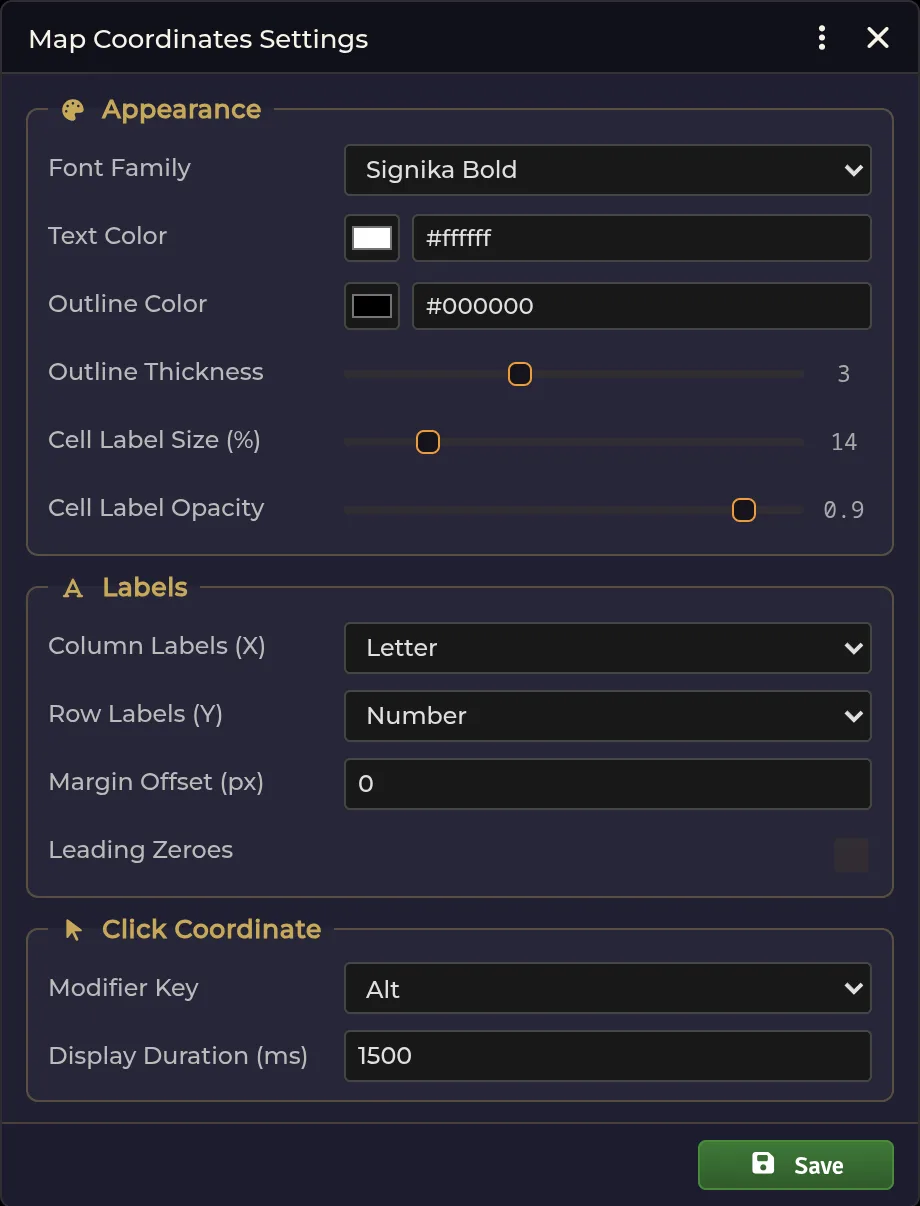
Coordinate overlay for hex maps, stored in sdxCoordsSettings.
- Appearance — Font Family (dynamic list), Text Color, Outline Color, Outline Thickness, Cell Label Size (%), Cell Label Opacity.
- Labels — Column Labels (X) and Row Labels (Y) (dynamic coordinate lists), Margin Offset px, Leading Zeroes.
- Click Coordinate — Modifier Key (dynamic list), Display Duration ms.
Settings that sit directly in Configure Settings, grouped by the category headers the module injects.
-
Allow Players to Paint Dungeons (
allowPlayerDungeonPainting) — shows the player Dungeons tab; a GM must be online to commit. -
Enable Chat Narration Cards (
enableJournalNarration). -
Mysterious Casting Message (
mysteriousCastingMessage) — public replacement text while an NPC's Mysterious Mode is active.
| Setting | Scope | Default | Reload | What it does |
|---|---|---|---|---|
| Enable Fog Effects | World | off | no | Shader effects for hex fog (right-click the Hex Fog button to pick one); disable to save performance |
| Enable Focus Spell Tracker | World | on | yes | Tracks focus spells and removes linked effects when focus ends |
| Auto-Roll Focus on Turn | World | off | no | Rolls active focus checks at the caster's turn start instead of posting a reminder |
| Enhance Spells | World | on | yes | Adds damage/heal configuration to spell items for automatic application |
| Enable Wand Uses Tracking | World | on | yes | Enables SDX wand-use tracking |
| Show Medkit Icon | World | on | no | Shows the Medkit button on actor sheet headers |
| Setting | Scope | Default | Reload | What it does |
|---|---|---|---|---|
| Enable Enhanced Header | World | on | yes | Replaces the player header with HP, AC, abilities, Luck, XP, and level |
| Match NPC Sheet Theme to Player Sheets | World | on | no | Applies SDX frame/header/panel styling without replacing NPC layout |
| Enable Default Header Background | World | off | no | Uses one image/video when a sheet has no per-actor background |
| Default Header Background Image | World | blank | no | Image/video path for the previous option |
| Enable Journal Notes | World | on | yes | Replaces simple character notes with the multi-page editor |
| Enable Notes on placeables and Notes tab in tray | World | on | yes | Adds notes to Token/Tile/Wall/Light/Sound configuration and the tray |
| Enable Add Coins Button | World | on | yes | Quick coin adjustment without dialogs |
| Conditions theme | World | Shadowdark | no | Shadowdark, 5e, Parchment, Stone, Leather, Iron, Moss, or Blood |
| Setting | Scope | Default | Reload | What it does |
|---|---|---|---|---|
| Enable Container System | World | on | yes | Lets owned items store contents and coins |
| Allow Nested Containers | World | on | no | Allows containers inside containers |
| Enable Trading System | World | on | yes | Adds transfer/trade actions for players |
| Enable Multi-Select & Bulk Delete | World | on | yes | Shift/Ctrl selection and bulk deletion |
| Setting | Scope | Default | Reload | What it does |
|---|---|---|---|---|
| Enable Carousing Tab | World | on | yes | Adds the Carousing tab to player character sheets |
| Carousing Mode | World | Original | no | Original or Expanded rules/data |
| Show Benefits to Players | World | on | no | Benefit-description visibility |
| Show Mishaps to Players | World | on | no | Mishap-description visibility |
| Carousing Wealth Base | World | coins only | no | Percentage losses from coins only, or coins plus valued gear |
| Setting | Scope | Default | Reload | What it does |
|---|---|---|---|---|
| Enable NPC Inventory Tab | World | on | yes | Items, coins, and slot totals on NPC sheets |
| Enable NPC Creature Type | World | on | no | Adds the creature-type selector |
| Setting | Scope | Default | Reload | What it does |
|---|---|---|---|---|
| Enable Torch Animations | World | on | yes | Configured token flames for active lights |
| Enable Weapon Animations | World | on | yes | Equipped weapon/sprites on tokens |
| Enable Level Up Token Animation | World | on | yes | Ready-to-level effect on tokens |
| Enable Pixel perfect on Pins | World | off | no | Uses image alpha for exact pin hit testing |
| Pin Pixel Perfect Alpha Threshold | World | 100 | no | Alpha cutoff, 0–255 |
| Easy Reference: Show NPC Cards | World | on | no | NPC-card insert in the ProseMirror dropdown |
| Easy Reference: Show Item Cards | World | on | no | Item-card insert |
| Easy Reference: Show Tables | World | on | no | RollTable insert |
| Easy Reference: Show Ability Checks | World | on | no | Ability check/request insert |
| Easy Reference: Show Dice Rolls | World | on | no | Dice roll insert |
| Setting | Scope | Default | Reload | What it does |
|---|---|---|---|---|
| Enable Token Toolbar | World | off | yes | Selected-token HUD |
| Token Toolbar Visibility | World | Both | no | Both, GM only, or players only |
| Combat Only | World | off | no | Hides it outside combat |
| Show Active Effects | World | on | no | Effect icons on the toolbar |
| Show Equipped Items | World | on | no | Equipped item icons on the toolbar |
| Use SDX Tray | Client | on | yes | Shows the left-side tray |
| Show Party Tab | Client | on | no | Party tab visibility for this client |
| Party Name | World | Party |
no | Heading used by the tray |
| Show Health Bars | Client | on | no | HP bars in the tray |
| Show NPCs (GM Only) | Client | on | no | NPC tokens in the GM's tray |
| Setting | Scope | Default | Reload | What it does |
|---|---|---|---|---|
| Hex Fog: Default Reveal Radius | World | 1 | no | Rings revealed around a moving token, 0–5 |
| Settlement Maps: Use Local Maphub | World | off | no | Bundled/local generator assets instead of an external visual source |
| Setting | Scope | Default | What it does |
|---|---|---|---|
| Allow Player Drawing | World | on | Grants players SDX drawing tools |
| Timed Erase Timeout | World | 30 seconds | Fade delay, 5–120 seconds |
| Enable Drawing Hotkey | Client | on | Hold-to-draw keybinding |
| Block Drawing While Typing | Client | on | Keeps the hotkey from activating in an editor/input |
| Dark Mode | Client | on | Applies the client's dark theme |
The default hold-to-draw key is L. Drawing mode, stamp, size, width, line
style, color, opacity, timed-erase state, and toolbar position are saved per
client by the toolbar itself (drawing.toolbar.*), not from Configure
Settings.
Hidden data settings
These are config: false — they store panel data and migration state and
never appear in Configure Settings:
-
Panel data —
combatSettings,effectsSettings,hpWavesSettings,inventoryStyles,travelActivities,travelSpeeds,partyWeatherTableUuid,expandedCarousingData,customLightTemplates,customDecorAssets,decorDungeondraftPacks,customBiomes,disabledBiomes,customCreatureTypes,pinStyleDefaults,sdxCoordsSettings -
Sheet editor style vars — ~40 keys:
sheetBorderStyle,borderWidth,borderImage*,sdBoxBorder*,journalBorder*,conditionModalBorder*,abilityPanelStyle,acPanelStyle,statPanelStyle, the text/background color fields,enableEnhancedDetails, and the rest of the Sheet Style Editor outputs -
Animation FX —
animationFxEnabled,animationFxTriggerOn,animationFxConfig,animationFxAmbient,animationFxCategory_*,animationFxClientScale,animationFxSoundEnabled,animationFxVolume,animationFxSeeded -
Hex and toolbar —
hexPainter.customTileWidth,hexPainter.customTileHeight,hexPainter.poiScale,drawing.toolbar.*(8 keys) -
Other —
sheetLockConfig,tom-dataVersion,tom-scenes,tom-folders,marchingModeLeader,marchingModeEnabled,currentFormation,mlSliders,contentRegistry,pinFoldersWorld,itemacroMigrationDone,webpMigrationDone,webpPackSweepDone,disabledFeatures(Feature Manager state — world, hidden, reload required)
Hex tile dimensions, POI scale, dungeon level sliders, marching state, formation state, the content registry, and pin folders are all internal, UI-managed settings.
World settings still answer to the relevant document permissions at the moment of use. Client settings are why two users in the same world can be looking at different themes and different tray contents.
Reload-required settings attach or remove hooks and templates at startup, so
reload after touching one. Hidden settings belong to their owning UI;
game.settings.set is the wrong way in unless you're developing an
integration.
The "SDX Rolls" category header is dead code: its anchor key
(shadowdark-extras.SDXROLLSRecapMessage) is never registered, so that header
never renders.
Related: Installation & Setup · Troubleshooting