Tray and Party Tools
The SDX Tray is the module's permanent control surface. It sits on the left edge of the canvas and combines a scene and party browser with launch buttons for most of the map and session tools.
If a tab or tool is missing: it may be turned off in Feature Manager — Configure Settings → Shadowdark Extras → Feature Manager (Configure Features, GM only, reload required). Tabs live under SDX Tray Tabs, tools under SDX Tray Tools; Decor needs Hexes enabled first.
The chevron on the tray handle expands and collapses it. Next to that, the view button cycles the primary token/party view.
Which tabs you get depends on your role, your settings, the scene's grid, and what features are switched on.
| Tab | Who sees it | Purpose |
|---|---|---|
| Token | Players | The selected or owned character, HP, and sheet shortcut |
| Scenes | GM | ToM scene/overlay cards, folders, editing, and broadcast |
| Party | Configurable | Player/NPC token cards, HP, selection, sheet access |
| Pins | GM | Search, organize, edit, ping, and reveal journal pins |
| Notes | Everyone with access | Notes attached to Tokens, Tiles, Walls, Lights, and Sounds |
| Hexes | GM | Format and paint hex maps, POIs, and procedural terrain |
| Dungeons | GM; opted-in players | Paint/generate dungeon floors, walls, doors, biomes, and decor |
| Decor | GM | Place and manage decorative assets |
The tray is client-scoped. One user can hide the tray or the Party tab entirely without touching anyone else's screen.
The narrow button rail changes with your role and the active tab.
| Tool | Purpose |
|---|---|
| Choose Party Leader | Select the token that drives Marching Mode |
| Marching Mode | Restrict movement to the leader/following workflow |
| Formation Spawner | Place selected tokens in a chosen formation |
| Add Pin / Pin List | Create and manage journal pins |
| Light Source Tracker | Inspect and control active light sources |
| Video Overlays | Manage ToM scene broadcasts when enabled |
| Carousing | Open the shared carousing overlay |
| Drawing Tools | Open the SDX sketch/symbol toolbar |
| Map Generators | Open the six-generator Maphub launcher |
| Coordinates | Toggle the scene coordinate overlay |
| Hex Tooltip / Hexplorer | Inspect keyed hex data on hex scenes |
| Hex Fog | Toggle exploration fog; right-click for effects/options |
| Solo Hex Mode | Run solo-oriented hex exploration controls |
| SDX Roller | Build a multi-participant dice check |
| POI transform controls | Undo/redo, resize, rotate, or mirror POIs while painting |
The map tools have their own page in Hexcrawls & Dungeons, and the general utilities live in Canvas & Table Tools.
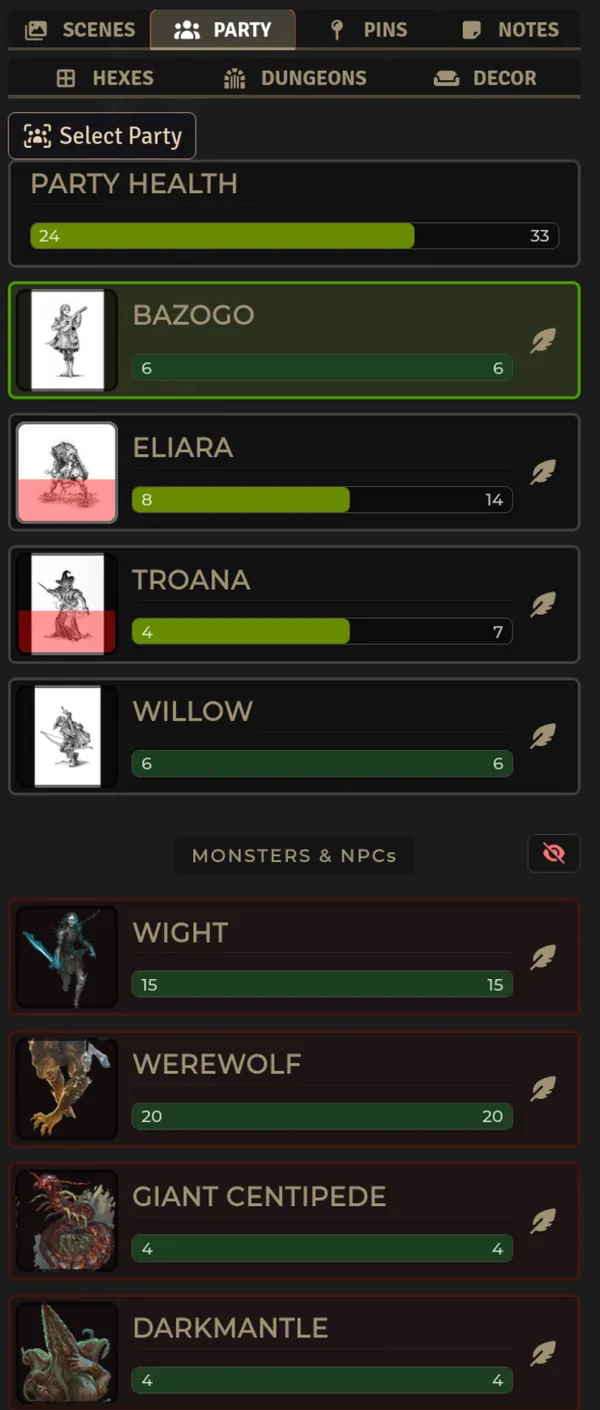
Party view is a live roster of eligible tokens on the current scene — now on its own page:
→ Party View — click/dblclick/feather, AC/luck chips, player-vs-GM monster visibility, hidden-token handling, and the world/client settings that drive it.
SDX also adds Party to the Create Actor type list. Internally it's a flagged NPC wearing a dedicated Party sheet, which keeps it compatible with the Shadowdark actor model while adding group behavior on top.
Create one from the Actors sidebar:
- Click Create Actor.
- Choose Party.
- Open the new Party sheet.
- Drag world Player actors into the Members tab.
To get back to Party Management later, open the Actors sidebar and double-click that Party actor. The tray's Party view shows the live scene roster instead.
Only world Player actors can become player members, so import compendium actors first. NPC entries carry spawn counts for encounter placement.
| Tab | What it does |
|---|---|
| Members | Roster, HP/AC/level/slots/abilities/effects, place tokens, award XP/coins, sync light |
| Inventory | Shared items and treasury, slot maximum, transfers, even coin division |
| Travel | Assign camping tasks, resolve a complete rest, roll weather, and choose a travel speed |
| Description | Shared party notes |
From the Members tab you can place all member tokens at once, or restrict that to players only or NPCs only. The same tab awards identical XP to every eligible member, hands coins to everyone, and syncs a placed Party token to the brightest active member light.
The Inventory tab holds shared items and treasury coins, sets the party's maximum inventory slots, transfers an item to a selected member, and divides treasury coins evenly among eligible player members. Whatever won't divide cleanly stays in the treasury.
The Party sheet's Travel tab handles travel speed, weather, camping tasks, and full rests. Three speeds ship by default: Slow, Normal, and Fast.
Assign a character with the task and ability dropdowns, or just drag their portrait onto a task. Players can only assign characters they own, and only Party members are accepted at all. A player's selection gets validated against character ownership and then handed to the active GM to write, which is why the Party actor itself never needs player ownership. That path wants an active GM and SocketLib. Several characters can work the same task, and the GM can set a separate DC per task. The default is 12.
Click a task header for an isolated task roll. That opens the cinematic SDX Roller for the assigned characters without touching camping supplies, rest recovery, or task rewards. The activity's configured banner image shows up in the roll overlay and the recap. Camping tasks launch from the Party sheet, which is where the assigned actors, abilities, DC, and rest context come from.
Task names, allowed abilities, descriptions, campfire requirements, and banner art are all editable through Configure Travel Activities. The speed list lives in Configure Travel Speeds.
The GM clicks Begin Rest on the Travel tab to run the whole procedure:
- Choose the participating campers, task and ability for each, and any task-specific choice.
- Light a campfire with three pooled unused torches, assign someone to gather Firewood, or go without a fire.
- Resolve each occupied task as one grouped SDX roll. Firewood goes first when the campfire needs it.
- Resolve the extra checks for an interrupted rest when you've selected that.
- Apply successful Hunt results before checking the party's food, then consume one ration per eligible camper.
- Optionally advance world time eight hours, apply rest recovery and task rewards, and post a single summary card.
Torch spending is deterministic. Unused torches in Party inventory go first, then camper inventories in the order the planner shows them. Torches already burning are left alone. Rations come out of each camper's own inventory first, then Party inventory, then another camper's pooled supply.
With no campfire, tasks marked with the flame icon roll at disadvantage during the complete procedure. A successful Firewood check gets the fire going before the remaining tasks resolve. When the rest finishes, the temporary Campfire item and the Party-token light are both cleaned up.
A successful full rest restores HP to maximum, refreshes lost spells, expended class abilities, and lost wand spells, and clears Unconscious. It costs a ration. On an interrupted rest, a camper also needs a successful interruption check unless their Bed Down task succeeded.
| Task | Automated result on success |
|---|---|
| Bed Down | Bypasses the camper's check when this rest is interrupted |
| Cook | Every participating camper who eats a ration gains +2 ordinary HP, capped at two above maximum |
| Craft | Creates one torch or 2d4 chosen ammunition, or repairs selected broken mundane gear |
| Entertain | Grants Luck to the selected other camper |
| Firewood | Establishes the campfire without spending torches |
| Hunt | Adds 1d4 rations; unavailable after pushing during that day's travel |
| Keep Watch | Records the chosen protected half and reports that the party cannot be surprised; the GM enforces surprise during encounters |
| Predict | Banks a prompt to reroll the next Party weather result after it is revealed |
The Weather button draws the Party's configured RollTable. Pick that table
with the adjacent gear button (GM only) or through Configure Weather Table
in module settings, which will accept any available world or compendium
RollTable. Leave it unset, or point it at a table that has gone missing, and SDX
falls back to its built-in Shadowdark 1d6 weather check.
The selector only chooses a table. Edit the entries themselves through Foundry's normal RollTable sheet. Read-only compendium tables need to be imported or copied into the world first, and then you edit and select the world copy. When a Predict task succeeded earlier, its reroll is offered the moment the next weather result appears.
Player-triggered Predict consumption goes through the same validation, written by the active GM.
Marching Mode is GM-controlled and synchronized across the world:
- Use the crown tool to choose the party leader.
- Enable the walking-person tool.
- Move the leader to drive the marching workflow.
- Turn the mode off for free movement.
The leader's owner keeps permission to move the leader. Everyone else is restricted while marching. Change the ownership or the order and you should reselect the leader, so every client lands on one unambiguous state.
Select the tokens you want placed, open Formation Spawner, pick a formation and grid size, then drop it on the canvas. The current formation is stored as world state, which keeps the GM's placement authoritative.
Good for marching order, doorway stacks, ranks, rings, or setting up an encounter. It moves token positions. Initiative and party membership stay exactly where they were.
The flame tool opens SDX's light-source tracker, falling back to the Shadowdark system tracker when it needs to. Party actors are handled too: you can inspect active member lights, the Party sheet can sync its Party token to the brightest member source, and updating a member's light item resyncs the relevant Party tokens.
Torch visuals are a separate system from light emission. See Animation FX.
Tray is missing. Enable the client setting Enable SDX Tray and reload.
Party option is not in Create Actor. Reload the world. The type gets injected during module initialization.
A character cannot be dropped into a Party. Import compendium actors into the world first, and use a Player actor.
An NPC is visible to players in the tray. Use the eye control in the NPC section to hide it. A GM's own Show NPCs client setting only decides whether NPCs appear in the GM's tray.
Marching Mode blocks an unexpected player. Re-select the crown leader and toggle Marching Mode once every client has loaded the current module version.
Player dungeon painting that never commits is missing one of two conditions. The world setting has to be enabled, and an active GM has to be connected.
Related: Canvas & Table Tools · Hexcrawls & Dungeons · Character Sheets