Repository navigation
Guide Maintain Your Site
The housekeeping that keeps a Proclaim site healthy: backups, database checks, archiving old content, and reading your visitor numbers.
Components → Proclaim → Administration
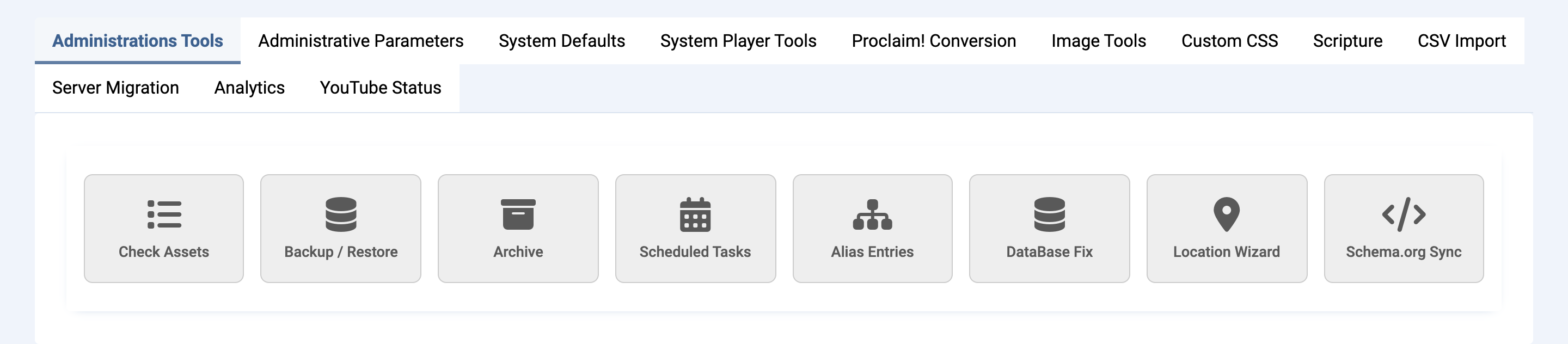
Proclaim's backup covers its own data — messages, teachers, series, media records, templates and your Custom CSS.
- Administration → Backup & Restore.
- Run a backup and download the file somewhere off the server.
Important
This backs up Proclaim's records, not your media files themselves. Audio and video sitting on your own server need backing up separately.
Take one before every update, every large import, and every upgrade.
Full detail: Help-cwmbackup
- Administration → Database.
- Run the table check.
- If it reports problems, run the fix.
Worth doing after every Proclaim update, and any time something behaves oddly.
Archiving takes old messages out of everyday lists without deleting them.
- Administration, then the archive tool.
- Choose what to archive by date or other criteria.
Archived messages stay in the database and can be brought back.
Full detail: Help-cwmarchive
Older Proclaim versions kept a permissions record for every message. Current versions do not need them.
- Administration → Check Assets.
- If Needs Cleanup, Parent Drifted or Orphans are above zero, run Clean Up.
Full detail: Help-cwmassets
The Analytics tab shows views, media plays, downloads and podcast downloads over time.
- Visitors can opt out of tracking, and the dashboard respects that.
- Reports can be printed.
- Podcast download counts appear here when Track Downloads is on.
| When | Do this |
|---|---|
| Before any update | Back up |
| After any update | Database check |
| After a big import | Database check, then spot-check the front end |
| Once a year | Archive old messages, run Check Assets |
| Whenever something is odd | Database check first — it is quick and rules a lot out |
- A backup you have never restored is a guess. Try restoring one to a test site once.
- Check Assets and the database check never delete your content; they are safe to run when unsure.
- If you use YouTube, glance at YouTube Status occasionally — a hit quota stops syncing silently.
| What you see | What to check |
|---|---|
| Database check reports errors | Run the fix, then check again. If it persists, see Troubleshooting-FAQ |
| Backup file will not download | Usually PHP time or memory limits — try again at a quiet time |
| Analytics show nothing | Tracking may be off in Options, or everyone has opted out |
| YouTube data stopped updating | API quota — check YouTube Status |
- Help-admin — every Administration tab
- Help-cwmbackup — backup and restore
- Help-cwmarchive — archiving
- Help-cwmassets — permissions data
- Troubleshooting-FAQ — common problems